
Create new order limit
The Samita Order Limit app lets you control how much customers can order by setting limits based on quantity, total amount, or weight. You can apply these limits to specific customers, products, or your entire store.
Follow the steps below to create a new rule:
Step-by-Step Instructions
Section titled “Step-by-Step Instructions”Step 1: Create a new order limit rule
Section titled “Step 1: Create a new order limit rule”- From your Shopify admin, open the Samita Order Limit app.
- On the dashboard, click the Create new order limit rule button.
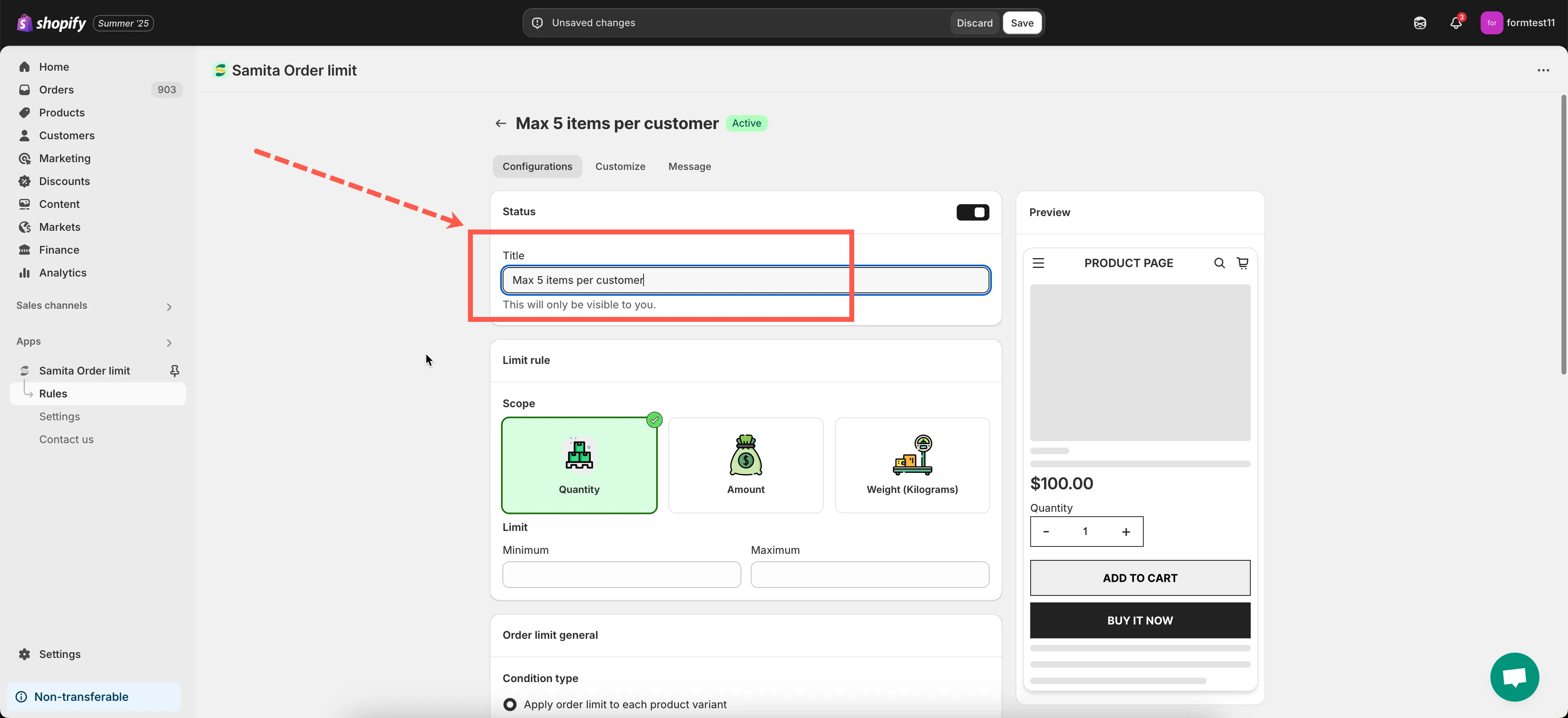
- In the Title field, give your rule a clear name (e.g., “Max 5 items per customer” or “Wholesale minimum order $100”).
Step 2: Decide how the order limit will be applied on your cart page
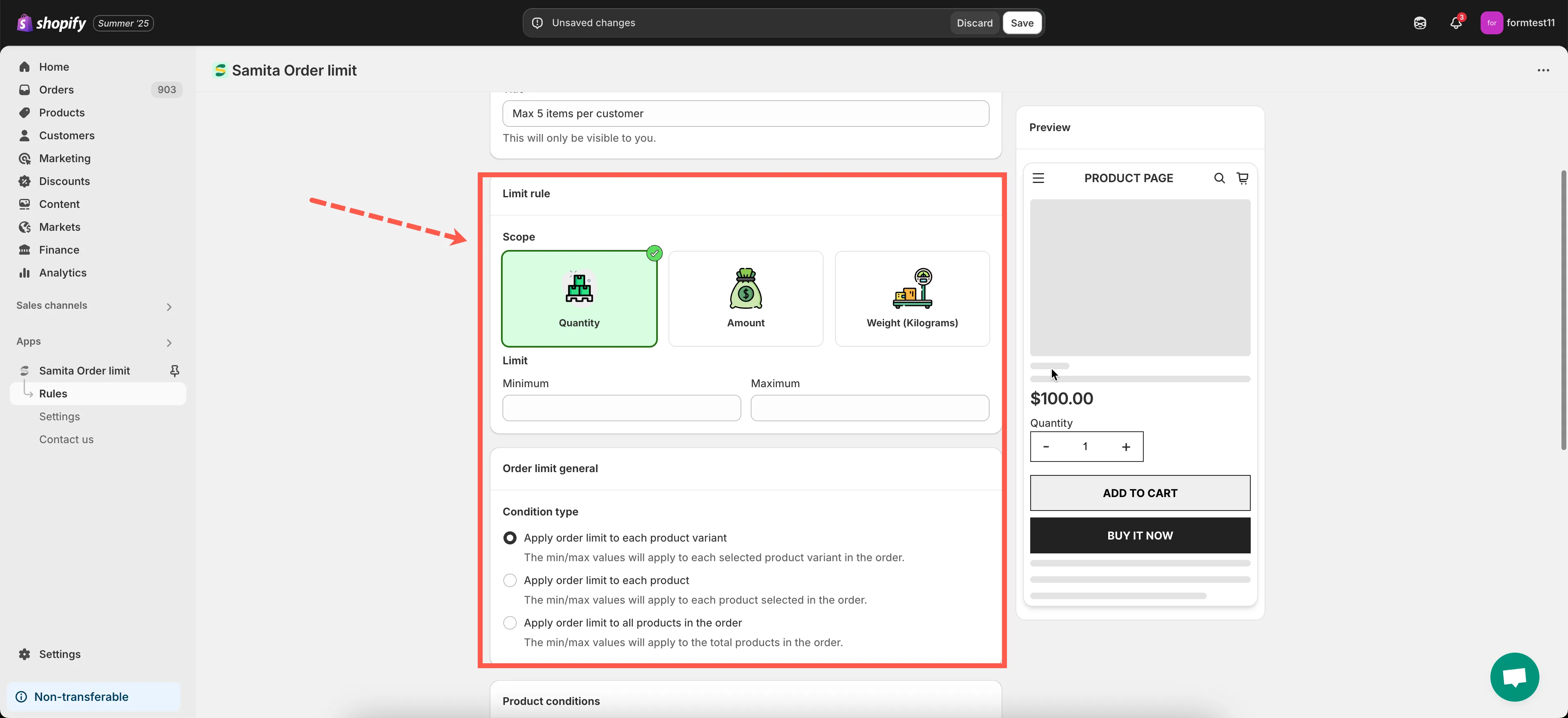
Section titled “Step 2: Decide how the order limit will be applied on your cart page”- Choose the Rule Type
- Quantity: Limit the number of items per order
- Order Amount: Limit based on total price (before discount/shipping)
- Weight: Limit based on total weight of the order
- Set the Minimum and/or Maximum Value
Enter the limit value depending on your rule type (e.g., minimum 3 items, maximum $200). You can leave one blank if you only want to set a minimum or maximum. - Choose whether applying to each variant/each product/all products in the cart page.
Step 3: Set the target scope
Section titled “Step 3: Set the target scope”Use these settings to control where and to whom the rule applies:
- Limit orders based on Customers condition
- Apply the limit order rule to Product(s)
Step 4: Adjust error message
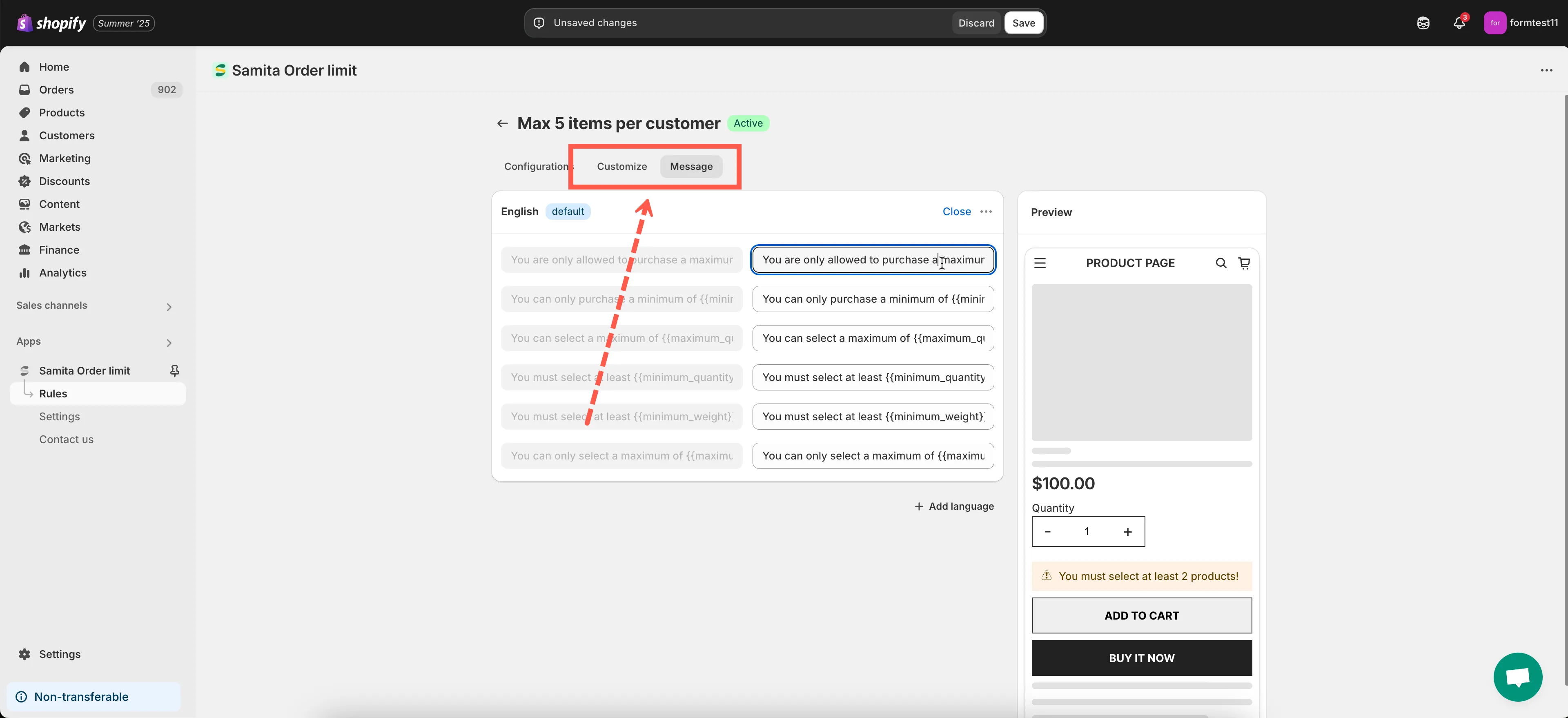
Section titled “Step 4: Adjust error message”This message will display when a customer tries to place an order that doesn’t meet the rule.
Example:
- “You must order at least $50 to check out.”
- “You can only purchase up to 10 units of this product.”
- Scroll to Message tab to change the error message content
- Scroll to Customize tab to adjust the error message styling
Step 5: Save your changes
Section titled “Step 5: Save your changes”🎉 Your order limit rule is now active!
✅ Important: Enable the App Embed
Section titled “✅ Important: Enable the App Embed”Make sure the app is enabled in your theme to apply rules on the storefront. See the Theme Integration guide for instructions.
🧪 Test Your Rule
Section titled “🧪 Test Your Rule”Try placing an order on your storefront that matches and exceeds the rule conditions to confirm that it’s working correctly.
Need help? Contact us anytime at support@samita.io. We’re happy to assist!