
Set customer conditions
Samita Order Limit allows you to control who a rule applies to by using customer conditions. This means you can apply different order limit rules to wholesale customers, logged-in users, guest users, or any custom customer segment defined by tags.
Use this guide to set up the customer-based targeting for your order limit rules.
🎯 Why Use Customer Conditions?
Section titled “🎯 Why Use Customer Conditions?”Customer conditions help you create personalized or restricted shopping experiences. For example:
- Apply minimum order amounts only for wholesale customers
- Prevent guest users from bulk ordering certain products
- Offer more flexible limits for logged-in or VIP customers
👣 How to Set Customer Conditions
Section titled “👣 How to Set Customer Conditions”When creating or editing a rule:
- Open the Samita Order Limit app in your Shopify admin
- Click on an existing rule or click Create new order limit rule button
- Scroll to the Customer conditions section
- Under Customers, choose your targeting criteria:
1. All Customers (Default)
Section titled “1. All Customers (Default)”- Simply select All customer options to apply the rule to all customers in your store.
2. Based on Customer Tags
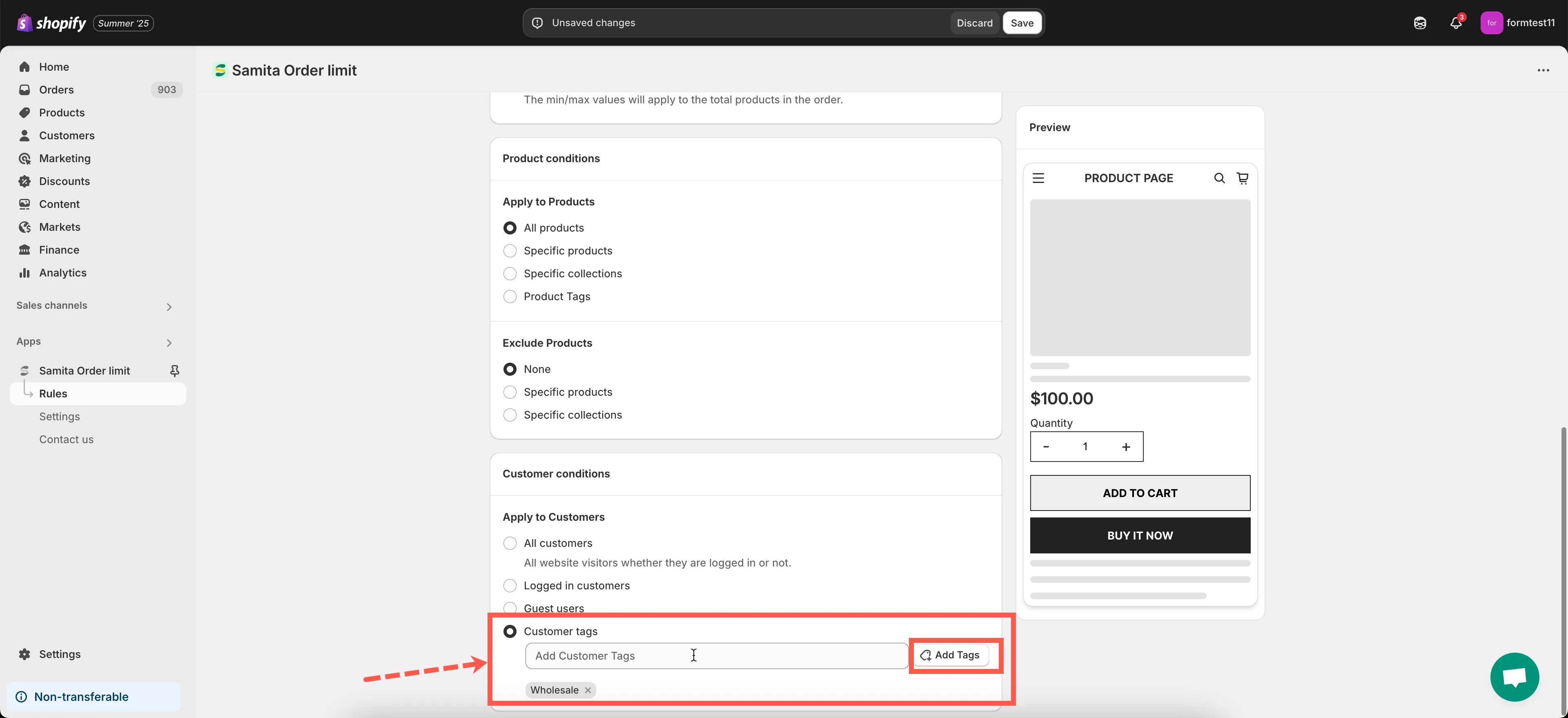
Section titled “2. Based on Customer Tags”- In the “Customer tags” field, enter one or more tags that match your target group
- Only customers with these tags will be affected by the rule
📝 Example:
To apply a rule only to wholesale customers, enter Wholesale as the tag.
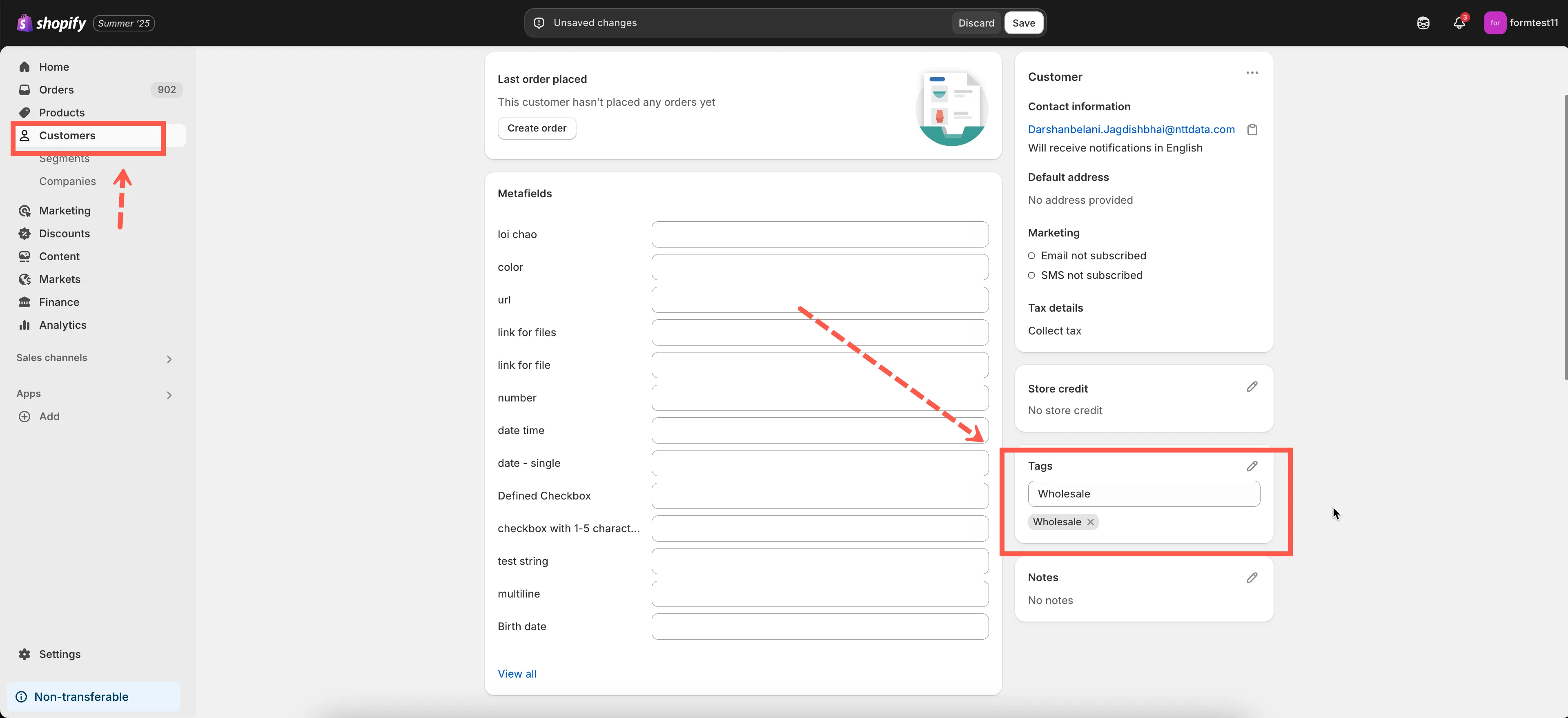
💡 Tip: Customer tags can be added in Shopify admin under Customers > [Select customer] > Add tags
2. Logged-in vs Guest Users
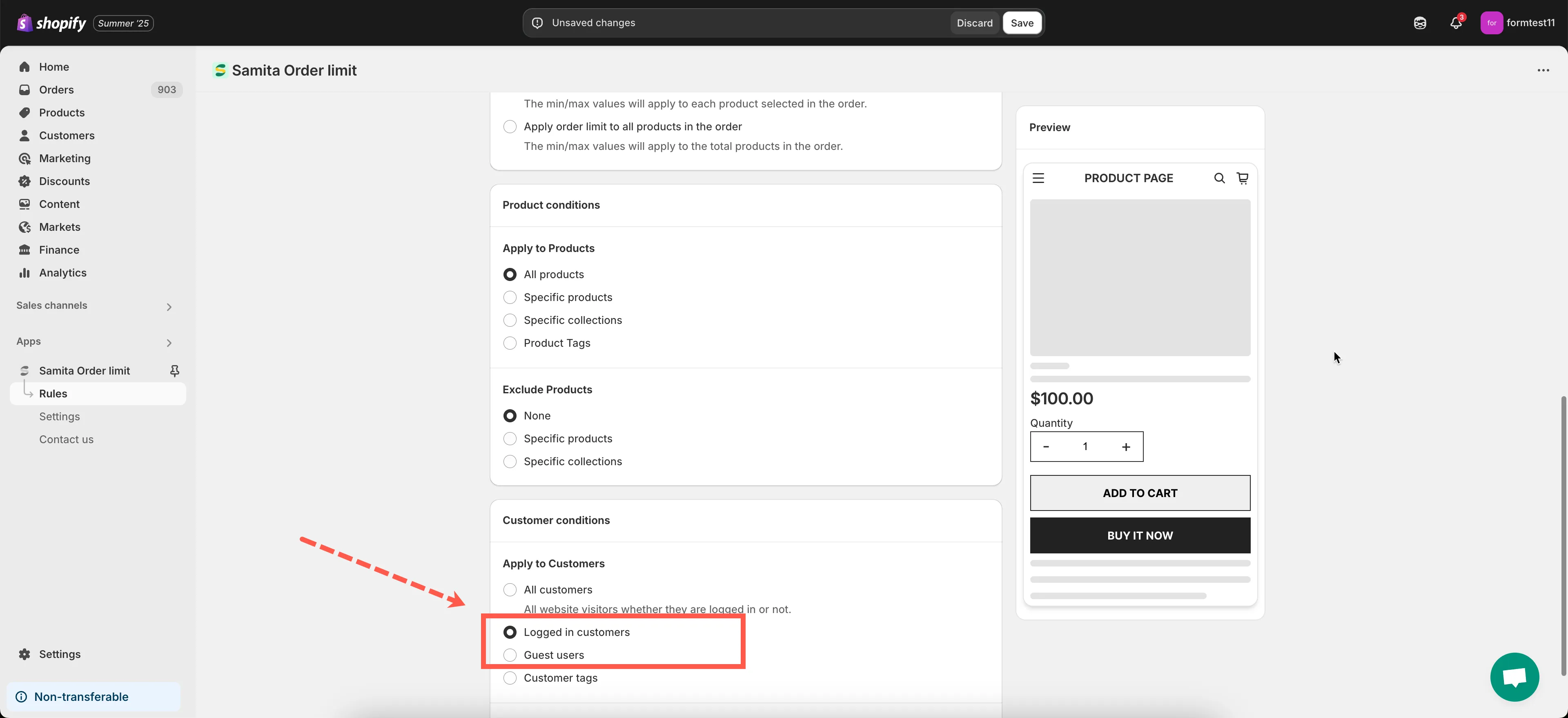
Section titled “2. Logged-in vs Guest Users”- Toggle the “Apply to Customers” option to select:
- Logged-in customers only
- Guest Users only
This is useful if you want to restrict access or apply different rules depending on whether the customer has logged into their account.
📝 Example:
Limit orders to 1 item only for guest users, while allowing logged-in users to purchase more.
🔎 Testing Customer-Based Rules
Section titled “🔎 Testing Customer-Based Rules”To verify the rule works:
- Use a test customer account with the correct tag or login status
- Try placing an order that meets and breaks the rule
- Confirm that the app properly blocks or allows the checkout
Need help with customer segments or setup? Contact our support team at support@samita.io. We’re here to assist!