
Access rules
Order quantity
Match customers whose total order count meets a minimum — good for loyalty and repeat-buyer perks.
Order quantity matches a customer based on how many orders they’ve placed with your store in total, rather than what they bought. It’s a good fit for loyalty or repeat-buyer perks — for example, unlocking a discount code or an exclusive product only for customers who’ve ordered from you a certain number of times before.
Like most access rules (aside from the action-based ones such as Passcode, Secret link, Subscribe, and Confirmation prompt), Order quantity can be set to match If the customer meets the order-count threshold, or Unless they don’t — inverting it to match customers below the threshold instead. See Combining rules.
Add the rule
Section titled “Add the rule”- Open Locks and create a new lock, or open an existing one to edit it.
- Choose the content you want to protect. See Access rules overview for how rules fit into a lock.
- Click the Unlock rules tab, then in the Condition type dropdown, select Order quantity.
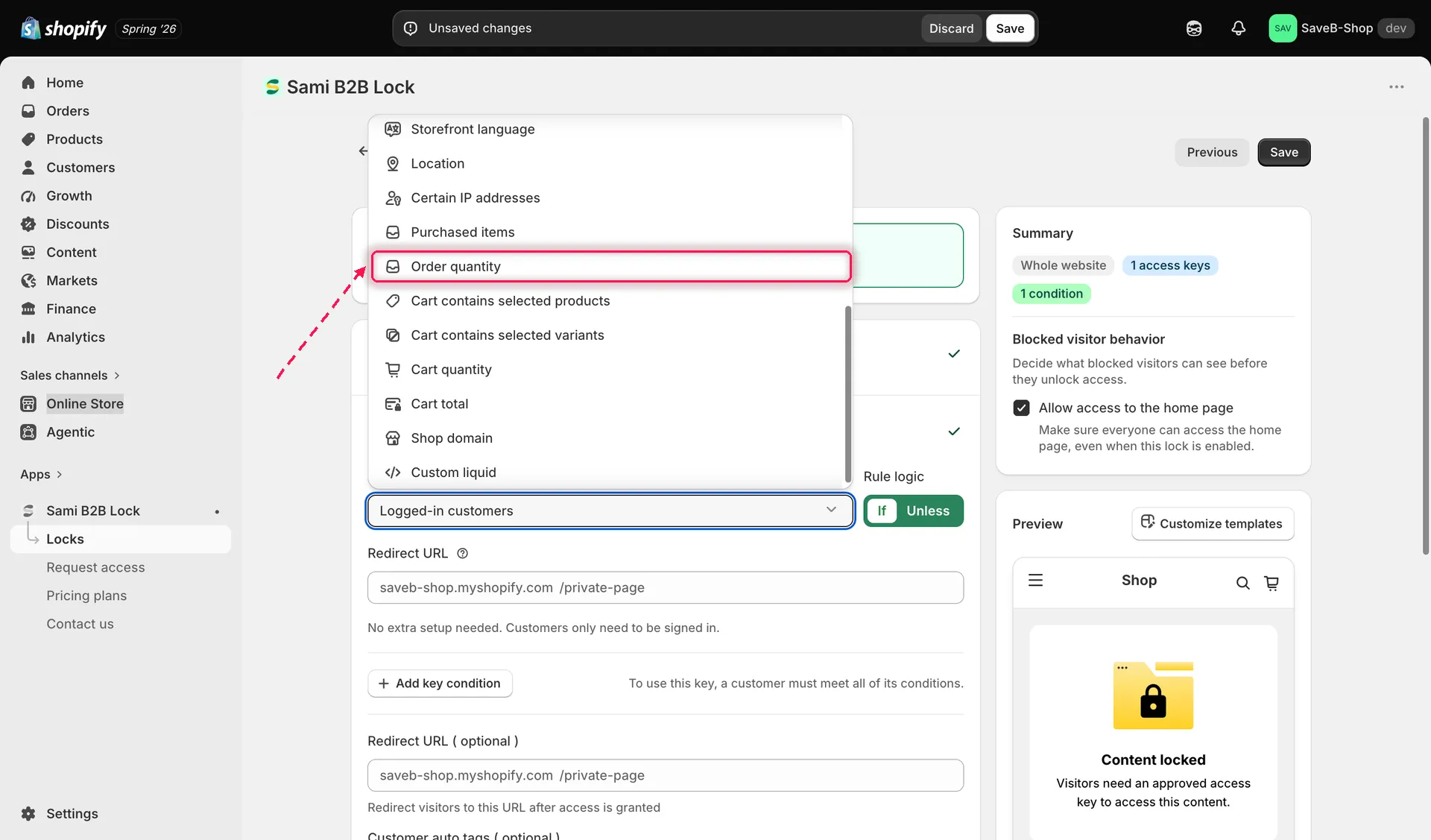
Select Order quantity from the Condition type dropdown on the Unlock rules tab.
- Set the Order threshold — the minimum number of orders the customer must have placed for the rule to match. The default is 1 order.
- Ignore cancelled orders is on by default, so cancelled orders don’t count. Untick it if you want them included.
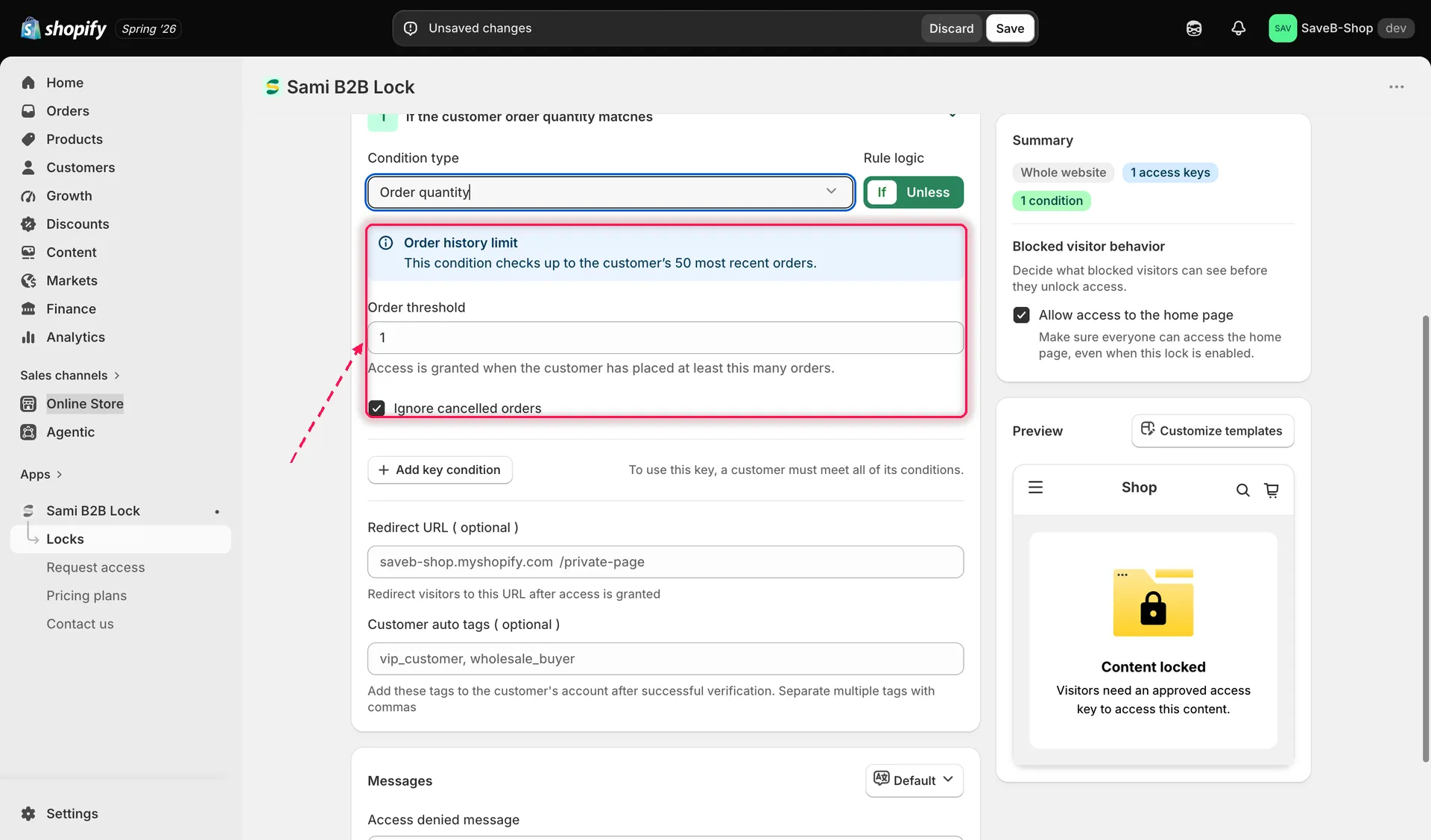
Set the minimum number of orders a customer must have placed, and choose whether cancelled orders count.
- Choose If or Unless.
- Click Save.
Example: Unlock rewards after three orders
Section titled “Example: Unlock rewards after three orders”Suppose customers should be able to open a rewards page after placing at least three non-cancelled orders.
- Select the Repeat-customer rewards page as the content to protect.
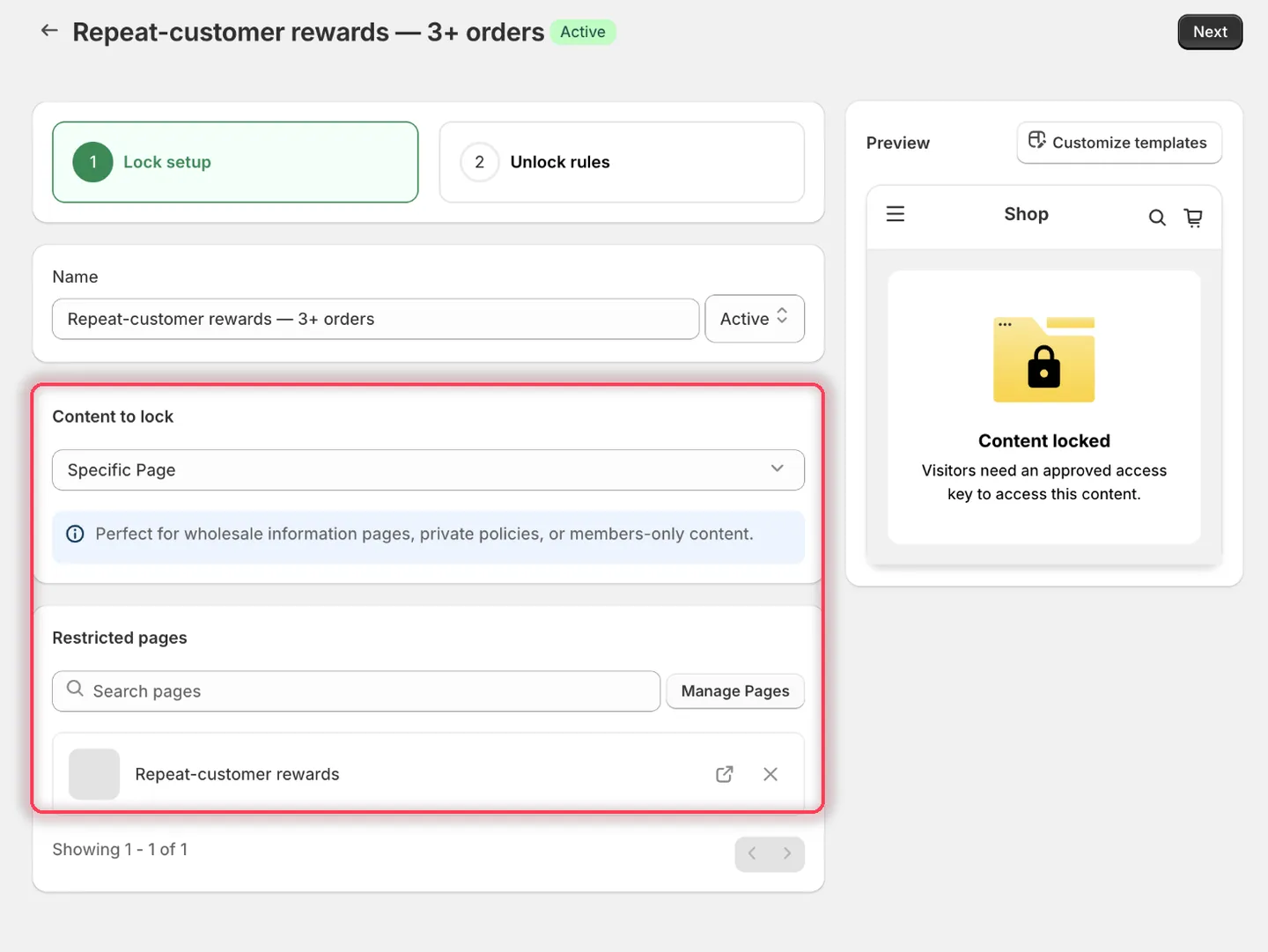
Pick the page that repeat buyers should unlock.
- On the Unlock rules tab, set Condition type to Order quantity and leave Rule logic on If.
- Set Order threshold to 3. Leave Ignore cancelled orders ticked — it’s on by default.
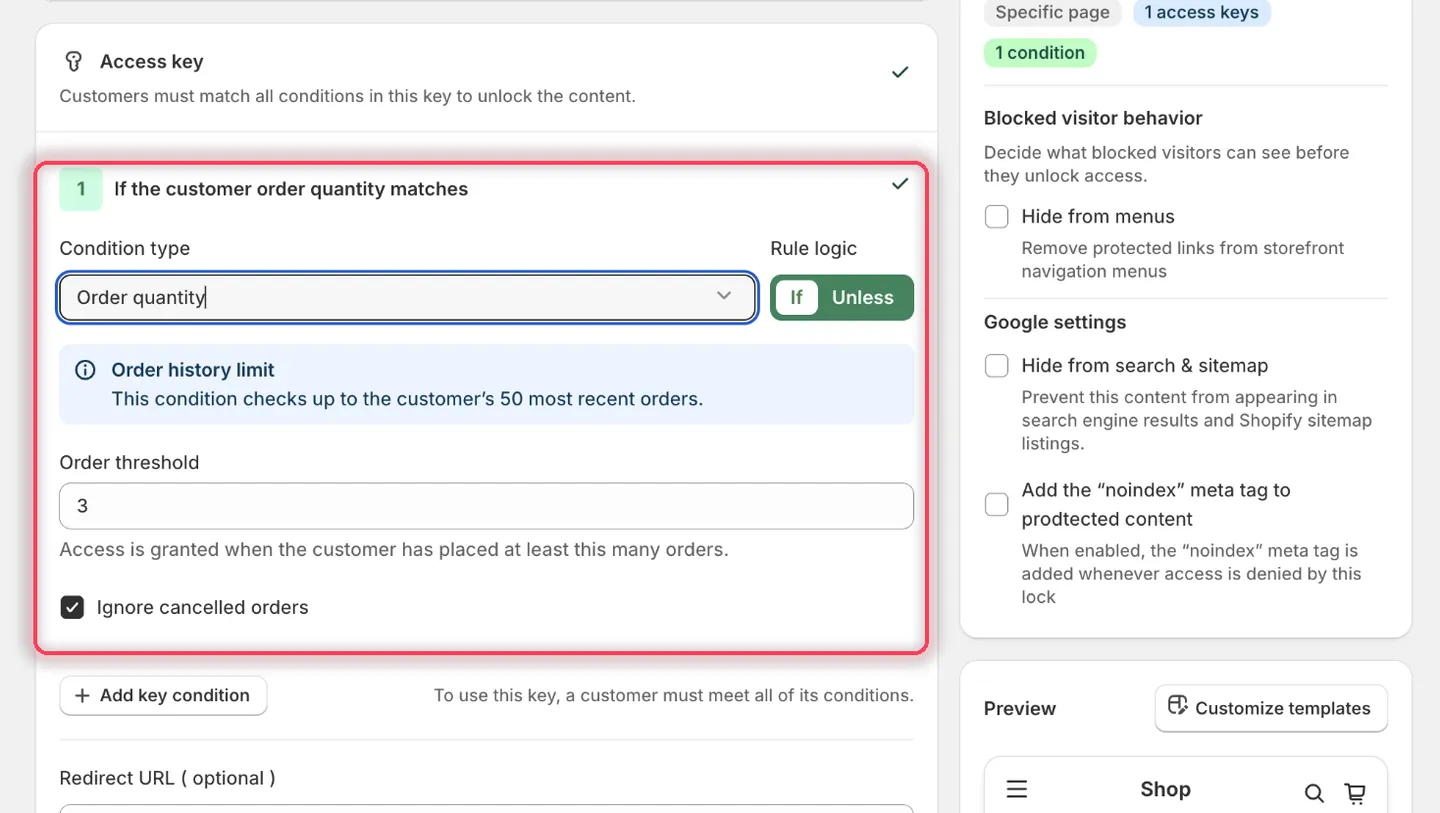
The condition heading reads: If the customer order quantity matches.
- Leave the rule’s Redirect URL empty.
- In Messages, set the Access denied message to:
Sign in with an account that has placed at least 3 orders to unlock these rewards.
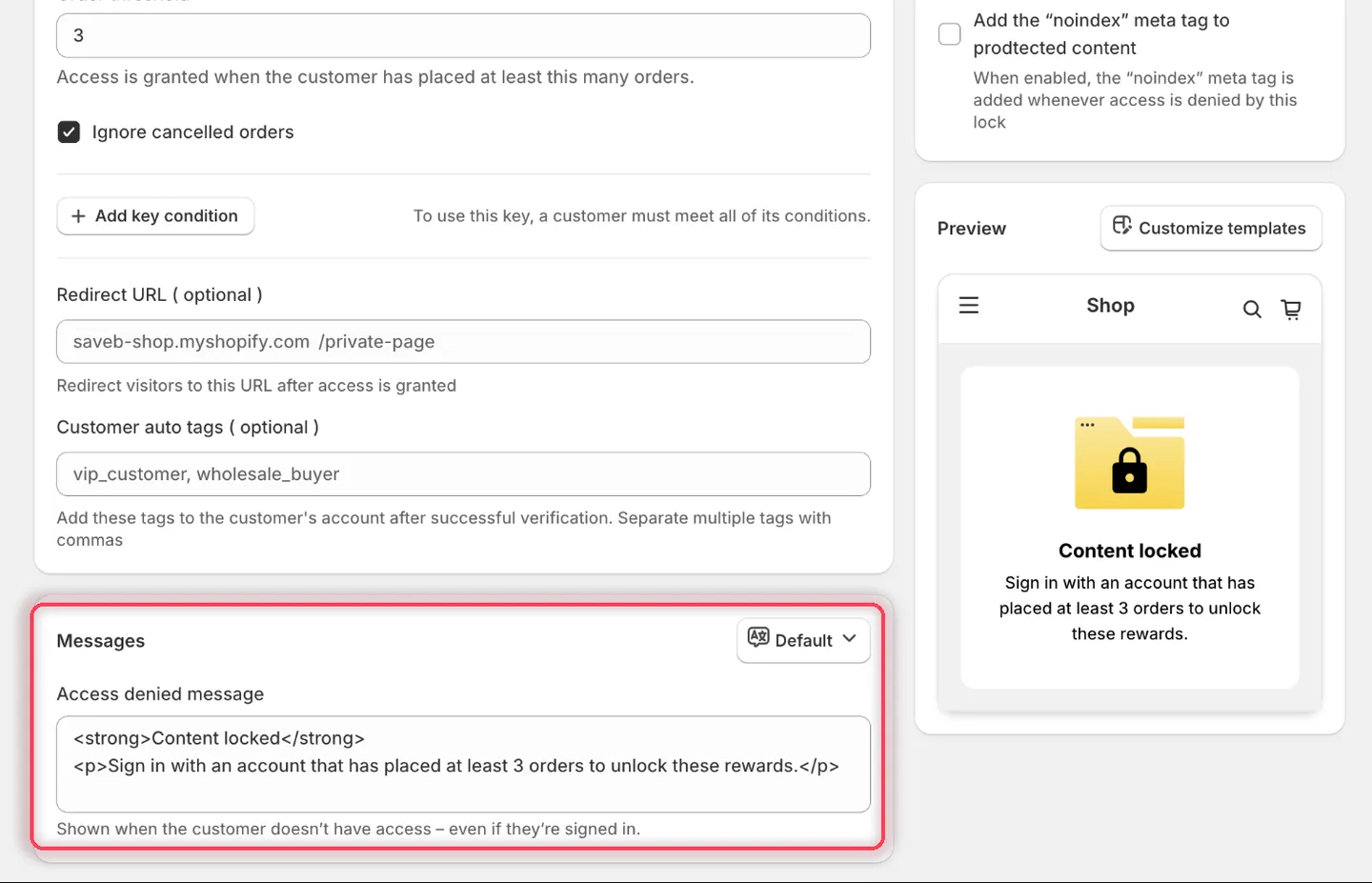
The Preview panel confirms the wording before you save.
- Click Save.
Result on the storefront
Section titled “Result on the storefront”A signed-in customer with at least three counted orders can open the rewards page. A guest or a customer with fewer than three counted orders sees the Access denied message above.
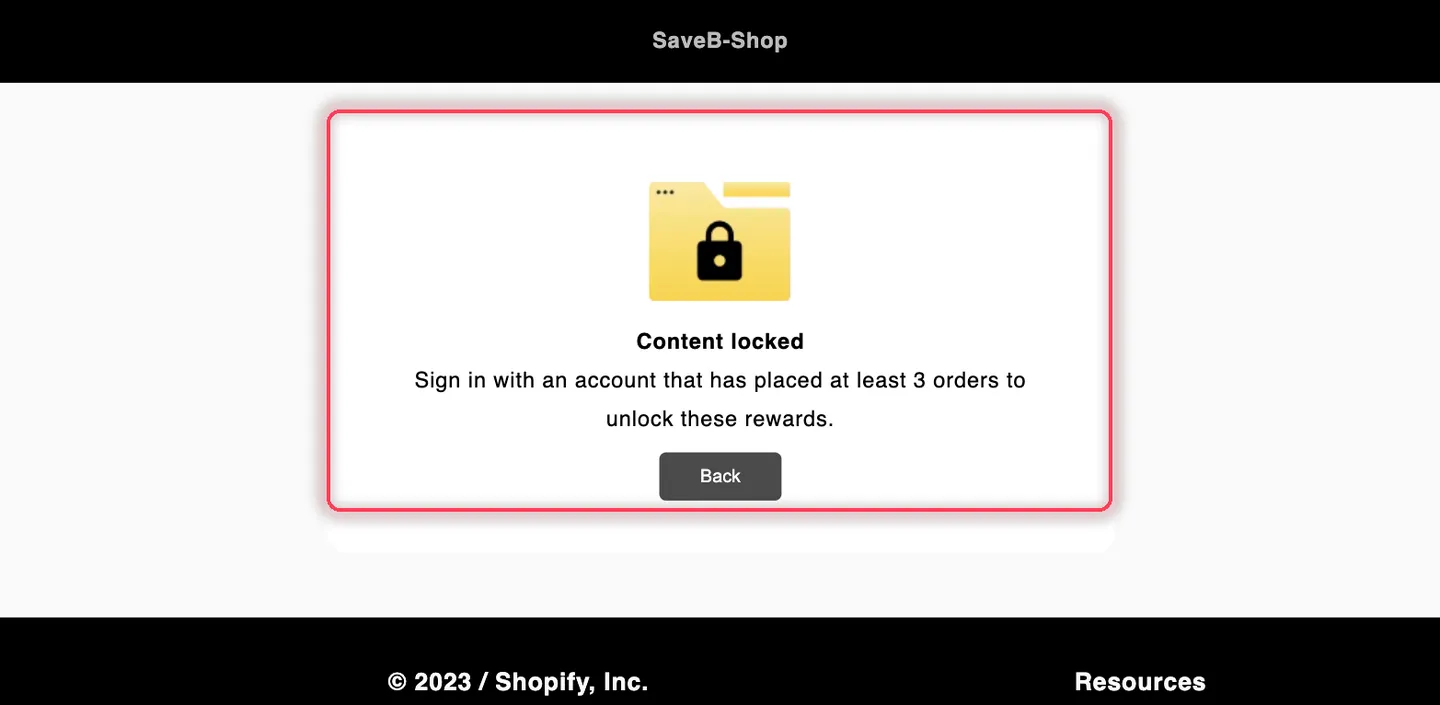
A visitor without three qualifying orders sees the Access denied message from this example.