
Lock behavior
Hide from menus
Remove a protected item's links from your storefront navigation menus.
This behavior is available on locks that protect Products and variants, Collections, Pages, Blogs and articles, or a Specific URL. It removes any navigation menu link pointing to the protected item, so it doesn’t show up as an option for visitors browsing your storefront’s menus.
Reach this setting
Section titled “Reach this setting”- Open Locks and create a new lock, or open an existing one to edit it.
- On the Lock setup tab, choose a content type that supports this behavior — Products and variants, Collections, Pages, Blogs and articles, or Specific URL — and select what to protect.
- Click the Unlock rules tab, then add your access rules in the main column.
- On the same Unlock rules tab, find the Hide from menus checkbox in the Blocked visitor behavior panel in the right-hand sidebar.
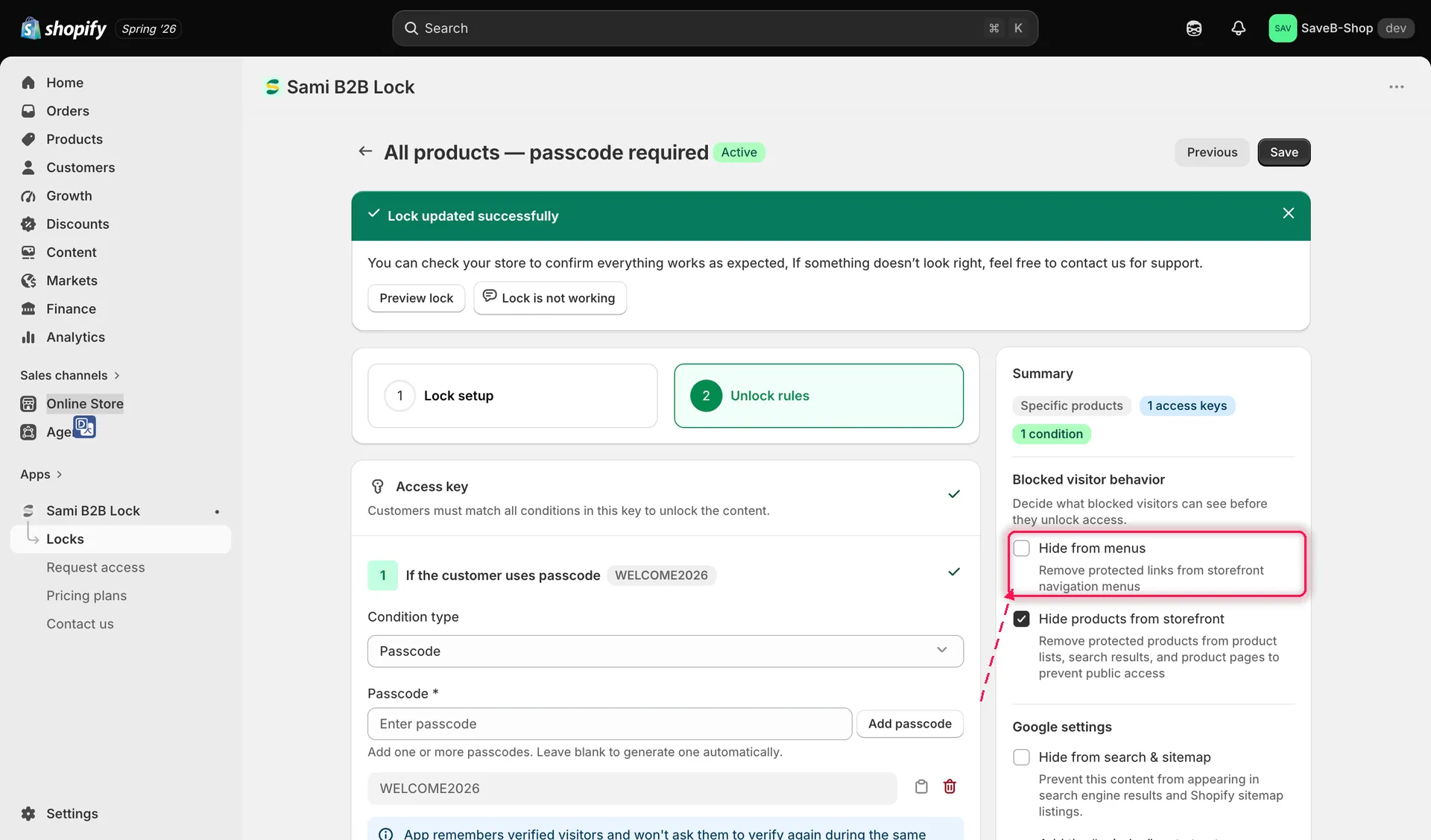
Turn on Hide from menus to remove links to the protected item from your storefront navigation.
What it does
Section titled “What it does”When turned on, any link in your storefront’s navigation menus that points to the protected product, collection, page, article, or URL is removed from those menus. Visitors browsing your menus simply won’t see it listed as an option — the menu behaves as if the link were never added.
Click Save once you’ve turned this on for the lock.