
Hide price and Add to cart
Hide a locked product or collection's price, Add to cart button, or the whole item, until a visitor passes your access rules.
This behavior is available on locks whose content type is Products and variants or Collections. Instead of blocking the whole page, it lets a blocked visitor keep browsing the product or collection while hiding the specific parts you choose — the price, the Add to cart button, or both — until they meet your access rules.
Reach this setting
Section titled “Reach this setting”- Open Locks and create a new lock, or open an existing one to edit it.
- On the Lock setup tab, choose Products and variants or Collections as the content type, then select the products or collections you want to protect.
- Click the Unlock rules tab to continue.
- In the main column, add one or more access rules that decide who is allowed to see price and Add to cart.
- On the same Unlock rules tab, the right-hand sidebar shows the Blocked visitor behavior panel — configure the price/Add to cart options there, alongside your rule.
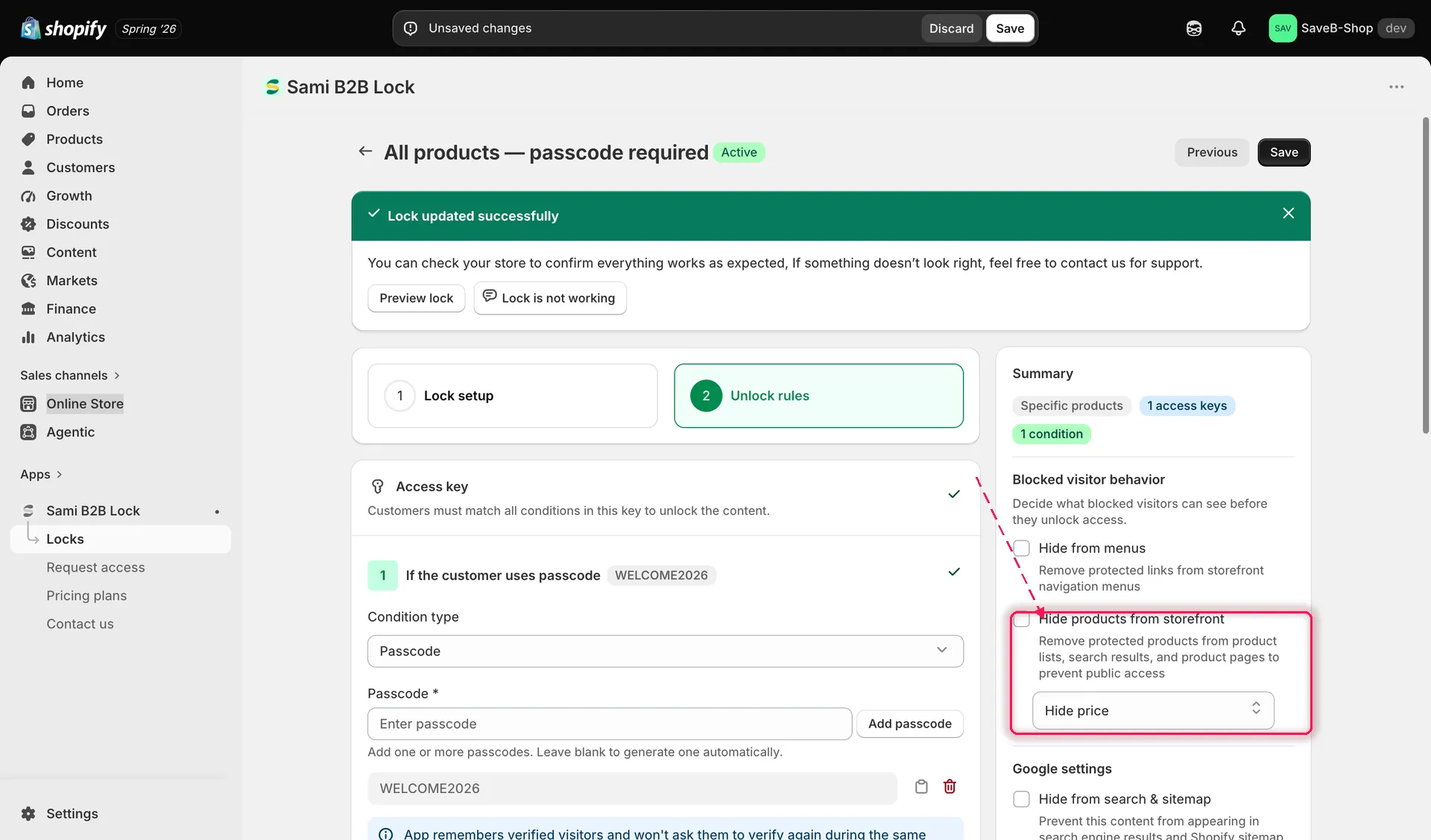
Choose whether to hide price only, Add to cart only, or both for the selected products or collections.
Choosing what to hide
Section titled “Choosing what to hide”Use the dropdown to pick one of:
- Hide product price — the price is replaced by your message or button; Add to cart still works.
- Hide product atc — the Add to cart button is replaced; the price still shows.
- Hide product price and atc — both are hidden. When you pick this option, a note confirms that both prices and cart buttons will be hidden.
What shoppers see instead
Section titled “What shoppers see instead”In place of the hidden price or button, a blocked shopper sees either a plain-text message or a styled button — you choose the style in the lock’s design settings (see Colors and templates). Either way, the default English copy is:
- Hidden price: “Login to see price”
- Hidden Add to cart: “Login to Add to cart.”
Both strings are editable per lock and per language from the lock’s translation settings.
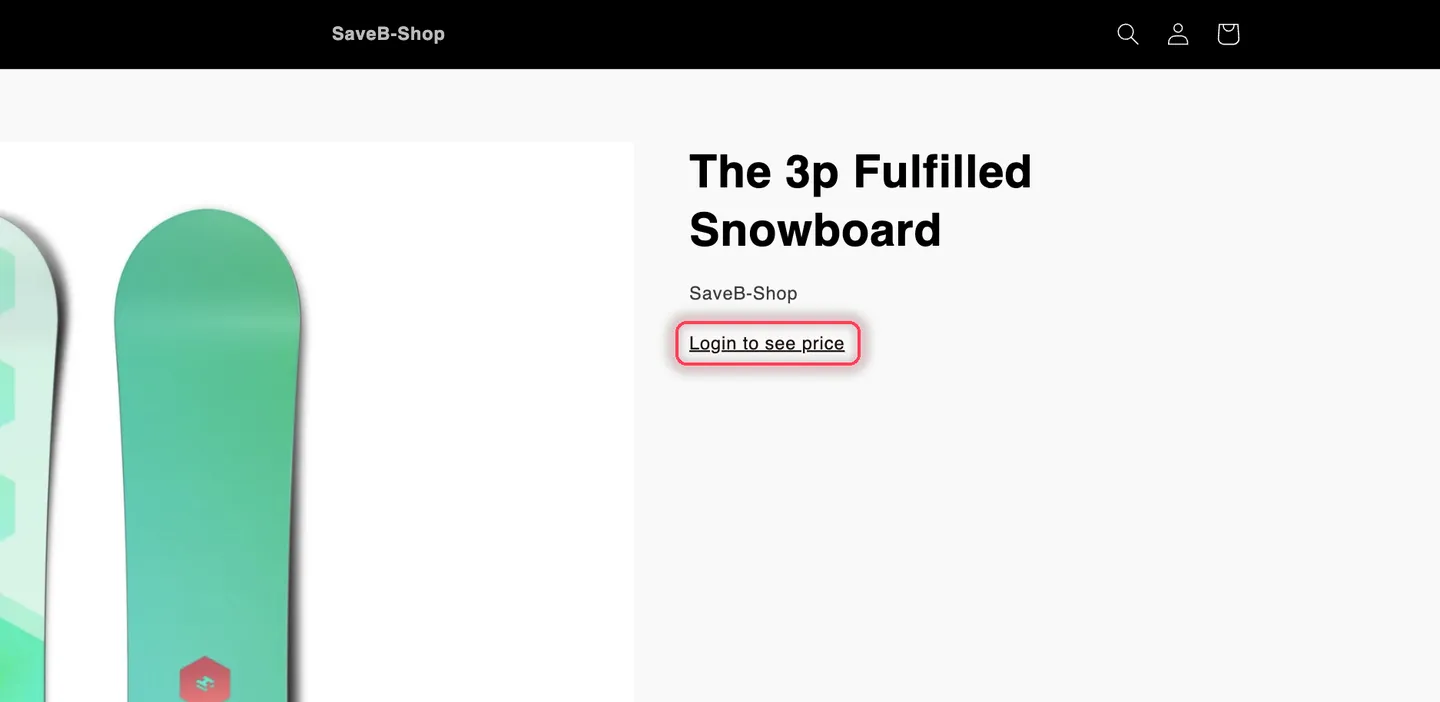
The result on a live storefront — the product stays browsable, only the price and buy buttons are replaced.
Hiding the product or collection entirely
Section titled “Hiding the product or collection entirely”If hiding just the price and button isn’t enough, turn on Hide products from storefront. This is a stronger option: instead of showing the product with its price/Add to cart hidden, it removes the protected products or collections from product lists, search results, and product pages entirely, so blocked visitors can’t find them at all. When this is on, the price/Add to cart dropdown above no longer applies, since there’s nothing left to show.
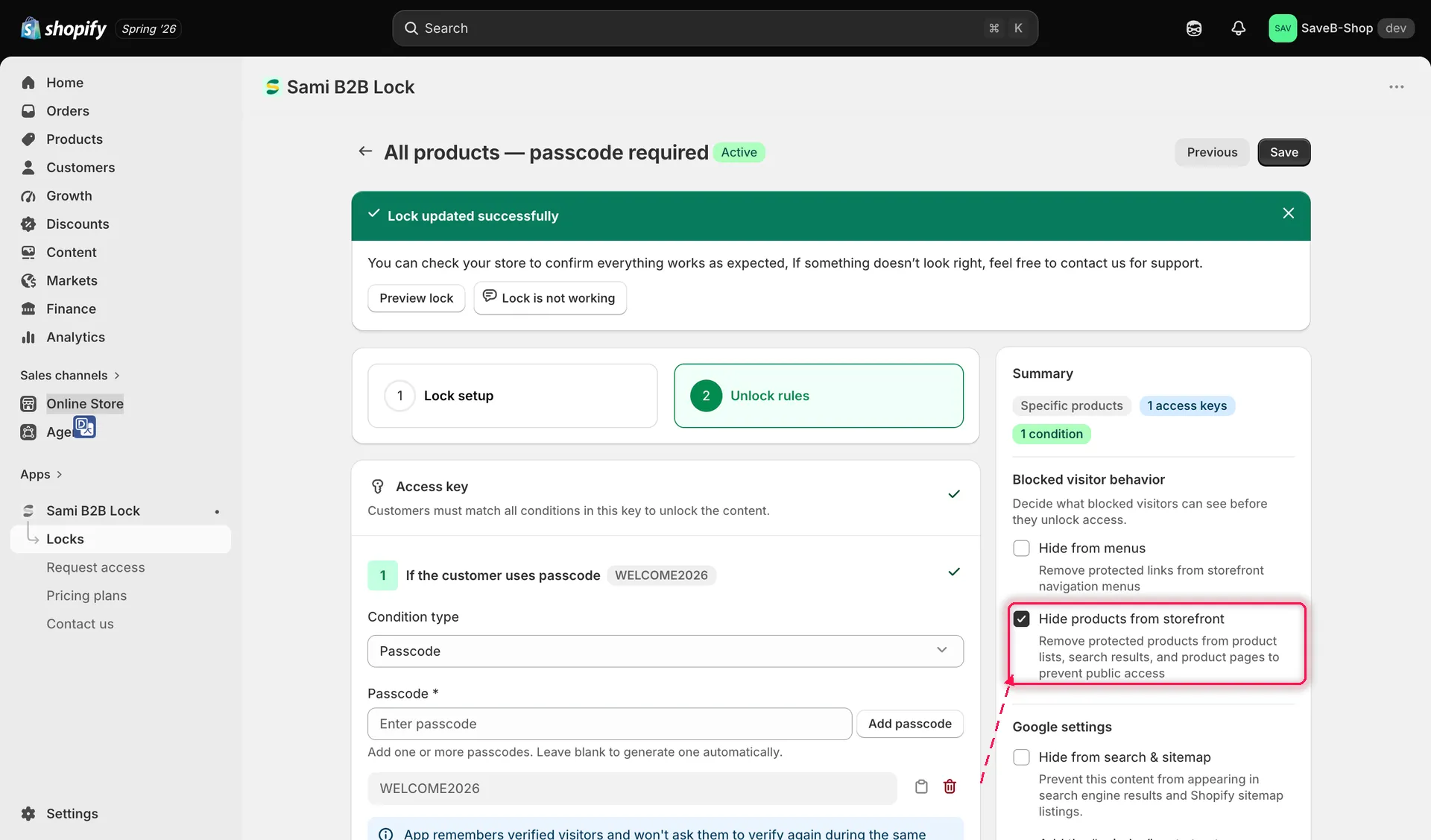
Turning on Hide products from storefront removes the protected items from listings and search instead of just hiding price and Add to cart.
Save your lock
Section titled “Save your lock”Click Save once you’ve chosen your settings. The behavior applies immediately to any matching products or collections on your live storefront.
Video walkthrough
Section titled “Video walkthrough”Prefer to watch it done end to end? This walkthrough covers the same setup: