
Specific products
Lock a hand-picked list of individual products.
Choose Specific products when you want to lock a hand-picked set of individual products rather than your whole catalog — for example, a small batch of pre-release items or a handful of products reserved for a particular customer group.
Create the lock
Section titled “Create the lock”- Open Locks in the app’s navigation.
- Click Create lock.
- Give the lock a descriptive name, for example “Pre-release drop — passcode required.”
- On the Lock setup tab, in the content picker, choose Products, then select Specific products.
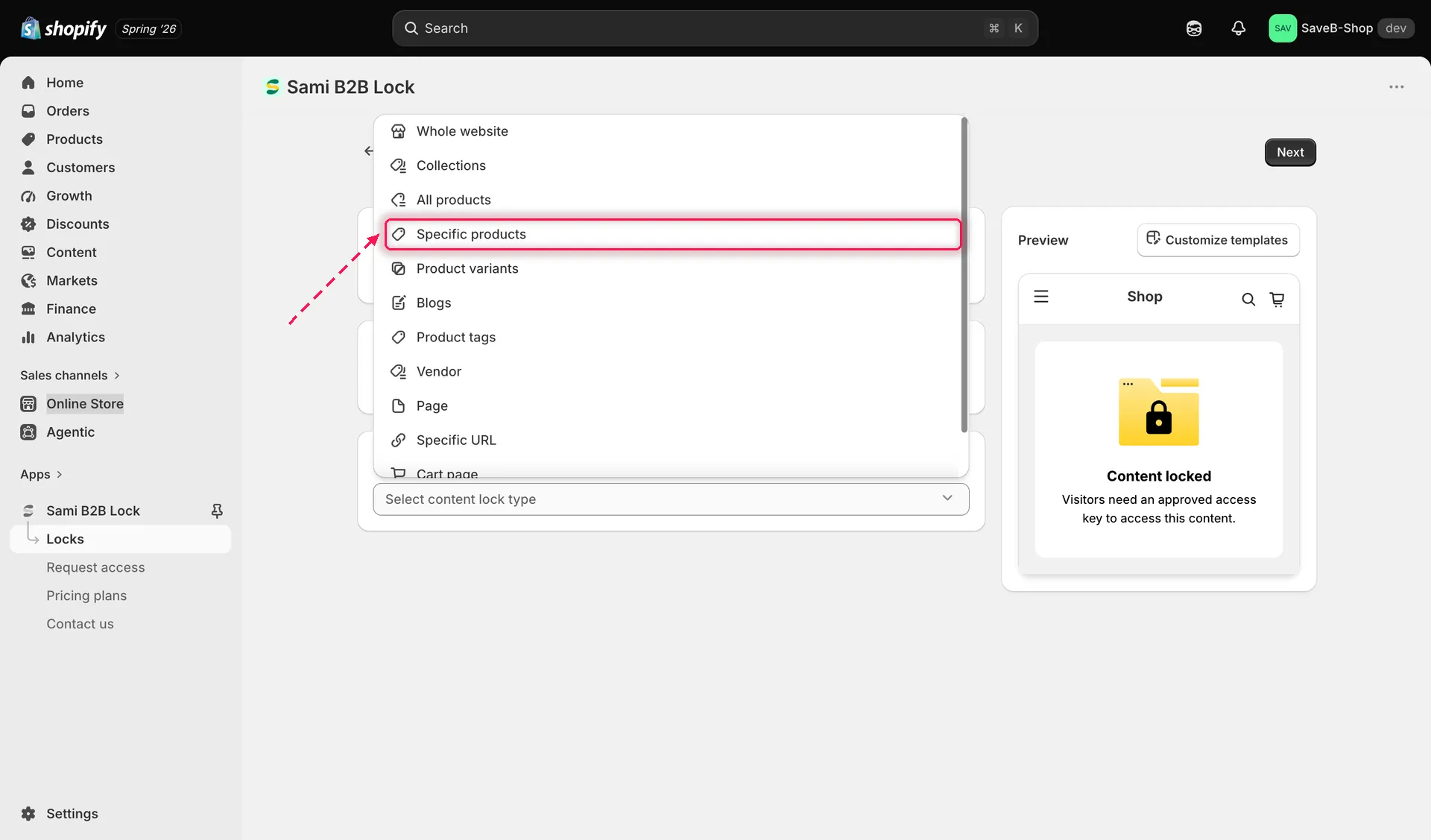
Choose Specific products to lock a hand-picked list of items.
- Use the picker to search and select the individual products you want to lock. Add as many as you need.
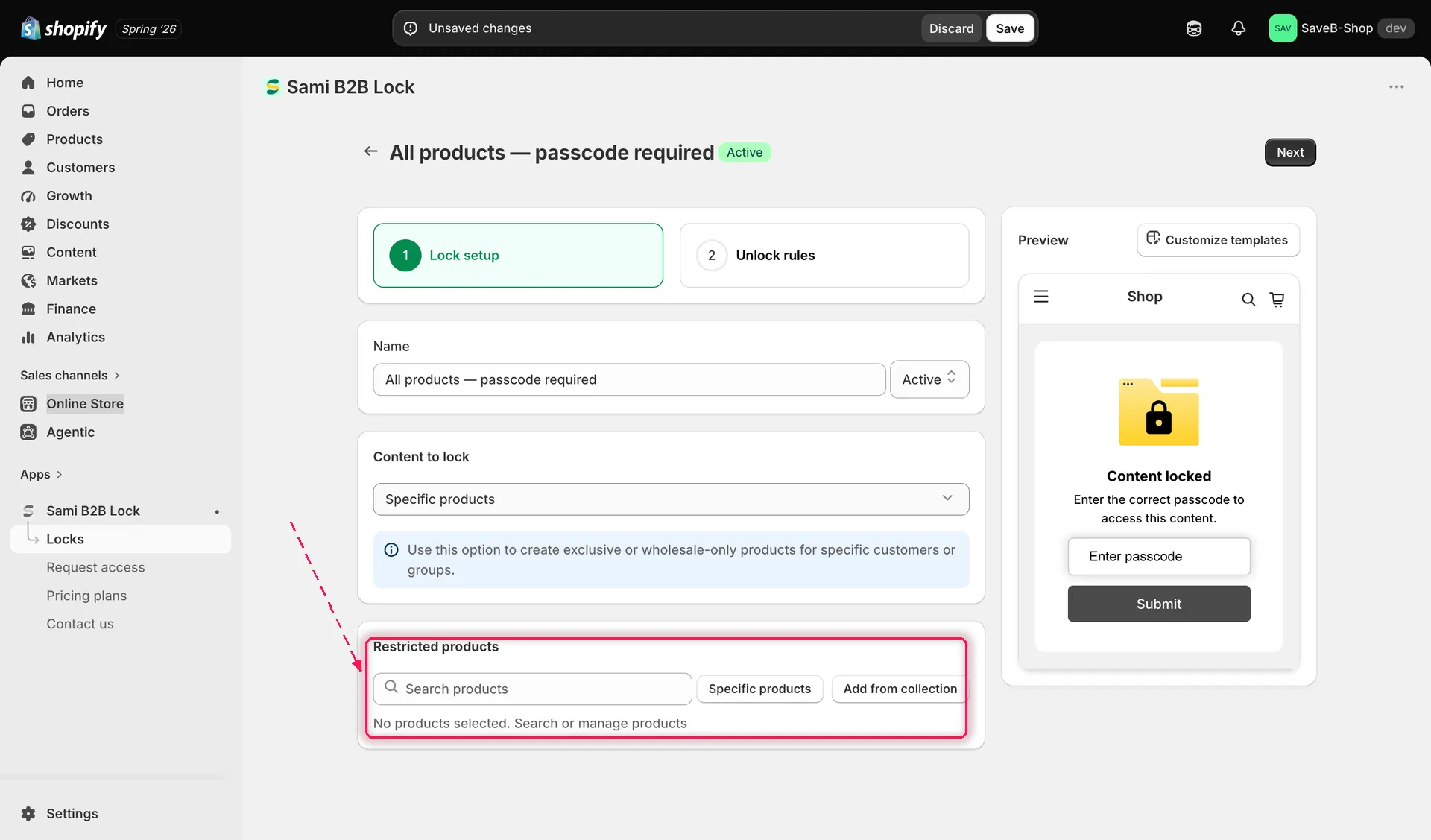
Search and select the specific products you want to lock.
- Click the Unlock rules tab to continue.
Add an access rule
Section titled “Add an access rule”- Add at least one rule. See Access rules overview for the full catalogue.
- Add every required condition to the access key. All conditions must be satisfied. See Combining rules.
Choose a lock behavior
Section titled “Choose a lock behavior”On the same Unlock rules tab, the right-hand sidebar has a Blocked visitor behavior panel — configure it alongside your rule:
- Review Lock behavior overview — Hide price and Add to cart is a common choice, or you can fully hide the product from listings and search.
- Click Save. The lock takes effect on your storefront as soon as the app embed is enabled.