
Specific URL
Lock any custom URL or path on your store behind access rules, with an option to exclude specific URLs.
The Specific URL content type locks any custom path on your storefront that isn’t covered by the other content types — a landing page built outside the standard page/collection structure, a search results path, or any URL pattern you want to gate.
Create the lock
Section titled “Create the lock”- Open Locks in the app’s navigation.
- Click Create lock.
- Give the lock a descriptive name, for example “Landing page — passcode required.”
Choose Specific URL as the content to lock
Section titled “Choose Specific URL as the content to lock”- On the Lock setup tab, in the content picker, select Specific URL.
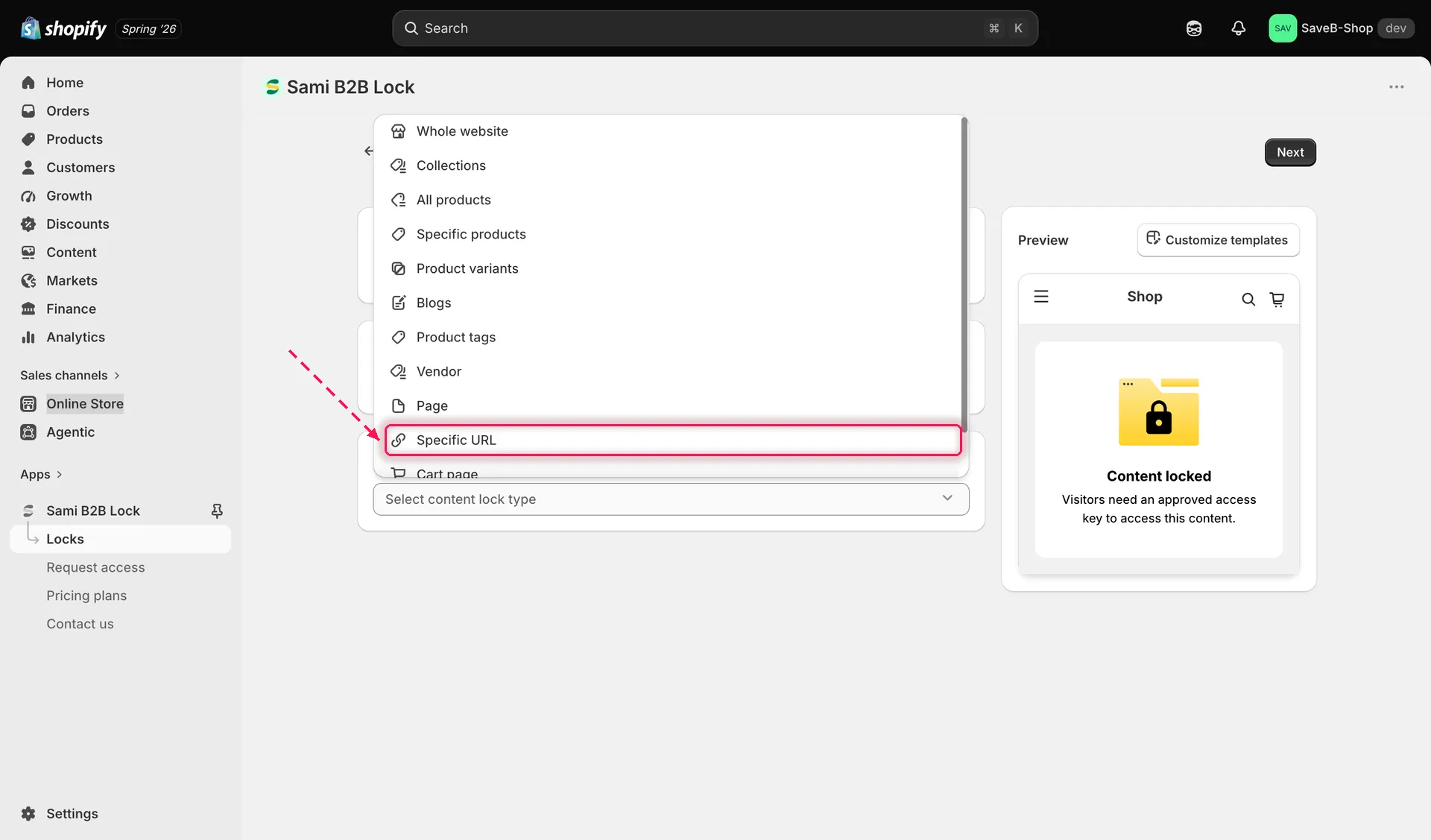
Select Specific URL in the content picker to lock a custom URL or path.
- In the Restricted URLs card, type the path you want to lock — the field shows the expected format,
for example
/contact-us— then click the add button beside it. Repeat to add more paths to the same lock.
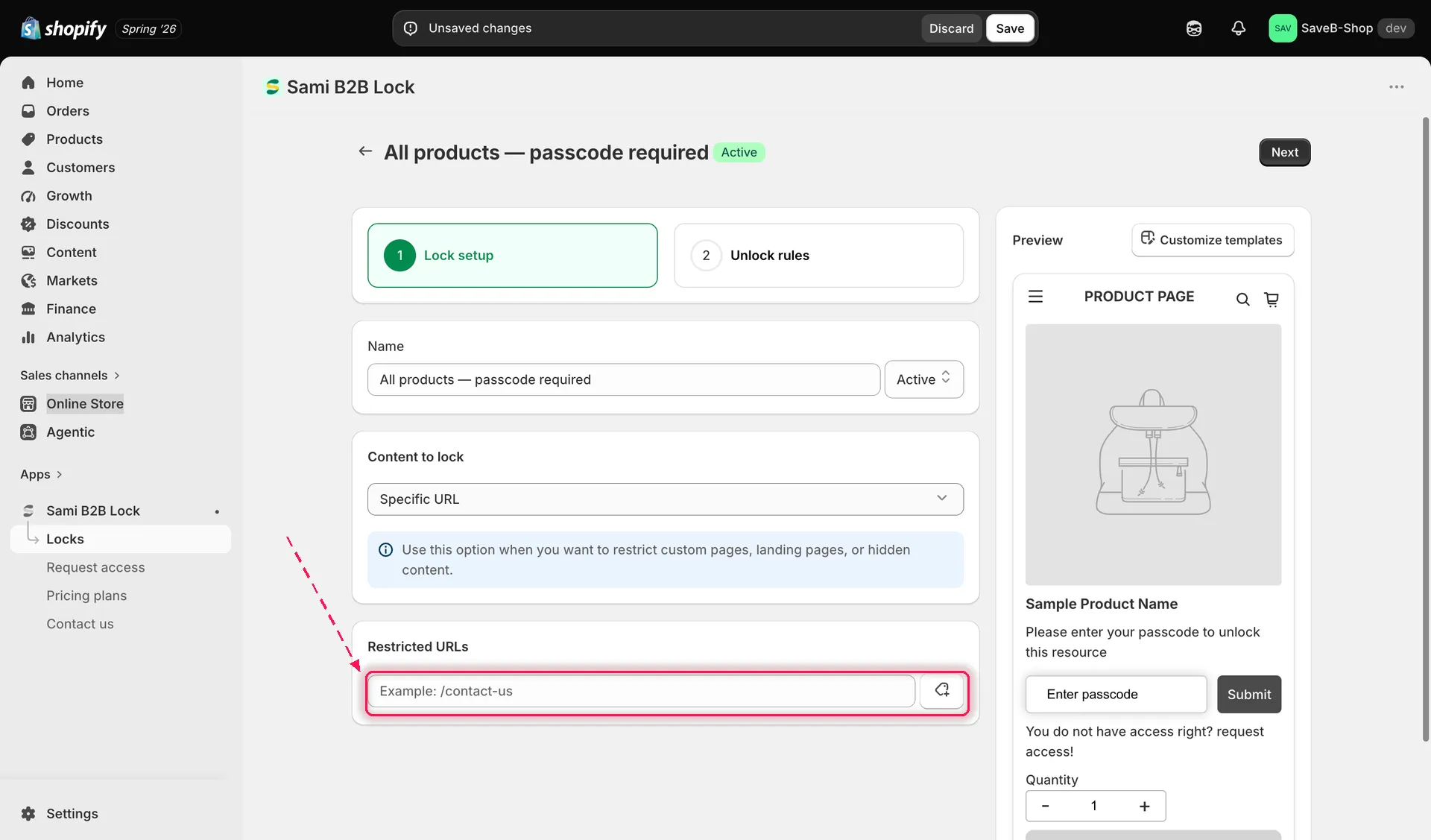
Enter each path you want to lock, then click add.
- Click the Unlock rules tab to continue.
Add an access rule
Section titled “Add an access rule”- Add at least one rule — for example, Secret link, so the URL only unlocks for visitors who arrive with a valid secret link token.
- Configure the rule’s settings. See Access rules overview for the full catalogue of available rules.
- Add every required condition to the access key. All conditions must be satisfied. See Combining rules.
Choose a lock behavior
Section titled “Choose a lock behavior”On the same Unlock rules tab, the right-hand sidebar has a Blocked visitor behavior panel — configure it alongside your rule:
- A locked URL typically shows a full lock screen until the visitor passes. Review Lock behavior overview for the full set of options, including redirecting visitors after they gain access.
- Click Save. The lock takes effect on your storefront as soon as the app embed is enabled.