
Cart conditions
Match visitors based on what's currently in their cart — specific products, variants, item count, or subtotal.
Cart conditions are four related access rules that all look at the visitor’s current shopping cart:
- Cart contains selected products — a specific product is currently in the cart.
- Cart contains selected variants — a specific variant is currently in the cart.
- Cart quantity — the total number of items in the cart is at least a number you set.
- Cart total — the cart’s subtotal is at least a dollar amount you set.
They’re a good fit for free-gift unlocks (add a specific product to reveal a bonus item) or minimum-order-value gating (unlock a discount or perk once the cart reaches a spending threshold).
Like most access rules (aside from the action-based ones such as Passcode, Secret link, Subscribe, and Confirmation prompt), each of these four can be set to match If the cart meets the condition, or Unless it doesn’t — inverting it to match carts that don’t meet the condition instead. See Combining rules.
Add a cart condition rule
Section titled “Add a cart condition rule”- Open Locks and create a new lock, or open an existing one to edit it.
- Choose the content you want to protect. See Access rules overview for how rules fit into a lock.
- Click the Unlock rules tab, then in the Condition type dropdown, select Cart contains selected products, Cart contains selected variants, Cart quantity, or Cart total.
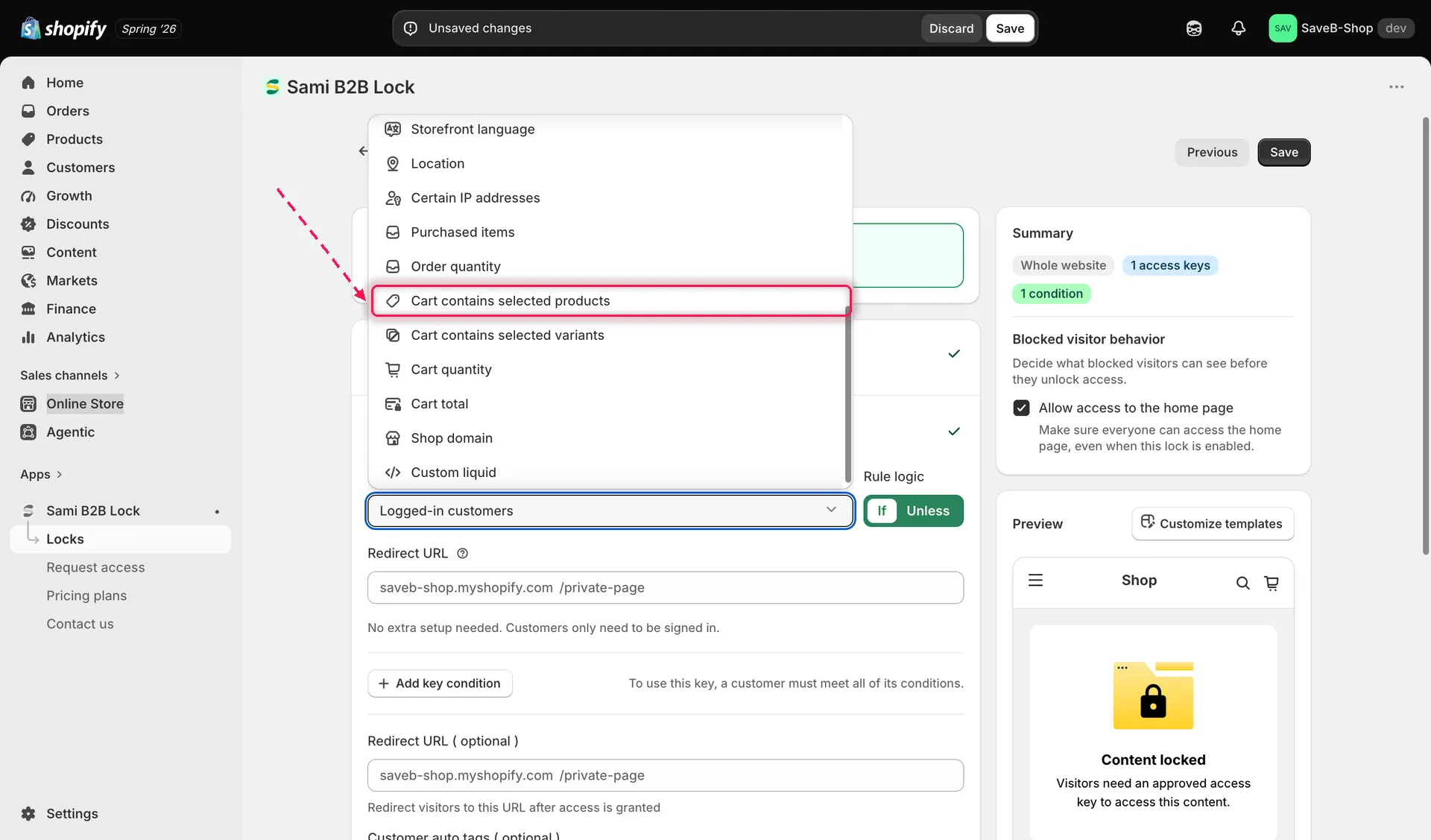
Select one of the four cart conditions from the Condition type dropdown on the Unlock rules tab.
- Configure that rule (see each section below).
- Choose If or Unless.
- Click Save.
Cart contains selected products
Section titled “Cart contains selected products”Select one or more products. The rule matches whenever any of those products is currently in the visitor’s cart — this checks presence only, regardless of how many units or which specific variant.
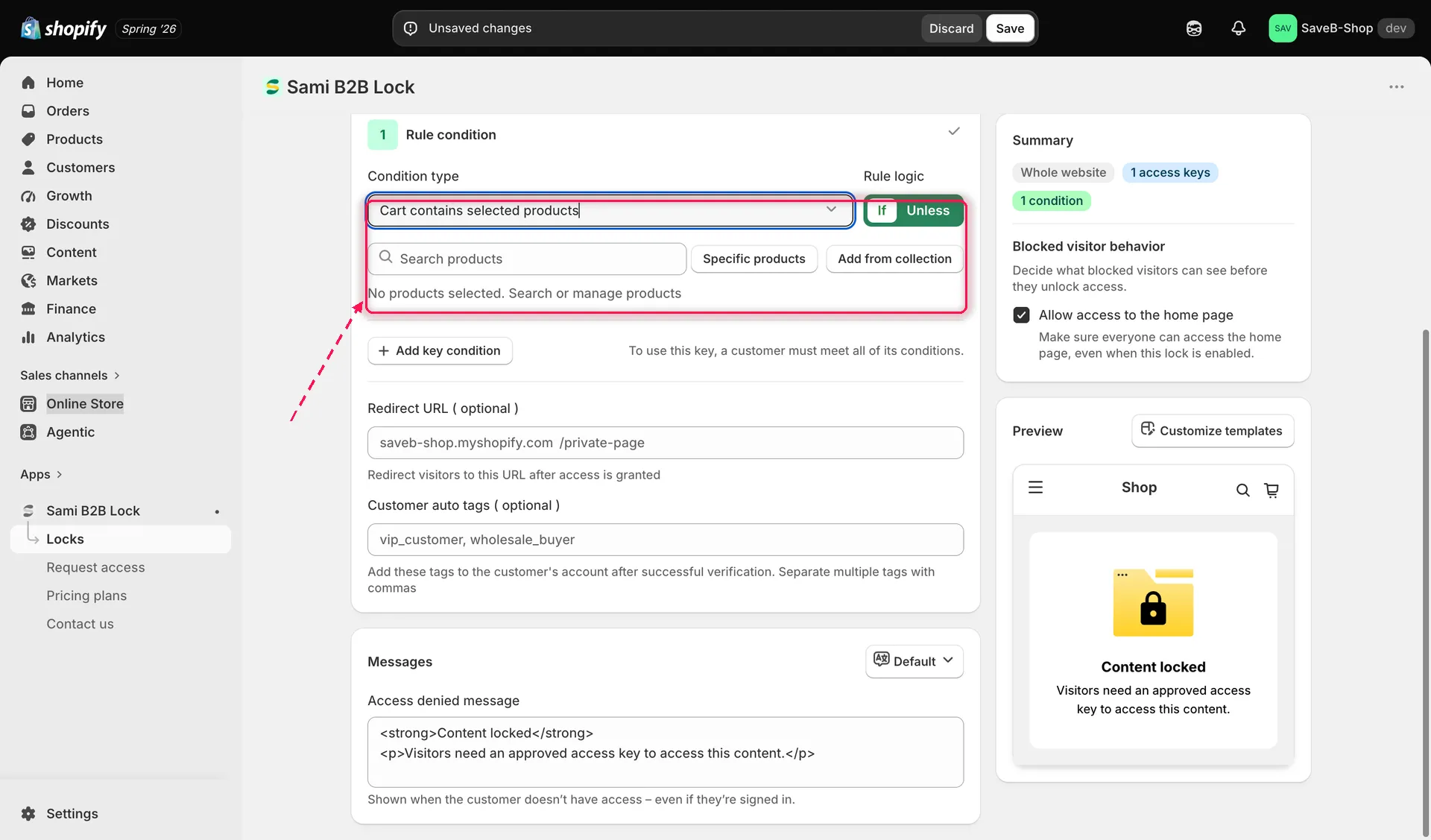
Select the product(s) that must be in the cart for this rule to match.
Cart contains selected variants
Section titled “Cart contains selected variants”Select one or more specific variants. The rule matches whenever any of those exact variants is currently in the cart. Use this instead of Cart contains selected products when the condition should depend on a specific size, color, or other variant option, not just the product as a whole.
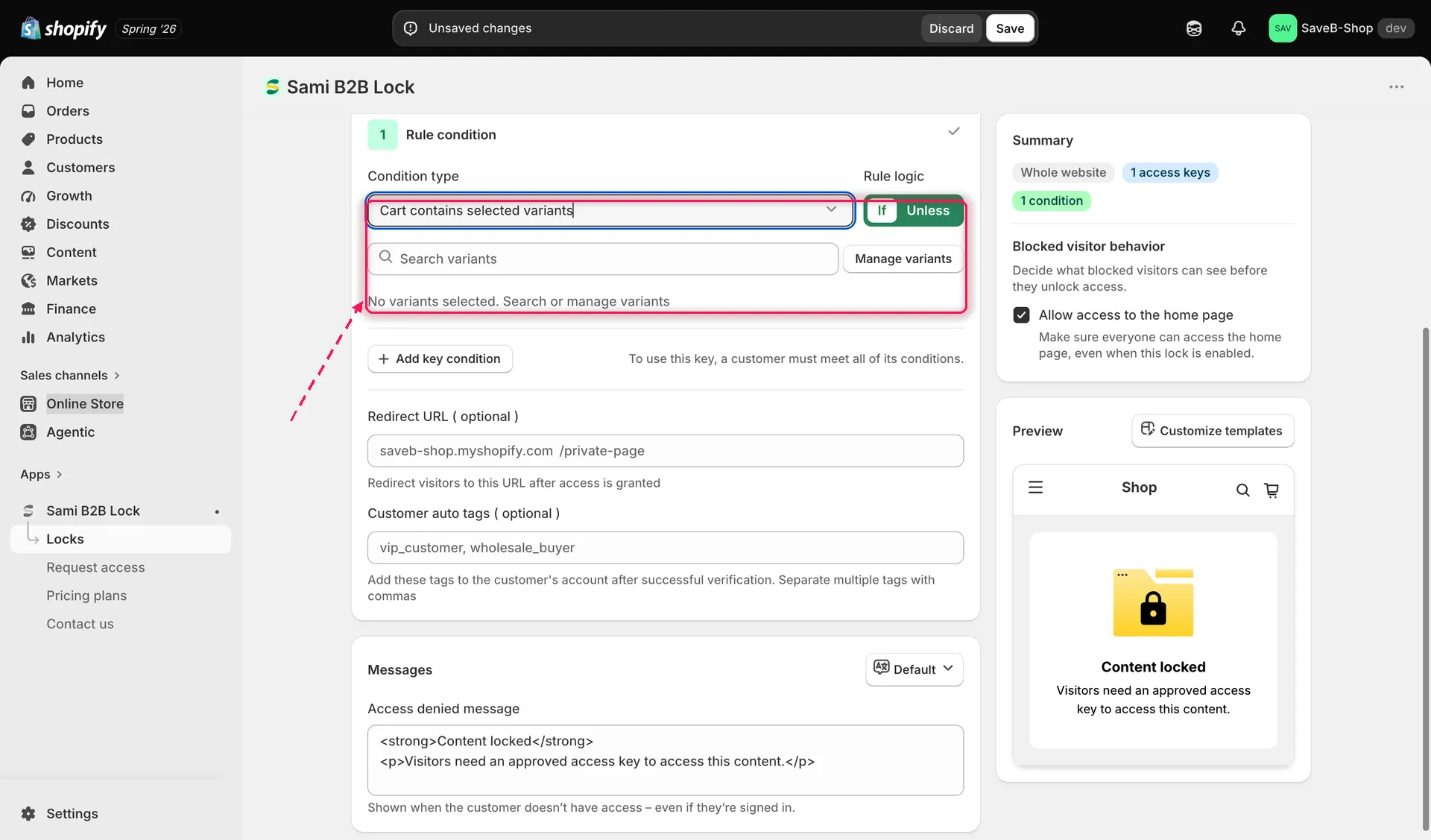
Select the specific variant(s) that must be in the cart for this rule to match.
Cart quantity
Section titled “Cart quantity”Set a number. The rule matches whenever the total number of items in the cart — across all products, not just a specific one — is at least that number.
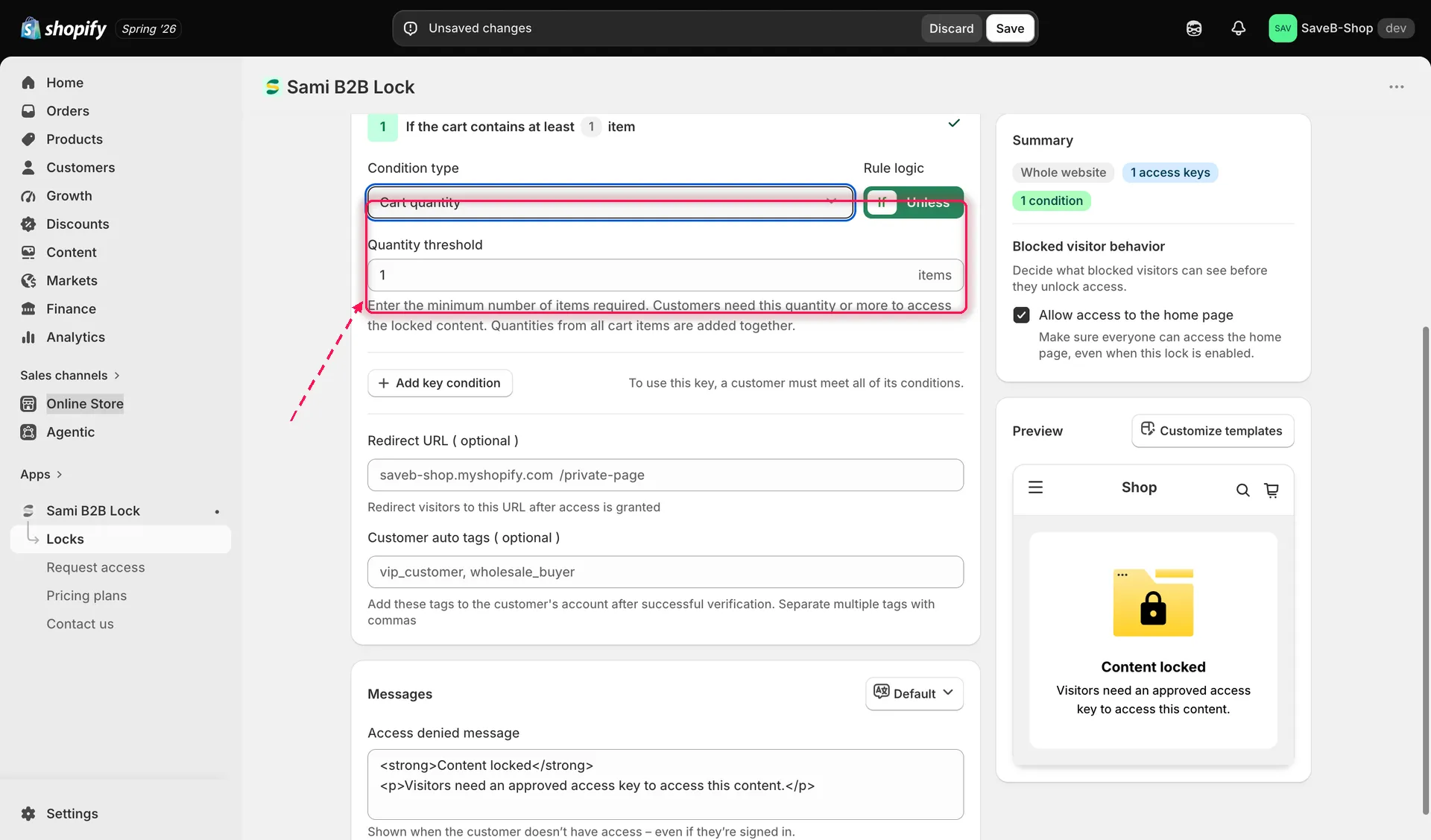
Set the minimum total number of items the cart must contain for this rule to match.
Cart total
Section titled “Cart total”Set a dollar amount. The rule matches whenever the cart’s subtotal is at least that amount.
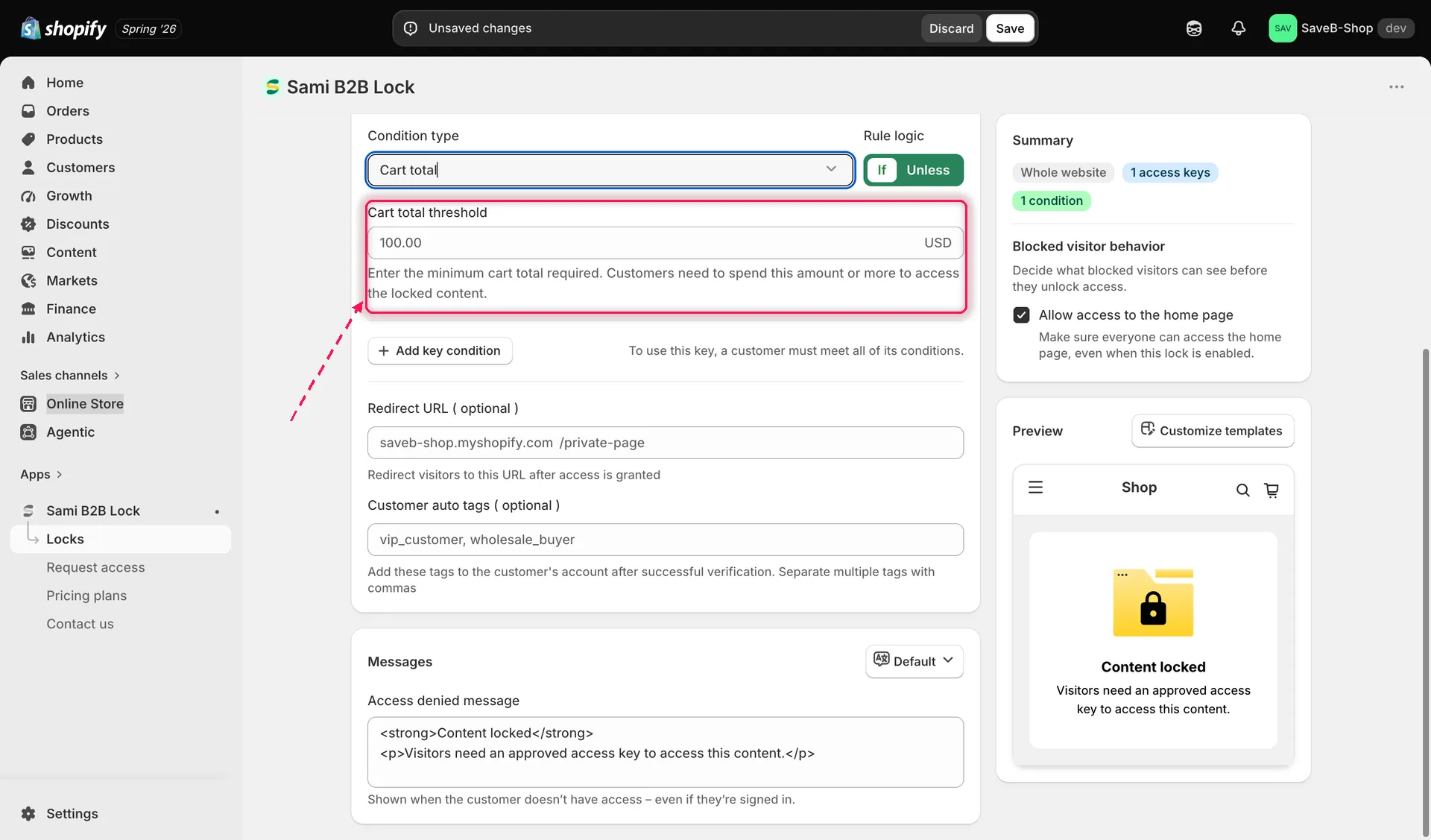
Set the minimum cart subtotal required for this rule to match.
Examples
Section titled “Examples”Each example below represents a separate Lock. Leave the rule’s Redirect URL empty so visitors who do not qualify see the configured message.
Cart contains selected products
Section titled “Cart contains selected products”Suppose a bonus-offer page should open after the visitor adds any variant of The Complete Snowboard to the cart.
- Select the Snowboard bonus offer page as the content to protect.
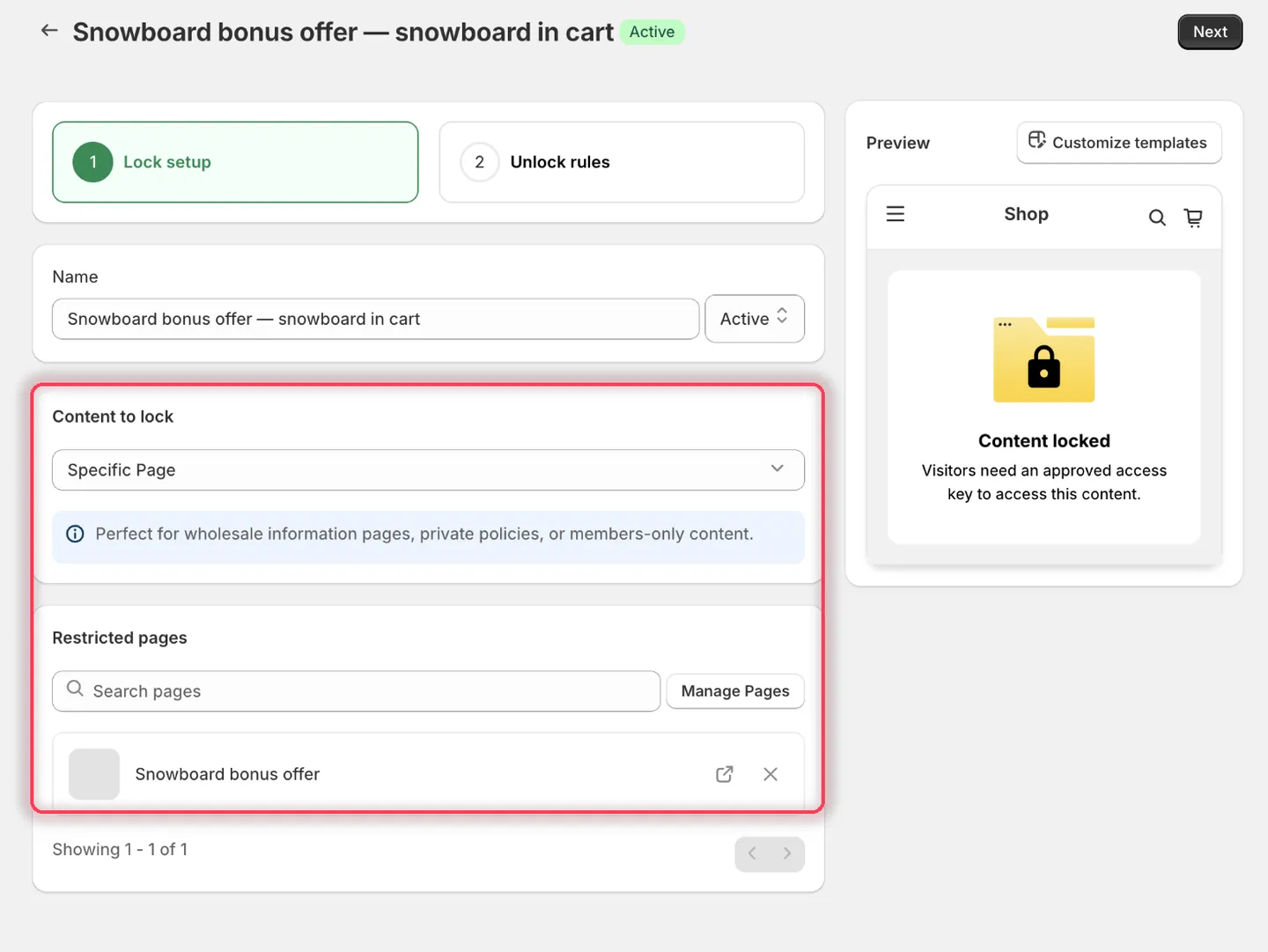
Pick the page the cart should unlock.
- On the Unlock rules tab, set Condition type to Cart contains selected products, leave Rule logic on If, then click Specific products and add The Complete Snowboard.
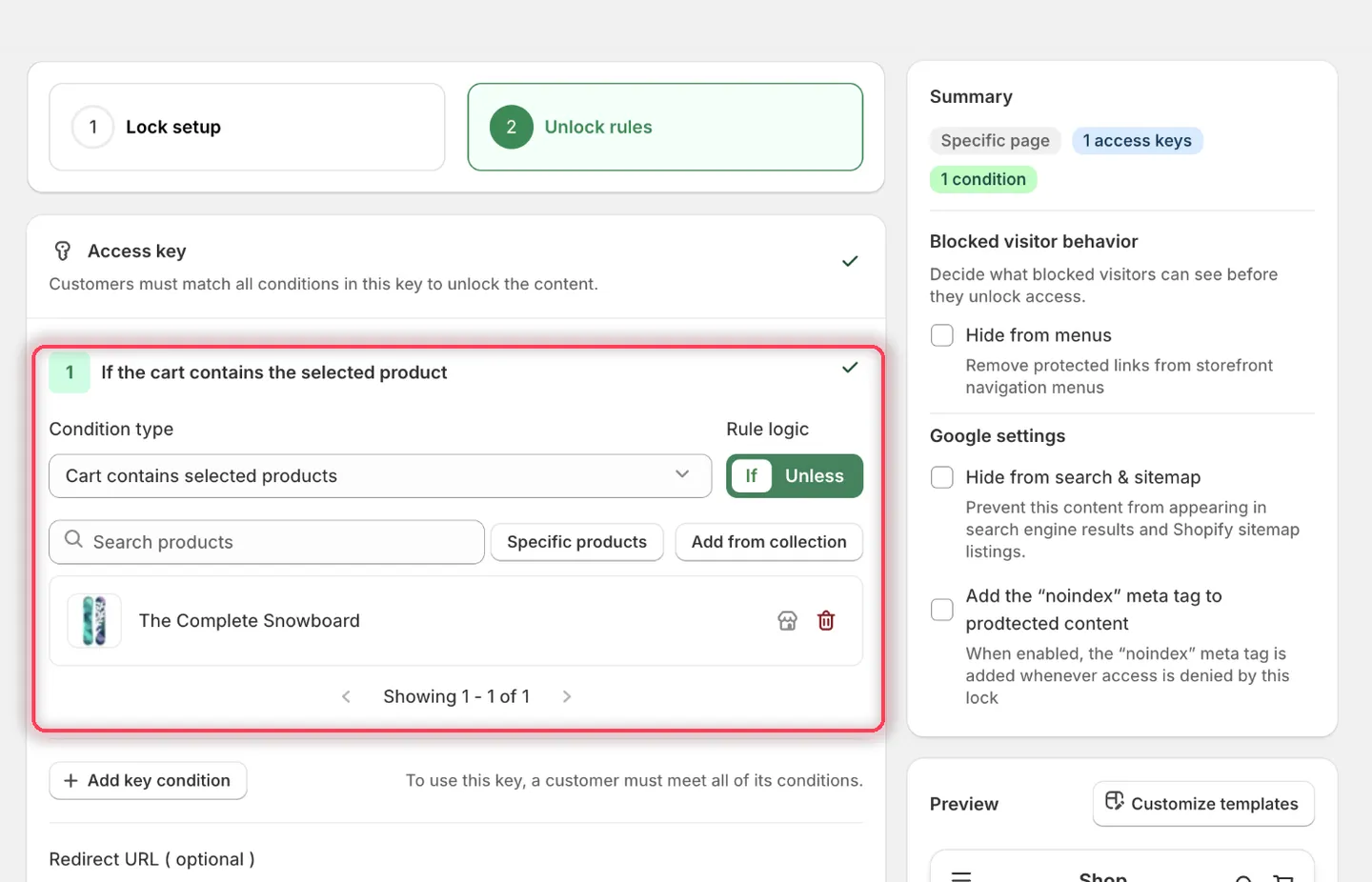
The condition heading reads: If the cart contains the selected product.
- In Messages, set the Access denied message to:
Add The Complete Snowboard to your cart to unlock this offer.
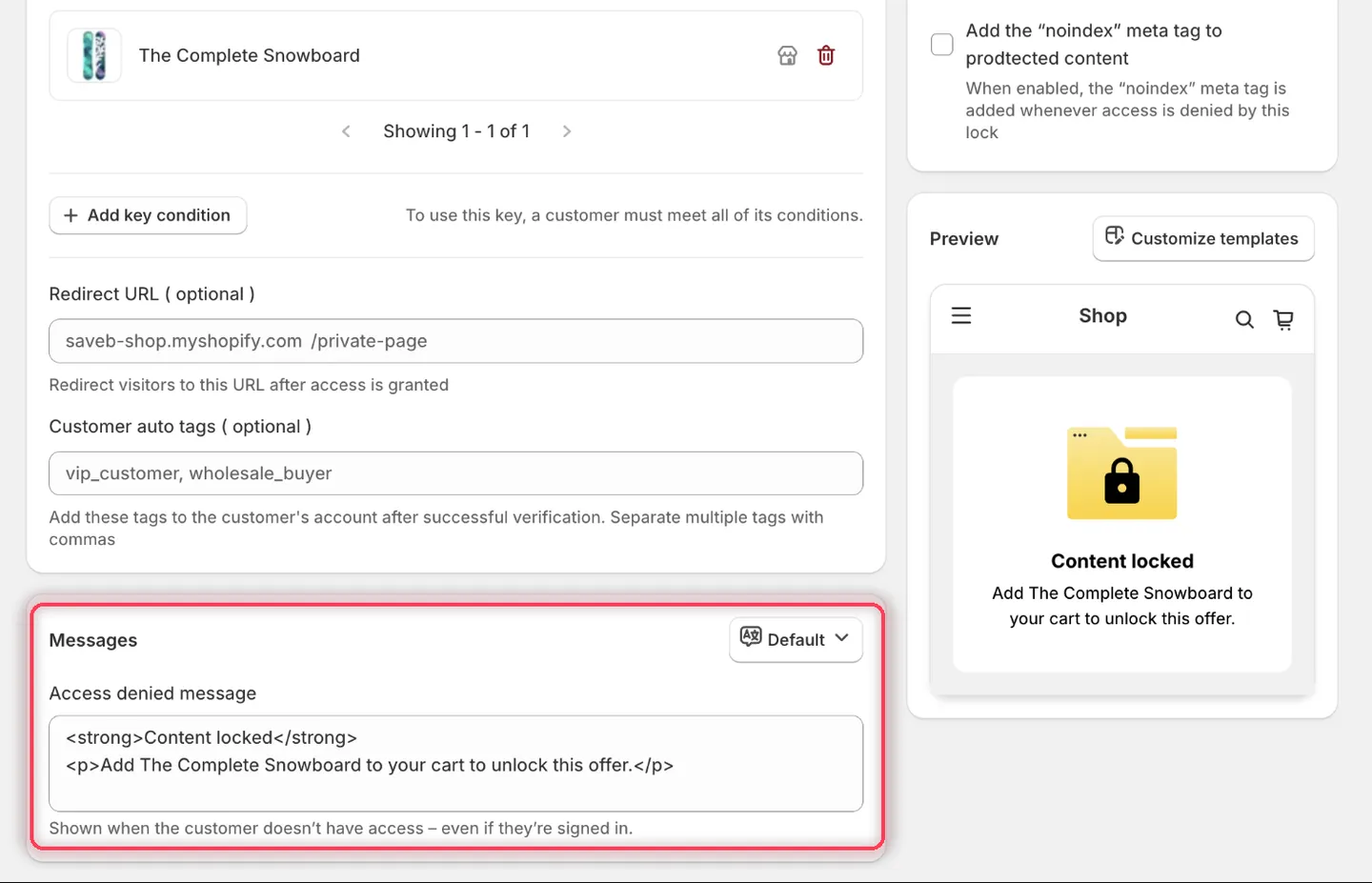
The Preview panel confirms the wording before you save.
- Click Save.
The page opens when any The Complete Snowboard variant is in the cart. Otherwise, the visitor sees the message above.
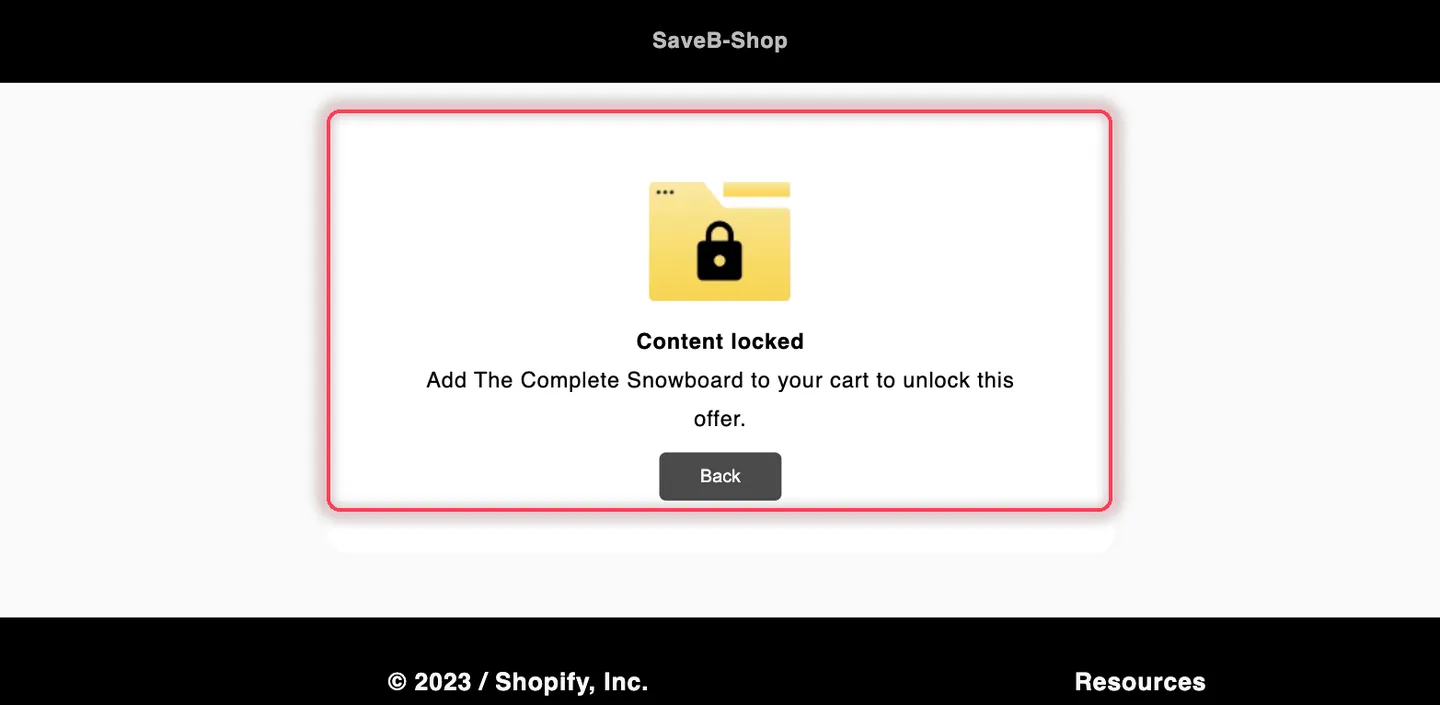
Without the product in the cart, the visitor sees the Access denied message from this example.