
Subscribe to unlock
Let shoppers unlock content by subscribing with their email, through Shopify, Mailchimp, or Klaviyo.
Subscribe to unlock asks a visitor to enter their email address, then grants access once they subscribe (or, for a Klaviyo segment, once the app confirms they’re already on your list). It’s an action-based rule — like Passcode and Confirmation prompt, it doesn’t have an If/Unless toggle, because the shopper unlocks the content by completing the subscribe step rather than by matching a yes/no condition.
Sami B2B Lock, Password Protect supports three email services for this rule. You pick one per rule:
- Shopify — uses your store’s native email marketing consent. No extra account or API key needed. This is the default option and has no additional cost.
- Mailchimp — connects to your Mailchimp account with an API key so you can subscribe visitors straight into one of your audience lists.
- Klaviyo — connects to your Klaviyo account with an API key so you can subscribe visitors into a list, or check membership against a segment.
Add the rule
Section titled “Add the rule”- Open Locks and create a new lock, or open an existing one to edit it.
- Choose the content you want to protect. See Access rules overview for how rules fit into a lock.
- Click the Unlock rules tab, then in the Condition type dropdown, select Subscribe to unlock.
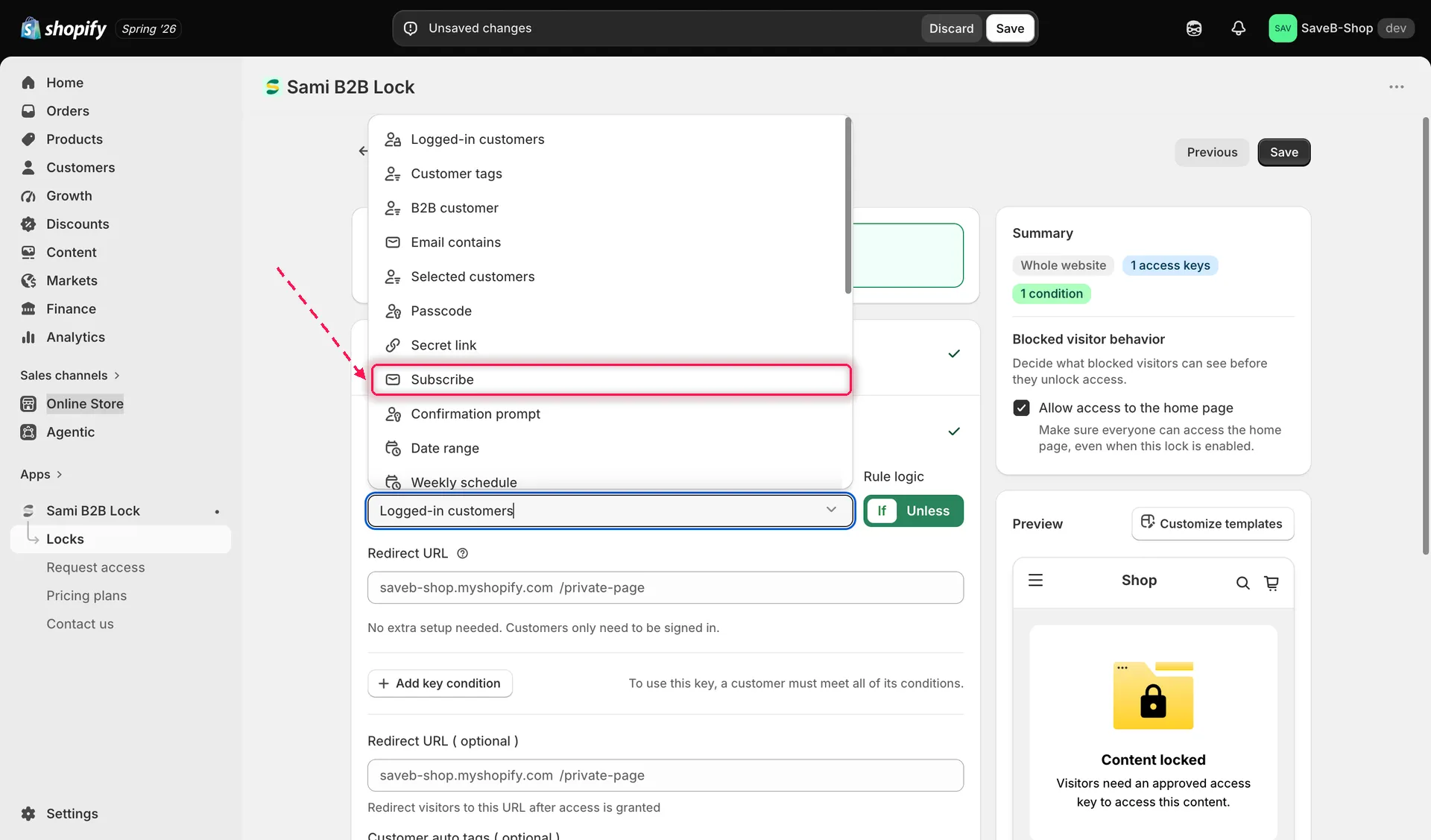
Select Subscribe to unlock from the Condition type dropdown on the Unlock rules tab.
- Choose an Email service: Shopify, Mailchimp, or Klaviyo.
Shopify (default, no setup)
Section titled “Shopify (default, no setup)”Shopify email marketing consent works out of the box — there’s nothing to connect. Once selected, the app shows a note that it remembers a subscribed visitor for their current browser session and won’t ask them to subscribe again until that session ends; to require re-subscription sooner or later than that, set a duration in the Grant access (optional) field below it.
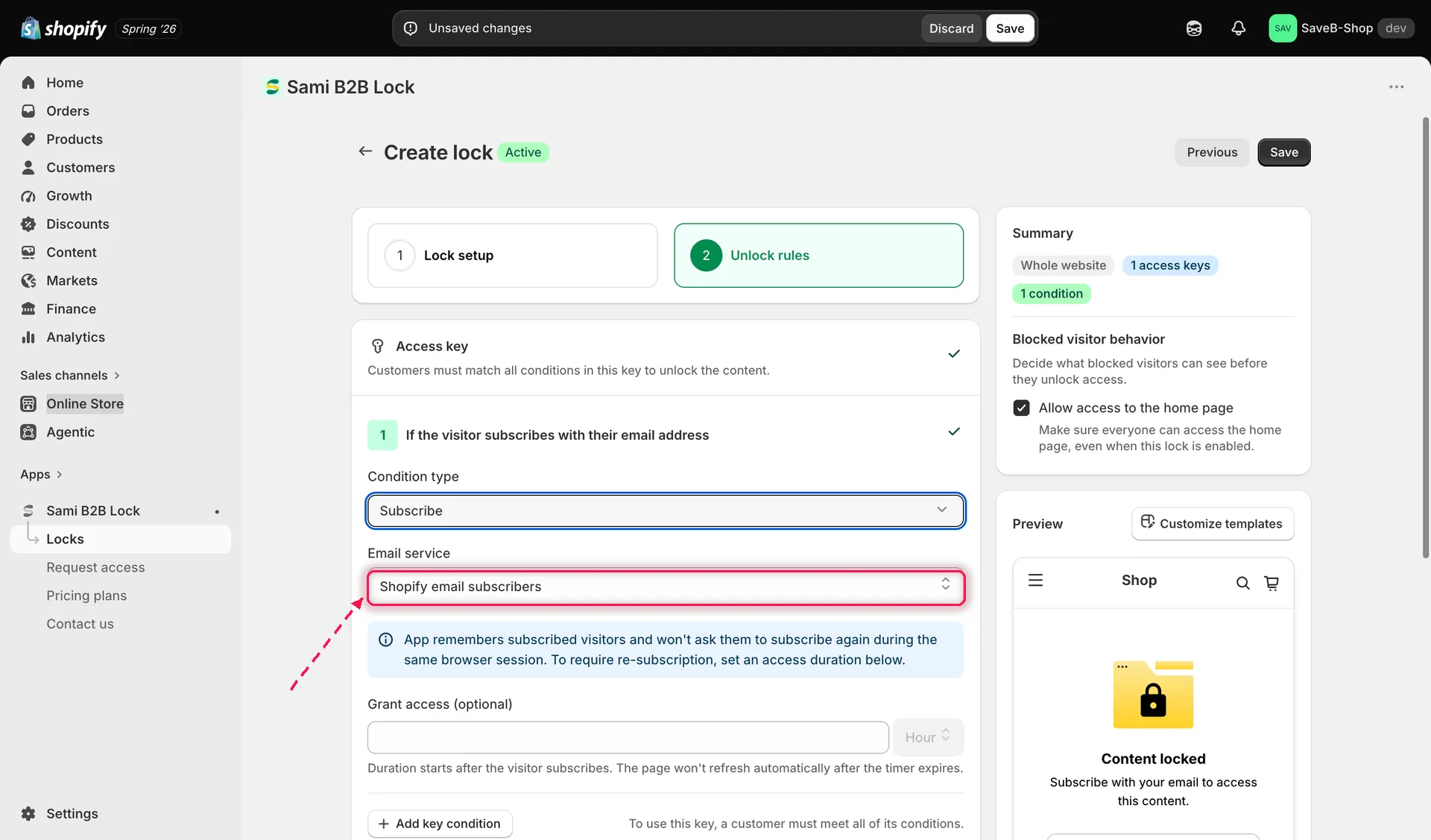
Shopify email marketing consent requires no extra setup.
Mailchimp
Section titled “Mailchimp”- Enter your Mailchimp API key (an API key with audience access, generated from your Mailchimp account) and click Check connection.
- Once connected, select which audience list the visitor should be subscribed to.
- Set an optional Grant access duration, the same as with Shopify.
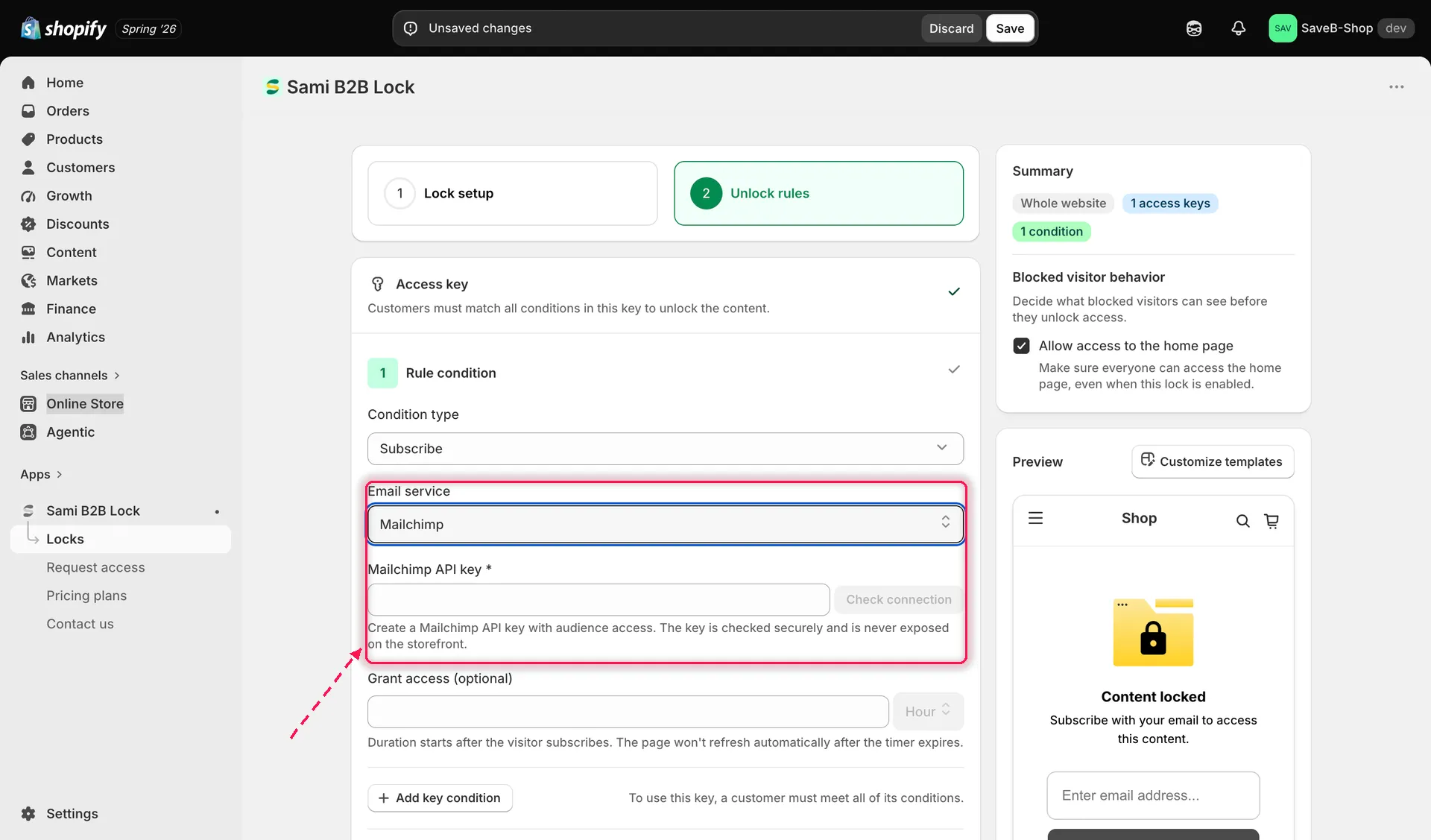
Connect Mailchimp with an API key, then pick the audience list to subscribe visitors to.
Klaviyo
Section titled “Klaviyo”- Enter your Klaviyo private API key and click Check connection.
- Once connected, choose an audience type: List or Segment.
- Select the specific list or segment.
- Set an optional Grant access duration if you’re using a list (Klaviyo segments don’t use this field — see below).
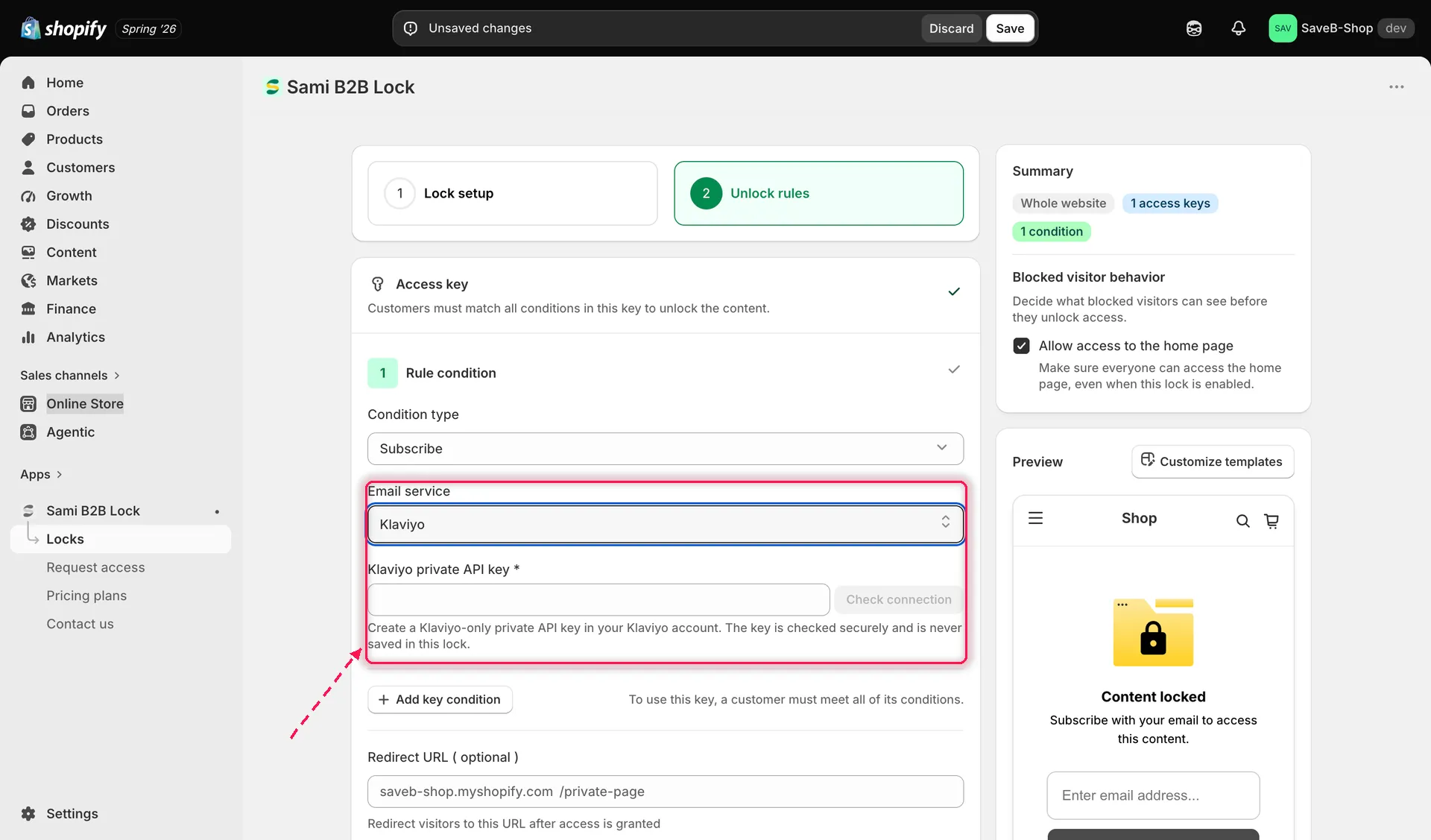
Connect Klaviyo, then choose whether to subscribe visitors to a list or check membership in a segment.
Shopper-facing copy
Section titled “Shopper-facing copy”By default, shoppers who hit a Subscribe to unlock rule see:
- Notification: “Content locked” / “Subscribe with your email to access this content.”
- Email input placeholder: “Enter email address…”
- Button: “Subscribe”
- Errors: “Please fill in field”, “Invalid email”, “Unable to subscribe. Please try again.”
All of this text is editable per lock and per storefront language. See Translate lock messages.
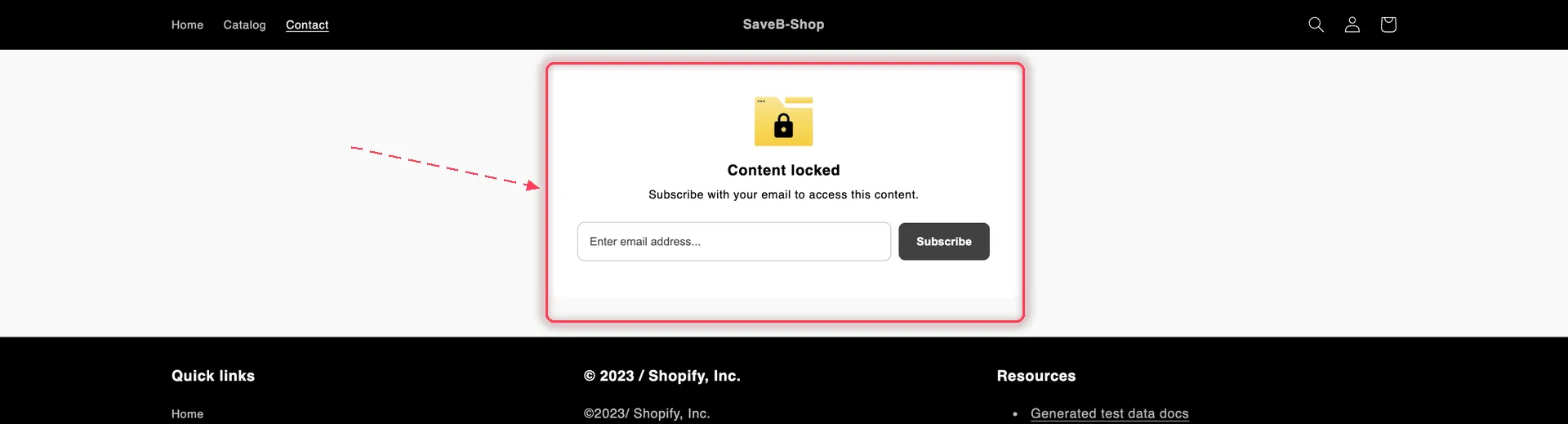
An unsubscribed visitor gets the subscribe card instead of the page.
- Click Save. The rule takes effect on your storefront as soon as the app embed is enabled.