
Quick start
Create your first lock
Build and verify your first lock in a few minutes, using a real example — hiding a product's price from guests.
This walkthrough builds one simple, common lock: hide the price and Add to cart button on a single product so only logged-in customers can see them. It’s a good first lock because it uses the three pieces every lock is built from — content to lock, an access rule, and a lock behavior — without any extra complexity.
Make sure you’ve already enabled the app embed on your theme, or the lock you create here won’t take effect on your storefront yet.
-
Open Locks and start a new lock
Open the app and go to the Locks page, then click Create Lock.
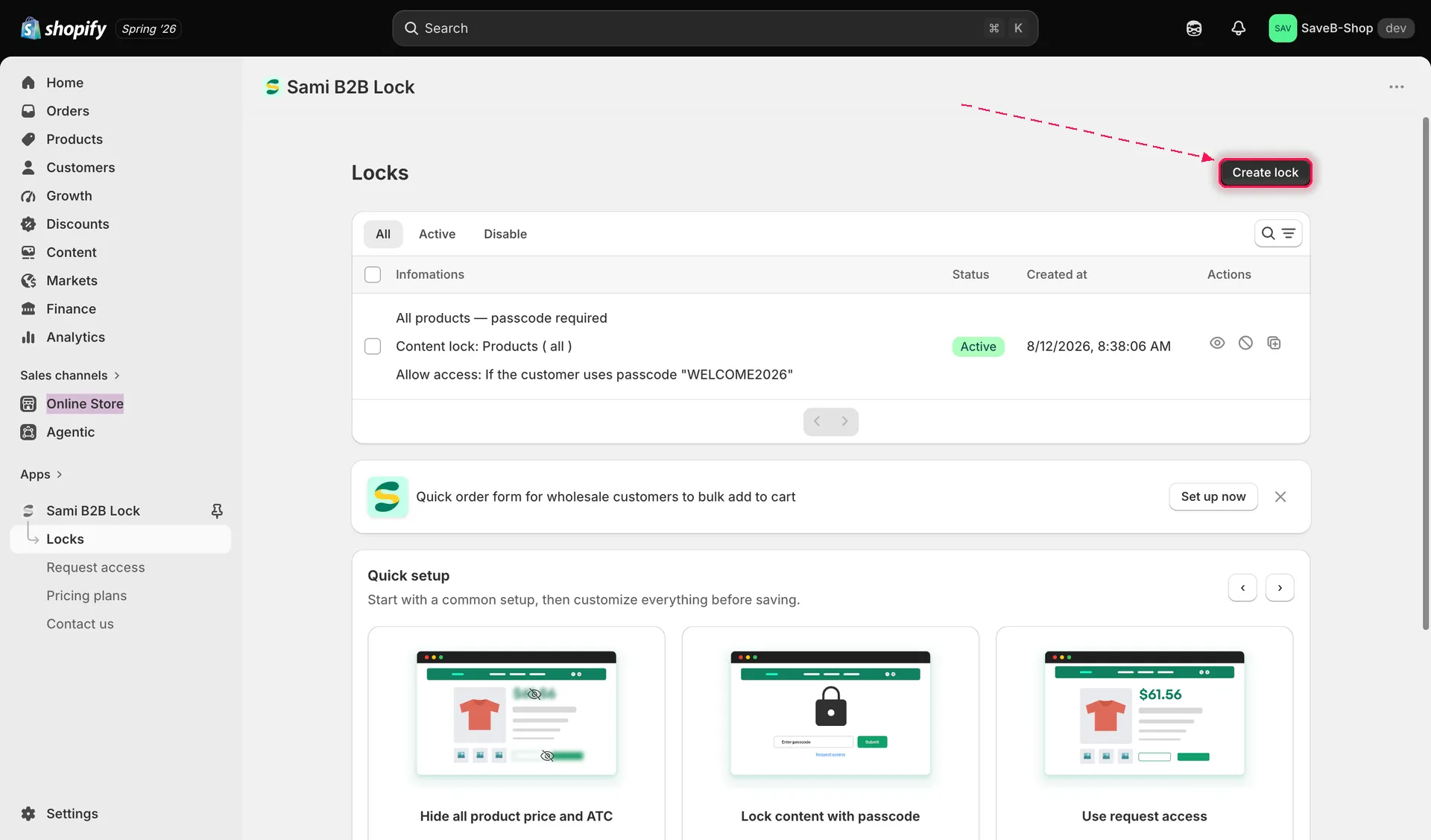
Start a new lock from the Locks page.
-
Name your lock
Give the lock a name you’ll recognize later, for example “Members-only pricing.” This name is only for your own reference in the admin — shoppers never see it.
-
Choose Products as the content to lock
Set Content to lock to Products, then pick the single product you want to protect from the product picker.
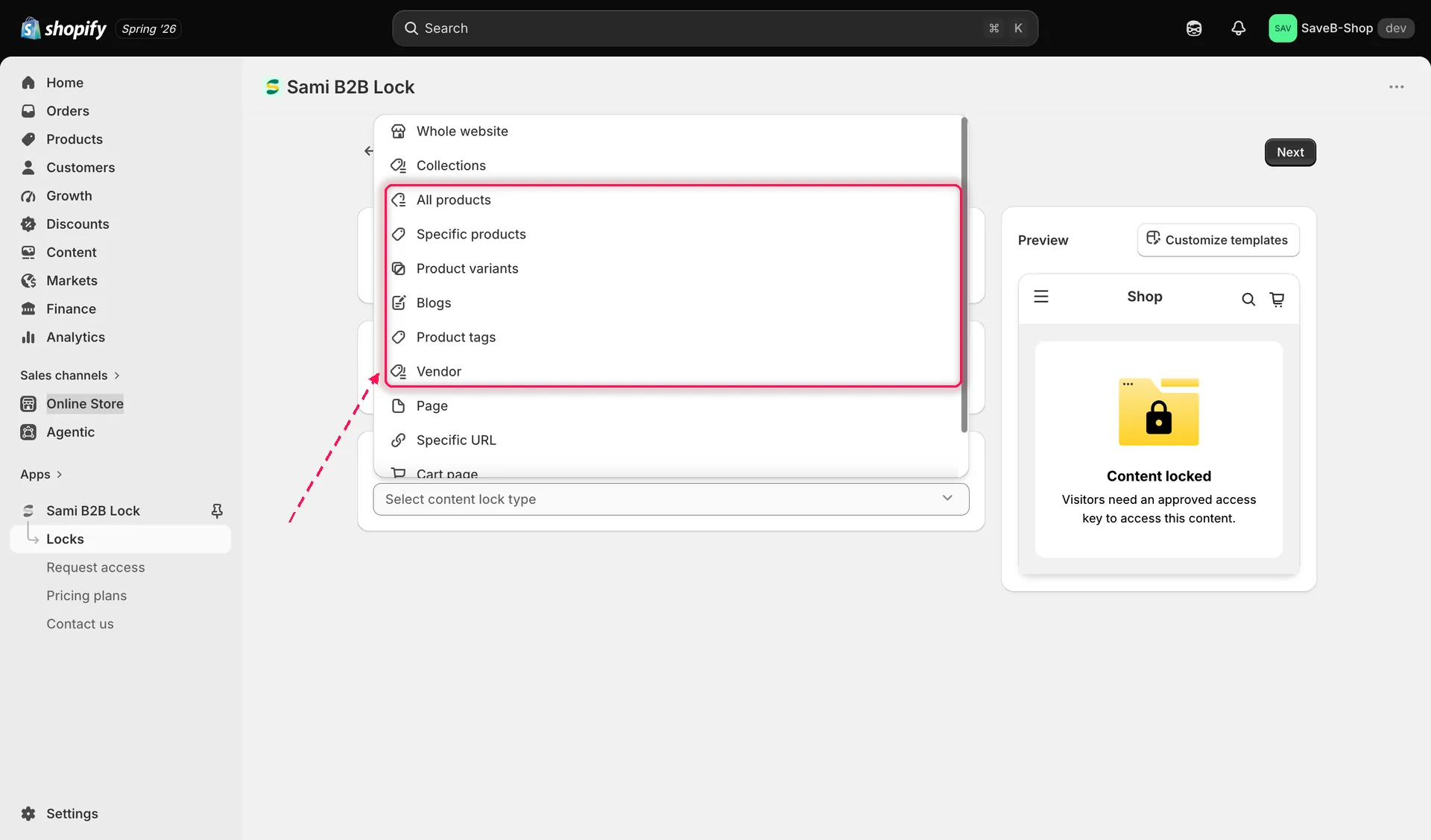
Pick Products as the content type, then choose the specific product to protect.
-
Add the Logged-in customers access rule
Add an access rule and choose Logged-in customers. Leave it set to match If the visitor is signed in — this is the default and the setting this example needs.
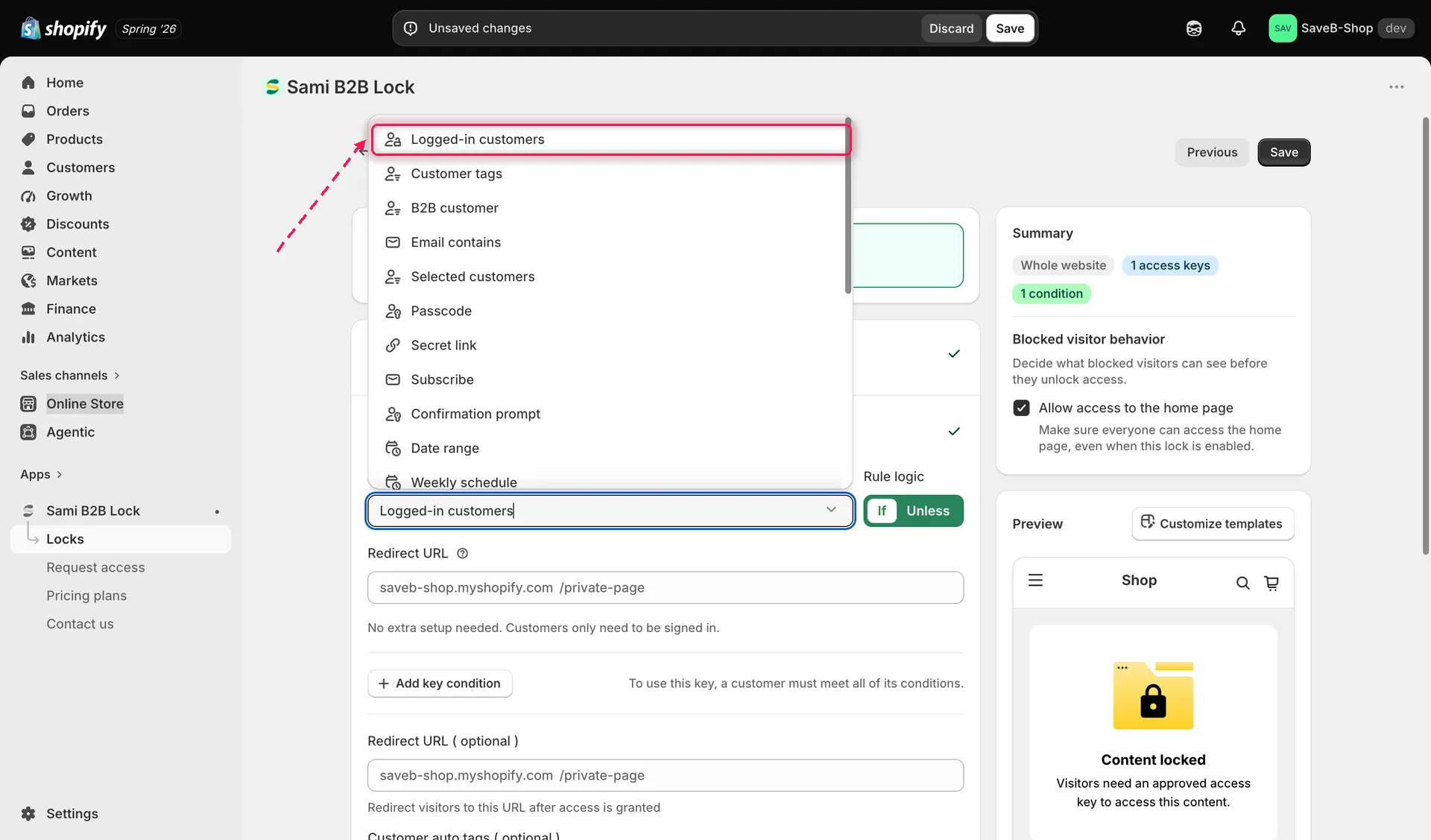
Add the Logged-in customers access rule to the lock.
-
Turn on Hide price and Add to cart
In the lock’s behavior settings, turn on both Hide price and Hide Add to cart. Guests who don’t pass the access rule will see the product page with the price and button replaced, instead of being blocked entirely.
-
Save the lock
Review the summary of what you’ve configured — content, access rule, and behavior — then click Save.
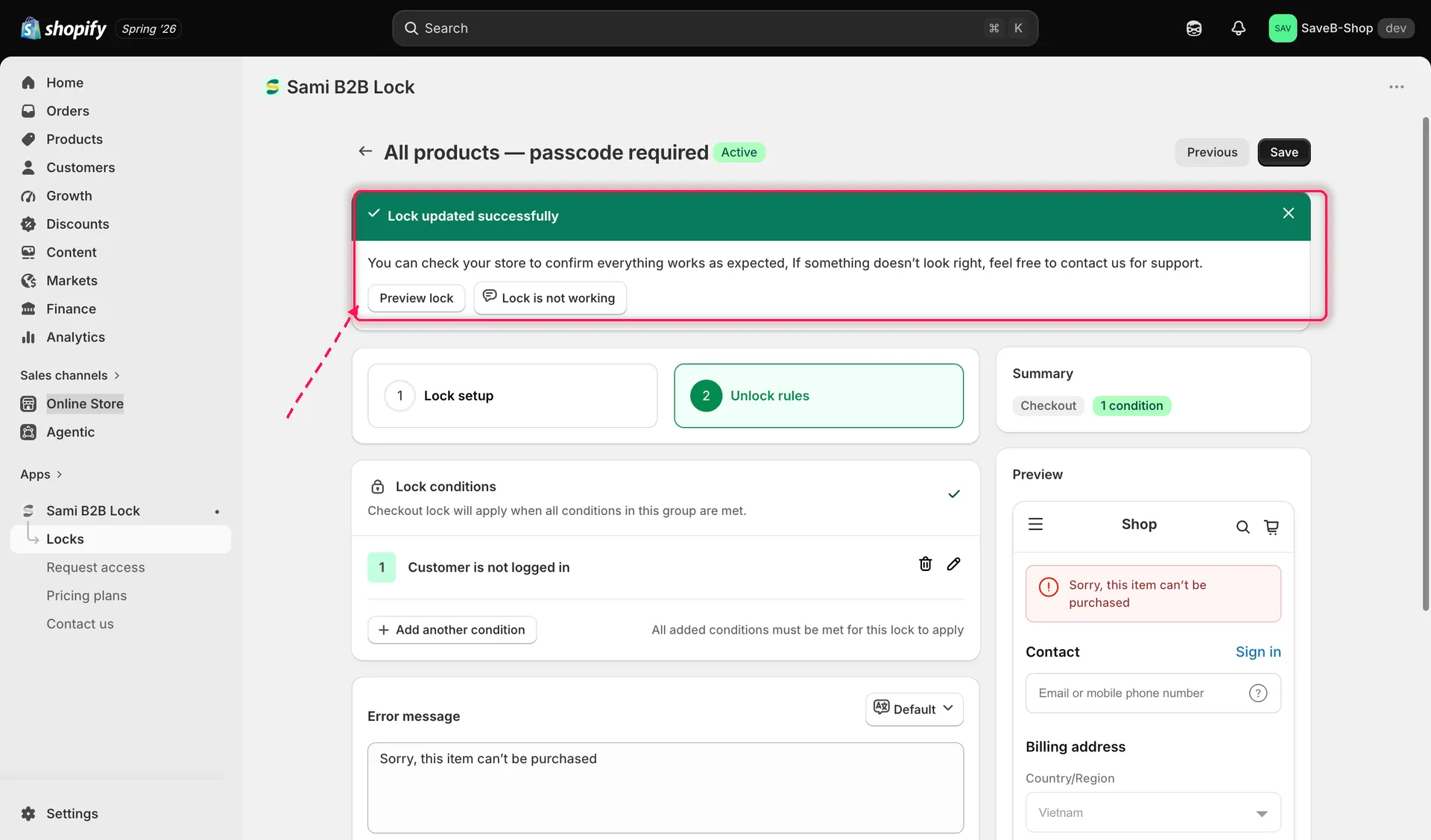
Review the lock summary before saving.
-
Verify it on your live storefront
Open an incognito or private browser window and visit the product page on your live storefront. You should see the price and Add to cart button replaced with a “Login to see price” / “Login to Add to cart” prompt instead of the normal buy box.
Now log in with a customer account (in that same window, or any browser where you’re signed in) and reload the product page. The price and Add to cart button should reappear normally, since you now pass the Logged-in customers rule.