
Cart page
Lock the storefront cart page itself, separate from conditions about what's inside the cart.
The Cart page content type locks your storefront’s cart page as a whole — for example, requiring a visitor to sign in or subscribe before they can view their cart and proceed toward checkout.
Create the lock
Section titled “Create the lock”- Open Locks in the app’s navigation and click Create lock.
- Give the lock a descriptive name, for example “Cart — sign-in required.”
- On the Lock setup tab, open Content to lock and choose Cart page.
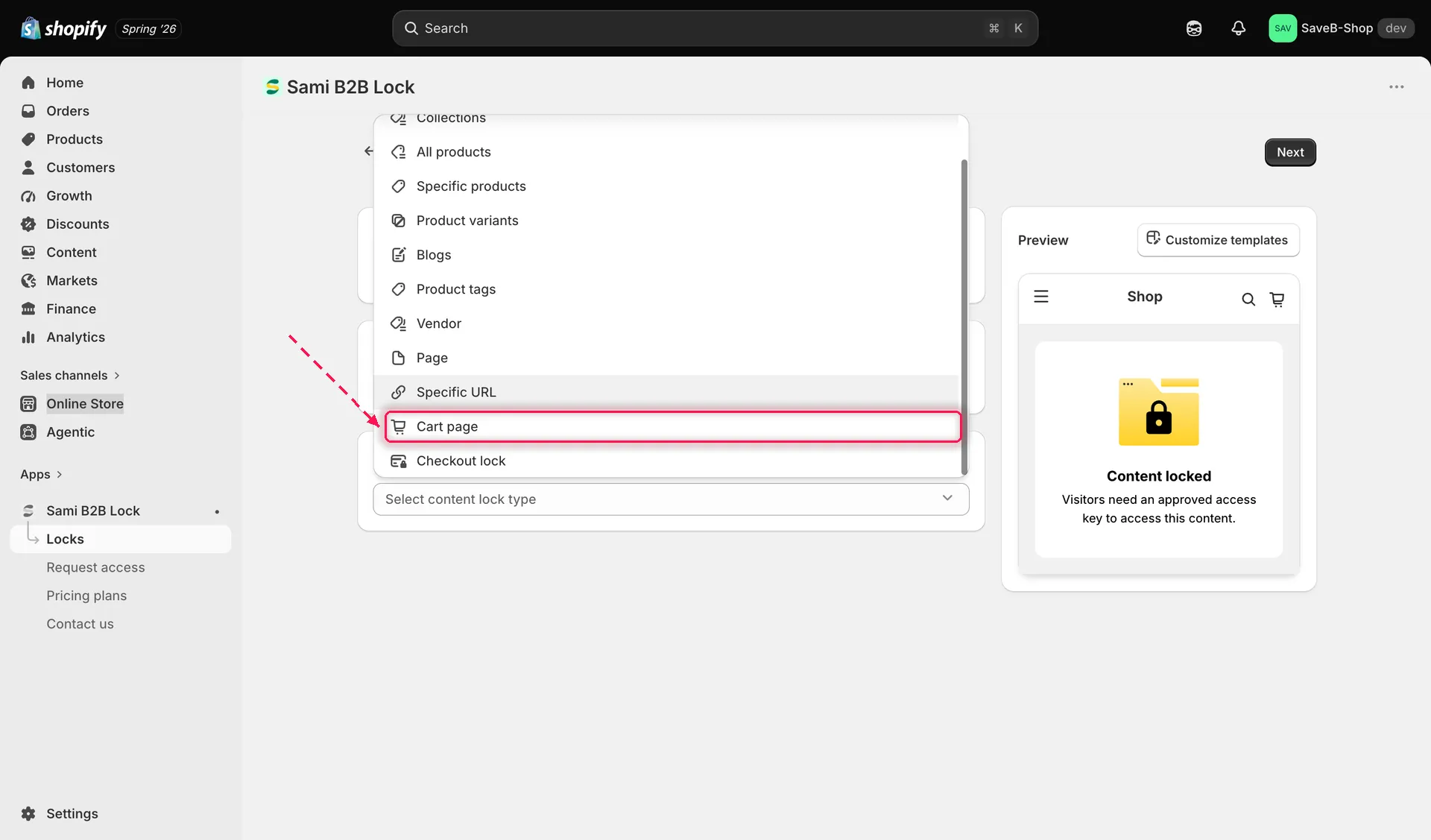
Choose Cart page to lock the entire storefront cart page.
Cart page has no extra targeting options — selecting it locks the whole /cart page, so there’s nothing else to configure on this tab besides the lock’s name.
Add an access rule
Section titled “Add an access rule”- Switch to the Unlock rules tab and add at least one rule. See Access rules overview for the full catalogue.
- Add every required condition to the access key. All conditions must be satisfied. See Combining rules.
- Click Save. The lock takes effect on your storefront as soon as the app embed is enabled.