
Create a task
Configure the edit
Name the task, choose an edit method and enter the new value.
After you select a field, the Create task page opens with the field already filled in.
Task name
Section titled “Task name”Enter a short name, up to 100 characters. The default is New task. The name appears in the task list, in the task details page and in notification emails.
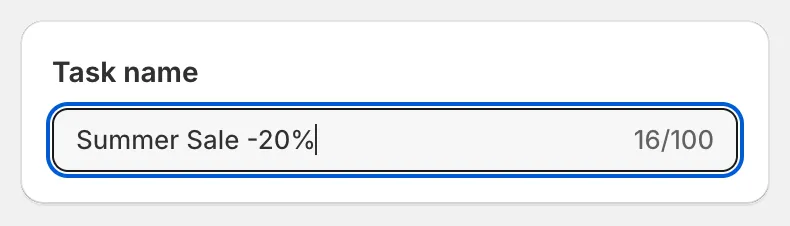
Task name
Field to edit
Section titled “Field to edit”The Field to edit card shows the chosen Field and the Edit method list. The options below the list change with the method you pick.
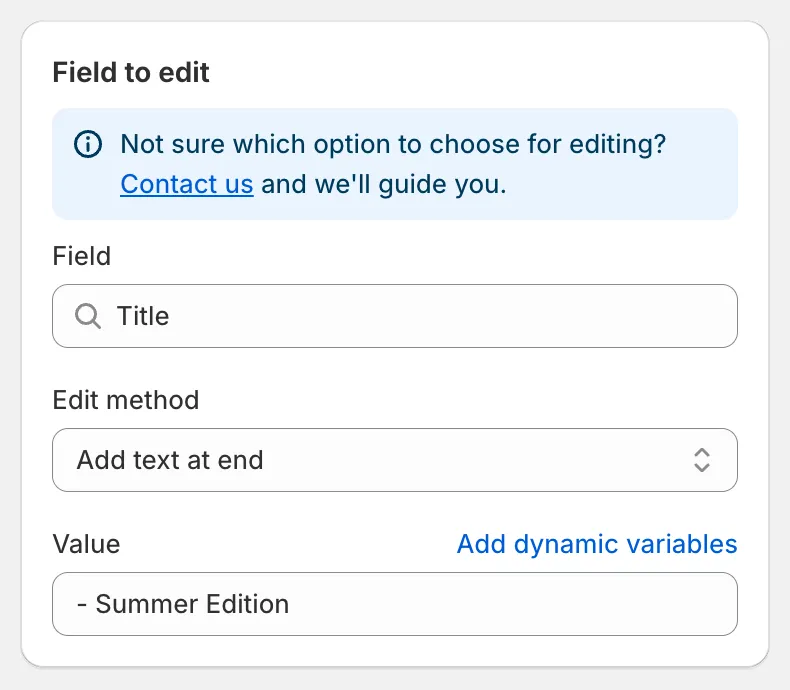
Field to edit for Title
Edit methods for text fields
Section titled “Edit methods for text fields”Title, Handle, Vendor, Product type, SEO title, SEO description, SKU, Barcode, HS code, the Google Shopping text fields and custom metafields share the same text methods.
| Edit method | What it does |
|---|---|
| Find and replace | Replaces every occurrence of Find value with Replace value. Matching is exact and case-sensitive. Leave Replace value empty to delete the found text. |
| Replace entire text | Overwrites the whole field with Value. |
| Add text at beginning | Puts Value, then a space, in front of the current text. |
| Add text at end | Puts a space, then Value, after the current text. |
| Remove from beginning | Removes Value when the field starts with it. |
| Remove from end | Removes Value when it is the last word of the field. |
| Remove up to (and including) word | Deletes everything from the start up to and including the first occurrence of Value. |
| Remove from word to end | Deletes the last occurrence of Value and everything after it. |
| Set to null/blank | Clears the field. Available on SKU, Barcode, HS code, country and province of origin, Weight, Cost price, Compare at price and metafields. |
Description has a shorter list: Find and replace, Replace entire text, Add text at beginning, Add text at end. See Description.
Edit methods for prices and numbers
Section titled “Edit methods for prices and numbers”Price, Compare at price, Cost price and Weight use numeric methods such as Increase by percentage, Decrease by amount or Set to fixed value, plus a Rounding rule. See Price and compare-at price and Rounding rules.
Choice fields
Section titled “Choice fields”Status, Search engine visibility, Inventory tracked, Continue selling when out of stock, Charge tax, Is physical product and several Google Shopping fields have no edit method. You simply pick the new value from a list of radio buttons.
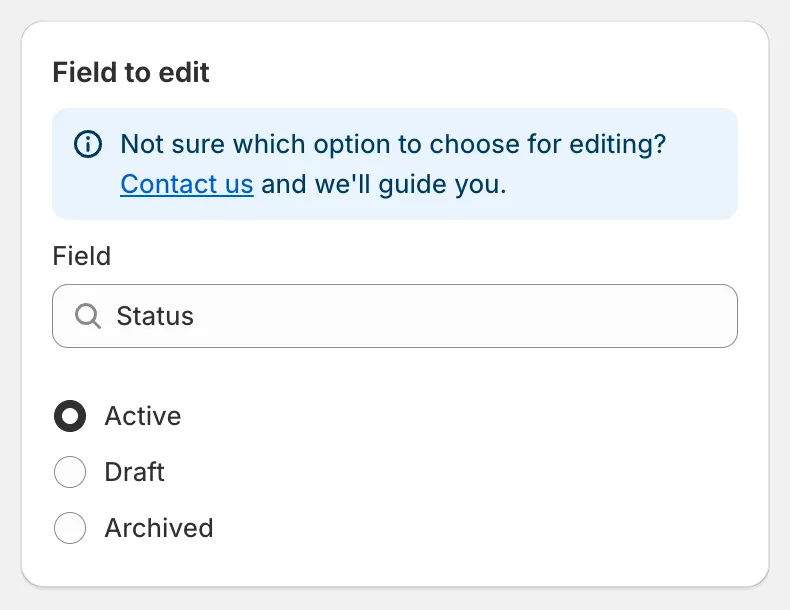
A choice field
Dynamic variables
Section titled “Dynamic variables”Text inputs that show an Add dynamic variables link accept placeholders such as {{ product.vendor }}. The placeholder is replaced with each product’s own value when the task runs. See Dynamic variables.
Warnings on the card
Section titled “Warnings on the card”Some fields show a warning above the inputs:
- SKU and Barcode warn that the edit may create duplicate values across variants.
- Handle warns that handles must be unique and that Shopify creates an automatic redirect from the old URL.
- Custom metafield warns that the edit method must match the metafield type.
- Delete product, Delete variants by option value and Remove product options warn that the change is permanent and cannot be reverted.
Next step
Section titled “Next step”Choose the products the task applies to. See Select products and variants.