
Price and compare-at price
Increase, decrease or set prices and compare-at prices in bulk, with rounding and a linked compare-at price.
Price is the selling price of a variant. Compare at price is the original price shown struck through next to a sale price. Both are variant fields, so you can limit the change to specific variants with Apply to variants.
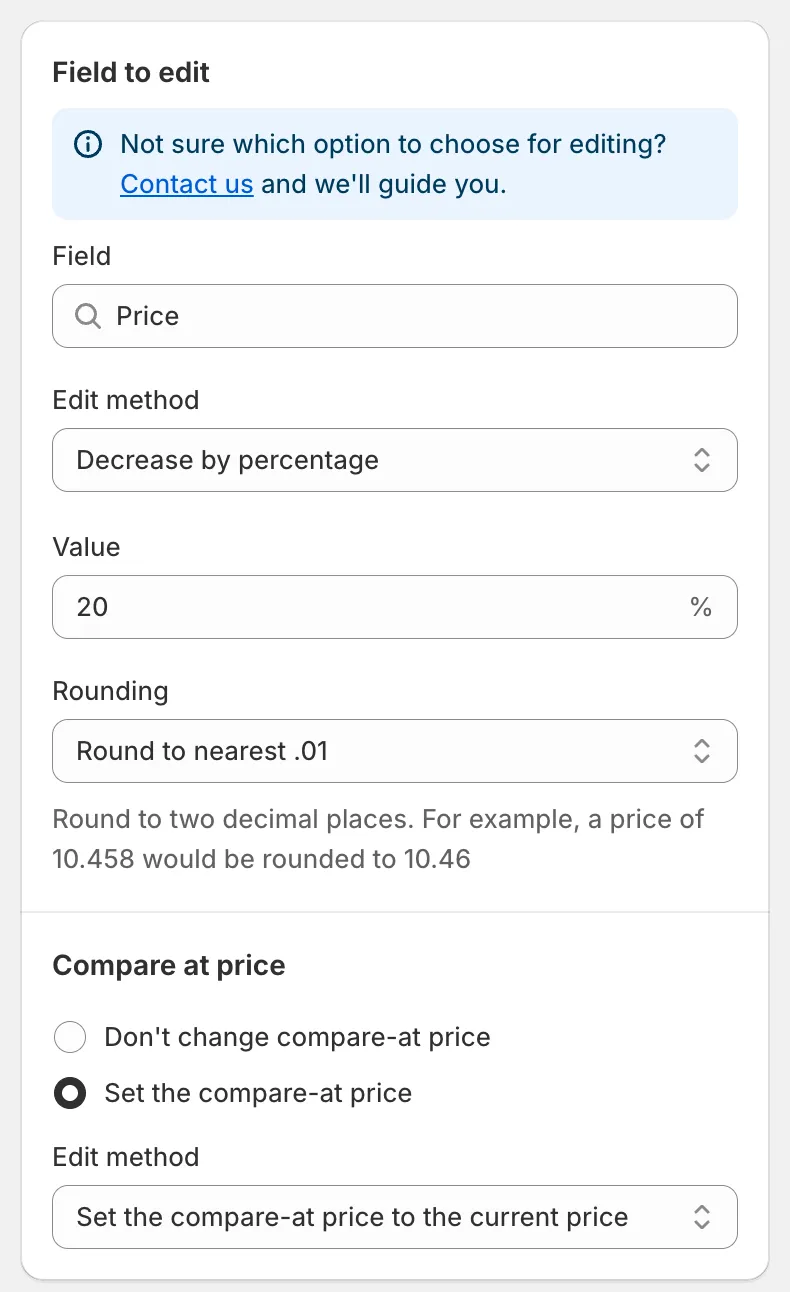
The Price field
Edit methods for Price
Section titled “Edit methods for Price”| Edit method | Result | Example (price 50.00) |
|---|---|---|
| Decrease by percentage | price − n% | 20 → 40.00 |
| Increase by percentage | price + n% | 20 → 60.00 |
| Set to fixed value | the value you enter | 45 → 45.00 |
| Decrease by amount | price − n | 5 → 45.00 |
| Increase by amount | price + n | 5 → 55.00 |
| Set as percentage of price | price × n% | 80 → 40.00 |
| Set the price to the current compare-at price | copies the compare-at price | compare-at 70.00 → 70.00 |
| Set as percentage of compare at price | compare-at × n% | compare-at 70.00, 50 → 35.00 |
| Set the price to the current cost price | copies the cost per item | cost 30.00 → 30.00 |
| Set as percentage of cost price | cost × n% | cost 30.00, 150 → 45.00 |
| Decrease by percentage of cost price | cost − n% | cost 30.00, 10 → 27.00 |
| Increase by percentage of cost price | cost + n% | cost 30.00, 50 → 45.00 |
Notes:
- The Value box accepts positive numbers. Methods based on the compare-at price or cost skip variants where that source value is empty.
- A result below zero is set to 0.
- Every method except the two Set the price to the current … options has a Rounding rule. See Rounding rules.
Linked compare-at price
Section titled “Linked compare-at price”Below the price settings, the Compare at price section lets you change the compare-at price in the same task:
- Don’t change compare-at price (default).
- Set the compare-at price: opens its own Edit method, Value and Rounding. The default method, Set the compare-at price to the current price, stores the price before your change as the compare-at price, which is the usual way to show a discount.
Edit methods for Compare at price
Section titled “Edit methods for Compare at price”When you start a task on the Compare at price field, the methods are:
Set the compare-at price to the current price (default), Set to fixed value, Decrease by amount, Increase by amount, Decrease by percentage, Increase by percentage, Set as percentage of price, Set as percentage of compare at price, Set the compare-at price to the current cost price, Set as percentage of cost price, Decrease by percentage of cost price, Increase by percentage of cost price, Set to null/blank.
Set to null/blank removes the compare-at price so the storefront no longer shows a strike-through.
The linked section on this field is Price: Don’t change price or Set the price, with the full list of price methods.
Quick Discount Campaign Setup
Section titled “Quick Discount Campaign Setup”The dashboard card Quick Discount Campaign Setup builds a price task for you:
- Enter the Discount and choose Percentage or Amount.
- Tick Update compare-at price only if you want to keep the current price and instead raise the compare-at price so the storefront shows a discount.
- Click Quick Create. The task form opens pre-filled; review the products and schedule, then save.
What is reverted
Section titled “What is reverted”Reverting a price task restores the original price and, if the task changed it, the original compare-at price of every variant it updated. See Revert changes.