
Manage tasks
Run, pause and continue a task
Start a manual task, pause a running task and continue a paused or partially complete task.
These actions are in the ⋮ menu on the Tasks list and in the top-right buttons of the task details page.
Apply change now
Section titled “Apply change now”Available for tasks in Manual start, Scheduled and Failed status (one-time tasks only). A Confirm change dialog asks Are you sure you want to apply this edit? This will commence the editing process. Click Run and the task starts immediately, regardless of its schedule.
Use this to start a manual task, to run a scheduled task early, or to retry a failed task after fixing the cause.
Pause change
Section titled “Pause change”Available while a task is Running. A Confirm pause edit dialog appears. Products already updated stay updated; the status becomes Paused.
Continue change
Section titled “Continue change”Available for Paused and Partially complete tasks. A Confirm continue edit dialog appears and the task resumes with the remaining products.
For a task that stopped because of the plan’s products-per-task limit, Continue change becomes available after you upgrade, and processes the products that were left out. If the task has already been reverted, continuing is not possible; create a new task instead.
Pause revert and Continue revert
Section titled “Pause revert and Continue revert”The same two actions exist for the revert phase: Pause revert while a revert is in progress, and Continue revert when the revert is paused or partially complete.
How long does a task take?
Section titled “How long does a task take?”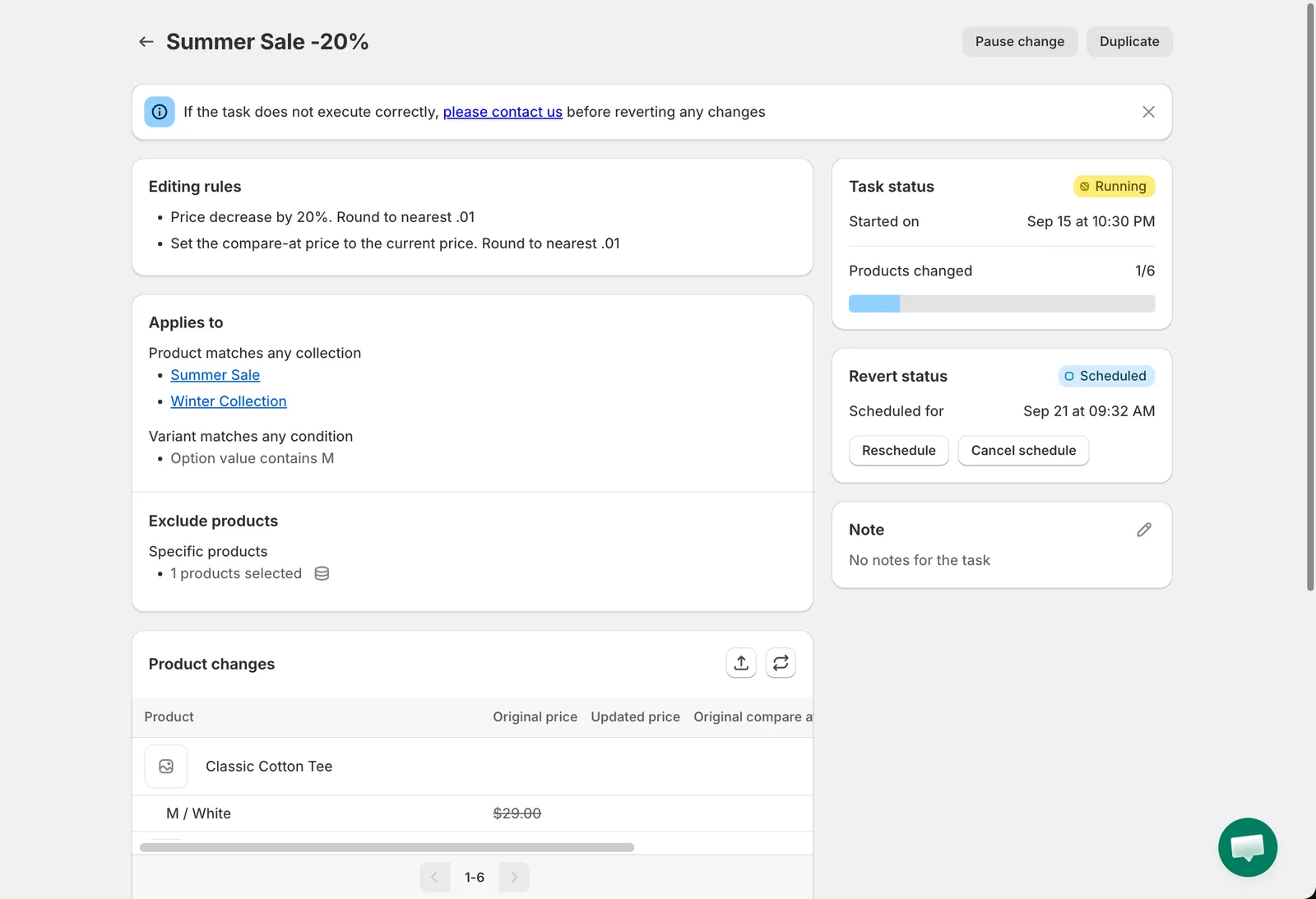
A running task
The app sends your changes to Shopify in batches through Shopify’s bulk operations. Shopify processes one bulk operation per store at a time, so a task with many products, or several tasks started together, takes longer. Most tasks finish within minutes; very large catalogs can take longer. Keep the task page open or come back later; the status refreshes automatically.