
Dynamic variables
Insert values from other product and variant fields into your text edits.
Text inputs that show an Add dynamic variables link can contain placeholders. When the task runs, each placeholder is replaced with the value from that product or variant.
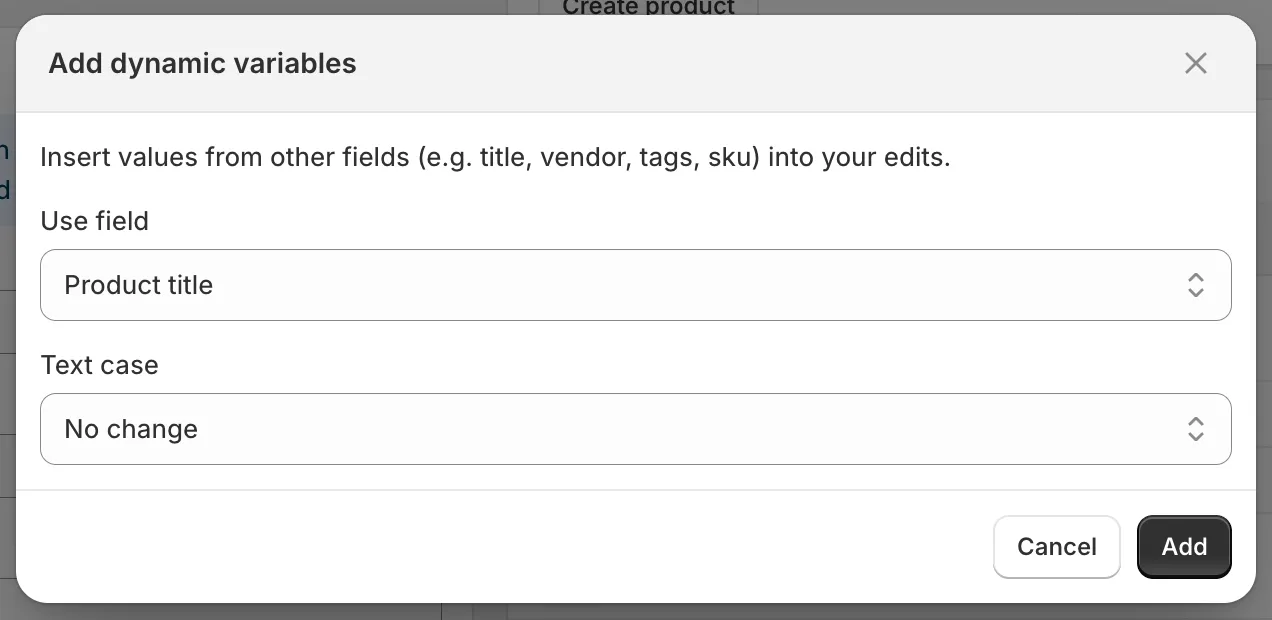
Add dynamic variables
Insert a variable
Section titled “Insert a variable”- Click Add dynamic variables above the input.
- Choose the Use field.
- Choose a Text case: No change, UPPERCASE, lowercase or Title Case.
- Click Add. The placeholder, for example
{{ product.vendor | upcase }}, is appended to the input. You can also type placeholders by hand.
Available variables
Section titled “Available variables”| Product fields | Placeholder |
|---|---|
| Product title | {{ product.title }} |
| Product ID | {{ product.id }} |
| Product handle | {{ product.handle }} |
| Product type | {{ product.type }} |
| Product vendor | {{ product.vendor }} |
| SEO title | {{ product.seo_title }} |
| SEO description | {{ product.seo_description }} |
| Product URL | {{ product.url }} |
| Product status | {{ product.status }} |
| Product tags | {{ product.tags }} |
| Product category | {{ product.category }} |
| Product category full name | {{ product.category_full_name }} |
| Variant fields (variant tasks only) | Placeholder |
|---|---|
| Variant ID | {{ variant.id }} |
| Variant title | {{ variant.title }} |
| Variant sku | {{ variant.sku }} |
| Variant barcode | {{ variant.barcode }} |
| Variant tax code | {{ variant.tax_code }} |
| Variant country code of origin | {{ variant.country_code_of_origin }} |
| Variant province code of origin | {{ variant.province_code_of_origin }} |
| Variant HS code | {{ variant.hs_code }} |
Text case is applied with a filter: | upcase, | downcase or | titlecase. IDs have no text case options.
Where you can use them
Section titled “Where you can use them”Title, Description, Handle, Vendor, Product type, Theme template, SEO title, SEO description, SKU, Barcode, HS code, Tags, Option value 1 to 3, the Google Shopping text fields, and the find/replace inputs of custom metafields.
Numeric fields (Price, Compare at price, Cost price, Weight), choice fields, collections, sales channels and pickers do not accept variables.
Examples
Section titled “Examples”| Goal | Field and method | Value |
|---|---|---|
| Add the vendor to every title | Title, Add text at end | by {{ product.vendor }} |
| Generate SEO titles | SEO title, Replace entire text | {{ product.title }} | {{ product.vendor }} |
| Tag products with their type | Tags, Add tags | {{ product.type | downcase }} |
| Build unique SKUs | SKU, Replace entire text | {{ product.vendor | upcase }}-{{ variant.id }} |
The preview resolves the variables so you can check the result before saving.