
Reschedule or cancel a schedule
Change or cancel the start time or the revert time of a saved task.
Reschedule the start
Section titled “Reschedule the start”For a Scheduled task choose Reschedule change in the ⋮ menu, or Reschedule in the Task status card. Pick a new Date and Time and click Save. The new time uses your app timezone.
Cancel the start schedule
Section titled “Cancel the start schedule”Choose Cancel change schedule (or Cancel schedule in the Task status card). The task is kept with the status Manual start. Start it later with Apply change now, or give it a new date with Schedule in the Task status card.
Reschedule or cancel the revert
Section titled “Reschedule or cancel the revert”For a task with a scheduled revert:
- Reschedule revert sets a new date and time. The revert must stay at least 5 minutes after the start.
- Cancel revert schedule removes the automatic revert. The task will not revert unless you press Revert now or schedule it again with Schedule in the Revert status card.
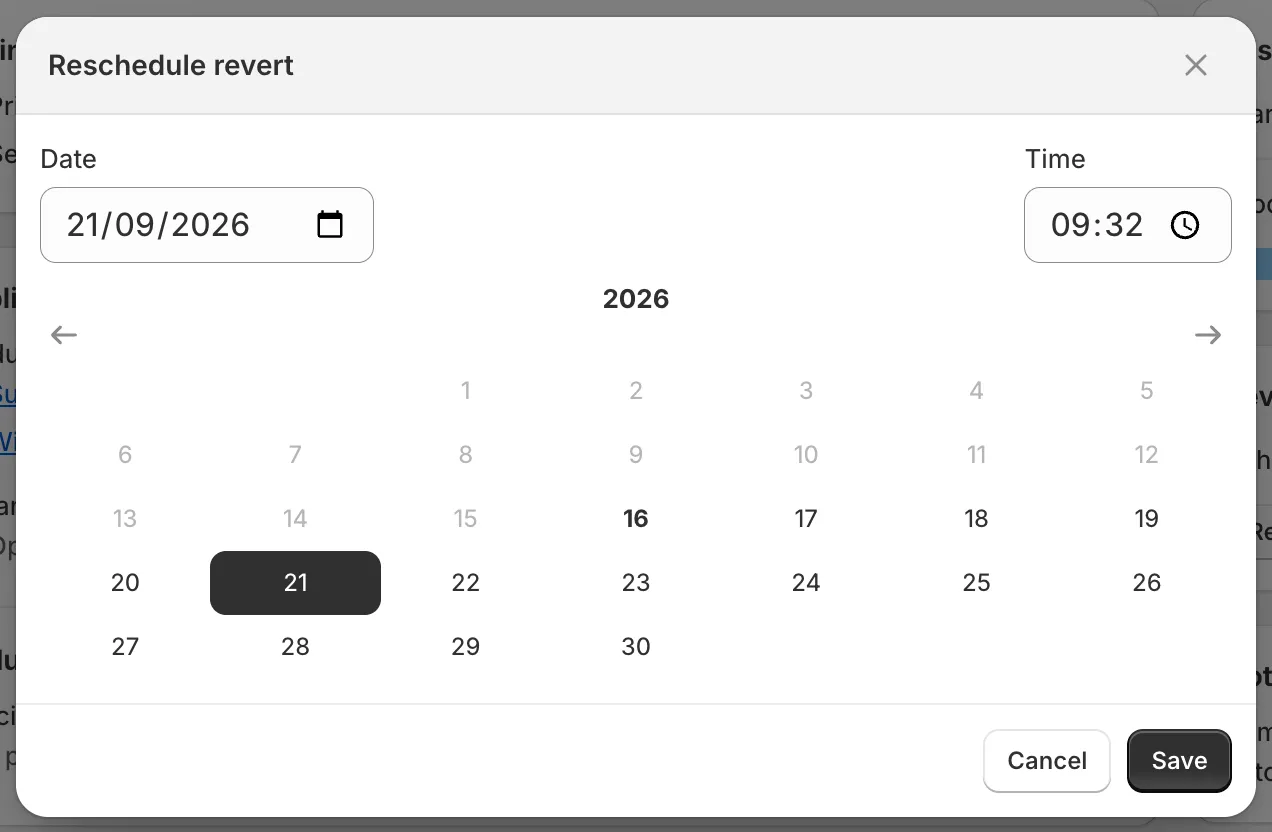
Reschedule dialog
Recurring tasks
Section titled “Recurring tasks”Recurring tasks are rescheduled from the Recurring card on the task details page. See Recurring tasks.