
Rename, notes and archive
Rename a task, attach a note for your team, and archive tasks you no longer need to see.
Rename
Section titled “Rename”Rename is available for tasks in Completed, Recurring completed and Manual start status. Choose it from the ⋮ menu or the task details page, type the new Task name (up to 255 characters) and click Save.
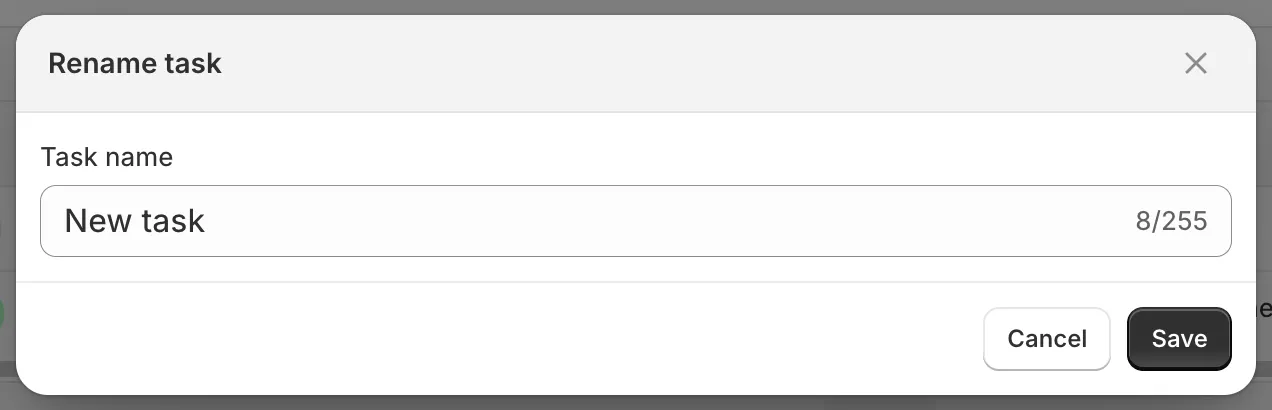
Rename task
Scheduled tasks are renamed by editing the task: open it and change Task name.
Every task can carry one note of up to 1000 characters, for example why the task exists or who asked for it. Choose Note from the ⋮ menu, or click the pencil in the Note card on the task details page. Type the text and click Save.
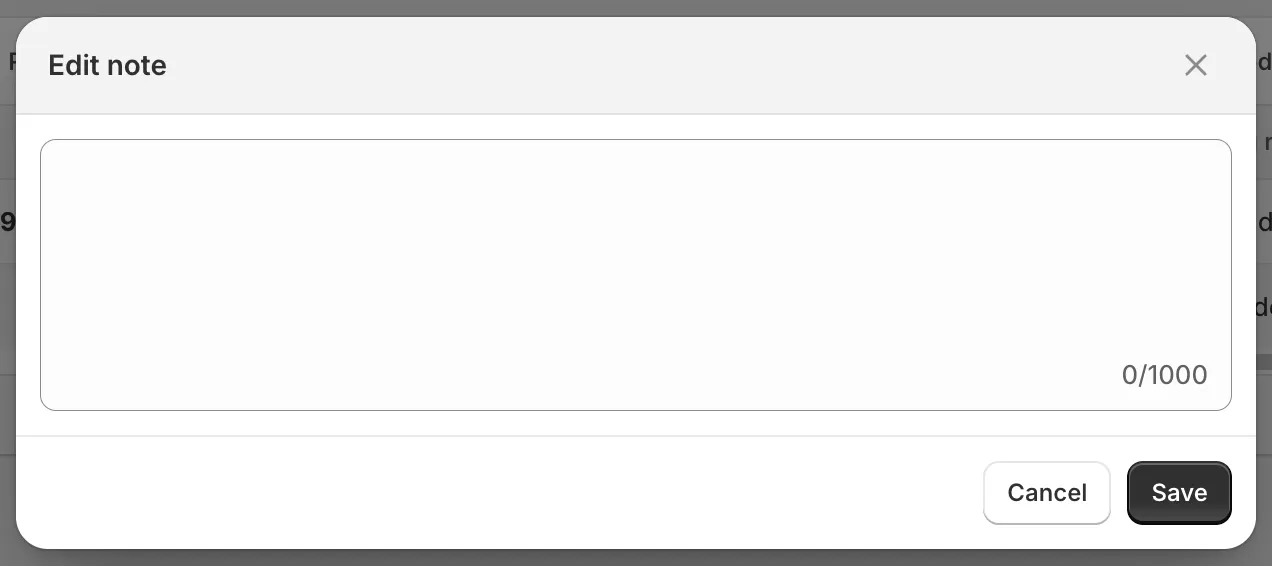
Edit note
Tasks with a note show a note icon next to their name in the Tasks list; hover it to read the note. Notes can be added to archived tasks too.
Archive and unarchive
Section titled “Archive and unarchive”Archiving hides a task from the All and status tabs without deleting it. It keeps the product change history.
Archive is available for one-time tasks that are Completed or Manual start and are not currently scheduled to revert, and for Recurring completed tasks. Choose Archive from the ⋮ menu or the task details page.
To bring a task back, open the Archived tab, open the ⋮ menu and choose Unarchive. Archived tasks cannot be run, rescheduled, reverted or duplicated until they are unarchived.