
Create a task
How a task works
What a bulk edit task is made of and how the task form is organised.
A task is one bulk edit. It has four parts:
| Part | Where you set it | What it controls |
|---|---|---|
| Field to edit | Chosen on the Choose a Field to Edit page, then configured in the Field to edit card | Which product or variant field changes, and how (for example Decrease by percentage 20%). |
| Apply to products | The Apply to products card, plus Exclude products and Apply to variants | Which products, and optionally which variants, receive the change. |
| Start time and Revert time | The schedule card | When the change runs, whether it repeats, and whether it is undone automatically. |
| Preview | The right-hand column | A live look at the current value and the new value for each matching product. |
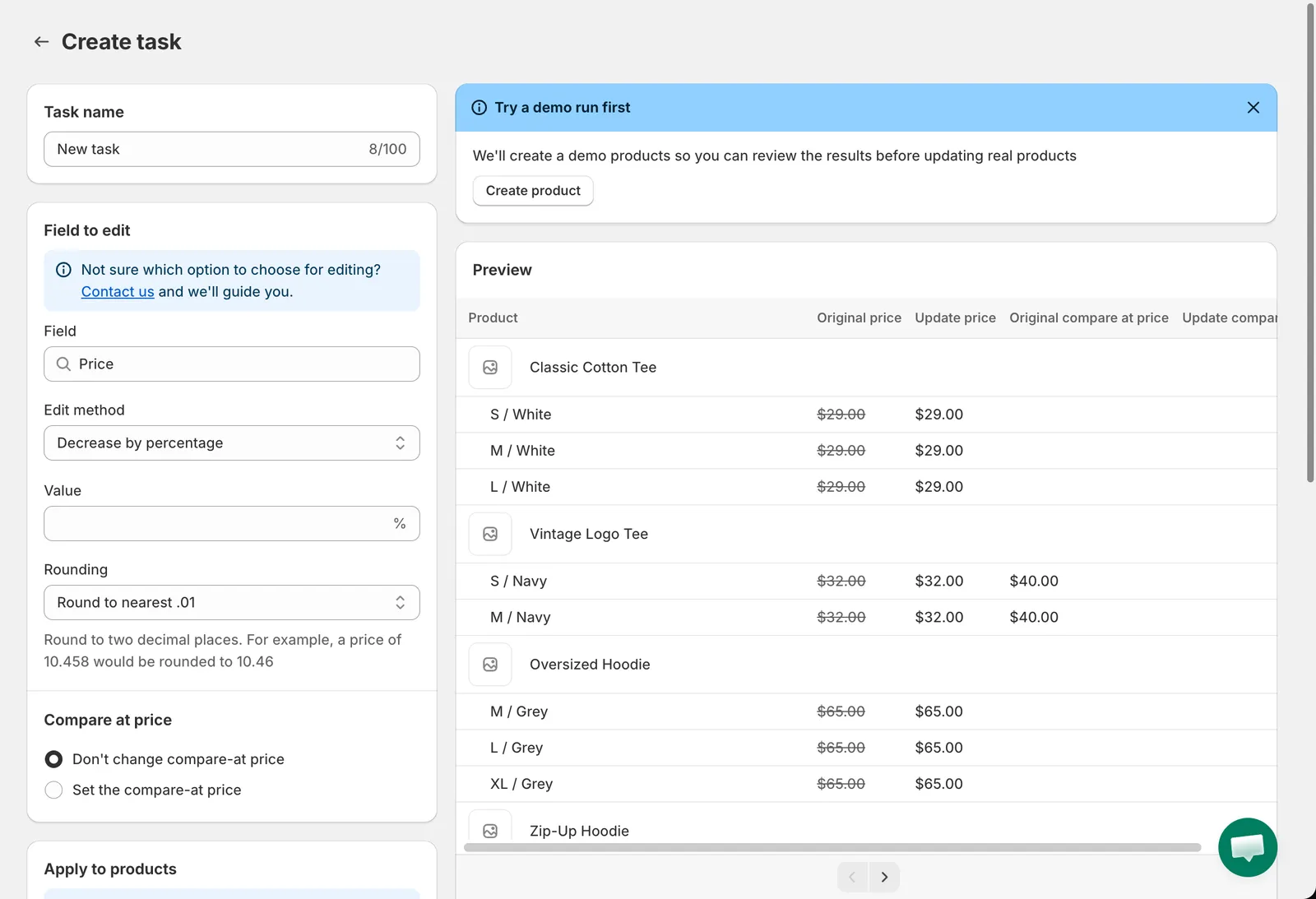
The Create task page
The flow
Section titled “The flow”-
Choose a field
Click New bulk edit and pick a field. Every task edits exactly one field. See Choose a field to edit.
-
Configure the edit
Name the task, choose an Edit method and enter the value. Some fields have extra options such as rounding or a linked compare-at price. See Configure the edit.
-
Select products
Choose All products, Collections, Specific products or Match conditions. For variant fields you can also filter variants. See Select products and variants.
-
Check the preview
Confirm that the Preview shows the products you expect with the right new values. See Preview the changes.
-
Schedule and save
Decide when the task starts, whether it reverts, and click Save. See Schedule, revert and save.
Good to know
Section titled “Good to know”- Task name can be up to 100 characters. It is shown in the task list and in notification emails. You can rename a task later.
- Everything you enter is applied only when you click Save. Leaving the page discards unsaved changes.
- After a task has run you cannot change its rules. Use Duplicate to create an editable copy. Tasks that are saved with Manual start or that are Scheduled can still be edited. See Edit a scheduled or manual task.
- The number of products a single task can update depends on your plan. See Plans and pricing.