
Tasks list and statuses
Find your tasks, read their status and progress, and open the per-task action menu.
Open Tasks in the app menu to see every task in your store. The page title is Bulk Edit Tasks.
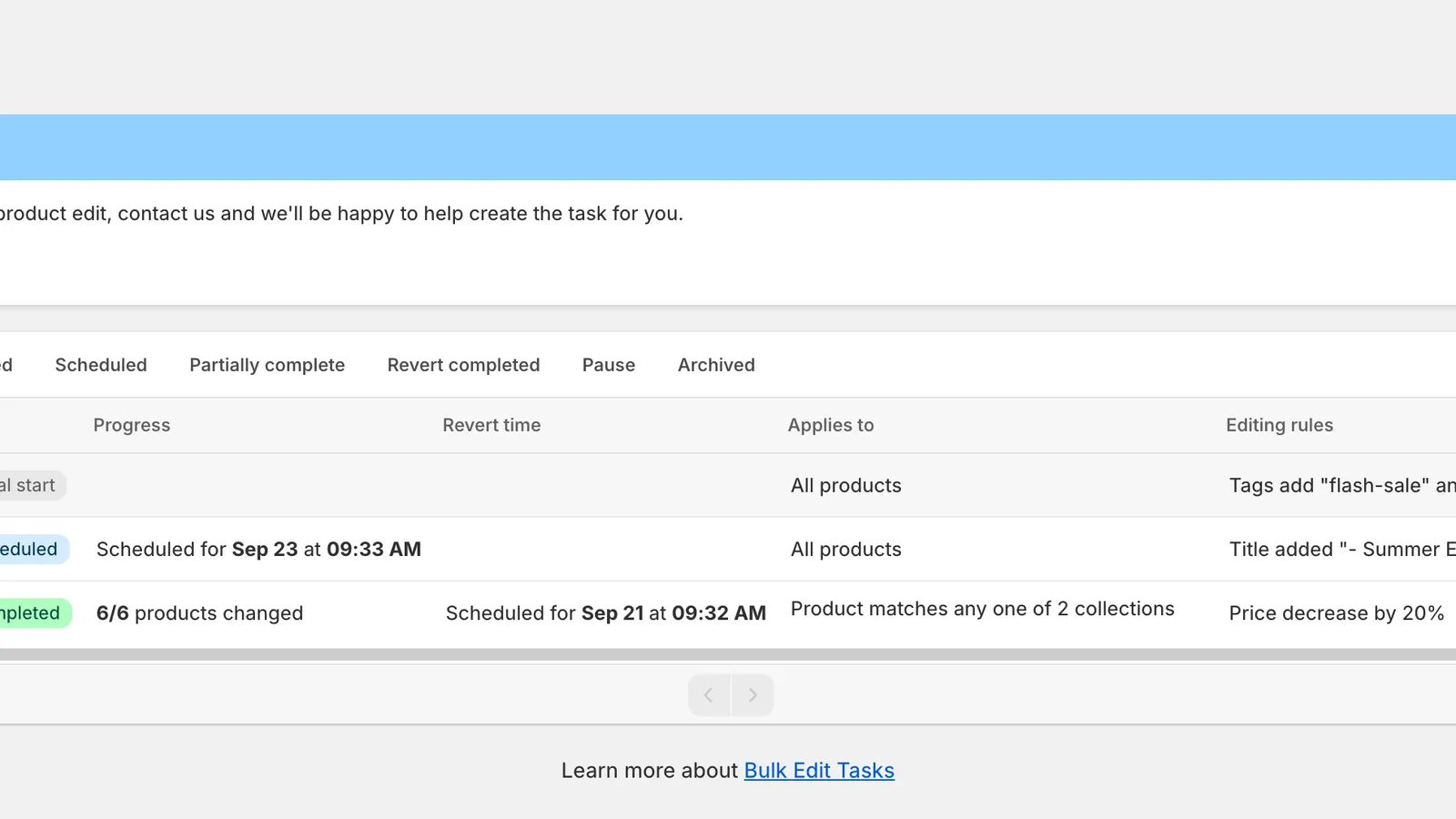
Bulk Edit Tasks
Filter, search and sort
Section titled “Filter, search and sort”- Tabs filter by status: All, Pending, Running, Completed, Scheduled, Partially complete, Revert completed, Pause and Archived. Archived tasks appear only in the Archived tab.
- The search icon opens a box that searches by task name.
- The sort icon offers Created at (newest or oldest first) and Name (A to Z or Z to A).
- The list shows 15 tasks per page. Use the arrows below the table, or the left and right arrow keys, to change page.
- While a task is running or reverting, the list refreshes itself every 10 seconds.
Columns
Section titled “Columns”| Column | Content |
|---|---|
| ID | The task number, for example #79985. Quote it when you contact support. |
| Name | The task name. A note icon appears if the task has a note; hover it to read the note. |
| Recurring | One-time, Daily, Weekly or Monthly. |
| Status | The status badge (see below). |
| Progress | Products changed so far, for example 6/6 products changed, or the scheduled start. |
| Revert time | When the revert is scheduled, or when it happened. Shown only when at least one task on the page has a revert. |
| Applies to | All products, 3 products selected, Product matches any one of 2 collections or … conditions. Click the chevron to see the products, collections or rules. |
| Editing rules | A one-line summary, for example Price decrease by 20%. |
| Created at | Date and time the task was created, followed by the ⋮ action menu. |
Clicking a row opens the task. Scheduled and manual-start tasks open in the task editor; tasks that have run open the task details page.
Statuses
Section titled “Statuses”| Badge | Meaning |
|---|---|
| Manual start | Saved with Start time: Manual, or its schedule was cancelled. It runs only when you choose Apply change now. |
| Scheduled | Waiting for its start time. Progress shows Scheduled for <date> at <time>. |
| Pending execution | Queued and about to start. |
| Running | Changes are being written to Shopify. |
| Completed | Every matching product was updated. |
| Partially complete | Some products were not updated, for example because they were deleted or changed in Shopify while the task ran, because the task was paused, or because the plan limit was reached. Click the badge to see details. |
| Paused | You paused the task. Choose Continue change to resume. |
| Failed | The task could not run. Click the badge to see the error. See Task errors and warnings. |
| Recurring completed | A recurring task has no further runs. |
| Due | A recurring task missed its window and has no next run. |
| Archived | The task is hidden from the other tabs. |
When a revert is in progress or finished, the badge shows the revert state instead: Revert in progress, Revert completed, Revert partially completed, Revert paused or Revert failed.
The action menu
Section titled “The action menu”Click ⋮ at the end of a row to see the actions available for that task. The list changes with the status; see Run, pause and continue a task and the pages that follow.
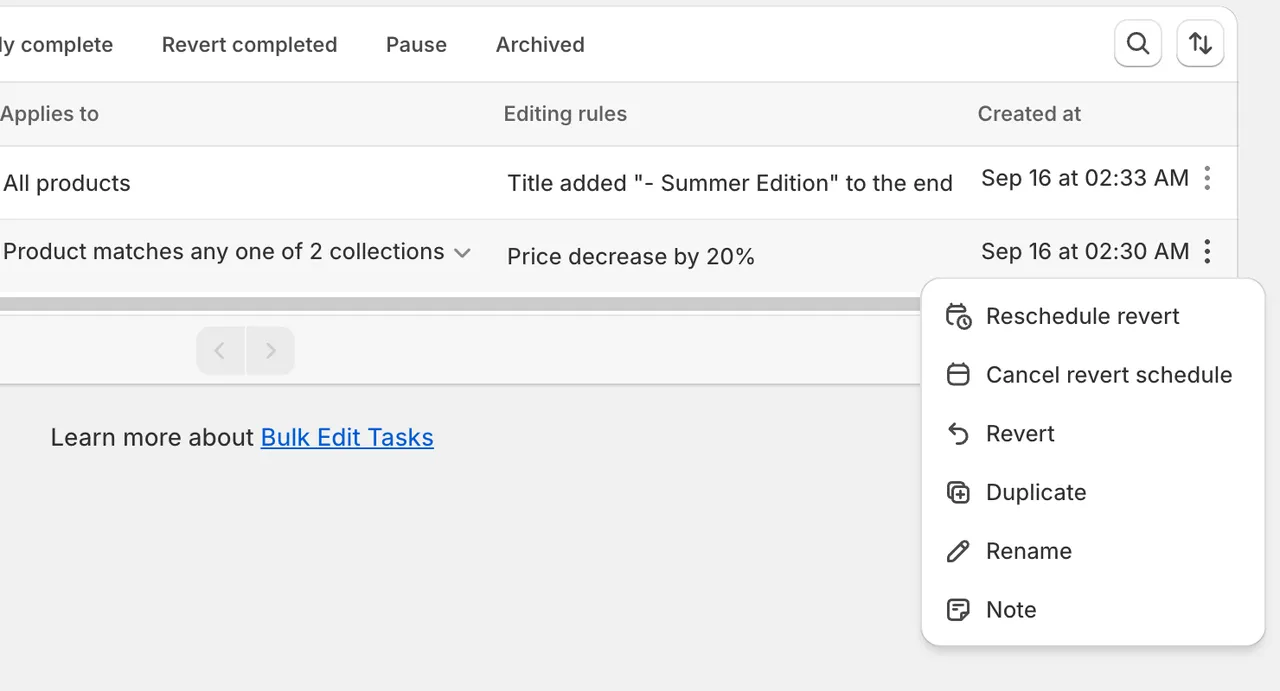
Actions for a completed task with a scheduled revert
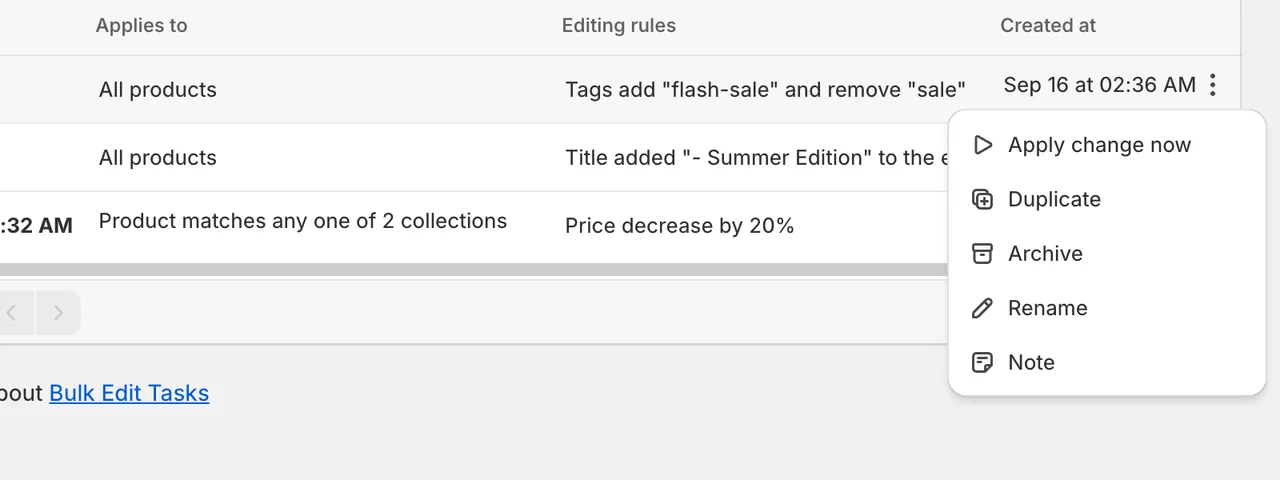
Actions for a manual-start task
Task history retention
Section titled “Task history retention”Tasks older than your plan’s history window are hidden from the list (they are not deleted). See Plans and pricing.