
Hide prices for selected products
Hide prices on a specific list of products that you choose by hand.
Use this when a short list of products shouldn’t show a price, and that list doesn’t change often.
The setting covers the products themselves, so check a product page and a collection page after you save — themes show prices in more places than the product page.
Set it up
Section titled “Set it up”-
Open the Hide price tab
Section titled “Open the Hide price tab”In the app menu, open Advanced settings and select the Hide price tab. The card at the top is headed Hide price? and holds five options.
-
Choose the specific products option
Section titled “Choose the specific products option”Select Yes, hide prices for specific products.
-
Pick your products
Section titled “Pick your products”Choosing that option reveals a new field below it, labelled Choose the products whose prices you want to hide. There are two ways to add to the list, and they open the same picker:
- Type into the field — it reads Search products until you do.
- Click Browse products to the right of the field, and select from your catalogue by hand. Use this when you would rather scroll a list than remember product names.
Each product you pick joins the list underneath the field, with its image beside it.
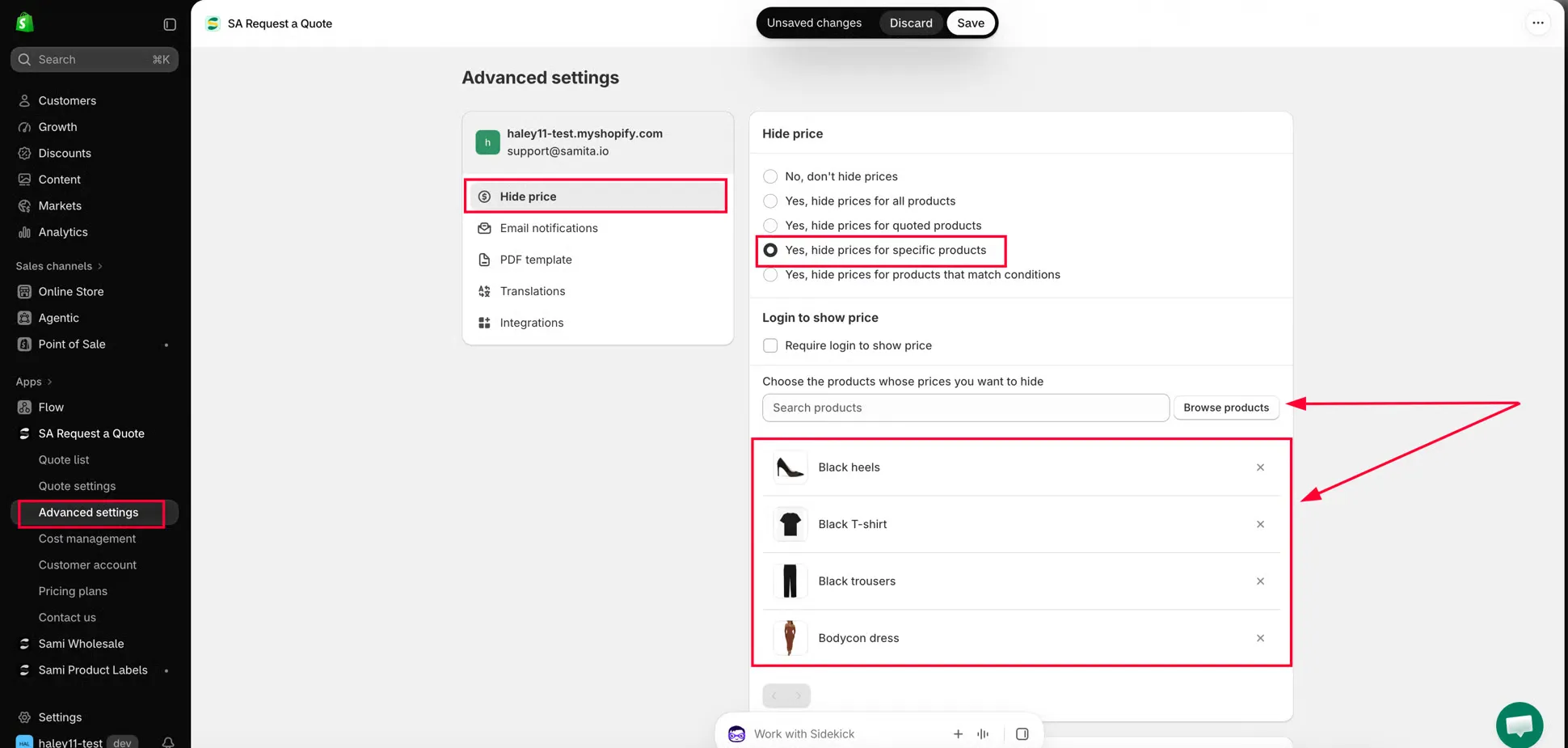
Search your catalogue and pick the products this applies to.
-
Check and prune the list
Section titled “Check and prune the list”Every product on the list shows a thumbnail and its title. The title is a link — it opens that product in your Shopify admin, so you can confirm you picked the right one. To take a product off the list, click the X at the end of its row.
A long list pages, so use the paging controls under the list rather than assuming what you see is everything.
-
Save is at the top of the window, not at the bottom of your product list. As soon as you change anything, Shopify’s bar at the top reads Unsaved changes, with Discard and Save beside it. Click Save.
-
Check it on your storefront
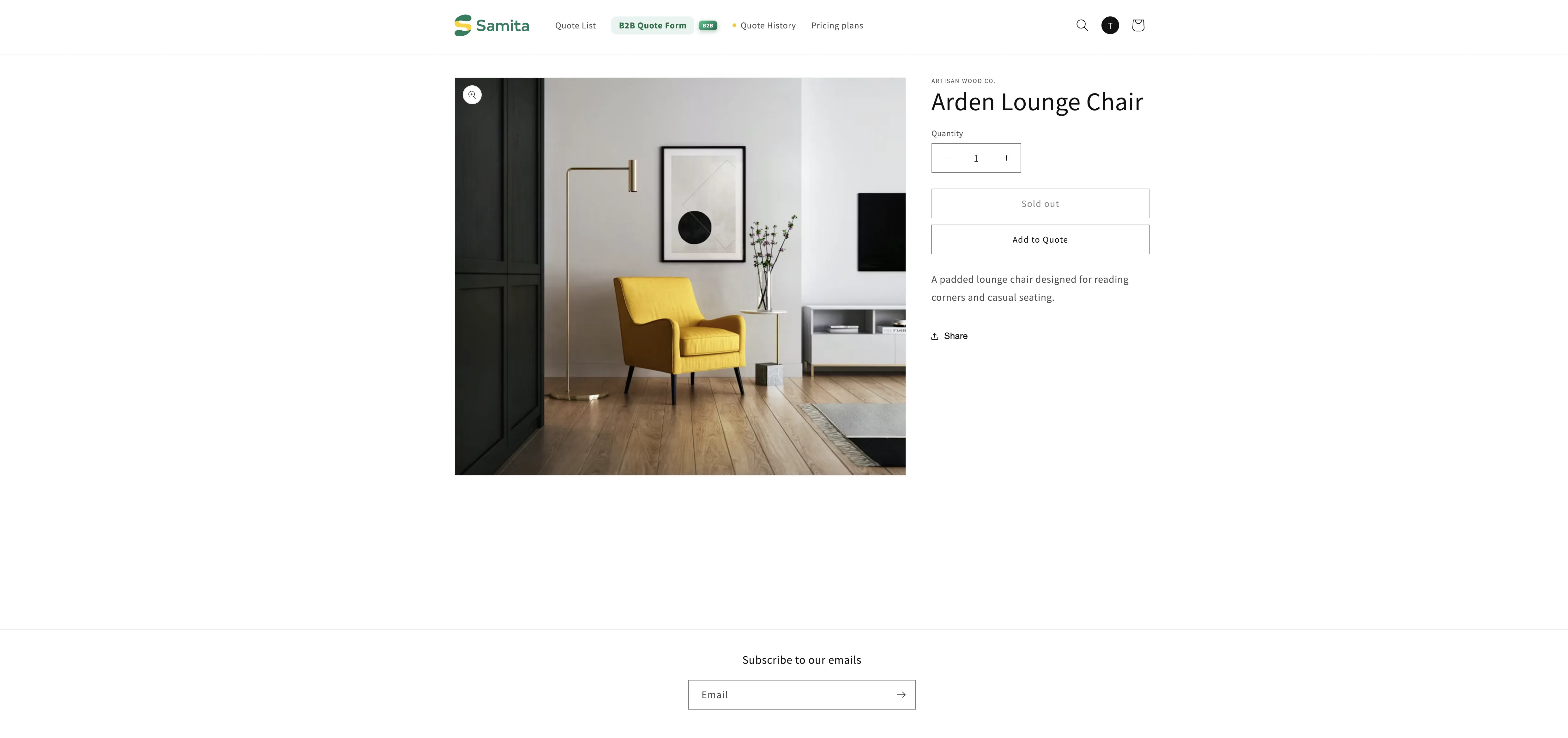
Section titled “Check it on your storefront”Open one of those products on your storefront in a private browser window, then open a collection that contains it. Both should show the product without a price.
What your customers see
Section titled “What your customers see”The products you picked keep their page, their photos and their description. Only the price goes — on the product page, on collection pages, and anywhere else your theme lists products. Every product you didn’t pick carries on showing its price as usual.
Keeping the list right
Section titled “Keeping the list right”A hand-picked list is a list, not a rule. Nothing adds to it or removes from it on your behalf:
- A product you add to your catalogue next month is not covered until someone opens this tab and picks it.
- Duplicating a product in Shopify does not copy its place on this list.
- Removing a product from the list here does not change anything about the product itself — only whether its price is hidden.
That is the trade you are making for exact control. If it starts to feel like housekeeping, the conditions option maintains itself instead.
When a hand-picked list is the right choice
Section titled “When a hand-picked list is the right choice”| Use a hand-picked list when | Use something else when |
|---|---|
| Only a handful of products are affected. | Dozens of products are affected, or the set keeps growing — use Yes, hide prices for products that match conditions instead. |
| The products don't share a tag, a collection or anything else in common. | The same products are the ones you allow customers to quote — use Yes, hide prices for quoted products so the two settings stay in step. |
| You want to name the exact products yourself. | New products should be covered automatically, without anyone opening the app. |
If a price is still showing
Section titled “If a price is still showing”| What you see | What to check |
|---|---|
| The price is still there on every product | The top bar was left reading Unsaved changes, or the five options are greyed out because of your plan. |
| The price is gone on some products but not others | Those products are not on the list. This option covers nothing but what you picked by hand. |
| The product page hides it but the collection grid doesn't | Send support your store URL and the collection URL — some themes render prices from markup the app has to be pointed at. |
| You can see the price but a customer says they can't, or the other way round | Check whether Require login to show price is ticked in the Login to show price section below the options. See Require login to show price. |
Next steps
Section titled “Next steps”- Hide Add to Cart and Buy now — also take away the buy buttons
- Hide prices by tag — a lower-maintenance alternative
- Hiding prices overview — the other four hide price options