
Quote form
Quoted product group
Let customers group the products in their quote cart into named sections — by room, site, department or project phase.
A single quote sometimes covers several distinct things: three rooms, two branches, or separate departments with separate budgets. Enable Quote Sections lets customers split one request into named sections instead of sending you several quotes.
The app describes it as: “Lets customers group the products in their quote cart into named sections.”
Turn it on
Section titled “Turn it on”-
Open the Customize editor
Go to Quote settings. On the Request a Quote page, click Customize.
-
Open the Quote cart page tab
This setting is on the Quote cart page tab, not Quote form.
-
Switch on Enable Quote Sections
Turn on Enable Quote Sections.
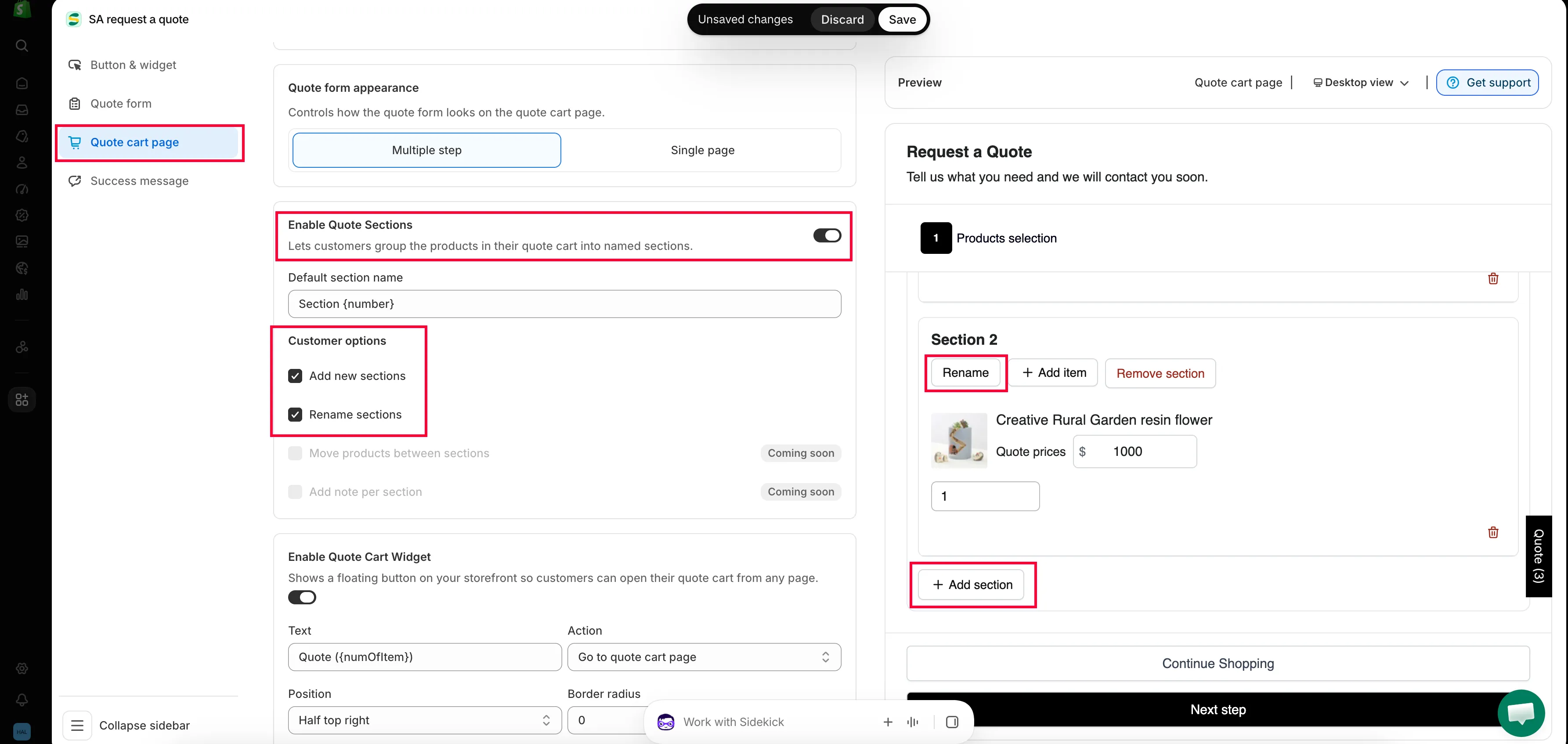
Groups split a long quote into sections a buyer can follow.
-
Save and check
Save your changes, then add a couple of products to a quote on your storefront and open the quote cart page.
What customers experience
Section titled “What customers experience”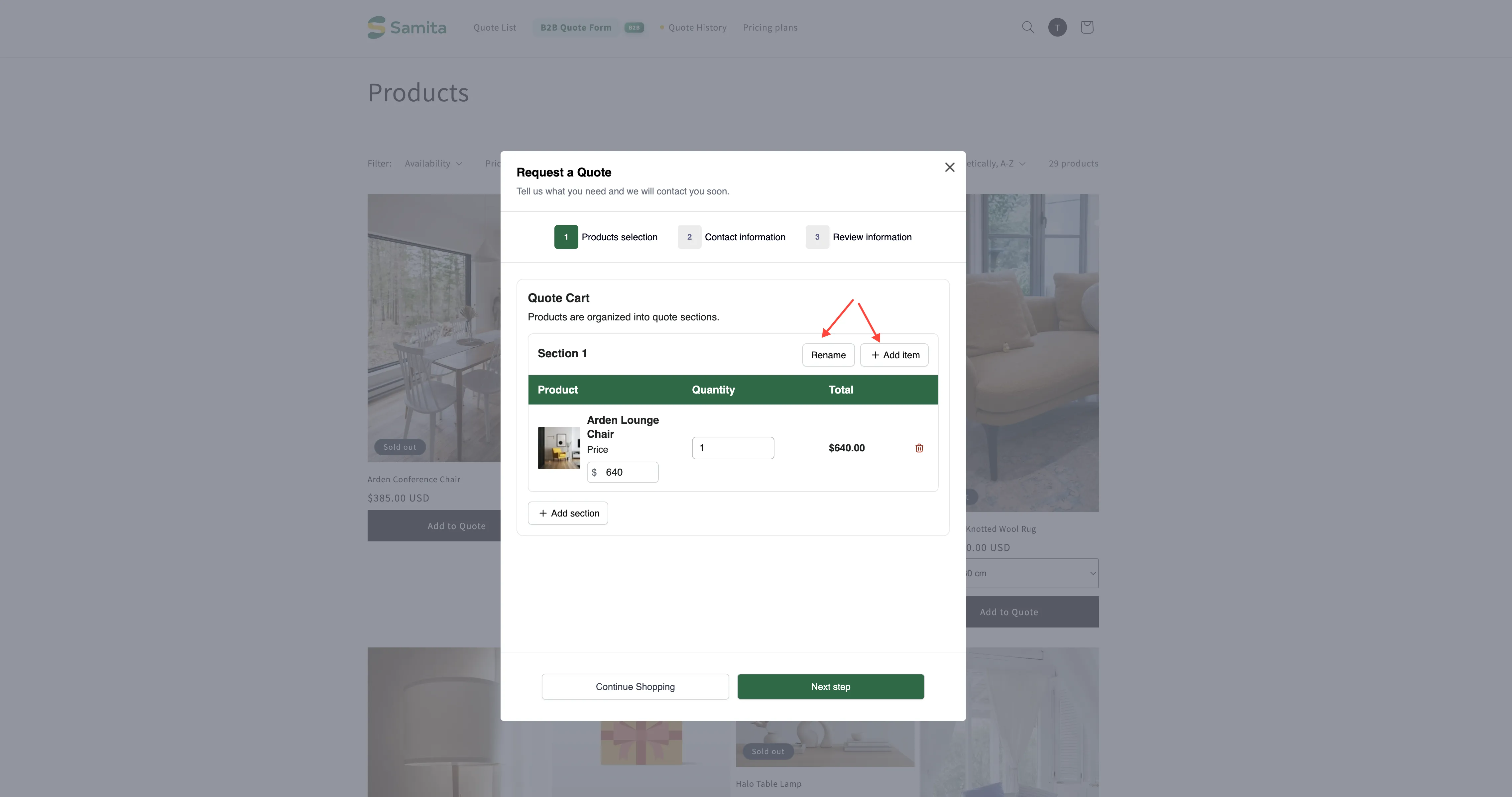
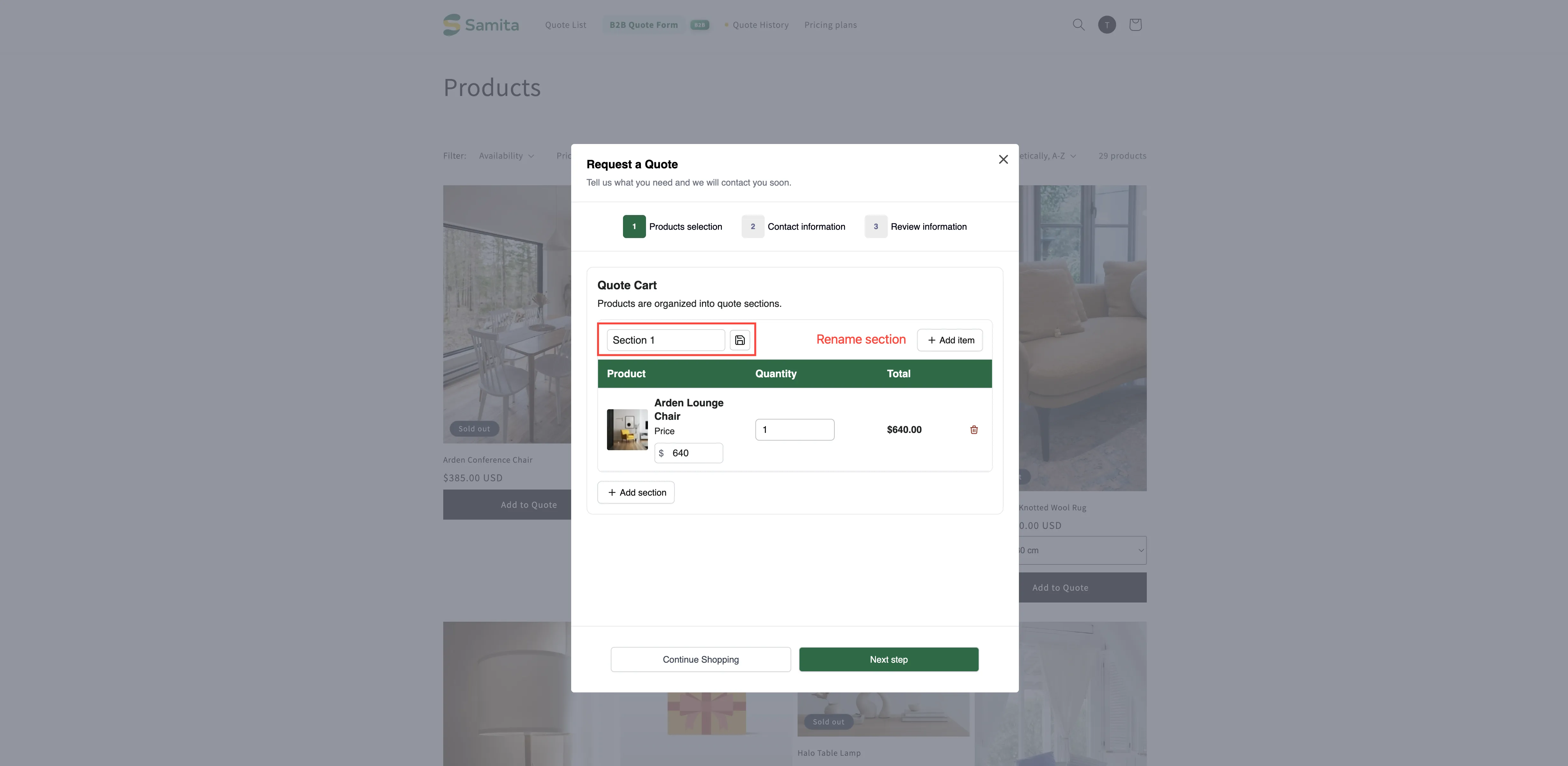
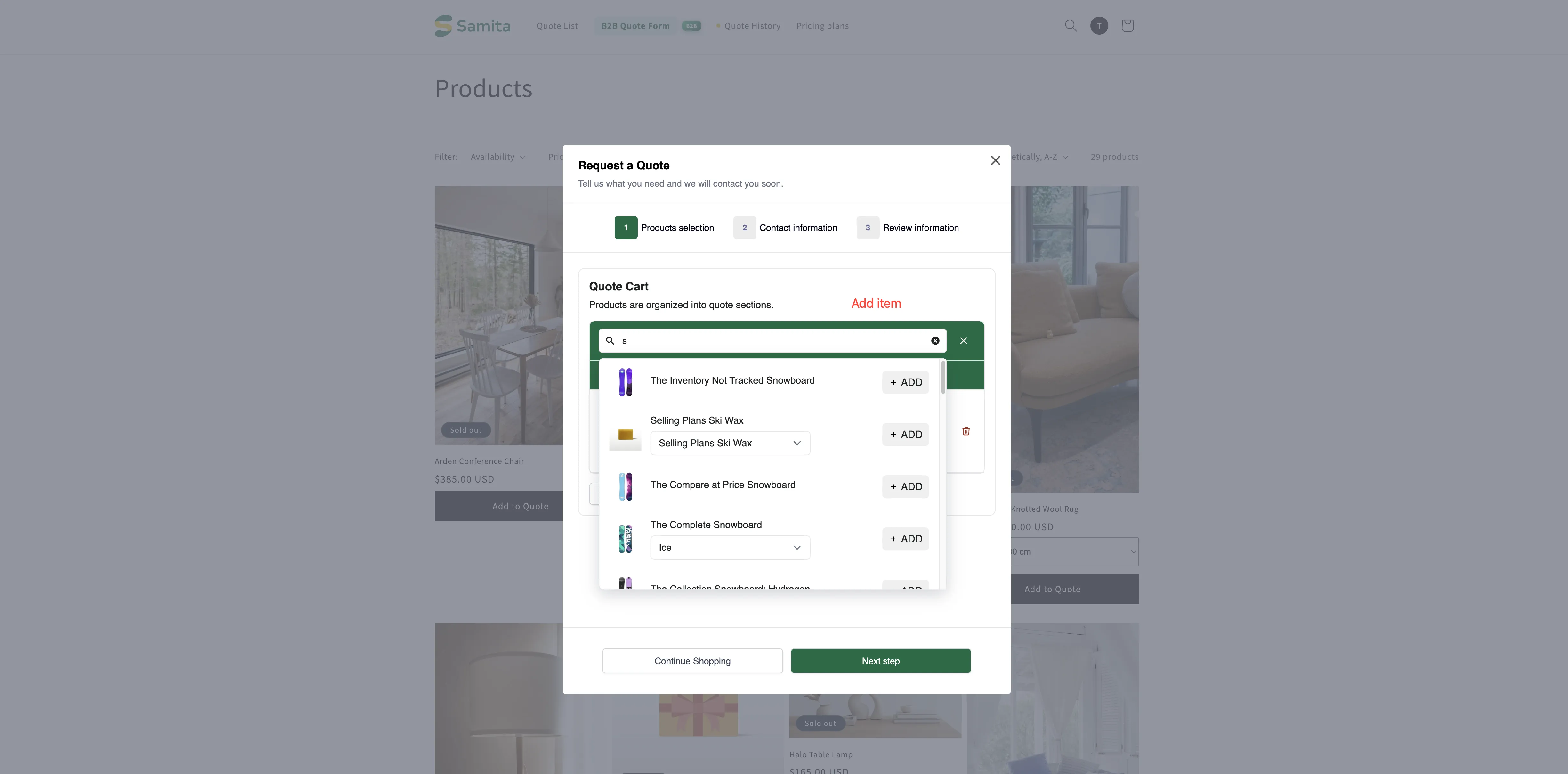
Customers see their sections on the quote cart page — the one called Quote cart page in the app, published as “Request for quote” at /pages/request-for-quote, which “Shows the quote form and the customer’s quote cart.”
With the setting on, the Quote Cart there explains that “Products are organized into quote sections.” and starts the customer off with Section 1. The grouping is theirs to do: they name their sections and sort their own products into them as they build the quote, which is the point — they know which room or site each item is for, and you don’t.
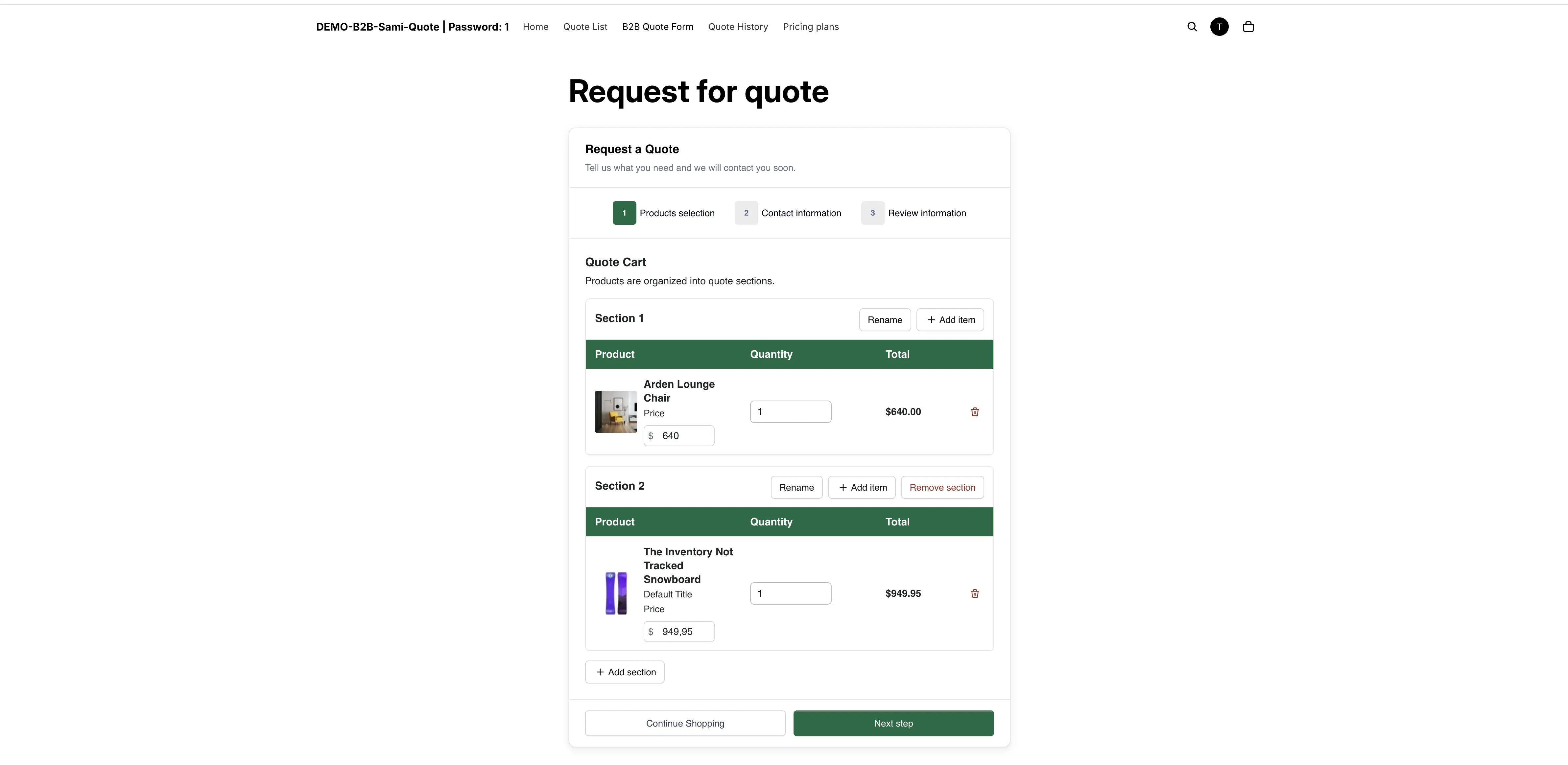
Sections keep a long request readable.
What you see when it arrives
Section titled “What you see when it arrives”A sectioned quote keeps its grouping when you open it. The quote detail page has its own Create section control alongside the line-item table, so the structure the customer sent is something you can read and adjust while you price the work.
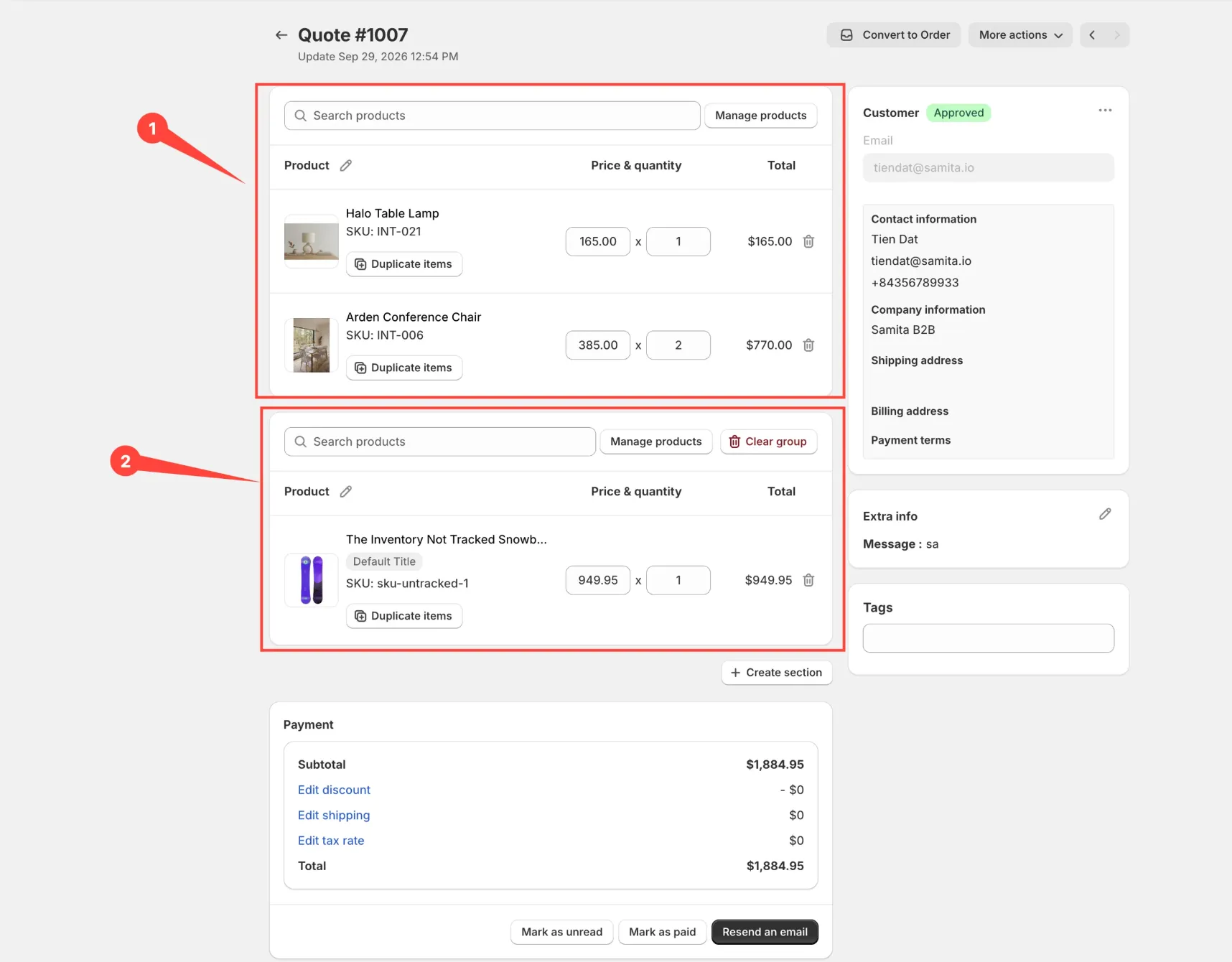
The sections survive into the quote you receive.
When it’s worth using
Section titled “When it’s worth using”| Situation | Why sections help |
|---|---|
| Furnishing several rooms or sites | You can price and deliver each section separately. |
| Multiple departments, one buyer | The buyer can split costs without sending separate requests. |
| Phased projects | Group by phase so you quote each stage on its own timeline. |
Other settings on the same tab
Section titled “Other settings on the same tab”| Setting | What it does |
|---|---|
| Product list columns | "The product details shown as columns in the customer's quote cart." Options include Option, Price and Total. |
| Quote form appearance | "Controls how the quote form looks on the quote cart page." Choose Multiple step or Single page. |
| Enable Quote Cart Widget | "Shows a floating button on your storefront so customers can open their quote cart from any page." Only Text color and Background color can be changed. |
Next steps
Section titled “Next steps”- Request a Quote page — the page customers do this on
- View and edit a quote — how a sectioned quote looks to you
- Build a standard form — the rest of the form