
Edit quote page text
Retitle your quote pages, add your own introduction, and find where the app's own wording is changed.
Your two quote pages sit in your Shopify admin like any other page, so you can retitle them and add your own wording — a note on lead times, minimum order quantities, or what happens after someone sends a request.
The wording inside the quote form itself is different: that belongs to the app, and you change it in the app. This page covers both.
The two pages, and what is inside them
Section titled “The two pages, and what is inside them”The app creates both pages for you when you install it, each holding a single empty <div> that the app fills in on the storefront. Everything else in the page is yours.
| Page title | Storefront address | The app's block inside it |
|---|---|---|
| Request for quote | /pages/request-for-quote | <div class="rfq_form_page"></div> |
| Quote history | /pages/quotes-history | <div class="rfq_history_page"></div> |
Edit the Shopify page
Section titled “Edit the Shopify page”-
Open the page in Shopify
Section titled “Open the page in Shopify”In your Shopify admin, go to Online Store > Pages, then open Request for quote or Quote history.
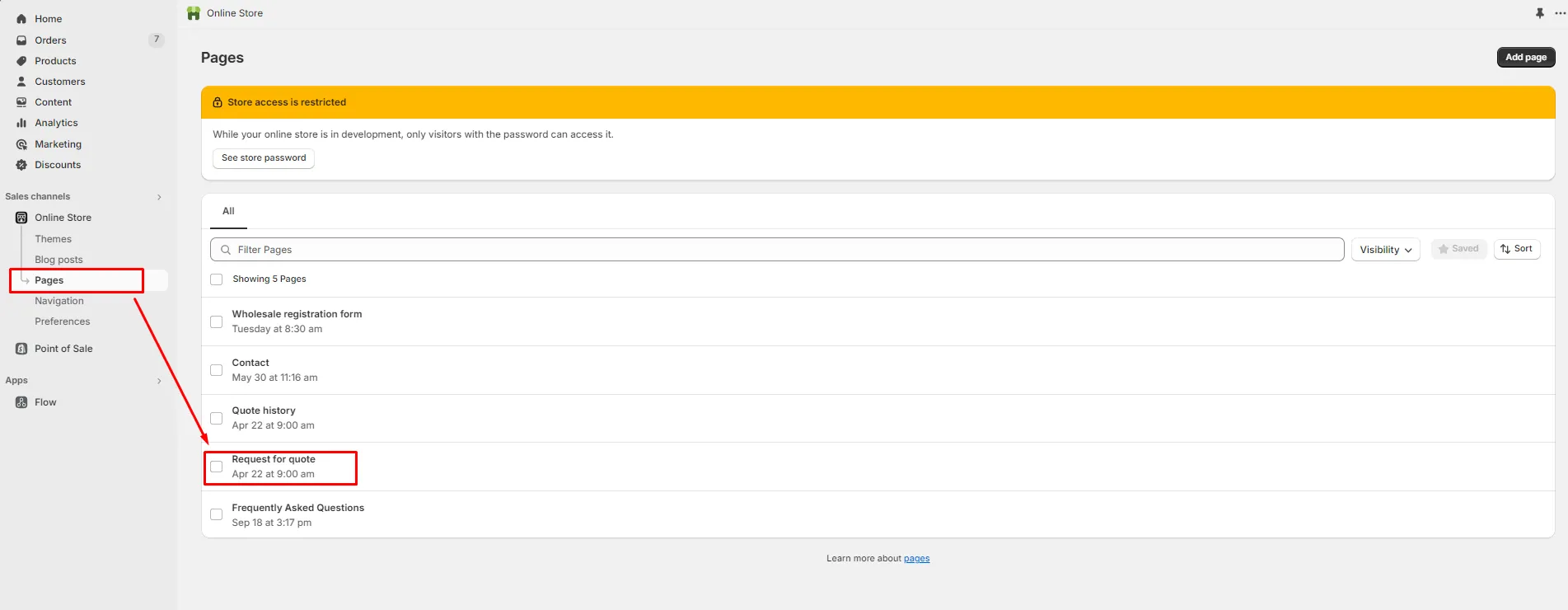
Both quote pages live under Online Store > Pages.
-
Make your edits
Section titled “Make your edits”Change the title and add the content you want — an introduction, your lead times, a note on minimums. Write it above or below the app’s block, never on top of it.
-
Check the app’s block is still there, before you save
Section titled “Check the app’s block is still there, before you save”Click the
<>icon in the page editor toolbar to open the HTML viewer, and look for the app’s block in the code.- On Request for quote you should see
<div class="rfq_form_page"></div>. - On Quote history you should see
<div class="rfq_history_page"></div>.
If it is there, everything is fine. If it is gone, paste the matching line back in and carry on.
Copy from here — for the Request for quote page:
<div class="rfq_form_page"></div>And for the Quote history page:
<div class="rfq_history_page"></div>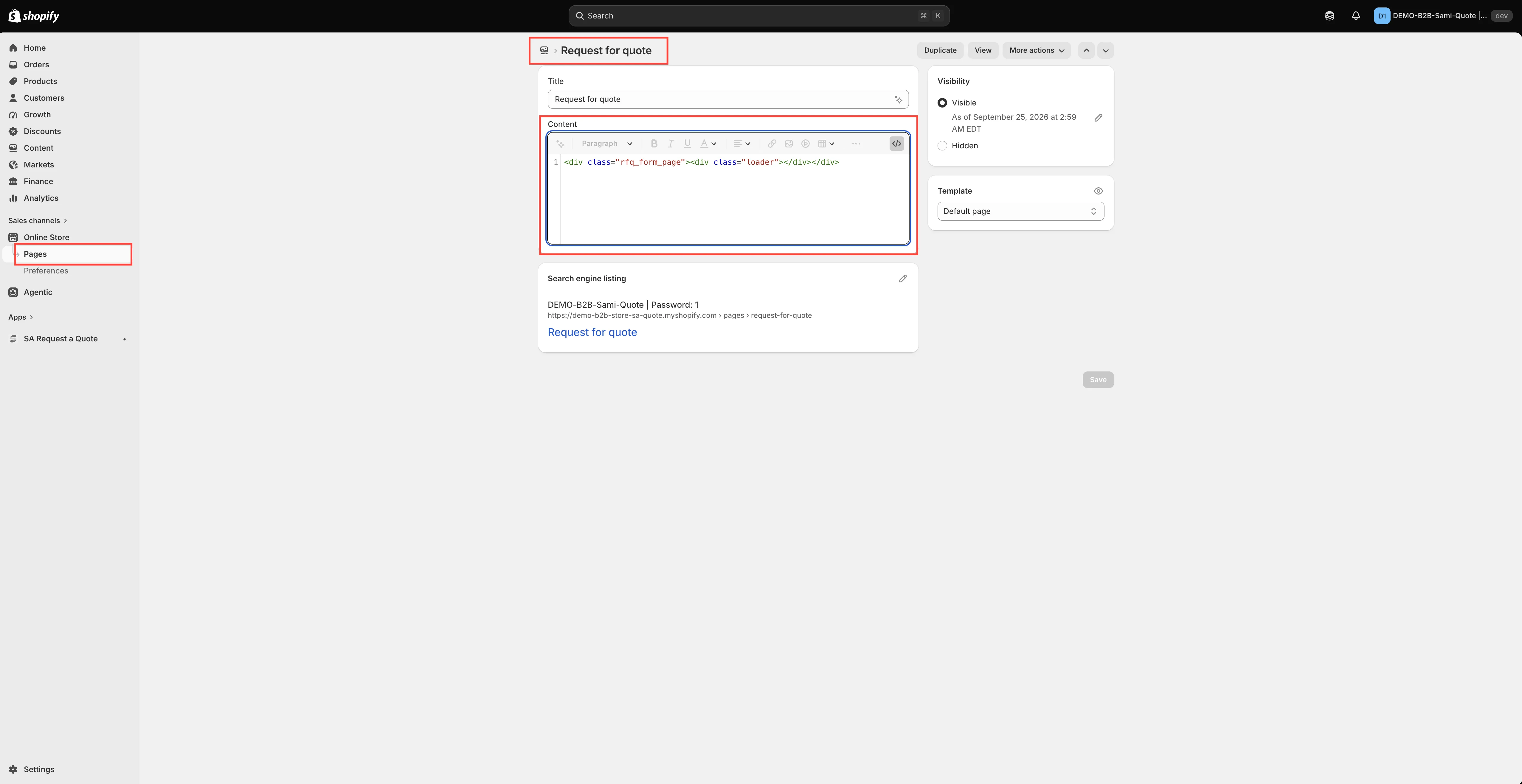
The <> view — the app’s div must survive your edit.
- On Request for quote you should see
-
Save and check the storefront
Section titled “Save and check the storefront”Click Save, then open
/pages/request-for-quoteor/pages/quotes-historyon your storefront and look at the result.
What is worth adding
Section titled “What is worth adding”| Add | Why |
|---|---|
| How soon you reply | Sets expectations and cuts chasing emails. "We reply within one business day" is enough. |
| Minimum order quantity | Saves you quoting requests you cannot fulfil. |
| What to include | Asking for dimensions or a deadline up front avoids a round trip. |
Wording the app controls
Section titled “Wording the app controls”These strings are not page content. Change them in the app instead.
| Wording | Where you change it |
|---|---|
Button text on your quote button, default Add to Quote | Quote settings > Customize > Button & widget |
The confirmation popup: Message, Primary button (View Quote) and Secondary button (Continue Shopping) | Quote settings > Customize > Button & widget |
| Field labels on the quote form | Quote settings > Customize > Quote form, in Form builder |
| The success message customers see after submitting — Thank you and "Thank you for submitting a request a quote!" | Quote settings > Customize > Success message |
| The wording on the floating quote widget — its Text | Quote settings > Customize > Quote cart page, under Enable Quote Cart Widget |
| The rest of the storefront wording, in the other languages you sell in | Advanced settings > Translations |
| The Quote List section inside Shopify's new customer accounts | Customer account > Translation — see Quotes in customer accounts |
Translate the rest
Section titled “Translate the rest”On the Translations tab, Translations AI will “Translate everything your customers see — quote form, storefront text and both quote emails.”
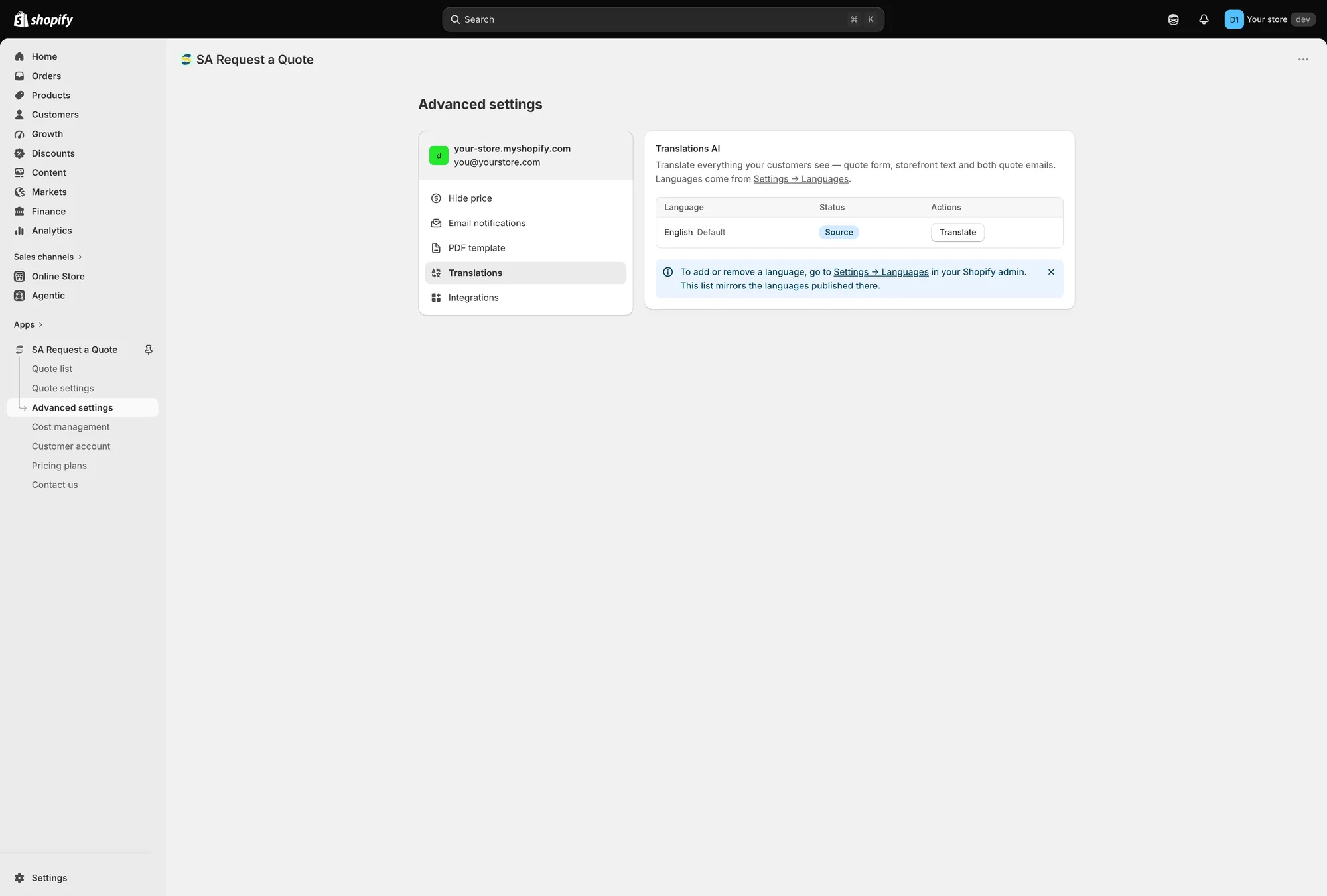
The language table lists each language with its Status and a Translate action.
Your own page content is not covered by that, because it is Shopify page content rather than app text. Translate it the way you translate your other Shopify pages.
Next steps
Section titled “Next steps”- Translate storefront text — change the wording inside the quote form
- Request a Quote page — set up the quote cart page itself
- Troubleshooting — if a page loads without its quote content