
Hide Add to Cart and Buy now
Take away the Add to cart and Buy it now buttons on quotable products so the only way forward is to ask you for a price.
Hiding a price on its own doesn’t stop a sale — a customer can still add the product to their cart and check out at a price they never saw. Taking the buy buttons away closes that gap, so the only route left is to ask you.
Set it up
Section titled “Set it up”-
Open the Hide price tab
Section titled “Open the Hide price tab”In the app menu, open Advanced settings and select the Hide price tab.
-
Find the buy button section
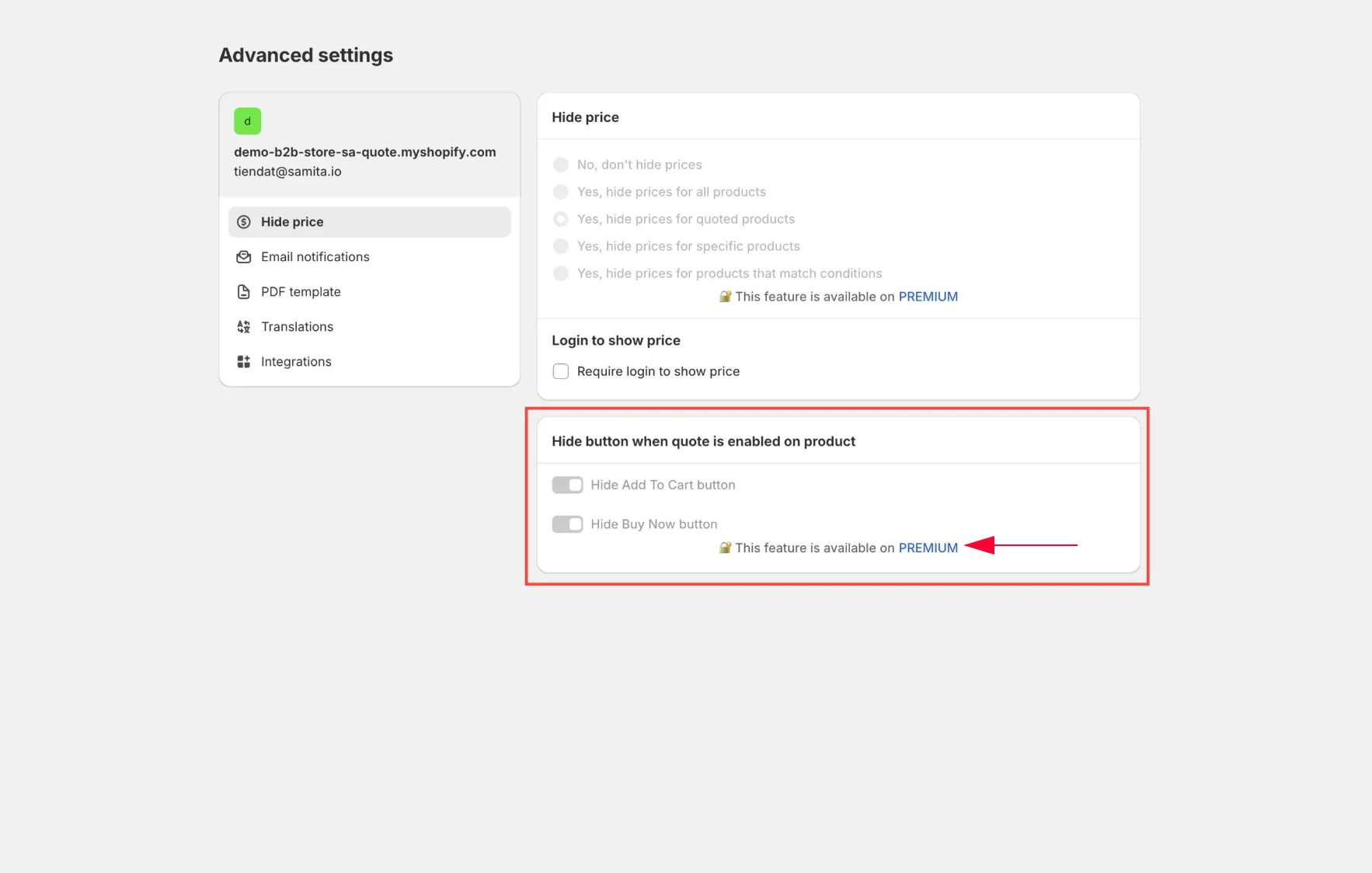
Section titled “Find the buy button section”Scroll to Hide button when quote is enabled on product.
-
Turn on both settings
Section titled “Turn on both settings”Turn on Hide Add To Cart button and Hide Buy Now button.
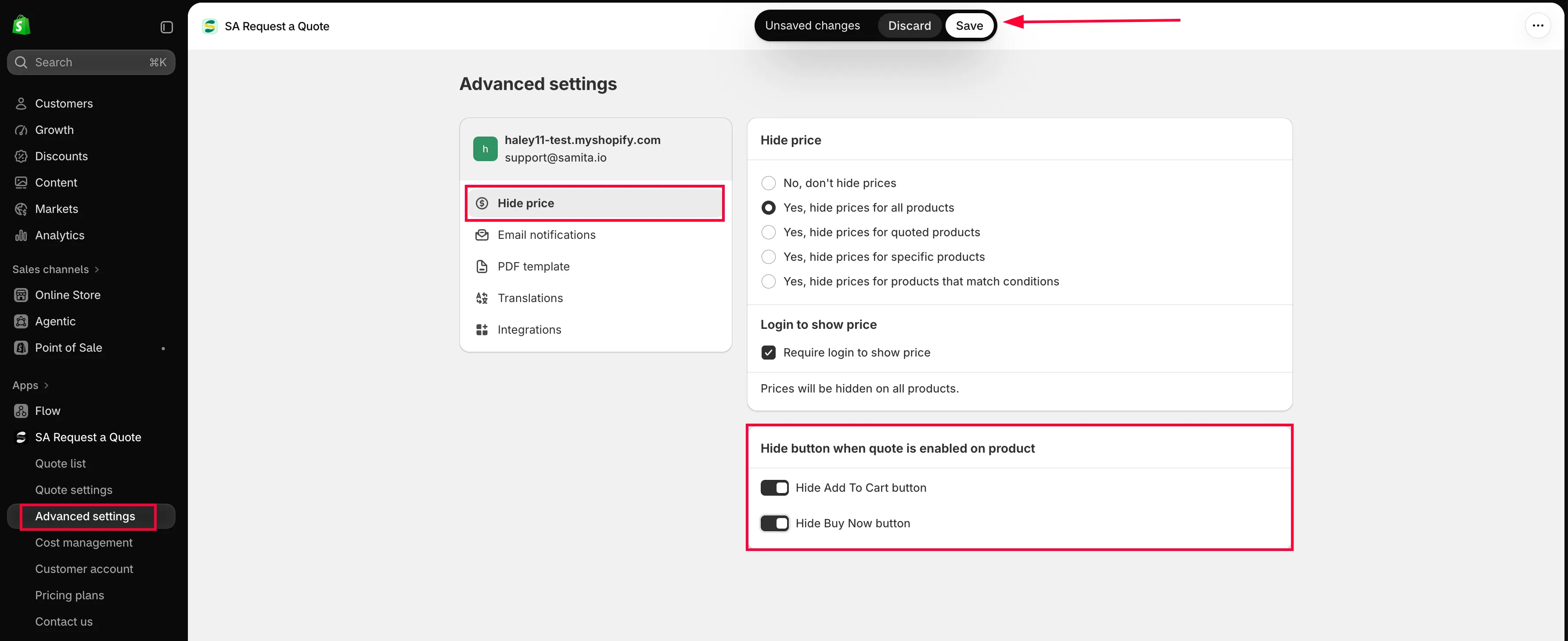
Two switches decide whether quote products keep their buy buttons.
-
Save and check your storefront
Section titled “Save and check your storefront”Select Save — or Discard changes to back out. Then open a quotable product in a private browser window and check that the buy buttons are gone.
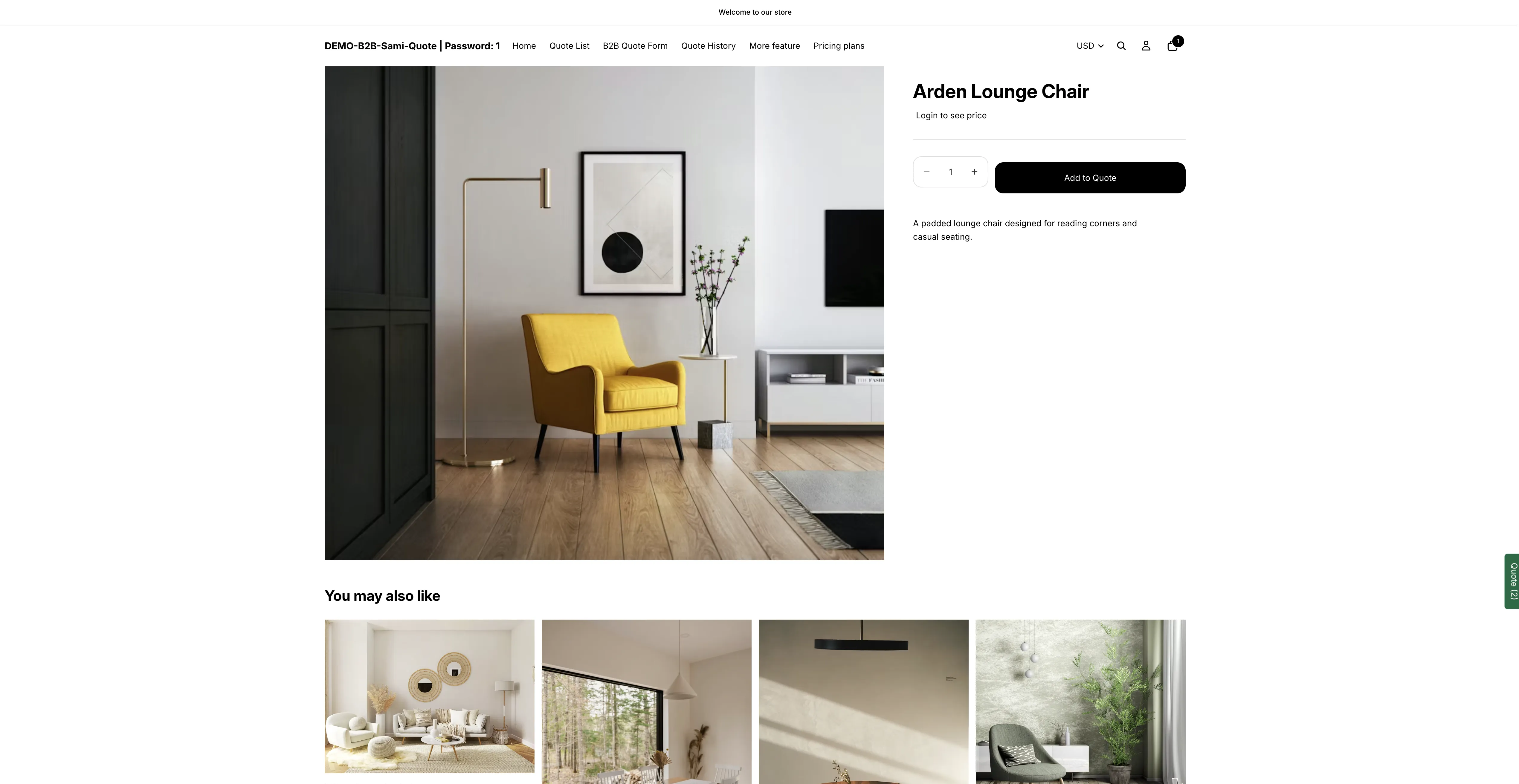
The same product once the buy buttons are hidden.
What your customers see
Section titled “What your customers see”On a quote-enabled product, Add to cart and Buy it now are gone. The page keeps everything else — photos, description, variant choices — and your quote button is the one thing left to act on.
Check every place products appear
Section titled “Check every place products appear”Themes show buy buttons in more places than the product page — quick-view popups, collection grid hover states, sticky bars at the bottom of the screen. Check:
- a product page
- a collection page
- a quick view, if your theme has one
- your storefront on a phone
A common combination
Section titled “A common combination”Most quote-only stores turn on all three of these together:
- Hide the price — Advanced settings > Hide price, see Hiding prices overview
- Hide the buy buttons — Hide button when quote is enabled on product, on the same tab
- Show the quote button — Quote settings > Customize, see Quote button on product pages
If your prices should come back for account holders, add Require login to show price as a fourth step — see Require login to show price.
The result is a catalogue customers browse and enquire about, but can’t buy from directly.
Next steps
Section titled “Next steps”- Add cart items to a quote — for stores where customers can both buy and quote
- Troubleshooting — if a price or a buy button is still showing
- Hiding prices overview — the five Hide price options