
Quote form on product pages
Show the whole quote form on the product page so customers can send a request without opening anything first.
Instead of a button that opens your form, you can put the form itself on the product page. Customers fill it in and submit without an extra click.
This suits custom or made-to-order items sold one at a time, where every visitor is expected to ask rather than buy.
Turn it on
Section titled “Turn it on”-
Open the quote form settings
Section titled “Open the quote form settings”In the app, go to Quote settings and click Customize, then open the Quote form tab.
-
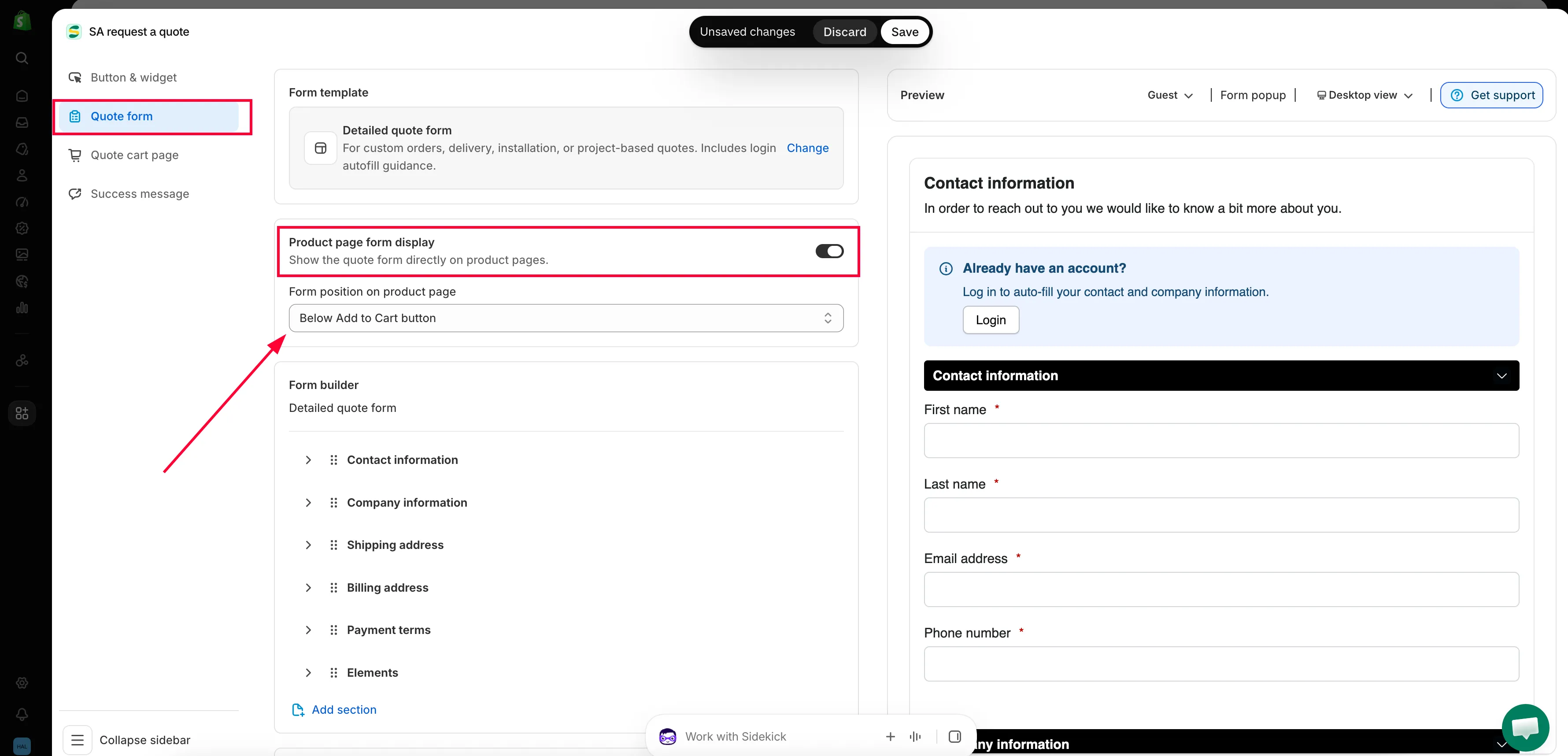
Find Product page form display
Section titled “Find Product page form display”Product page form display sits between Form template and Form builder, and is described as “Show the quote form directly on product pages.”
-
Switch it on
Section titled “Switch it on”The control is the toggle at the right-hand end of the Product page form display header — it is labelled Enable product page form display. Switch it on and a Form position on product page dropdown appears underneath.
-
Choose where the form sits
Section titled “Choose where the form sits”Open Form position on product page and pick one of three:
Option Where the form lands Below Add to Cart button Directly under your buy buttons, in the same block. The default, and the one most themes handle cleanly. Below product description After the description text, so shoppers read the details before they ask. Below product information After the whole product information block. 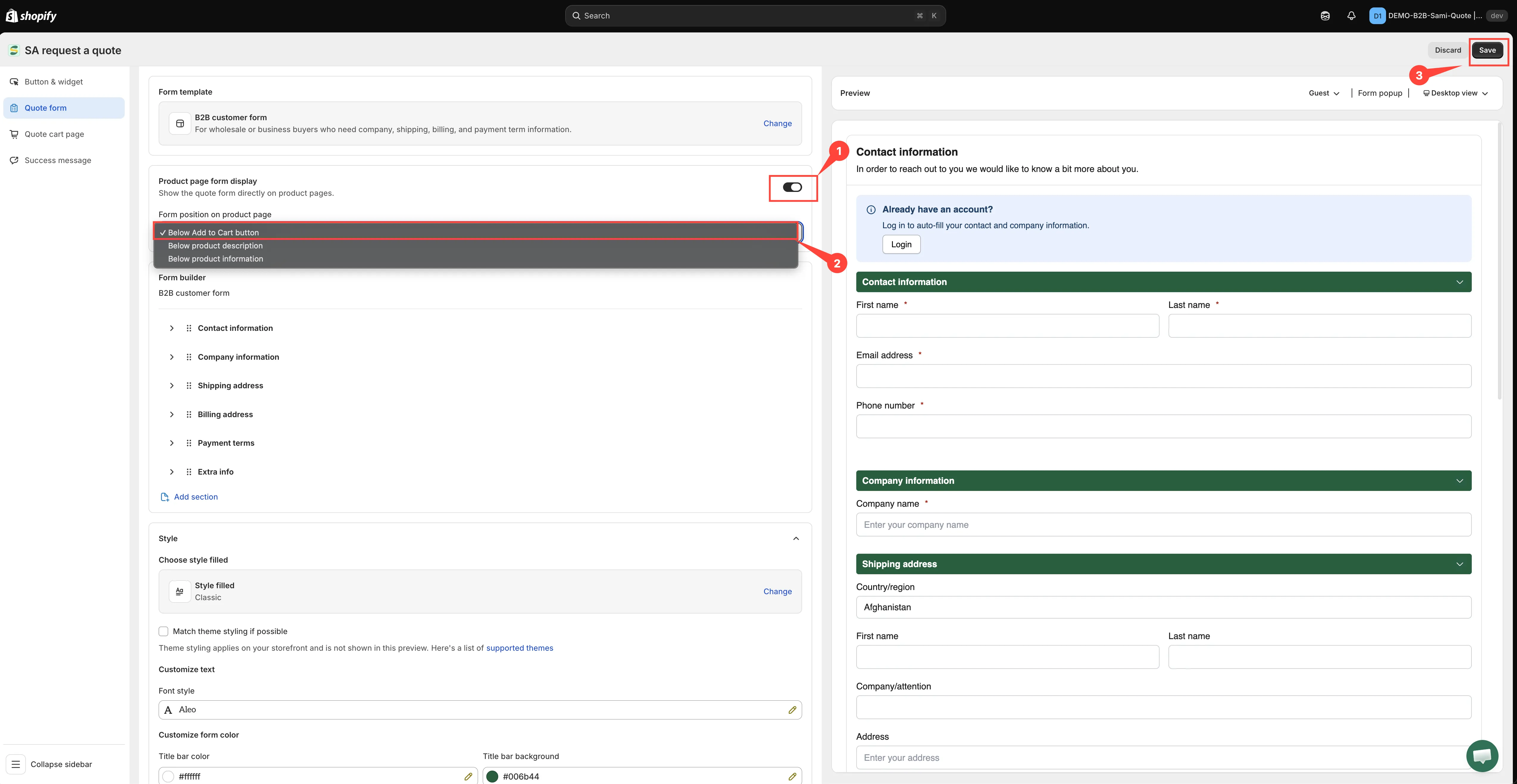
-
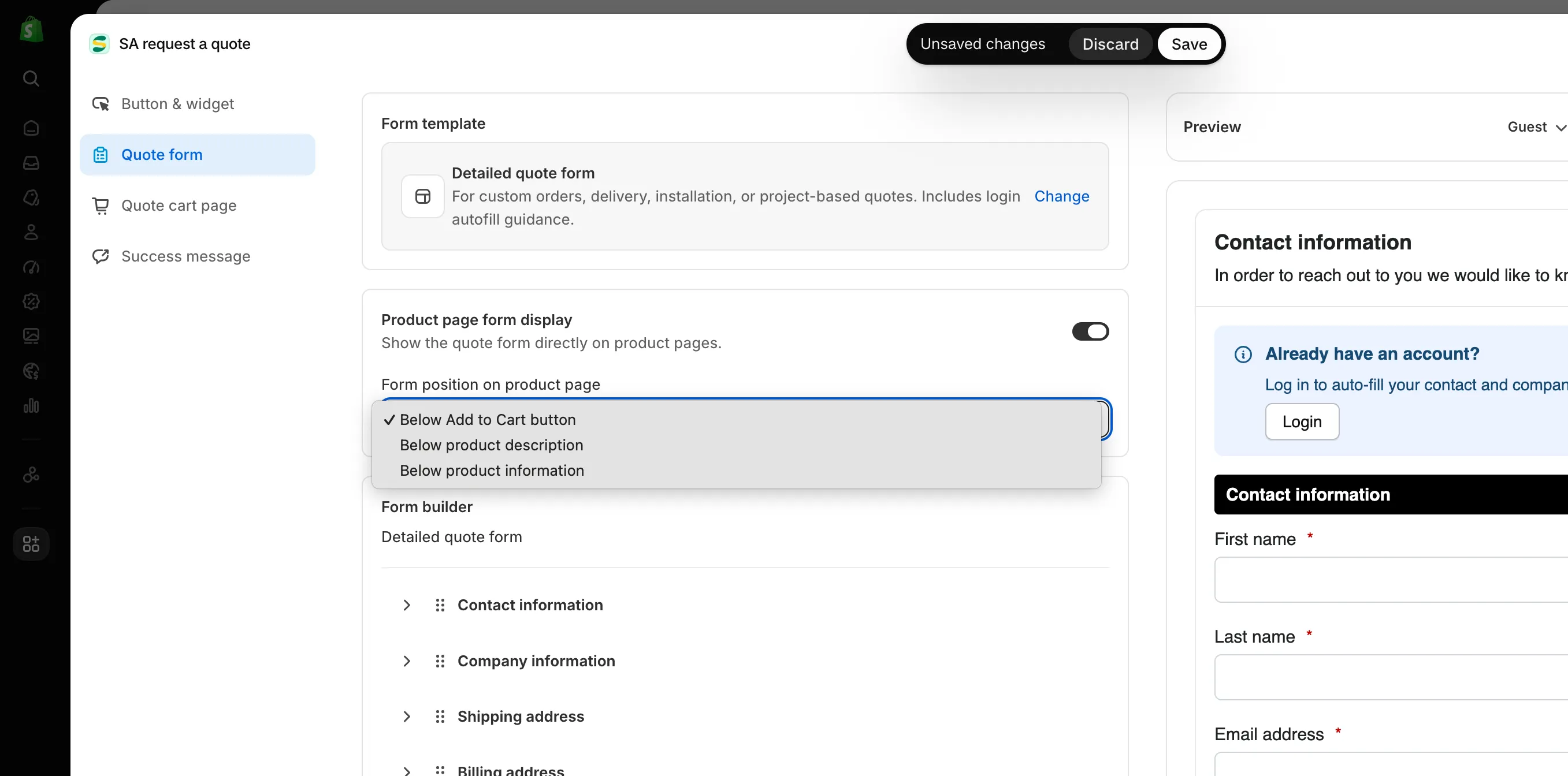
Save and check your storefront
Section titled “Save and check your storefront”Click Save at the top right of the editor, then open one of your quote products. The form is now on the page itself.
Which products show the form
Section titled “Which products show the form”Only the products in your quote-products selection. The app checks each product against Select quote products as the page loads, and puts the form on the ones that qualify — exactly the same test the quote button uses. A product outside the selection shows your normal buy buttons and nothing else.
If the form is missing on a product you expected it on, check that selection first — see Choose quotable products.
What the button settings still do
Section titled “What the button settings still do”Turning the form on takes the button off the product page, but the other two placements are unaffected:
| Setting on Button & widget | With the product-page form on |
|---|---|
| Product page button position | Ignored. The form is on the page instead, in whatever Form position on product page you chose. |
| Collection page button position | Still works. Customers can add products to a quote from your collection grids. |
| Cart page button position | Still works — see Add cart items to a quote. |
| Click action | Applies to those other buttons, not to the form. The form is submitted where it stands. |
See Quote button on product pages and Set the after-click behavior.
The log-in prompt
Section titled “The log-in prompt”Above the fields the form carries a prompt — “Already have an account?” / “Log in to auto-fill your contact and company information.” — with a Login button. A customer who signs in gets their contact and company details filled in for them, which is the difference between a two-field form and a ten-field one for your repeat buyers.
Which fields it shows
Section titled “Which fields it shows”The form on the product page is the same form you build on the Quote form tab — the Form template you have chosen, and whatever you have set up in the Form builder. Form template names what you are using and what it covers: Simple quote form, for instance, is “Best for most stores. Includes login autofill, contact details, company, quantity, request message, and file upload.”
Changing the template replaces the current field list, so set the template first and edit fields afterwards.
Need a hand?
Section titled “Need a hand?”If the form lands in an awkward place in your theme and none of the three positions fixes it, send us the product URL — see Contact support.
Next steps
Section titled “Next steps”- Quote form overview — choose which fields the form asks for
- Match your theme style — style the form to match your theme
- Quote button on product pages — the button alternative