
Quote form
Quote form overview
Where the quote form lives, what it can collect, and how the form builder is organised before you start changing things.
The quote form is what a customer fills in to send you a request. Everything about it — which template you start from, which questions you ask, and how it looks — is set in one place.
Where to find it
Section titled “Where to find it”Open Quote settings. The page heading is Request a Quote, and the first card is Customize:
Design how your request a quote experience will look to customers. Set button behavior, quote form, quote cart, widget, colors and messages.
Click Customize to open the full-screen editor. It has four tabs — Button & widget, Quote form, Quote cart page and Success message. Everything on this page is on the Quote form tab.
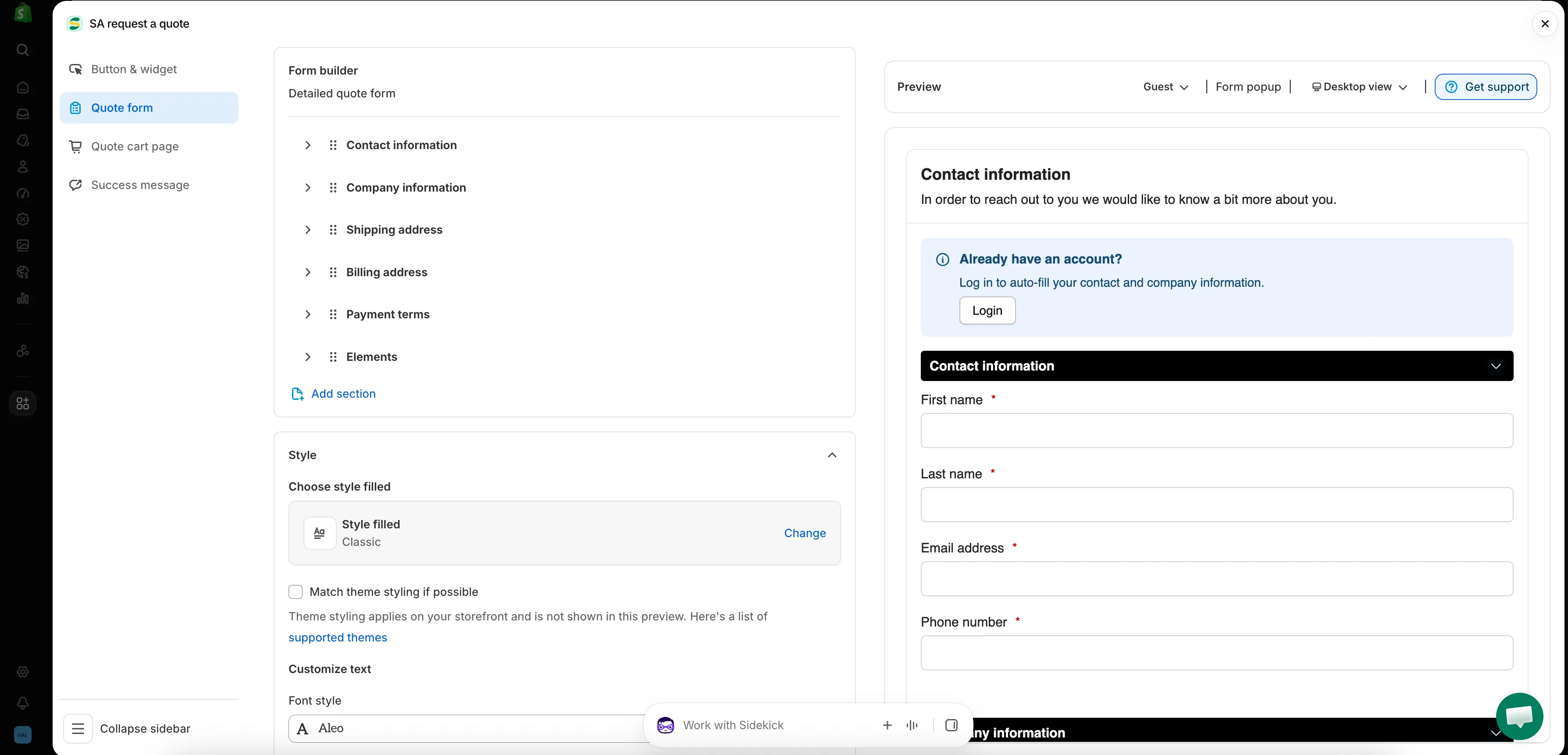
Every form in the app is built on this one screen.
How the Quote form tab is organised
Section titled “How the Quote form tab is organised”| Section | What it controls |
|---|---|
| Form template | The template your form starts from, for example B2B customer form. Change opens the template picker. |
| Product page form display | "Show the quote form directly on product pages." Controlled by the Enable product page form display checkbox. |
| Form builder | The questions themselves, grouped into sections. Add element adds a field to a section; Add section adds a whole new one. |
| Style | The style preset, and the Match theme styling if possible checkbox. |
| Customize text | Font style for the form. |
| Customize form color | Title bar color, Title bar background, Color, Background color, Border color and Quote popup primary color. |
Start from the right template
Section titled “Start from the right template”Form template sits at the top of the tab, and it decides what the rest of the tab looks like. There is more than one template to choose from, and Change opens the picker.
| Template | How the app describes it |
|---|---|
| Detailed quote form | "For custom orders, delivery, installation, or project-based quotes. Includes login autofill guidance." |
| B2B customer form | "For wholesale or business buyers who need company, shipping, billing, and payment term information" |
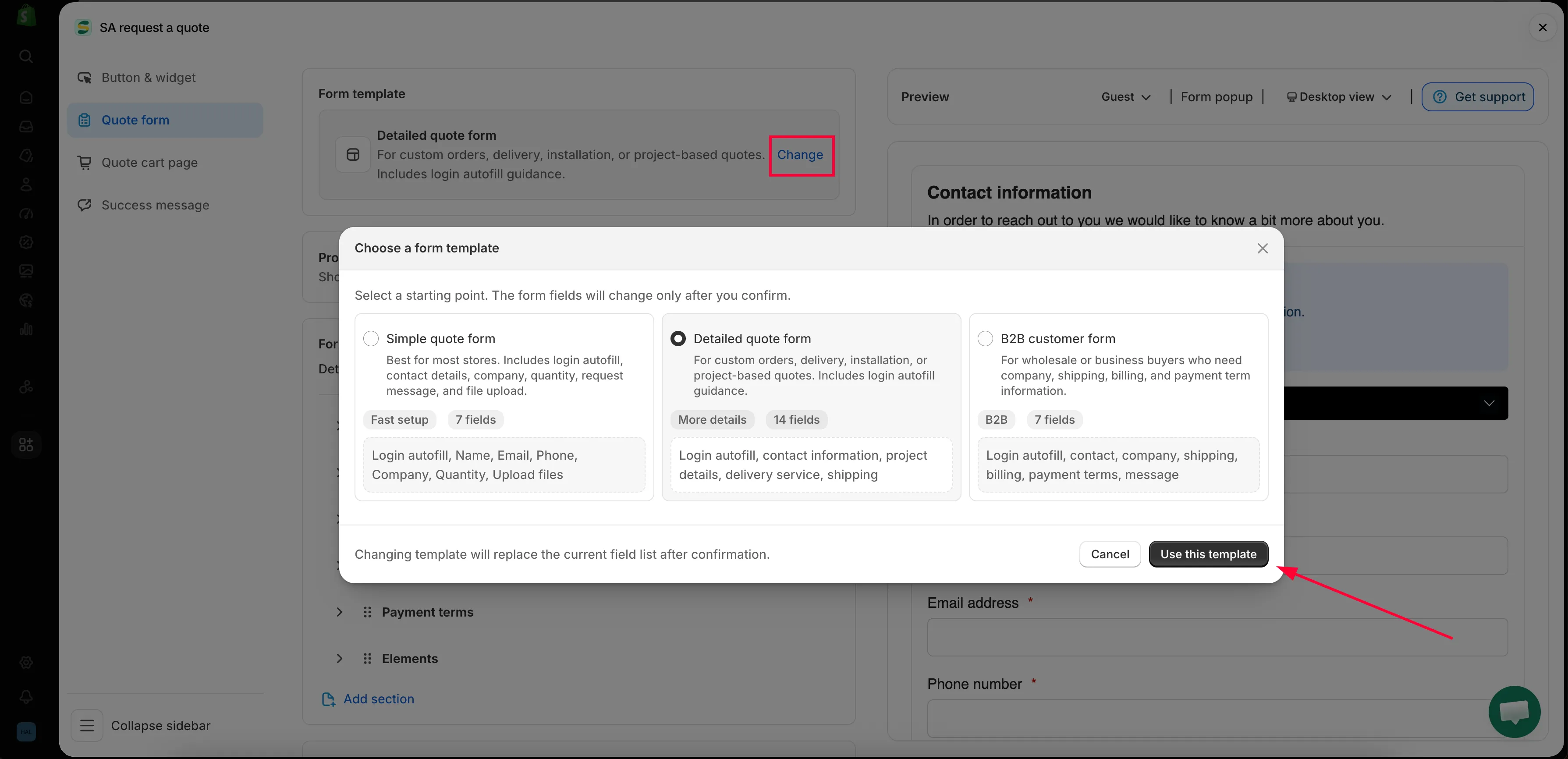
Change opens the picker and the template decides the rest of the tab.
The sections in the Form builder
Section titled “The sections in the Form builder”The sections in the builder are the ones your template brought with it, so this list is not the same on every store.
| Template | Sections it arrives with |
|---|---|
| Detailed quote form | Contact information · Shipping address · Extra info |
| B2B customer form | Contact information · Company information · Shipping address · Billing address · Payment terms · Extra info |
Each section expands so you can see and edit the fields inside it.
| Section | What it collects |
|---|---|
| Contact information | First name, Last name, Email address, Phone number, Address |
| Company information | Company name |
| Shipping address | Country/region, First name, Last name, Company/attention, Address, Apartment suite etc, City, Postal code, Phone number |
| Billing address | A Billing address same as shipping address checkbox, then the same fields again |
| Payment terms | Payment terms, a Required deposit checkbox, and Deposit |
| Extra info | Message on the B2B customer form; Project detail and Delivery service on the Detailed quote form — plus anything else you add yourself |
What lives on the other tabs
Section titled “What lives on the other tabs”Two things merchants often look for on the Quote form tab are actually on Quote cart page:
- Enable Quote Sections — “Lets customers group the products in their quote cart into named sections.”
- Quote form appearance — “Controls how the quote form looks on the quote cart page.” Choose Multiple step or Single page.
The wording and placement of the quote button itself is on Button & widget.
Where to start
Section titled “Where to start”- Build a standard form — build your form end to end
- Build a B2B form — the B2B customer form, with company, billing and payment terms
- Customer information fields — contact and address details
- Quoted product group — let customers split a quote into named sections
- Allow file uploads — which file types the app accepts, and the storage uploads use
- Match your theme style — make the form look like the rest of your store
- Add reCAPTCHA — stop spam submissions
Ask for less than you think
Section titled “Ask for less than you think”Every field you add is a reason to abandon the form. Ask for what you genuinely need to produce a price — usually contact details, quantities and one free-text box. You can always follow up by email.
Next steps
Section titled “Next steps”- Build a standard form — start building
- Collecting quote requests overview — where customers reach this form from