
Emails
Attach a PDF to quote emails
Turn on Attach PDF file so the quote email carries a PDF, and set up the Quote PDF template it is built from.
Business buyers often need a document rather than an email — something to file, forward for approval, or attach to a purchase order. The app can send one with the email, and it builds it from your Quote PDF template.
Turn the attachment on
Section titled “Turn the attachment on”Attach PDF file lives in the PDF attachment section of the Mail notifications editor.
-
Open the Mail notifications editor
Go to Advanced settings > Email notifications, then click the icon button at the end of the Mail notifications row.
-
Tick Attach PDF file
On the Basic tab, scroll to PDF attachment and tick Attach PDF file.
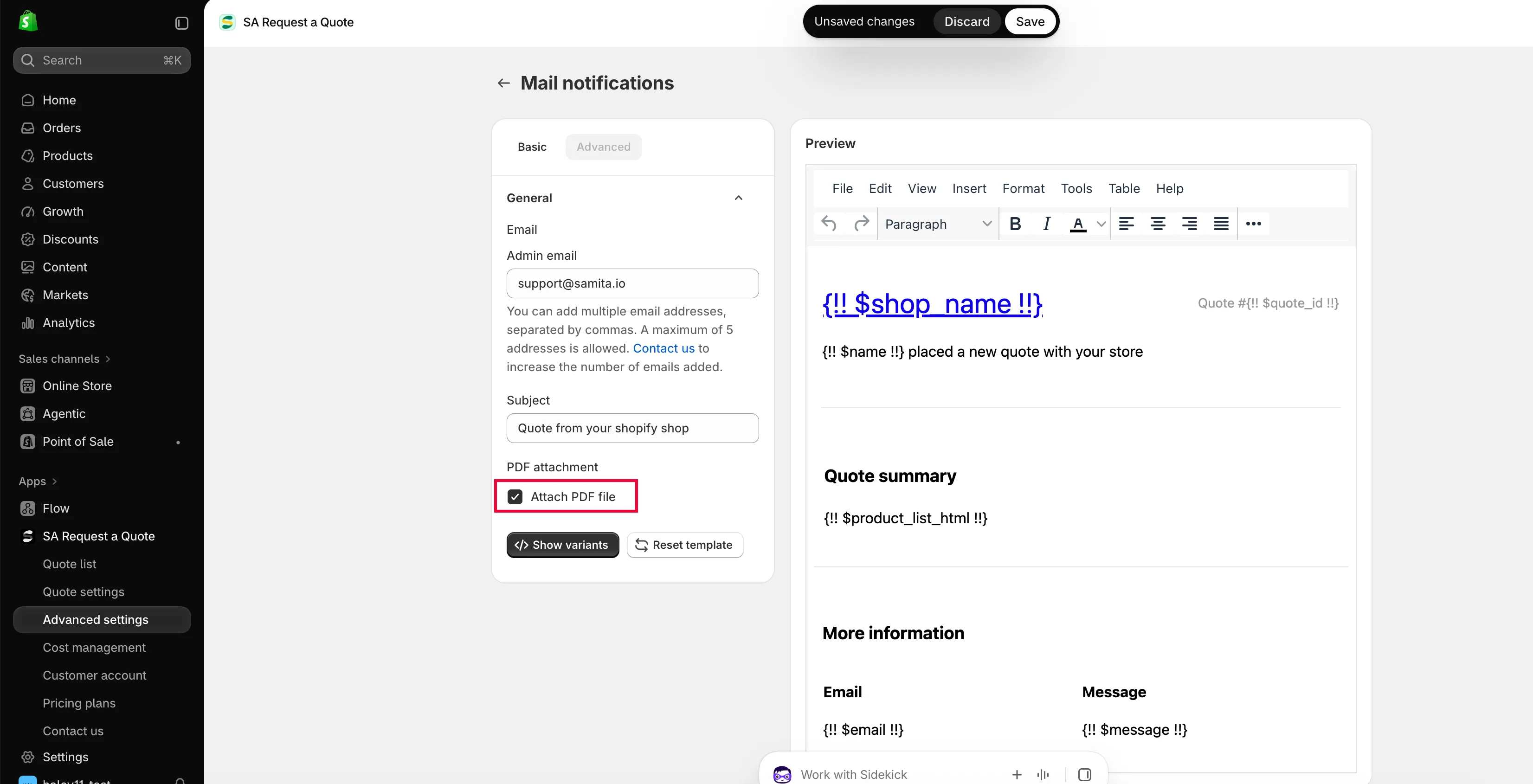
The attachment is a setting of the email, not of the PDF template.
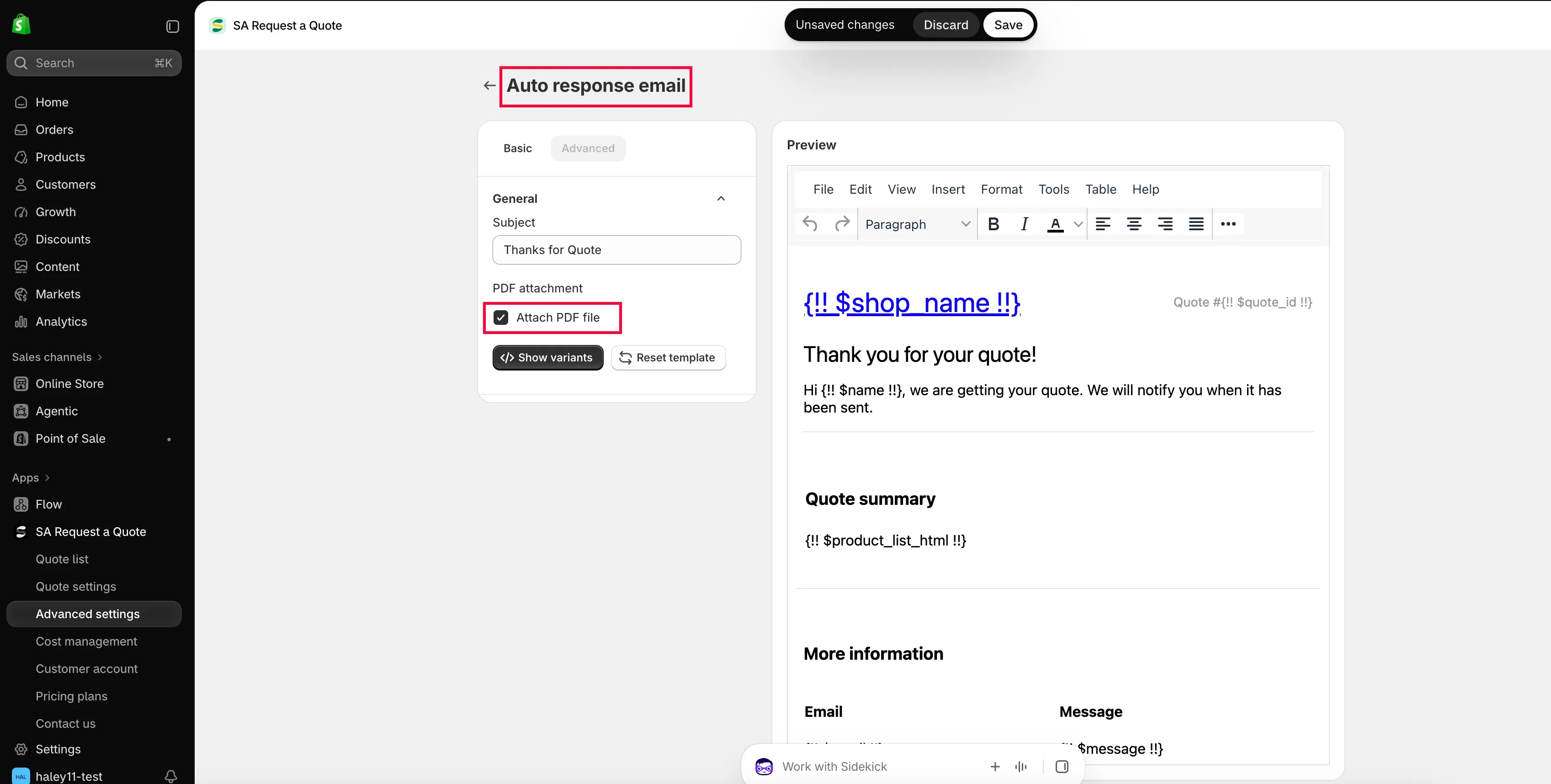
-
Save and send yourself one
Save, then submit a test quote from your own storefront and open the attachment that arrives.
Set up the Quote PDF template
Section titled “Set up the Quote PDF template”-
Go to the PDF template tab
In Advanced settings, choose PDF template. There are two templates:
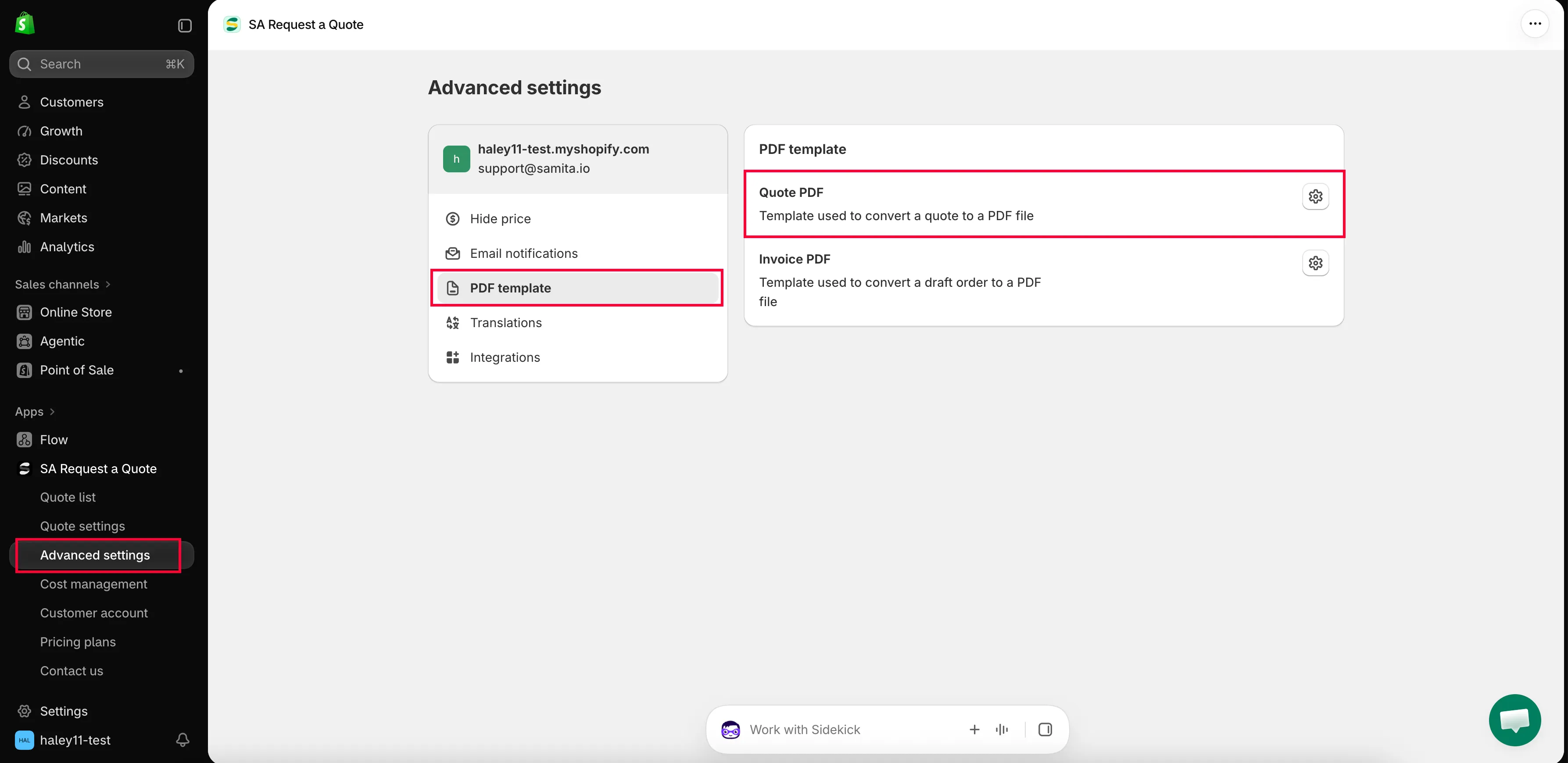
The document itself is designed on the PDF template tab.
-
Open Quote PDF
Quote PDF is the “Template used to convert a quote to a PDF file”. Opening it takes you to Quote PDF template, which is organised into Design, Content and Translations.
-
Choose what appears on the document
Content is a set of tick boxes, grouped into Quote info, Quote products and Other information. Tick what belongs on your quotation and untick what does not.
-
Check the Preview, then save
Preview shows the document as it will be produced. Read it back before you save.
| Group | What you can show |
|---|---|
| Quote info | Quote ID, Issue date (with Choose date format), Payment terms, Discount, Tax, Shipping, Subtotal, Grand total. |
| Quote products | Show product image, Show vendor, Show SKU, Show variants and options, Show quantity, Show price, Show total. |
| Other information | Quote from, Customer information, Shipping address, Additional information. |
There is also Column width (33% or 100%) and a Note. Full detail is in Customize the quote PDF.
Sending a document without the automatic attachment
Section titled “Sending a document without the automatic attachment”You do not have to attach a PDF to every email. Open Quote list in the sidebar; every row on the Quotes page has four actions — download PDF, send email, duplicate and delete.
| Action | Use it when |
|---|---|
| download PDF | A buyer has asked for a document you can attach to your own reply, or you need a copy for your records. |
| send email | You are replying to the customer from the app. |
Step-by-step instructions are in Download a quote as PDF and Send a quotation.
What your plan includes
Section titled “What your plan includes”| Plan | What you get |
|---|---|
| FREE | PDF: quote & invoice, and Multi-language (PDF & email). |
| PRO | Customizable PDF, on top of everything in PREMIUM. |
See Plan comparison for the full list.
Next steps
Section titled “Next steps”- Customize the quote PDF — every toggle on the quote document
- Download a quote as PDF — download a quote as a PDF
- Translate quote emails — quotes and emails in other languages