
Customize the invoice PDF
Set up the Invoice PDF template in Advanced settings so the document that goes with a draft order shows the right details.
Once a customer accepts your quote and you turn it into a draft order, the document they pay against is a different thing from the quote. In the app it comes from Invoice PDF: the “Template used to convert a draft order to a PDF file”.
A quote can be approximate and persuasive. An invoice has to be exact, because someone in an accounts department will check it.
Where to find it
Section titled “Where to find it”In the app sidebar, click Advanced settings, then choose the PDF template tab. Invoice PDF is the second of the two templates there.
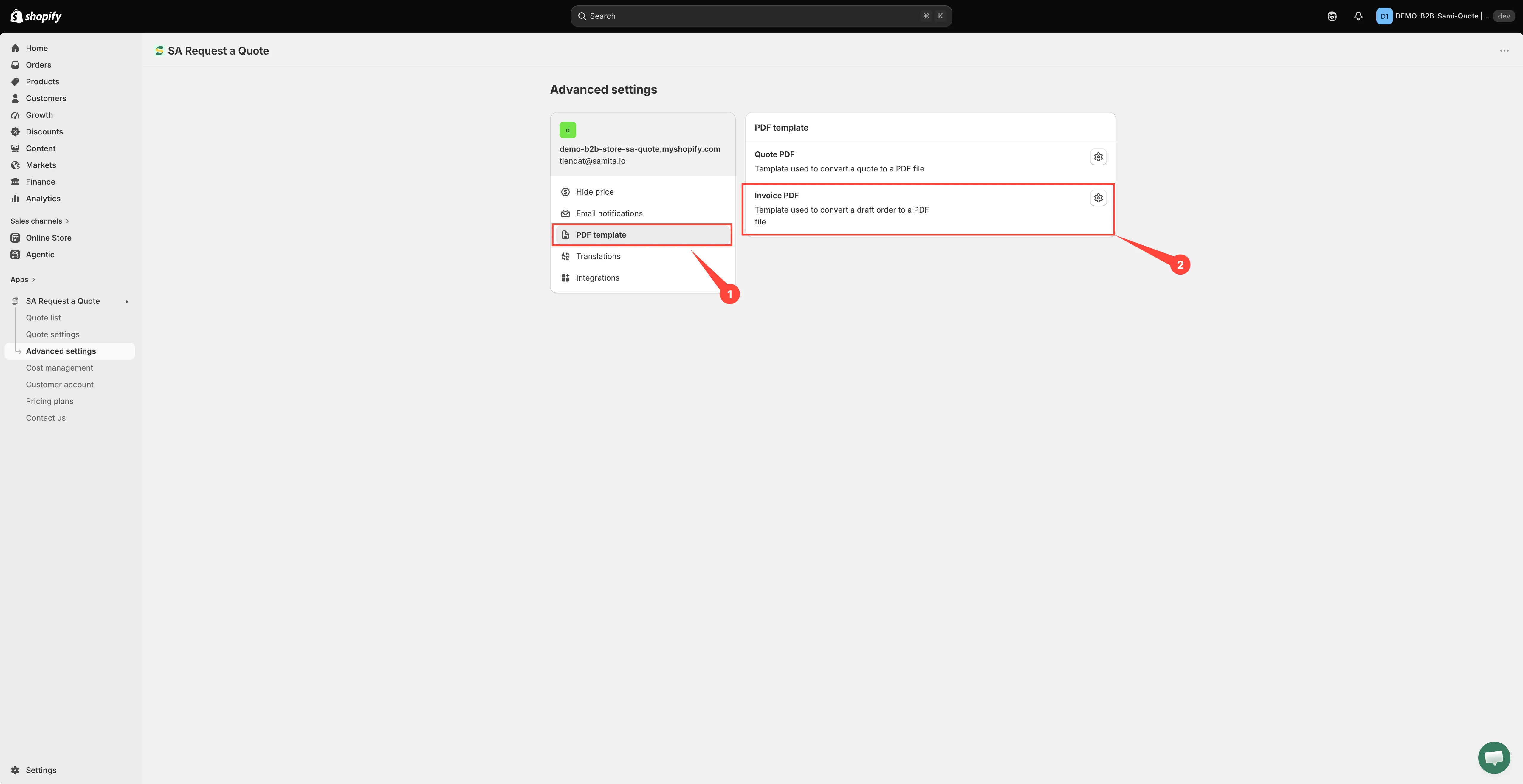
Invoice PDF is the second of the two templates.
Set the template up
Section titled “Set the template up”-
Open Advanced settings
Section titled “Open Advanced settings”In the app sidebar, click Advanced settings.
-
Go to the PDF template tab
Section titled “Go to the PDF template tab”Choose PDF template from the list of tabs.
-
Open Invoice PDF
Section titled “Open Invoice PDF”Open Invoice PDF. The editor is headed Invoice PDF template. It is a separate template from Quote PDF, so set this document up on its own screen rather than assuming it inherited anything from the quote template.
The left-hand column holds three sections you expand one at a time — Design, Content and Translations — and the Preview on the right redraws as you change them.
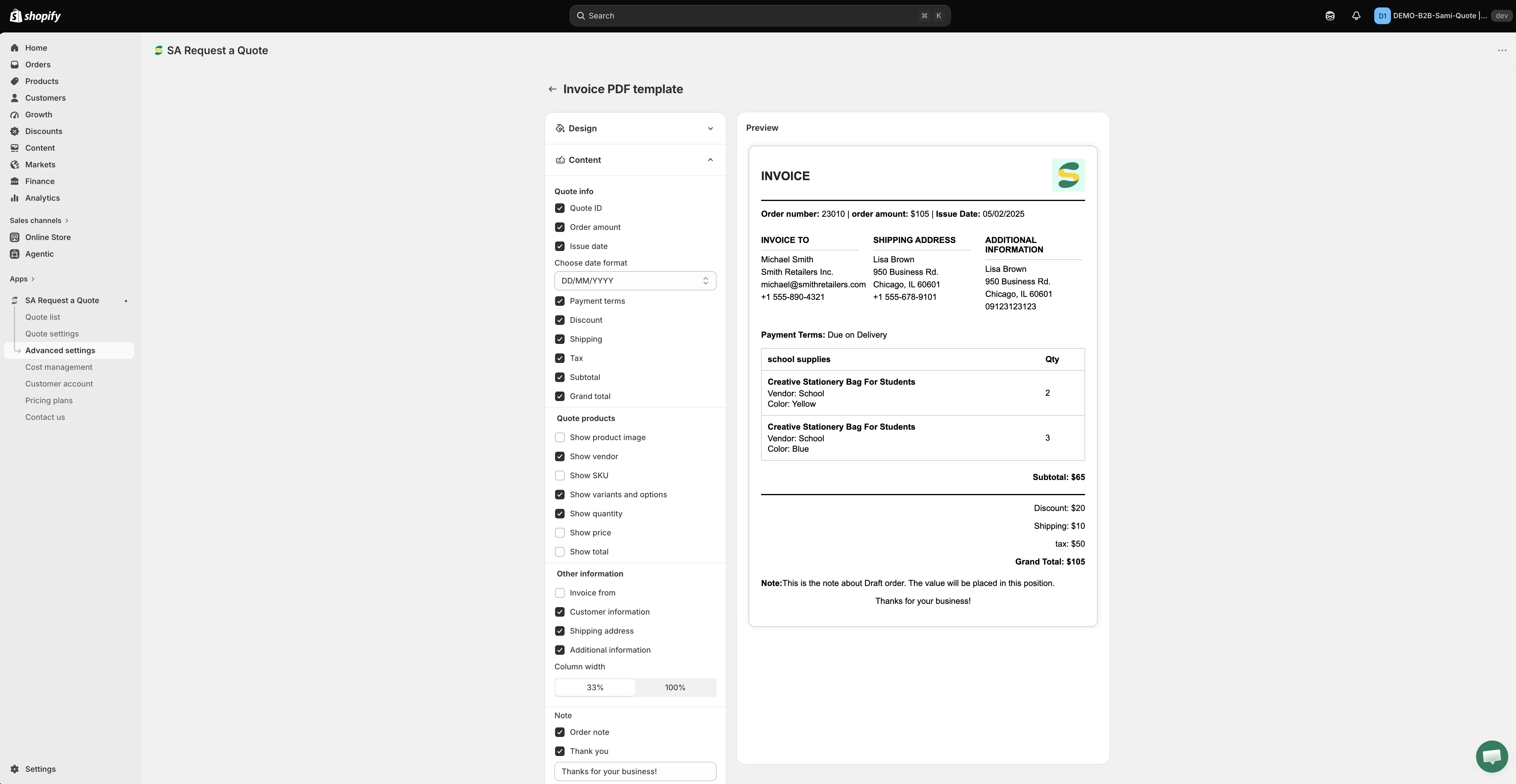
The invoice template is set up on its own screen, separately from the quote PDF.
-
Put your branding on it in Design
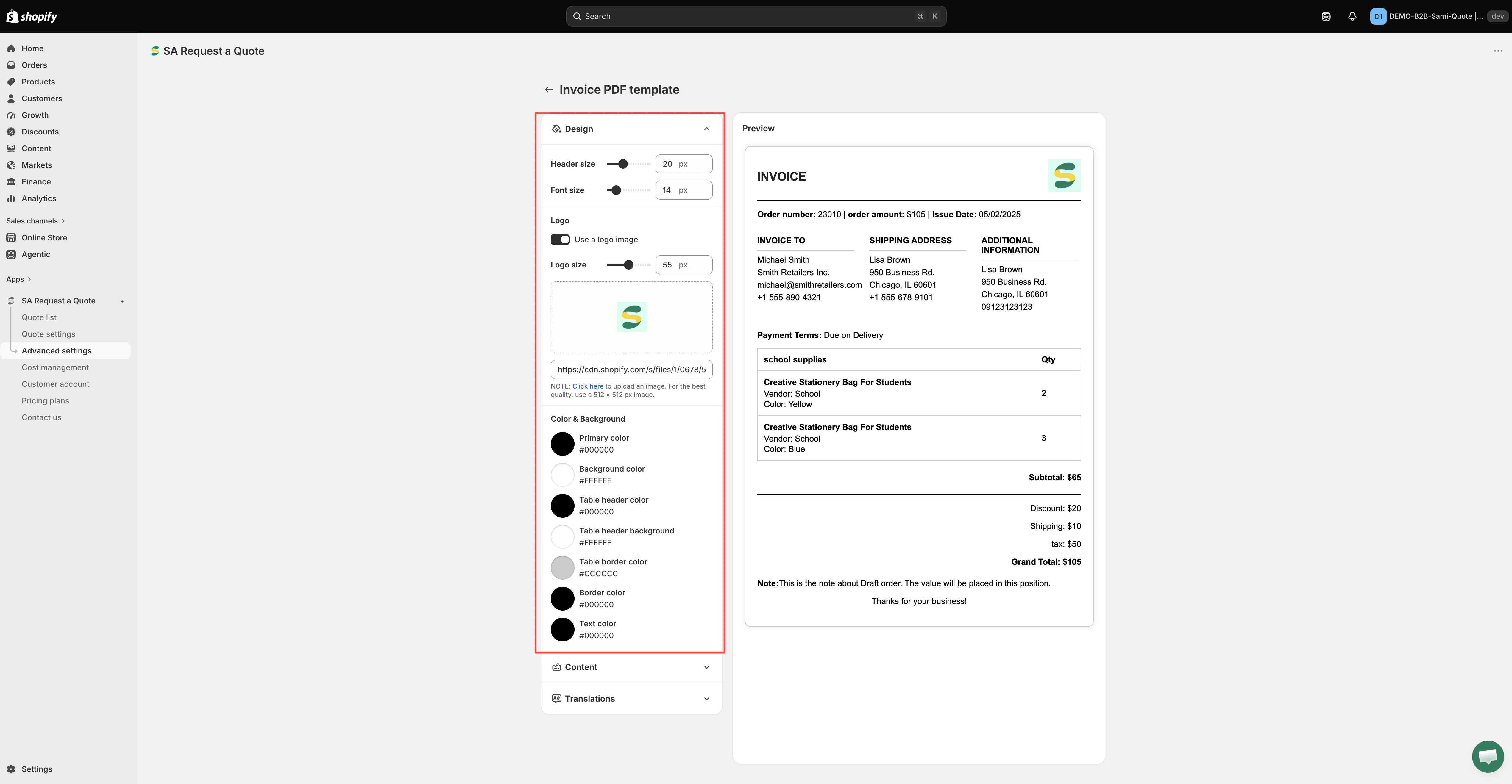
Section titled “Put your branding on it in Design”Expand Design and work down it:
- Header size and Font size, both in px.
- Logo — tick Use a logo image, set Logo size in px, then click the upload area to add the file. The app’s own note reads: “Click here to upload an image. For the best quality, use a 512 × 512 px image.” The field underneath takes an image URL instead, and is labelled Enter an image URL to change it.
- Color & Background — seven swatches: Primary color, Background color, Table header color, Table header background, Table border color, Border color and Text color.
-
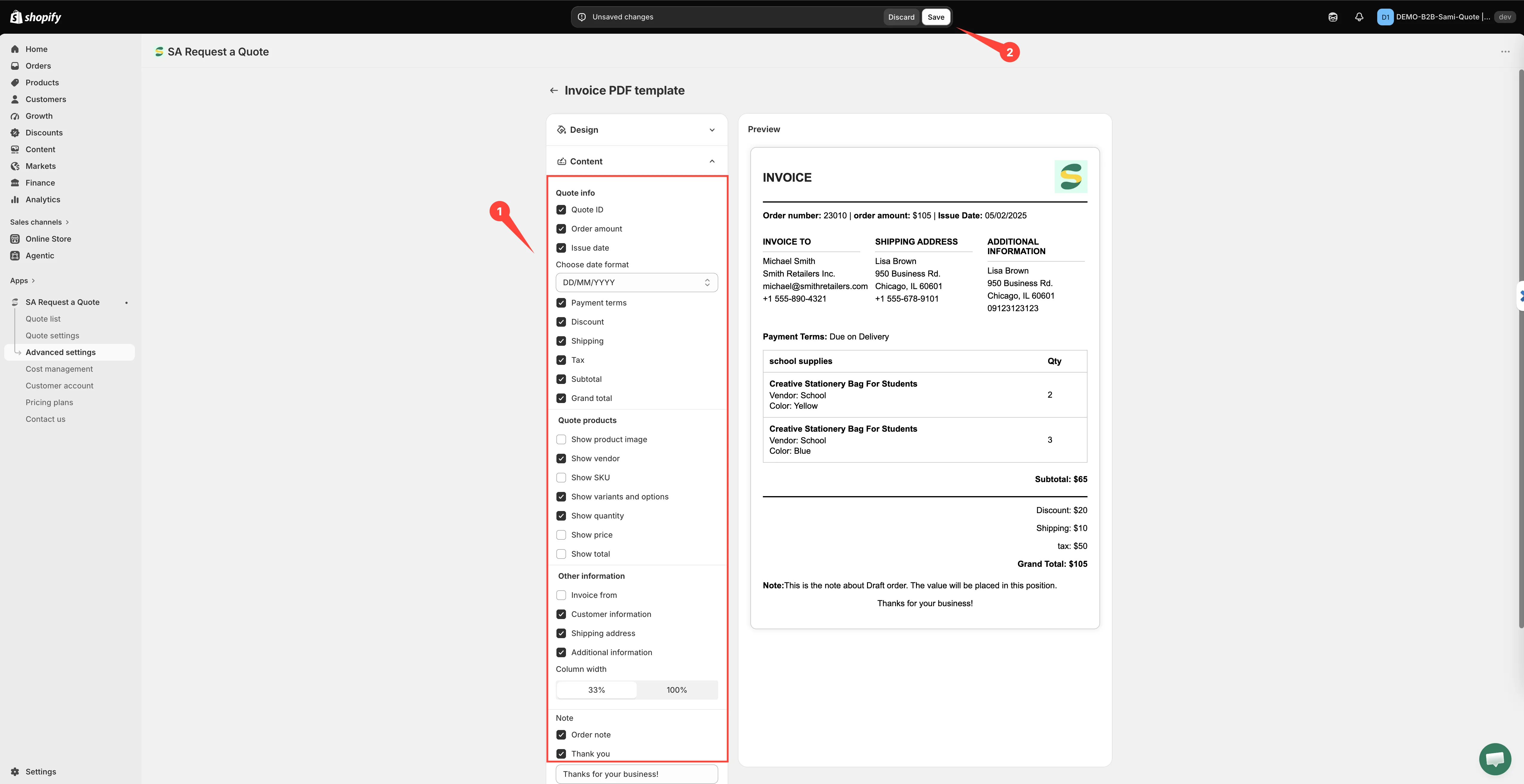
Choose what the invoice shows on Content
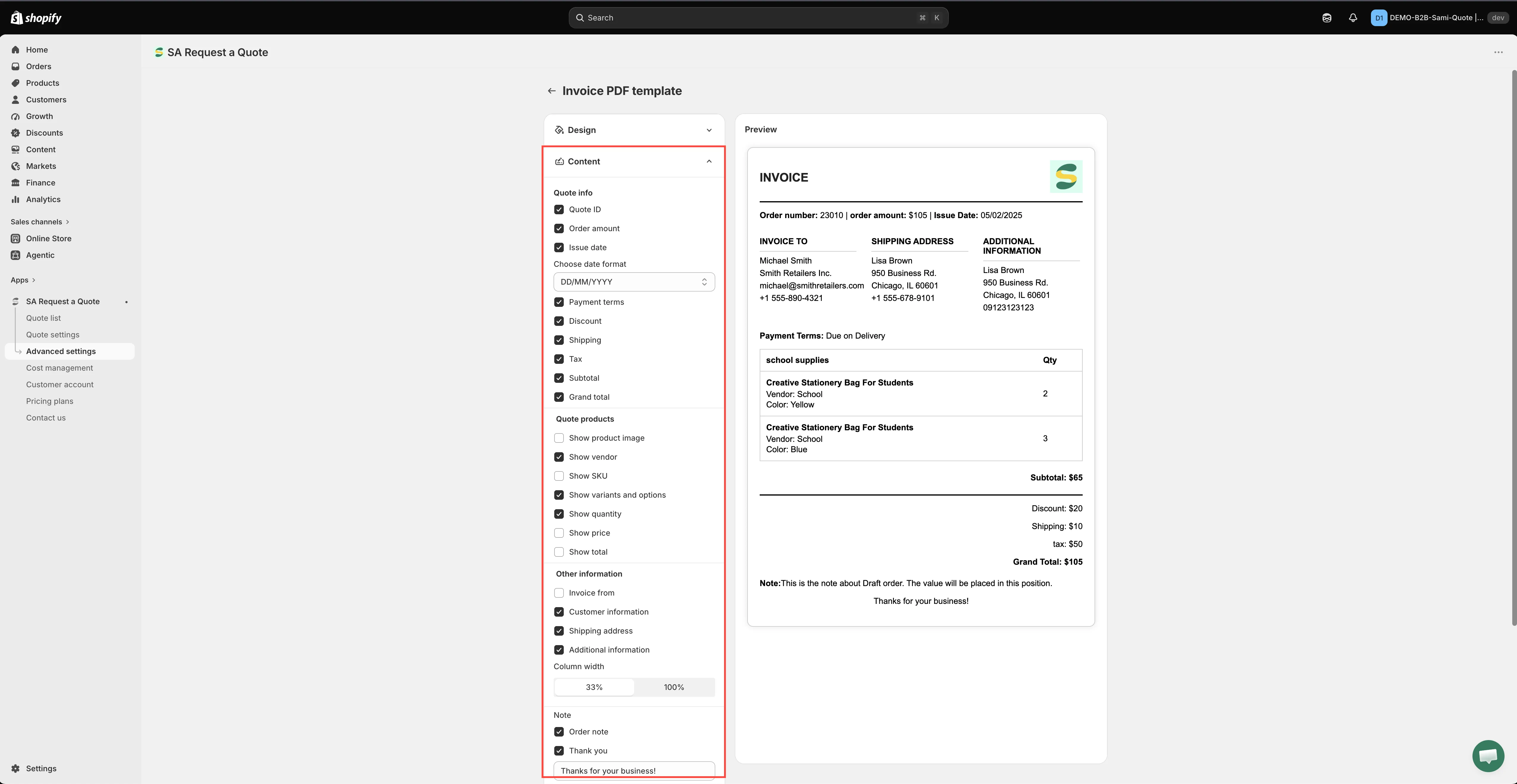
Section titled “Choose what the invoice shows on Content”Open Content and work down the groups, switching on what an invoice has to carry. The invoice template is not the quote template with a different title — it offers rows the quote does not. Every group and every row is listed in What Content offers further down this page.
-
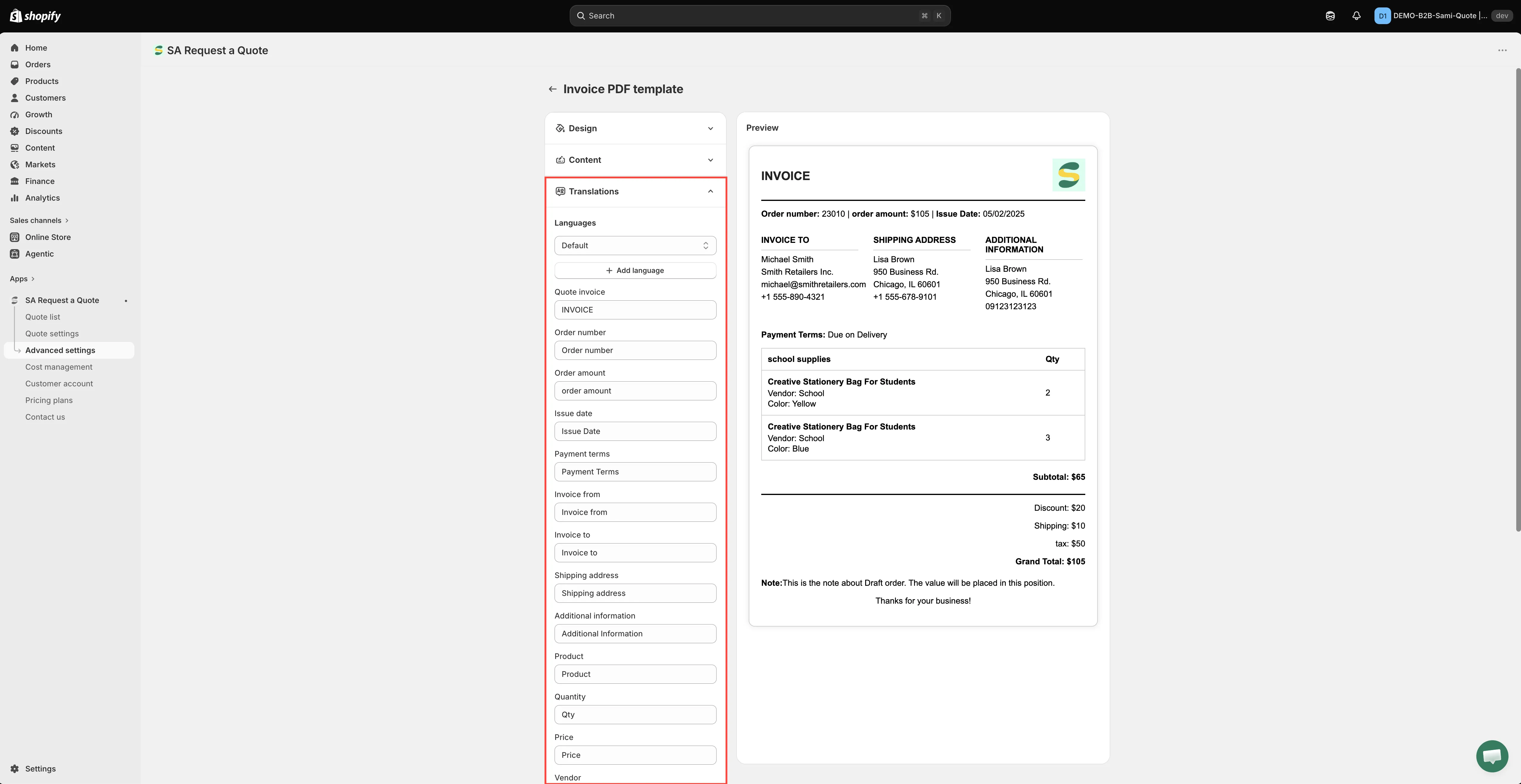
Translate the labels in Translations
Section titled “Translate the labels in Translations”Expand Translations. Languages picks the language you are editing; Add language adds another; the bin icon beside a language removes it (the default language cannot be removed).
Underneath is one text box per label printed on the document — among them Quote invoice, Quote ID, Order amount, Issue date, Payment terms, Invoice from, Invoice to, Shipping, Product, Quantity, Price, Vendor, Total, Subtotal, Discount, Tax, Grand total and Note. Type over any of them: this is also how you change a label in English, not only how you translate it.
-
Changing anything brings up Shopify’s save bar at the top of the admin. Click Save to keep the template, or Discard changes to drop it. Nothing you changed reaches a real invoice until you have saved.
-
Check it against a real draft order
Section titled “Check it against a real draft order”The Preview beside the settings is drawn from sample data. Before you rely on the template, turn one of your own test quotes into a draft order and produce the PDF from it, so you can see the finished document with real figures in it. See Convert to a draft order.
What the document should show
Section titled “What the document should show”An invoice carries obligations a quote does not, so the money lines matter more here than they do on an offer. Before you send one, read the finished document and check it carries:
- Payment terms, so the customer knows when payment is due.
- Discount, tax and shipping, each on its own line, so the total can be checked rather than taken on trust.
- A subtotal and a grand total — an invoice without a stated total will come straight back to you.
- Per-line prices and totals, because an accounts department reconciles line by line.
- SKUs, so the buyer can match your lines to their purchase order.
- Who the document is addressed to.
Where the figures come from
Section titled “Where the figures come from”The amounts on the invoice come from the quote you converted. Discounts, shipping and tax are set in Cost management, which has three tabs: Discount, Shipping and Tax. Get those right before you convert a quote, and the document will add up without hand-editing.
Quote PDF or Invoice PDF?
Section titled “Quote PDF or Invoice PDF?”| Document | Purpose |
|---|---|
| Quote PDF | An offer. Nothing is owed yet. Its job is to help the customer decide. |
| Invoice PDF | A request for payment on an agreed draft order. Its job is to get you paid. |
The watermark
Section titled “The watermark”PDFs carry a watermark until your store is verified. The app puts it this way: “Remove the watermark from your PDF. Please contact us to verify your store and receive this service for free.”
What Content offers
Section titled “What Content offers”| Group | Rows |
|---|---|
| Quote info | Quote ID · Order amount · Issue date · Choose date format · Payment terms · Discount · Shipping · Tax · Subtotal · Grand total |
| Quote products | Show product image · Show vendor · Show SKU · Show variants and options · Show quantity · Show price · Show total |
| Other information | Invoice from — which opens out into Store name, Email, Address and Phone number, so you choose which of your own details appear · Customer information · Shipping address · Additional information |
| Column width | 33% or 100% |
| Note | Order note · Thank you, with a free-text field beneath them |
Three of these exist only on the invoice: Order amount, Invoice from, and the whole Note group. If you have set up the quote PDF already, those are the ones to look at.
The finished document is headed INVOICE and carries an Order number and an INVOICE TO column — which is why the labels you edit in Translations are worth a look before you send the first one.
Next steps
Section titled “Next steps”- Convert to a draft order — create the draft order an invoice belongs to
- Customize the quote PDF — the quote document, with every switch listed
- Attach a PDF to quote emails — get the document to your customer