
Quote form
Match your theme style
Make the quote form pick up your theme's styling automatically, or set the fonts and colours yourself.
A quote form that looks bolted on undermines trust at exactly the wrong moment. The app can pick up your theme’s styling instead.
Themes the app matches
Section titled “Themes the app matches”Theme matching is built against a named set of themes. Samita publishes the list as Dawn, Refresh, Trade, Origin, Ride, Studio, Colorblock, Taste, Publisher, Crave, Spotlight, Craft, Sense and Debut.
If your store runs one of those, tick the box and expect a close match. Two caveats worth knowing before you spend time on it:
- The list keeps growing. Samita marks it “updating”, so a theme that isn’t named here may already be covered — try the setting before you assume it won’t work.
- A listed theme is not a guarantee. Themes get customised, and a heavily modified Dawn is not stock Dawn. The storefront check below is what settles it, whatever your theme is called.
If you’re not sure which theme you’re on, look in Online Store > Themes in your Shopify admin: the live theme is named at the top.
Turn on theme matching
Section titled “Turn on theme matching”-
Open the Quote form tab
Go to Quote settings, click Customize, then open the Quote form tab.
-
Pick a style preset
Scroll to Style. It shows the preset the form currently uses — for example Classic — with a Change button if you want a different one.
-
Tick Match theme styling if possible
Tick Match theme styling if possible.
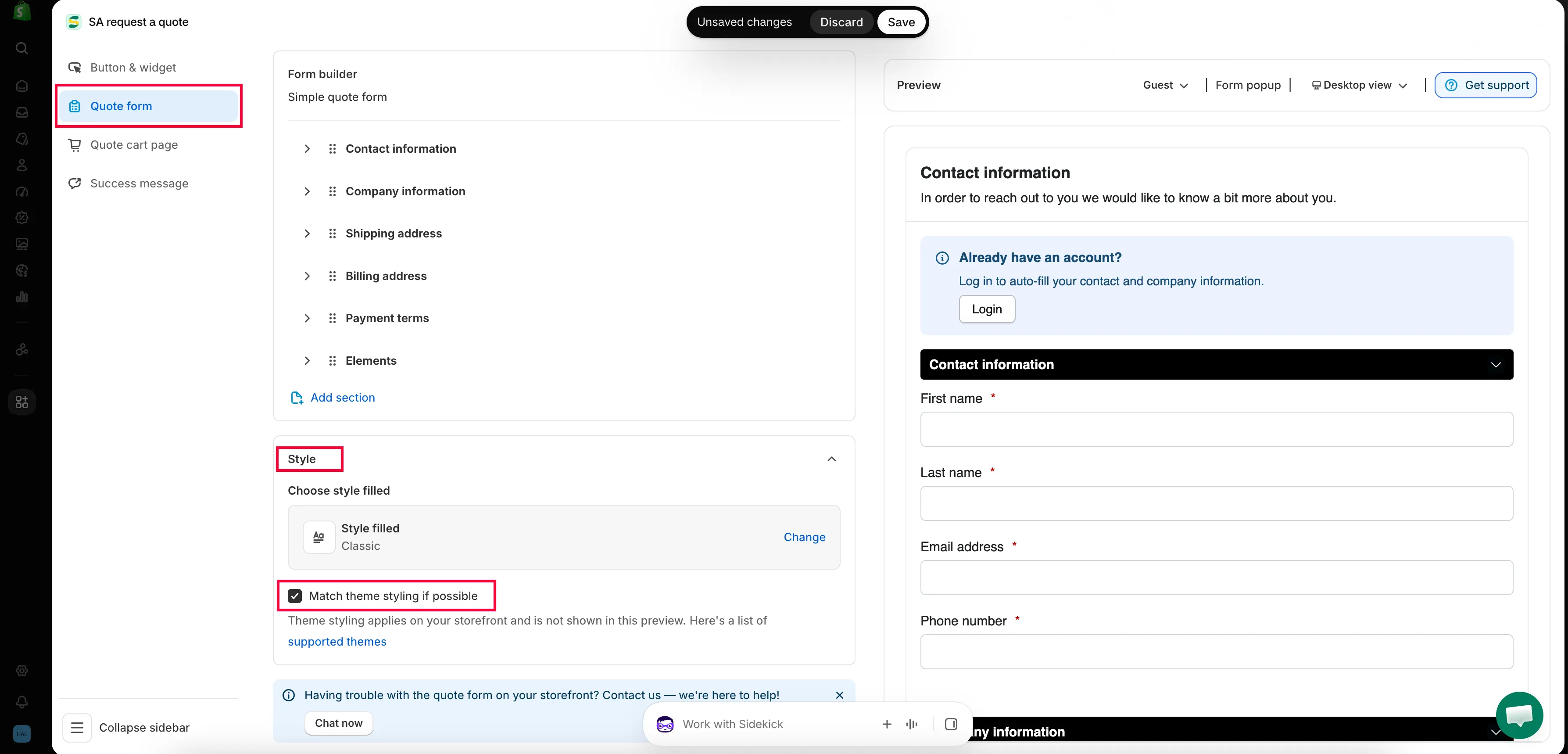
Match the form to your theme so it does not look bolted on.
-
Check it on your storefront, not in the editor
The app says it plainly: “Theme styling applies on your storefront and is not shown in this preview.”
Save your changes, open the form on your storefront, and compare it with a normal page.
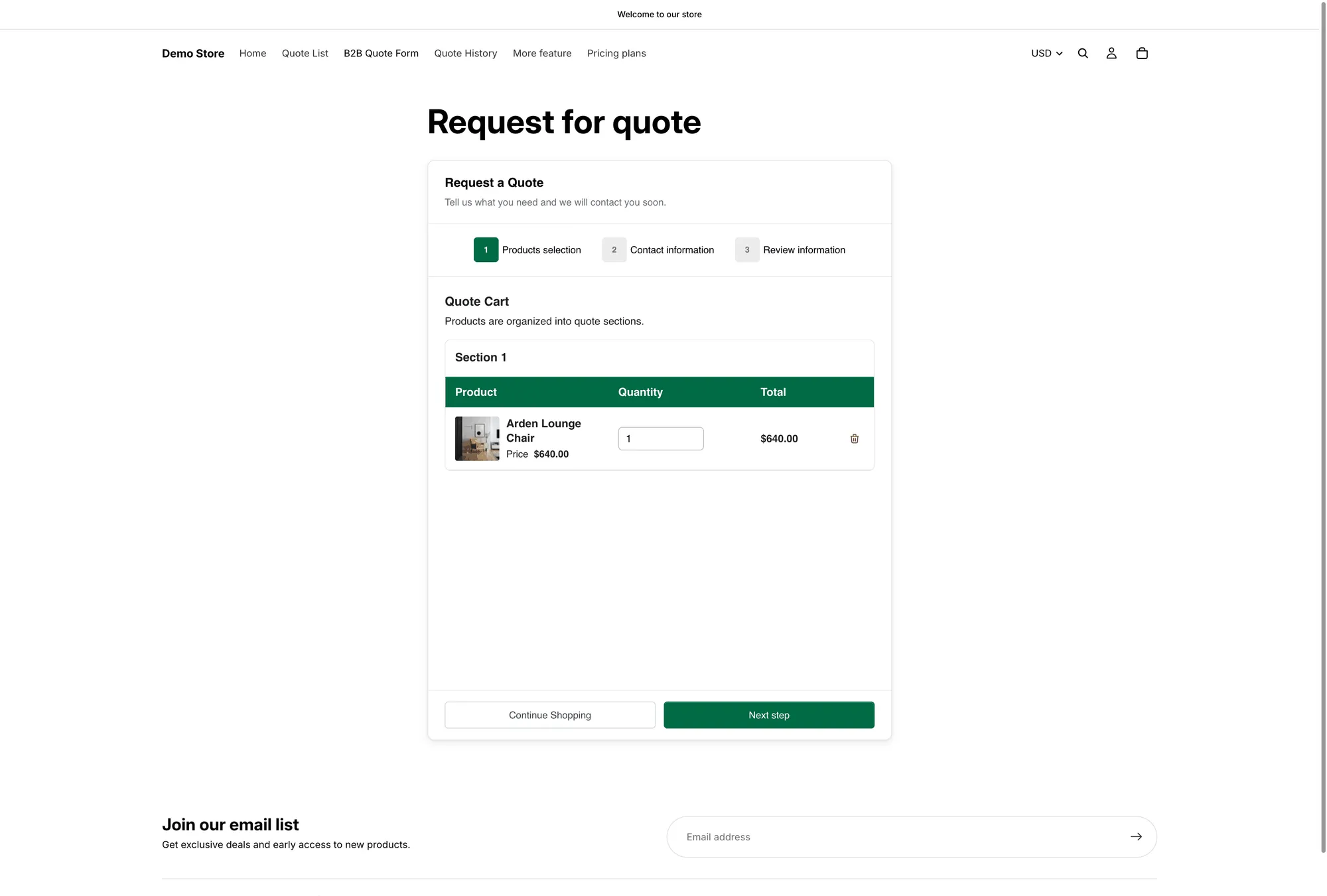
Theme matching only shows up here, on your storefront — never in the editor preview.
Setting the styling yourself
Section titled “Setting the styling yourself”Theme matching is all-or-nothing: one checkbox, no per-element control. When it gets you most of the way but a heading or a button still looks wrong, set that piece by hand. Two sections below Style give you direct control.
| Section | What you can set |
|---|---|
| Customize text | Font style |
| Customize form color | Title bar color, Title bar background, Color, Background color, Border color, Quote popup primary color |
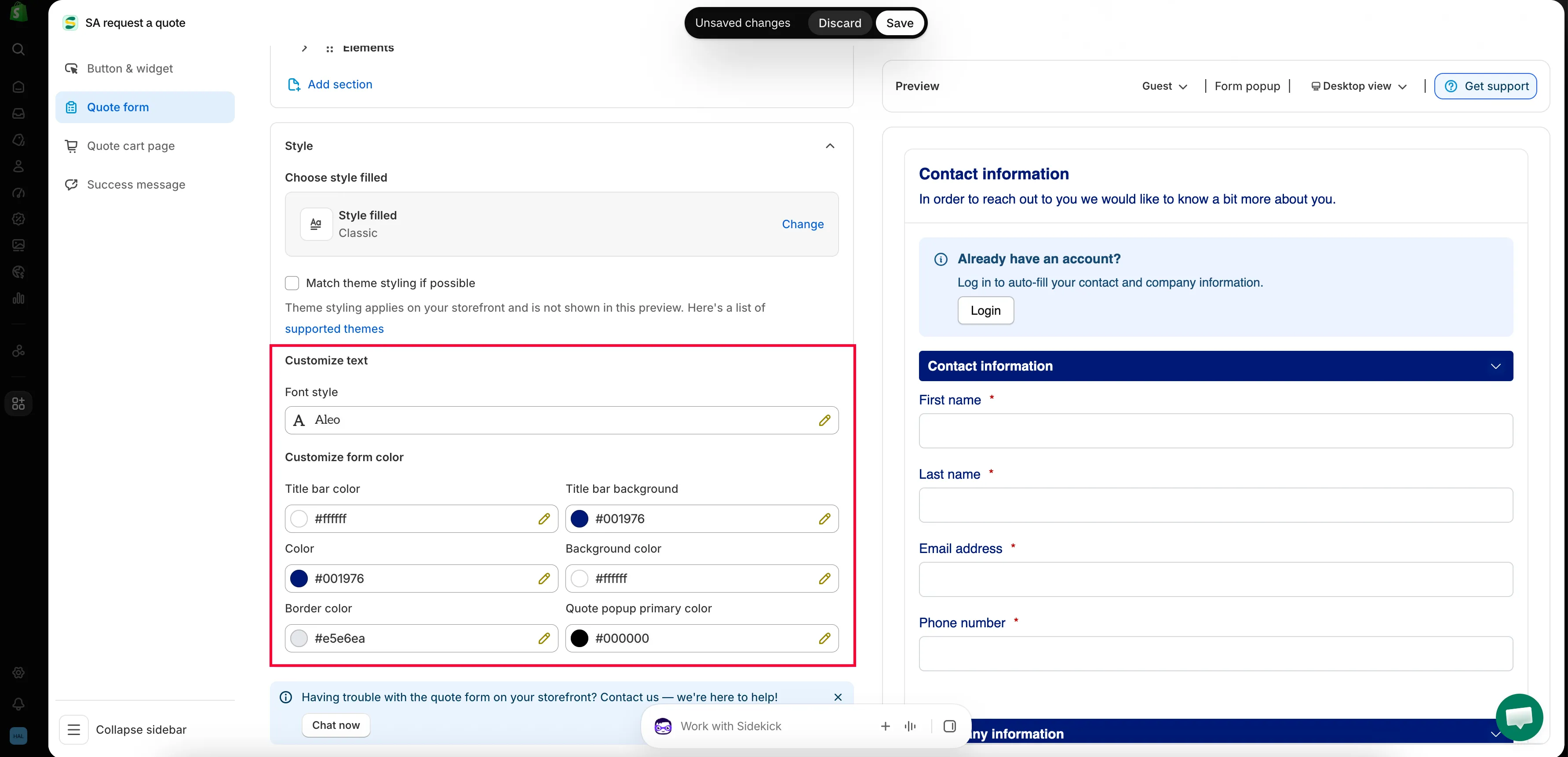
Use them when theme matching leaves something behind, or when you want the form to stand out deliberately rather than blend in.
What to check
Section titled “What to check”- Fonts — headings and body text should match the rest of your store
- Buttons — the submit button should look like your other buttons
- Spacing — a cramped form on mobile is the most common problem
- Contrast — make sure labels are readable, especially on a dark theme
Next steps
Section titled “Next steps”- Build a standard form — the rest of the form
- Change button text and colors — style the quote button to match