
Customer information fields
Choose which contact and address details your quote form asks for, and let logged-in customers skip typing them.
Two sections of the Form builder handle the details you need about the person asking: Contact information and Shipping address. Both the Detailed quote form and the B2B customer form templates arrive with them, so this page applies whichever one you started from. The best thing about them is that a logged-in customer barely has to type anything.
Set them up
Section titled “Set them up”-
Open the Quote form tab
Section titled “Open the Quote form tab”Go to Quote settings, click Customize, then open the Quote form tab.
-
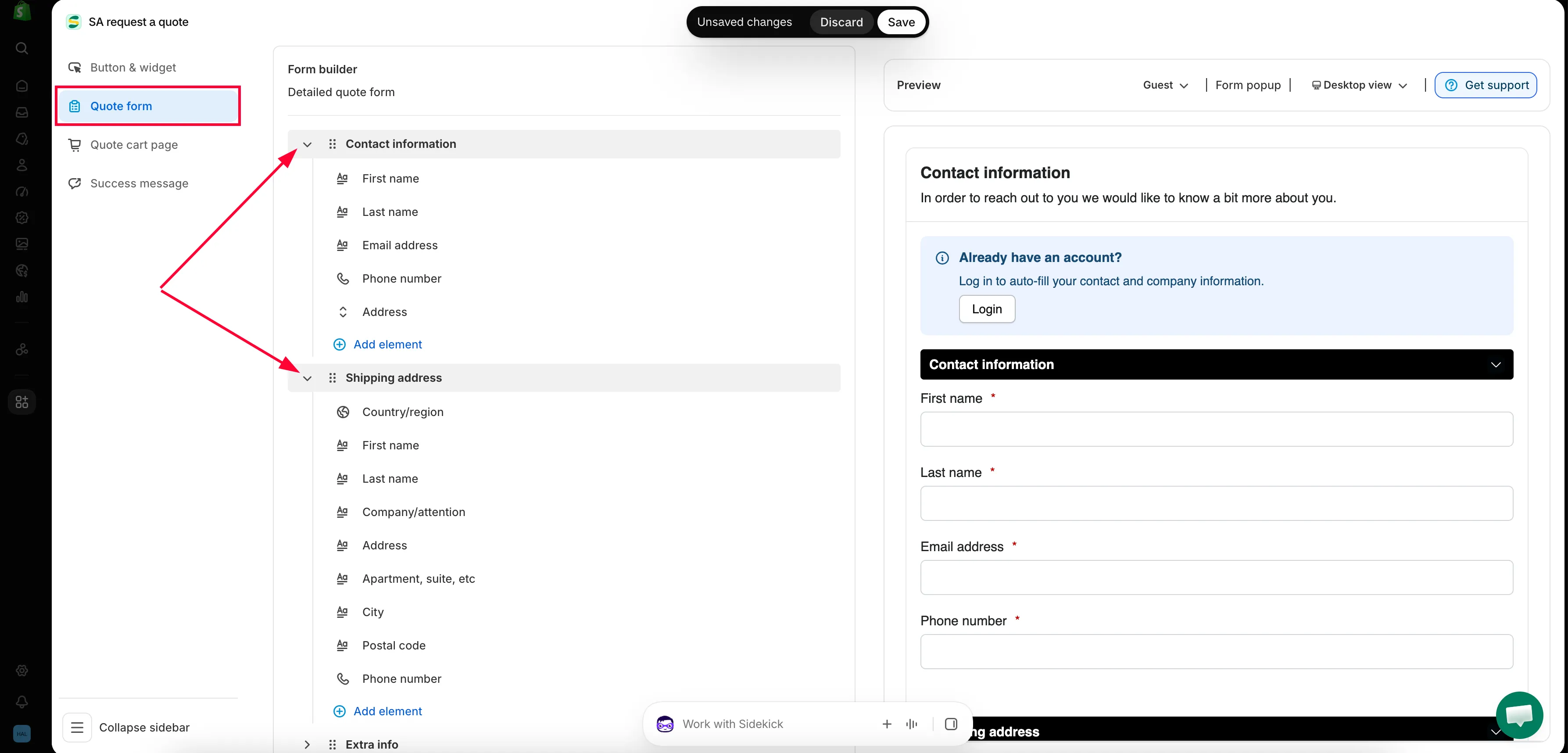
Expand Contact information
Section titled “Expand Contact information”In the Form builder, expand Contact information. It holds First name, Last name, Email address, Phone number and Address.
Use Add element if you need another field in it.
Every field you ask for is one more thing between a buyer and a request.
-
Expand Shipping address
Section titled “Expand Shipping address”Shipping address holds Country/region, First name, Last name, Company/attention, Address, Apartment suite etc, City, Postal code and Phone number.
Only keep it if where the goods go changes the price.
-
Check it as a logged-in customer, without leaving the editor
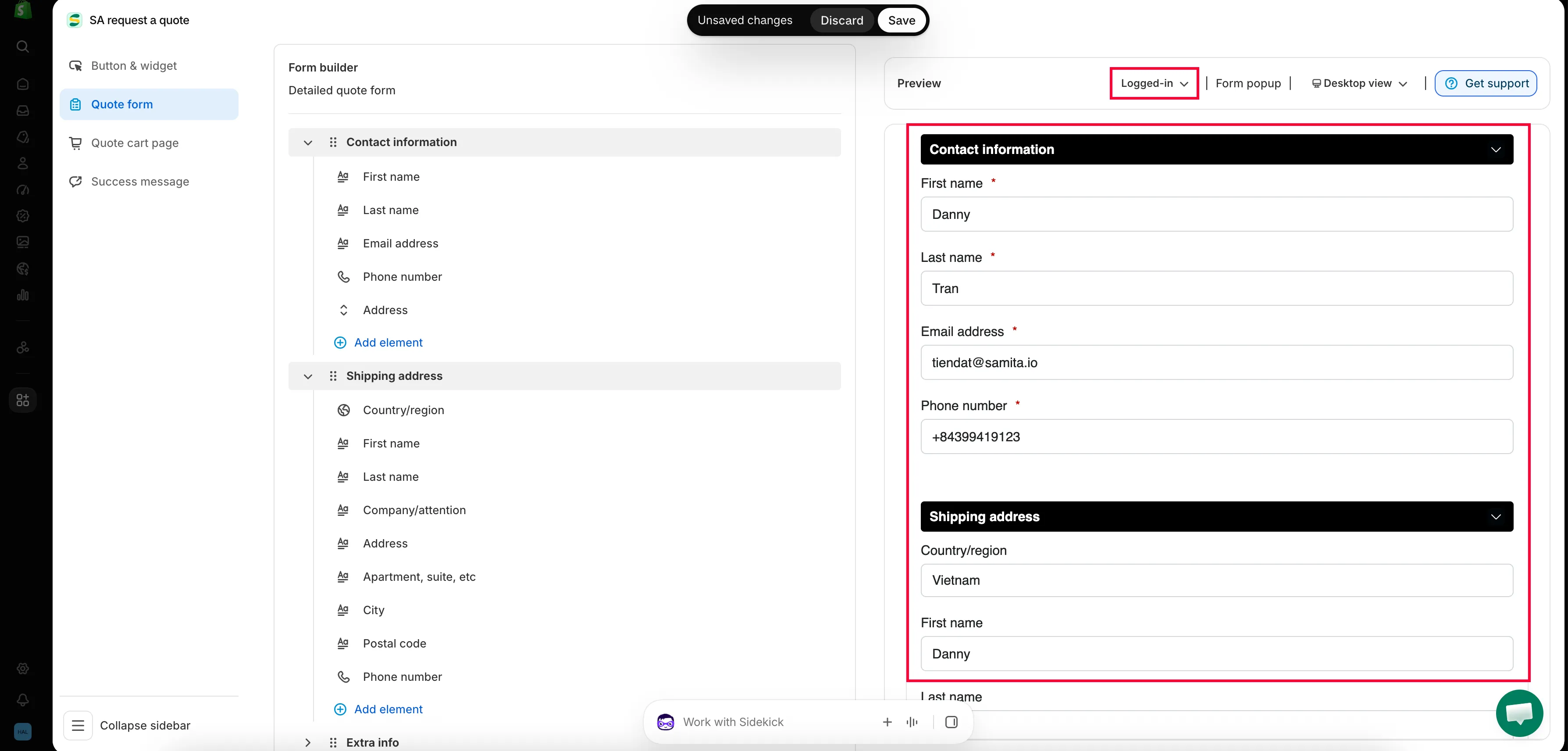
Section titled “Check it as a logged-in customer, without leaving the editor”You don’t have to publish and go shopping to see what a signed-in buyer gets. The editor’s Preview panel has a customer-state selector in its header — switch it to Logged-in and the preview redraws the form the way an account holder sees it.
Switch it back afterwards to check the version a first-time visitor meets. Those are your two audiences, and they do not see the same form.
-
Save and check
Section titled “Save and check”Save your changes, then open the form on your storefront and read it as a customer would.
What each section holds
Section titled “What each section holds”| Section | Fields |
|---|---|
| Contact information | First name, Last name, Email address, Phone number, Address |
| Shipping address | Country/region, First name, Last name, Company/attention, Address, Apartment suite etc, City, Postal code, Phone number |
If you sell to businesses, Company information and Billing address cover the rest. They only appear on the B2B customer form template — the Detailed quote form has just Contact information, Shipping address and Extra info. See Build a B2B form.
How automatic filling works
Section titled “How automatic filling works”On the storefront the form offers customers a shortcut above the contact fields:
Already have an account? Log in to auto-fill your contact and company information.
Next to it is a Login link.
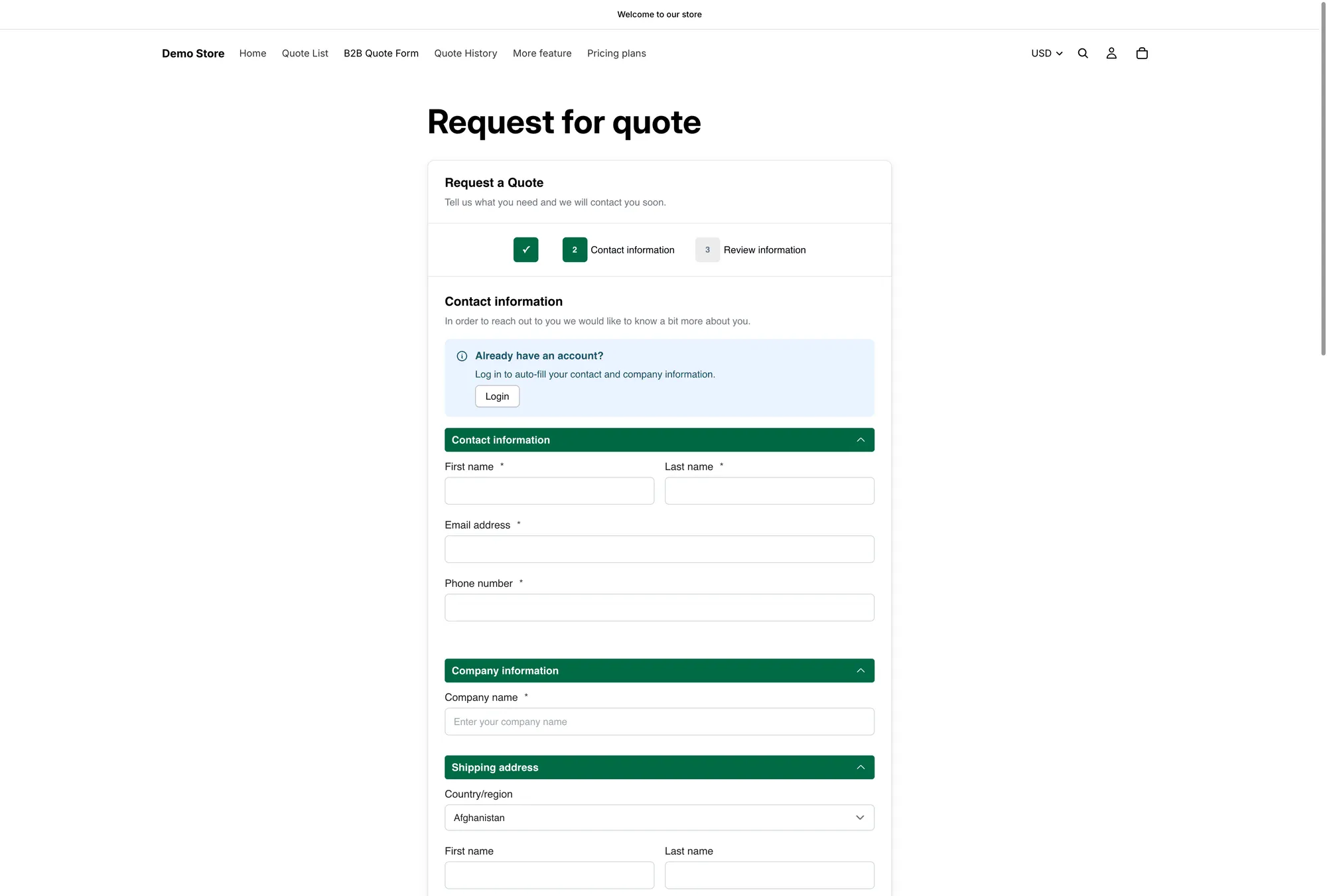
The contact step on the storefront, with the log-in shortcut above it.
Where the values come from
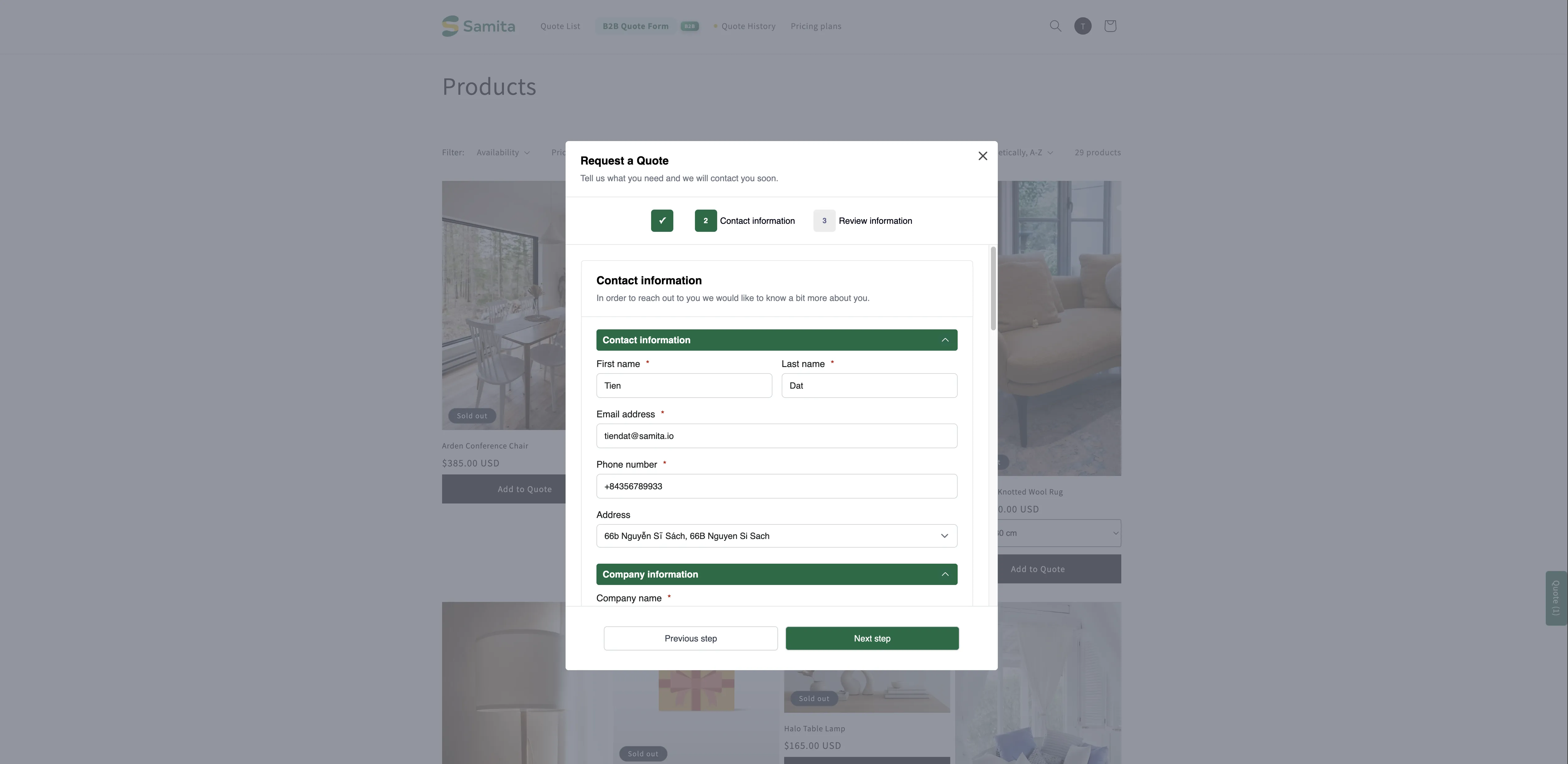
Section titled “Where the values come from”The app doesn’t invent the data. If the customer already has an account on your store, it reads their record in Customers in your Shopify admin and drops those values into the matching form fields. The fill happens after two things have both happened: the customer has logged in, and they have added a product to their quote.
Two useful consequences:
- A field that stays blank is usually a blank customer record, not a bug. If a buyer’s phone number doesn’t appear, open that customer in Customers in your Shopify admin and check whether the number is there at all.
- Fixing the data in Shopify fixes the form. There is nothing to correct inside the quote app.
Asking for the right things
Section titled “Asking for the right things”| Field | Worth asking? |
|---|---|
| Email address | Always — without it you can't reply. |
| First name and Last name | Yes. Makes your reply personal and helps you find the quote later. |
| Phone number | Only if you actually call people. An unused required field costs you submissions. |
| Shipping address | Only if it changes the price — for freight or bulky goods it usually does. |
Next steps
Section titled “Next steps”- Build a B2B form — company, billing and payment details for trade buyers
- Create a Shopify customer after submit — create accounts from quote submissions
- Build a standard form — the rest of the form