
Add animation to a badge
Add animation effects like pulse to your badges to grab customer attention on your storefront.
Add animation effects to draw customer attention to sales, limited-time offers, and important product information.
How to add an animation
Section titled “How to add an animation”-
Open the badge editor
Section titled “Open the badge editor”From Sami Product Labels, go to Badges & Labels. Click Edit badge/label for an existing badge, or click Create badge and complete the initial badge setup.
-
Open Design
Section titled “Open Design”The editor opens on Design by default. If you are on another tab, click Design.
-
Expand Advanced settings
Section titled “Expand Advanced settings”Scroll to the bottom of Design, then click Advanced settings.
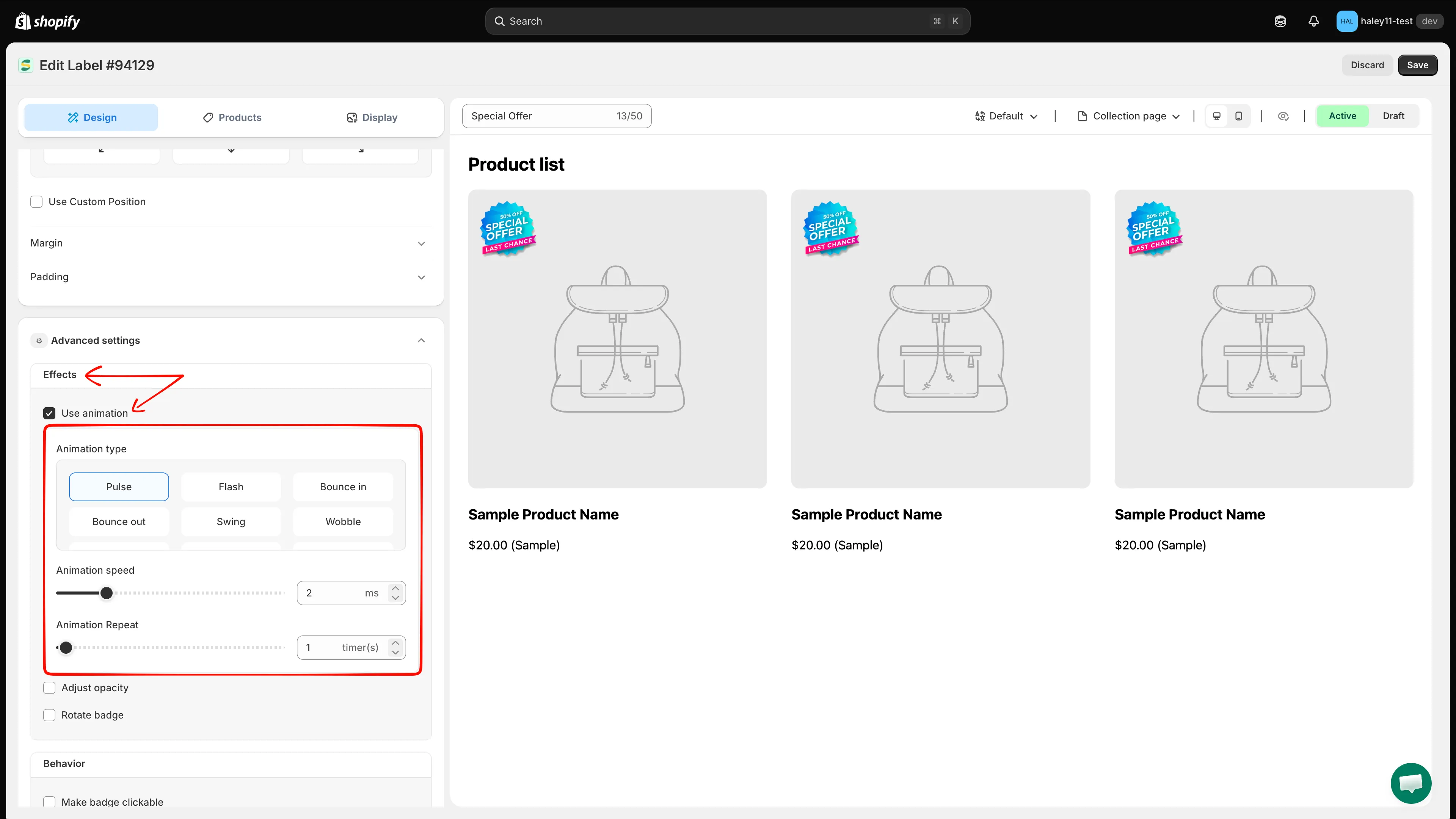
Expand Advanced settings to find the animation controls under Effects.
-
Enable Use animation
Section titled “Enable Use animation”Under Effects, turn on Use animation. The animation type, speed, and repeat controls appear.
-
Select the animation type
Section titled “Select the animation type”Choose one of the 13 available effects: Pulse, Flash, Bounce in, Bounce out, Swing, Wobble, Flip, Gelatine, Roll in, Roll out, Rotate in down left, Rotate in up left, or Hi there.
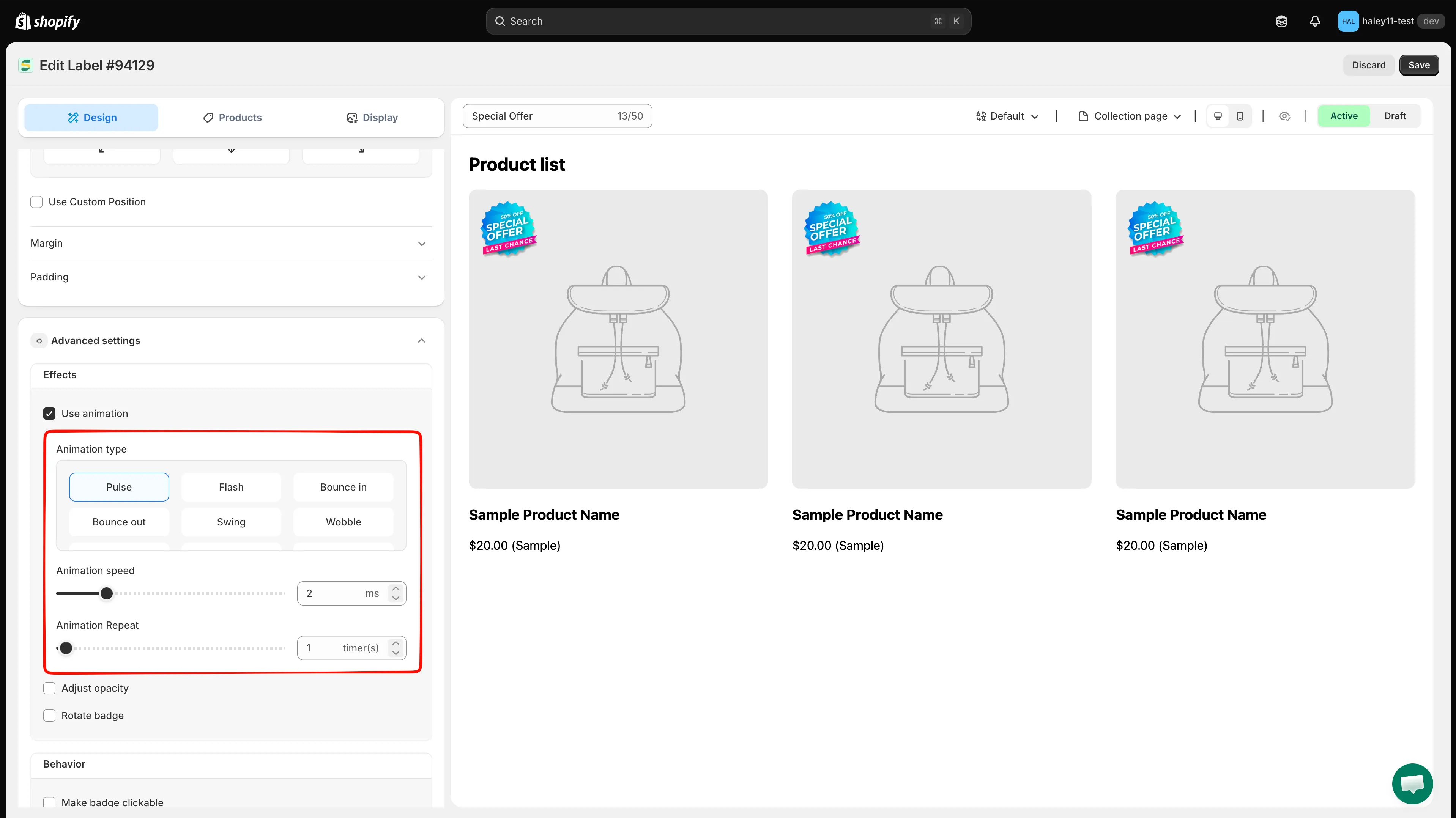
Choose an animation effect, then adjust its speed and repeat count.
-
Set the animation speed
Section titled “Set the animation speed”Use the Animation speed slider or number field to set a value from 0 to 10. Watch the live preview as you adjust it so the effect remains noticeable without distracting from the product.
-
Set the repeat count
Section titled “Set the repeat count”Use the Animation Repeat slider or number field to set a value from 0 to 100.
-
Save and preview
Section titled “Save and preview”Check the effect in the live preview. You can switch between collection and product page previews and between desktop and mobile views. When the animation looks right, click Save at the top of the editor.
Next steps
Section titled “Next steps”- Change badge style — Customize fonts, colors, borders, and backgrounds for your badge.
- Use custom CSS — Use custom CSS for advanced styling and animation fine-tuning.