
Integrations
Ask Sidekick about your app data
Questions you can ask Shopify Sidekick about your badges, badge groups, Extra Features, discounts, badge performance, and how to use Sami Product Labels.
Sidekick can look up everything you have set up in Sami Product Labels. This page lists what it can find for each part of the app, with questions you can copy and adapt.
Badges and labels
Section titled “Badges and labels”Ask Sidekick to find badges by name, by status, or by kind — badges sit on the product image, labels sit near the product title.
Try asking:
- “What badges do I have?”
- “Which of my labels are paused?”
- “Find my Free shipping badge.”
For each badge, Sidekick returns its status, which products it targets, and when it was last edited. Results are sorted with the most recently edited first.
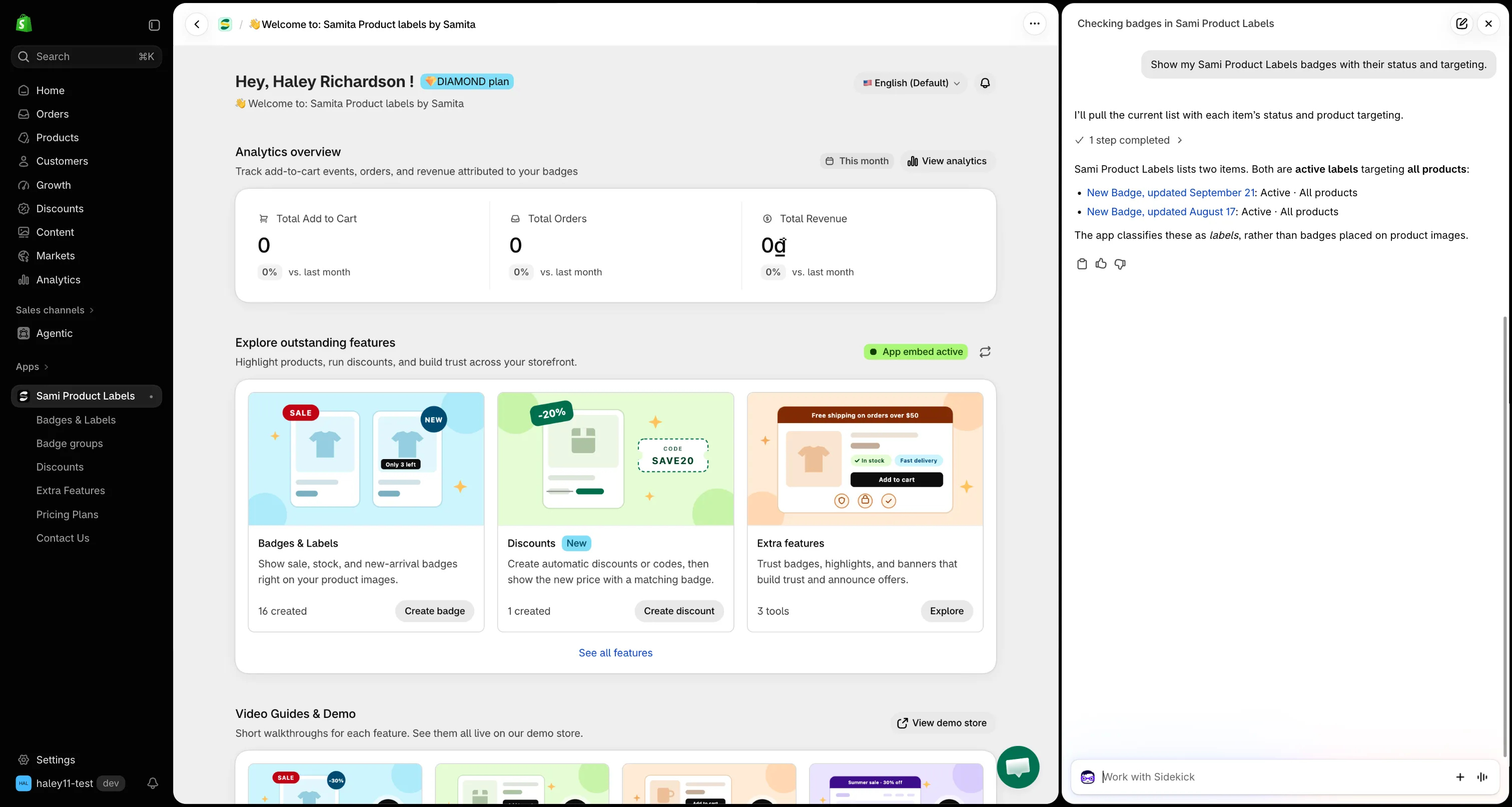
Sidekick lists your badges with their status and targeting.
Check how one badge is set up
Section titled “Check how one badge is set up”Ask about a single badge to see its full setup without opening the editor.
Try asking:
- “How is my Black Friday badge configured?”
- “When does my Summer sale badge stop showing?”
- “Which products does the New arrival badge target?”
Sidekick answers with:
| Detail | What it shows |
|---|---|
| Status | Active or paused. |
| Targeted products | The products you picked by hand, by name. Beyond 20, the rest are given as a count. |
| Conditions | Every display condition written out in plain text, with product and collection names instead of IDs. |
| Schedule | The start and end dates set under Visibility Date & Countdown. |
| Group | The badge group it belongs to, if any. |
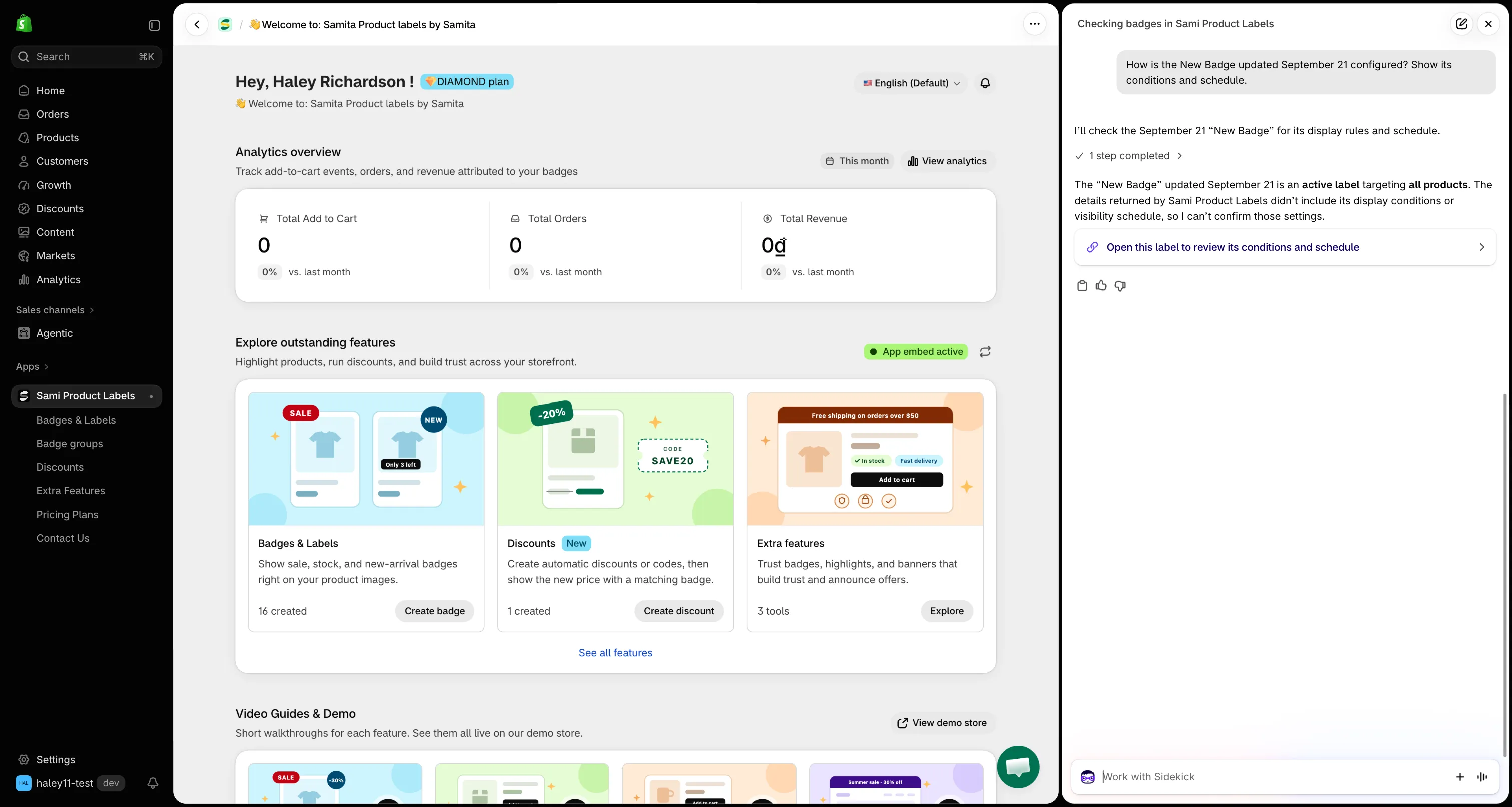
Read a badge’s setup, then open it in the editor straight from the answer.
Badge groups
Section titled “Badge groups”Try asking:
- “What badge groups do I have?”
- “Which group is my Secure checkout badge in?”
- “What’s inside my Trust group?”
Sidekick lists each badge group with its status and the names of the badges it contains.
Trust badges, highlights, and banners
Section titled “Trust badges, highlights, and banners”Try asking:
- “Show me my trust badges.”
- “Which banners are active?”
- “Do I have a highlight for shipping?”
Sidekick searches your Extra Features — trust badges, highlights, and banners — and returns each one’s name and status.
Discounts
Section titled “Discounts”Try asking:
- “Which discounts are running right now?”
- “What is the code for my summer discount?”
- “Which of my discounts have expired?”
For each discount created in the app, Sidekick returns:
| Detail | What it shows |
|---|---|
| Type | Automatic discount or discount code. |
| Code | The code customers enter, for discount codes. |
| Amount | A percentage or a fixed amount. |
| Schedule | Start date and, if set, end date. |
| Status | Active — running now. Expired — switched on but past its end date. Paused — switched off. |
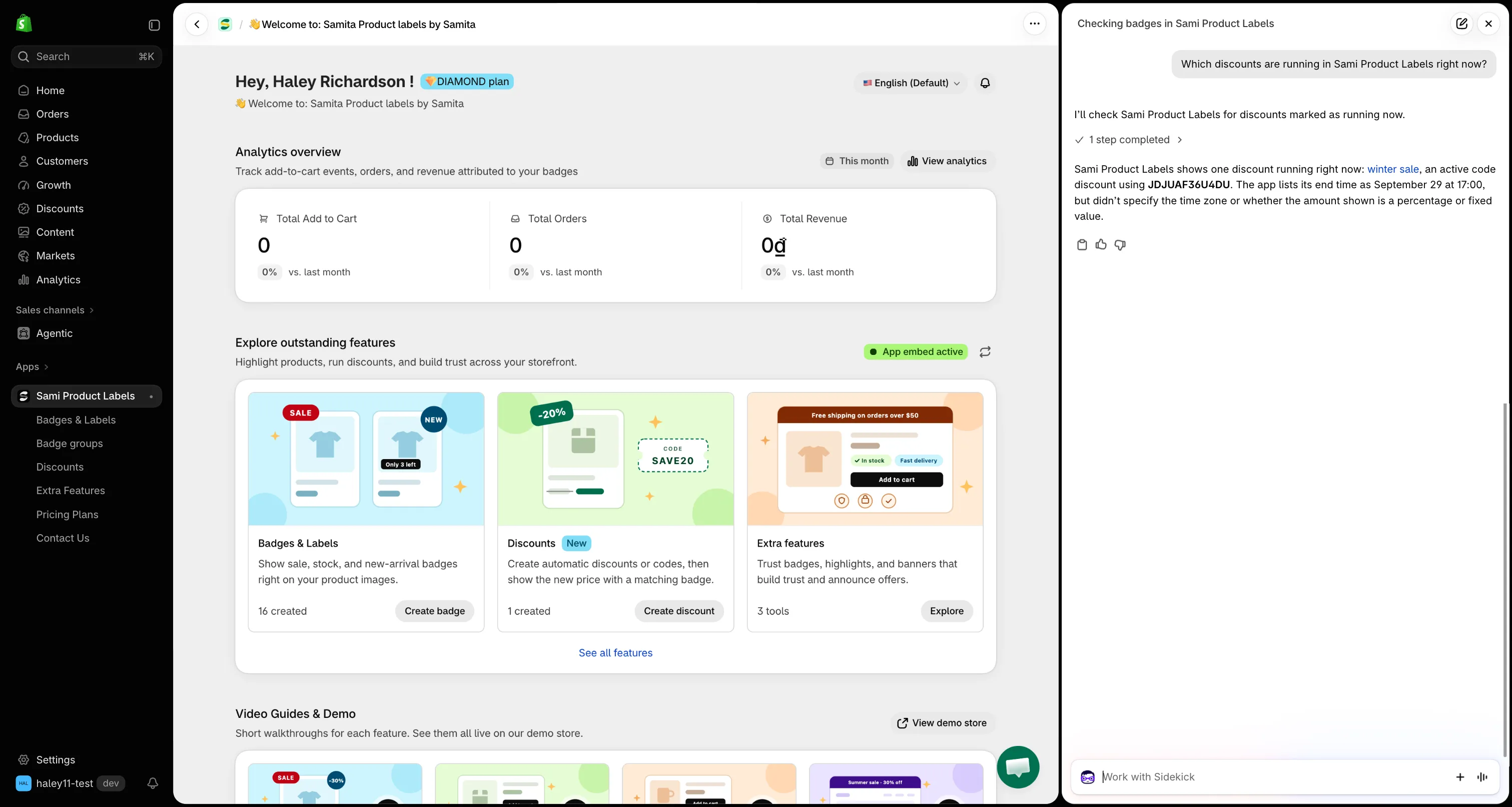
See which discounts are running, paused, or expired.
Badge performance
Section titled “Badge performance”Try asking:
- “Are my badges working?”
- “How did my badges do last month?”
- “Which badge brings in the most revenue?”
Sidekick reports the same figures as the Analytics page — add to cart, orders, and revenue — and compares them with the previous period of the same length.
- Date range — the last 30 days unless you name dates, for example “from September 1 to September 15”.
- Top badges — ask which badge performs best and Sidekick ranks your top 5 badges by revenue.
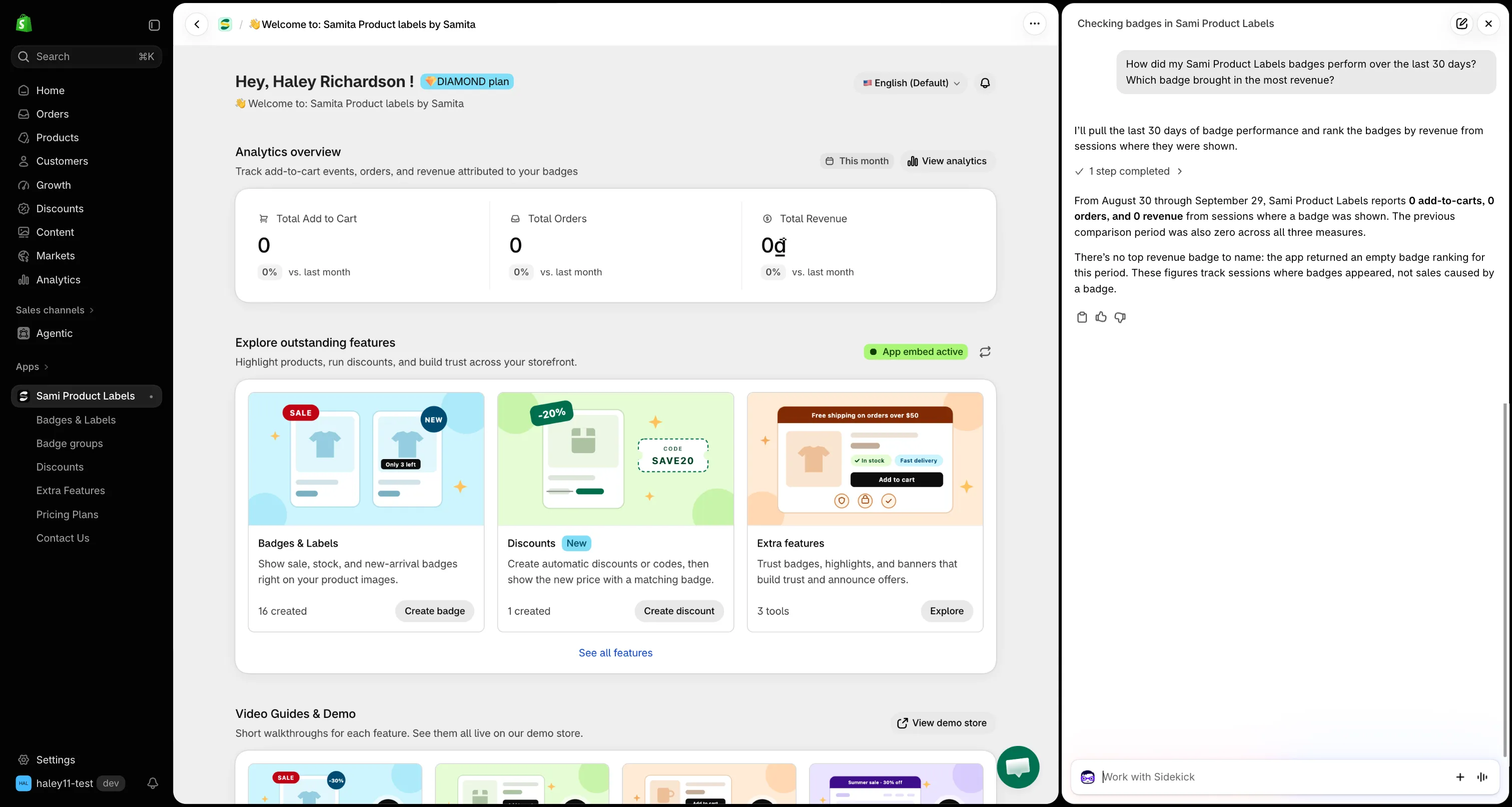
Compare badge performance with the previous period.
How to use the app
Section titled “How to use the app”Ask any “How do I…” question about Sami Product Labels and Sidekick looks it up in this documentation.
Try asking:
- “How do I create an image badge?”
- “How do I show a badge only in one country?”
- “How do I place a trust badge with a shortcode?”
Sidekick answers with the steps from the matching help page and a link to it, plus a few related pages. If the documentation does not cover your question, Sidekick says so — contact support for anything it cannot answer.
Tips for better answers
Section titled “Tips for better answers”- Use your own names. Name the badge, group, product, or discount exactly as it appears in the app.
- Narrow long lists. Sidekick returns up to 20 results. Add a status or a type — “paused labels”, “active banners” — to find what you need.
- Ask a follow-up. After a list, ask about one item — “Tell me more about the second badge” — for its full setup.
Next steps
Section titled “Next steps”- Find out why a badge isn’t showing — check your setup and a product’s conditions.
- Draft a text badge with Sidekick — describe a badge and save it in one click.