
Getting Started
What's new
Explore the latest features and improvements in Sami Product Labels.
Updates are listed from newest to oldest.
October 22, 2026
Section titled “October 22, 2026”Version 4.4.9
Section titled “Version 4.4.9”Bulk edit your badges and labels
Section titled “Bulk edit your badges and labels”Select badges in your Badges & Labels list and click Bulk edit to change up to 250 at once in a spreadsheet-style grid:
- Edit many badges side by side — change name, status, text and translations, position, margin, padding, colors, font size, priority, devices, and schedule, with a live preview of each badge.
- Set one value for all — hover over a column header, click the pencil icon, and apply the same value to every selected badge in one step.
- Change products and conditions — open a badge’s products and conditions right from the grid, or add and remove products for every badge at once.
- Swap images — pick a new image for an image badge from the library or generate one with AI.
- Select across pages — click Select all N badges to include every badge that matches your search or filter.
Learn how to bulk edit your badges
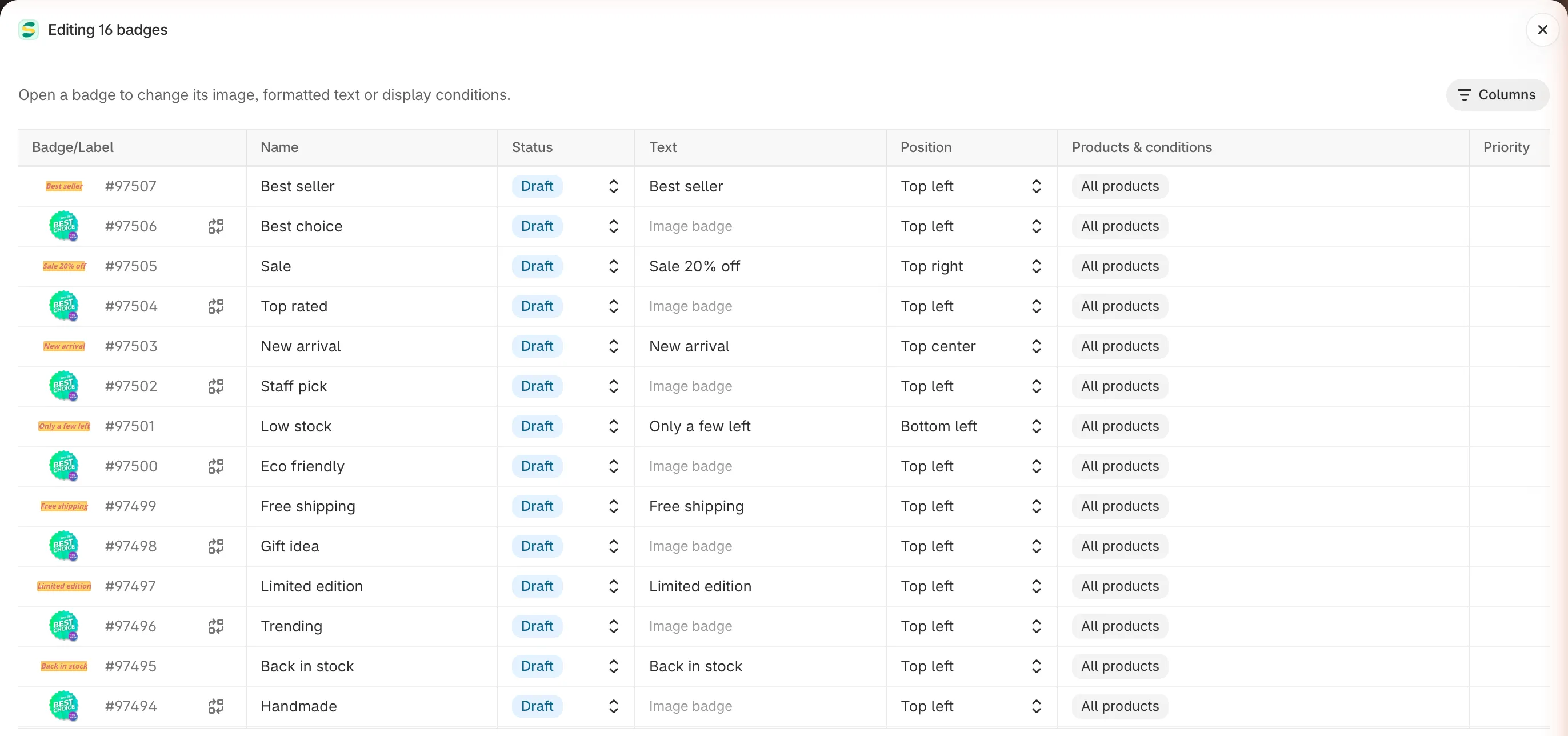
Change up to 250 badges at once, then save them in a single step.
October 6, 2026
Section titled “October 6, 2026”Version 4.4.5
Section titled “Version 4.4.5”Translate your badges into every store language
Section titled “Translate your badges into every store language”The new Translation page translates the text in your badges, labels, trust badges, highlights, and banners into every language your store sells in, from one place. Available on the Diamond plan:
- Translate side by side — pick a language and an item, then type the translation next to the original, with a live preview in that language.
- Auto-translate with AI — fill in every text of an item in one click, then review and save. Placeholders like
{sale}stay as they are. - Translate image badges — AI redraws the words inside an image badge in the new language, or you upload your own image for each language.
- See what’s left — each item, tab, and language shows how much is translated, and a filter lists the items that still need work.
- Jump in from the editor — click Translate in any editor to open that item on the Translation page.
Learn how to translate your content
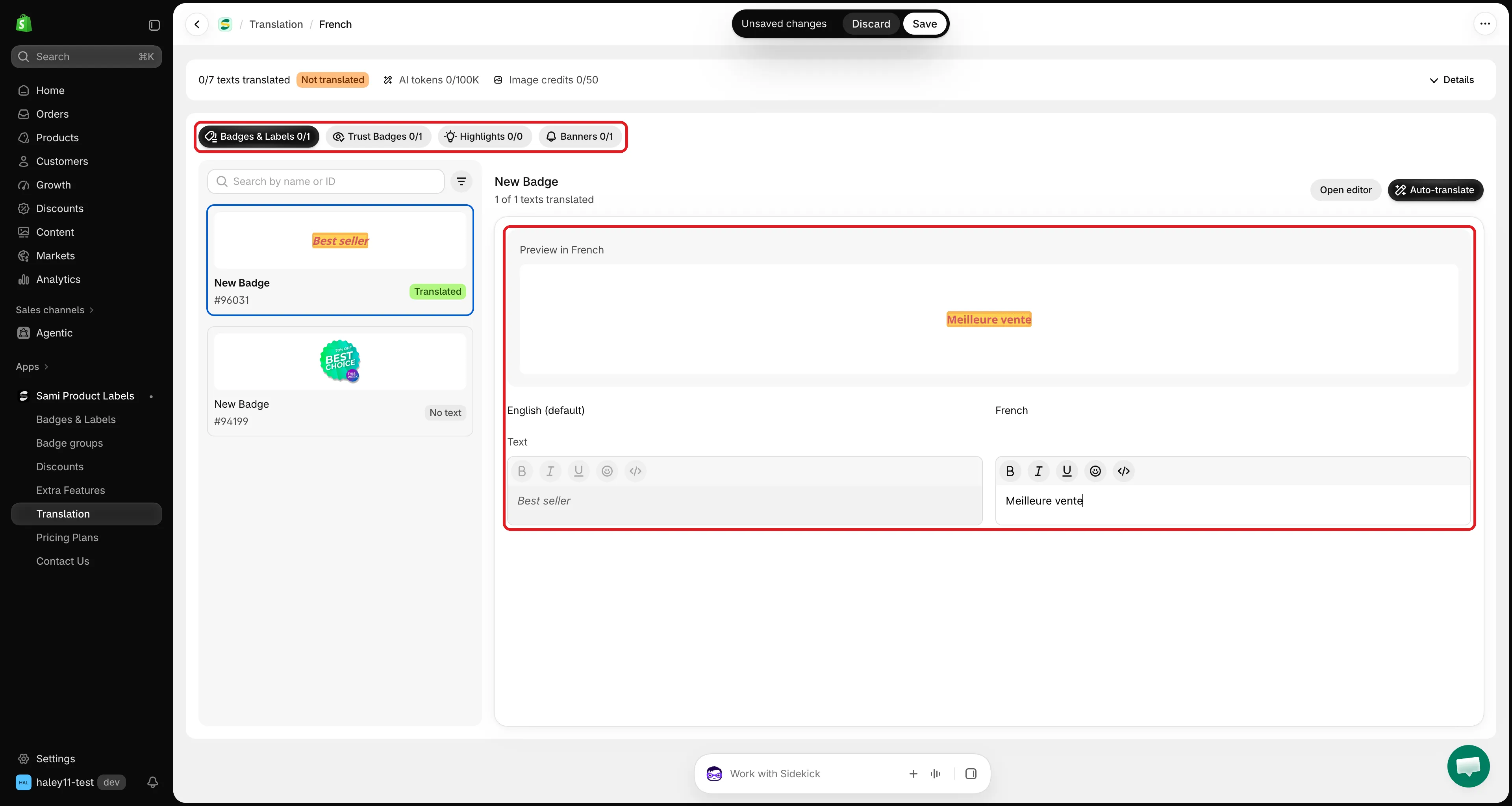
Translate every badge, trust badge, highlight, and banner from one page.
September 26, 2026
Section titled “September 26, 2026”Version 4.4.3
Section titled “Version 4.4.3”Ask Sidekick about your badges
Section titled “Ask Sidekick about your badges”Sami Product Labels now works with Sidekick, the AI assistant in your Shopify admin. Ask about your badges in plain words and Sidekick answers from your real app data, on every plan:
- Find anything you set up — search your badges, labels, badge groups, trust badges, highlights, banners, and discounts, and read a badge’s conditions and schedule in plain text.
- Find out why a badge isn’t showing — Sidekick checks the app embed on your live theme, then explains condition by condition why a badge does or does not show on a product.
- Check performance — ask how your badges are doing and get add to cart, orders, and revenue compared with the previous period.
- Draft a text badge — describe the wording and colors, and Sidekick opens the badge editor already filled in. You review it and click Save.
Learn how to use Sidekick with Sami Product Labels
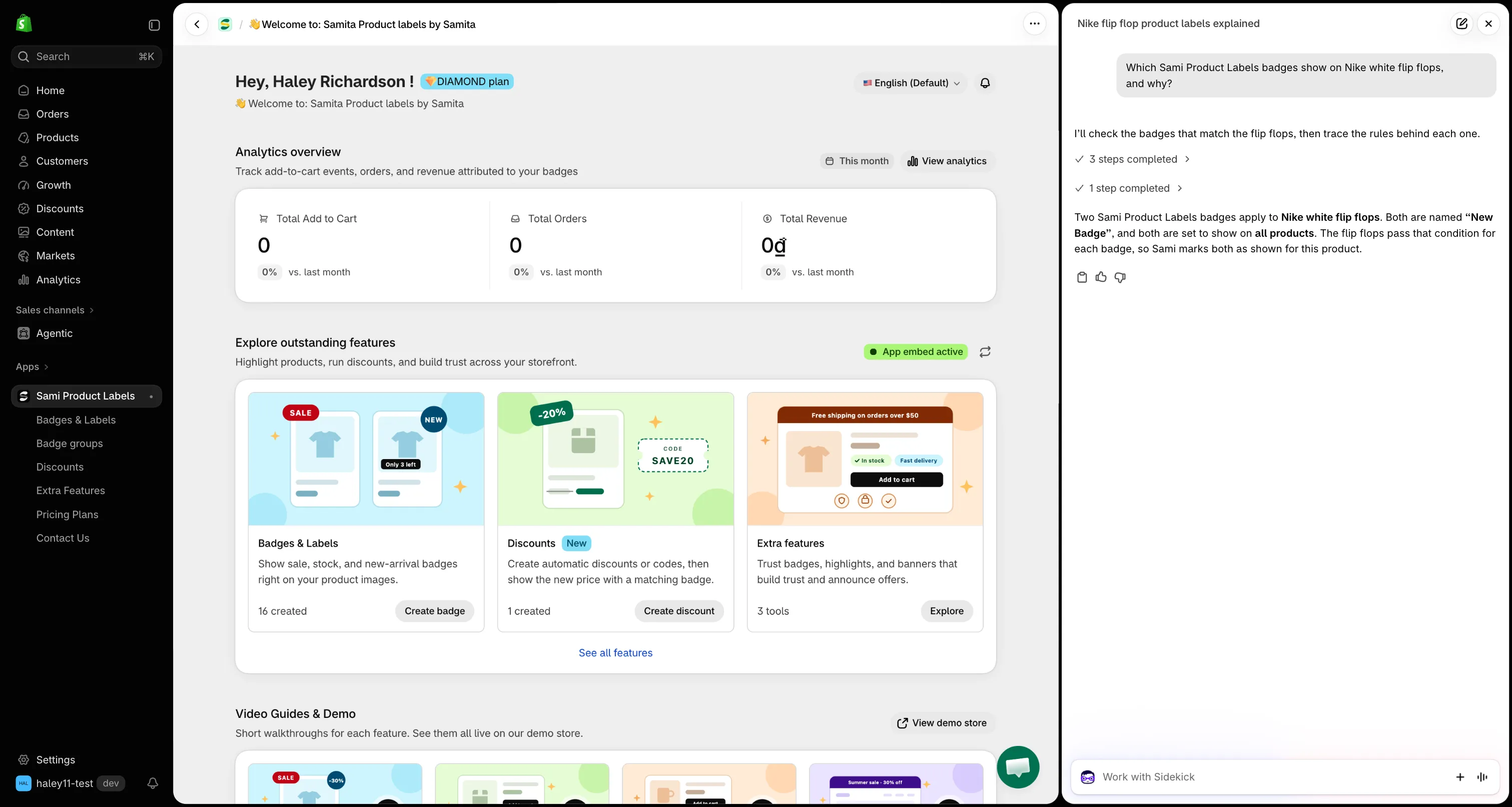
Ask Sidekick about your badges without leaving the Shopify admin.
September 21, 2026
Section titled “September 21, 2026”Version 4.4.2
Section titled “Version 4.4.2”Badges from your review app
Section titled “Badges from your review app”A badge can now read the review data your review app already holds, so Top rated only lands on the products that earned it:
- Target by rating or review count — the new Product review app condition on the Products tab matches products whose rating or review count reaches the threshold you pick, read straight from Judge.me, Loox, Junip, CWILL(Trustoo), LAI, or AG Product Reviews.
- Print the numbers on the badge — the new
{product_rating_star}and{product_number_of_star}variables show the product’s live rating and review count. A product with no reviews hides the badge instead of printing an empty one. - One click to add them — the review condition carries a Show review data on the badge box with a Use this variable button for each variable.
Learn how to set up a review badge
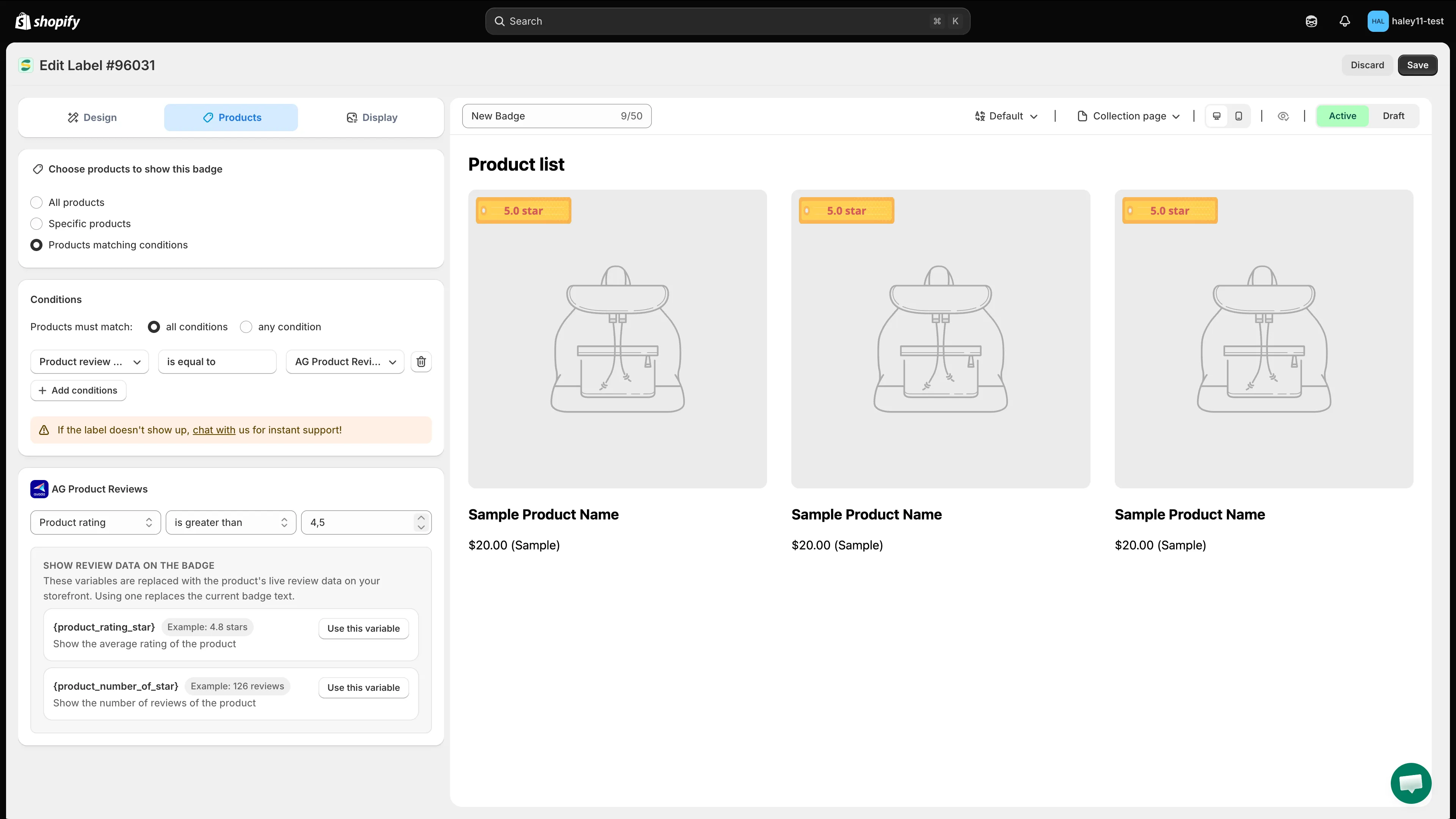
Pick your review app, set the threshold, and let the badge print the rating itself.
September 13, 2026
Section titled “September 13, 2026”Version 4.4.1
Section titled “Version 4.4.1”Create discounts without leaving the app
Section titled “Create discounts without leaving the app”The new Discounts area builds real Shopify discounts from inside Sami Product Labels, so the app knows every discounted price and can show it on your storefront:
- Automatic discounts — applied at checkout as soon as the cart matches your conditions, with an option to cross out the original price on product pages.
- Discount codes — a code you choose (or generate) for campaigns, newsletters, and influencers.
- Matching conditions — discount every product that matches a collection, a title keyword, or a tag, and leave the exceptions out.
Saving a discount also offers to build a badge for it, pre-filled with the discount’s value through the new {sami_discount_value_percent}, {sami_discount_value_amount}, {sami_discount_code}, and {sami_new_price} variables.
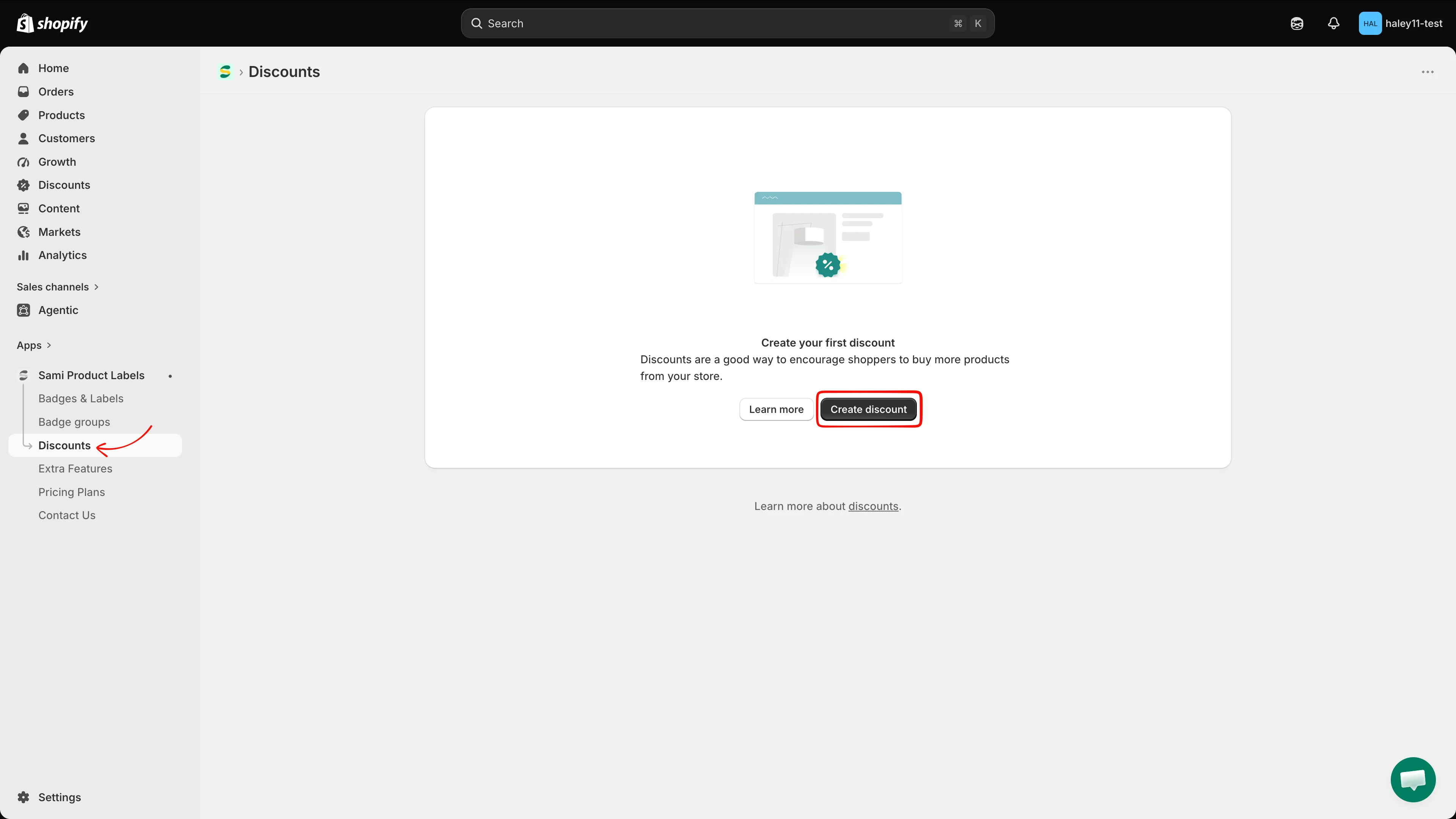
Create automatic discounts and discount codes from the new Discounts page.
August 24, 2026
Section titled “August 24, 2026”Version 4.4.0
Section titled “Version 4.4.0”Manage Extra Features in one place
Section titled “Manage Extra Features in one place”Version 4.4.0 brings Trust Badges, Highlights, and Banners together in a redesigned Extra Features area, making them easier to find and manage:
- Trust Badges — build trust with payment, security, shipping, and guarantee badges using the refreshed interface and featured templates.
- Highlights — present product benefits in a scannable block with customizable icons and layouts.
- Banners — publish basic or infinite-scroll announcements and control where they appear on your storefront.
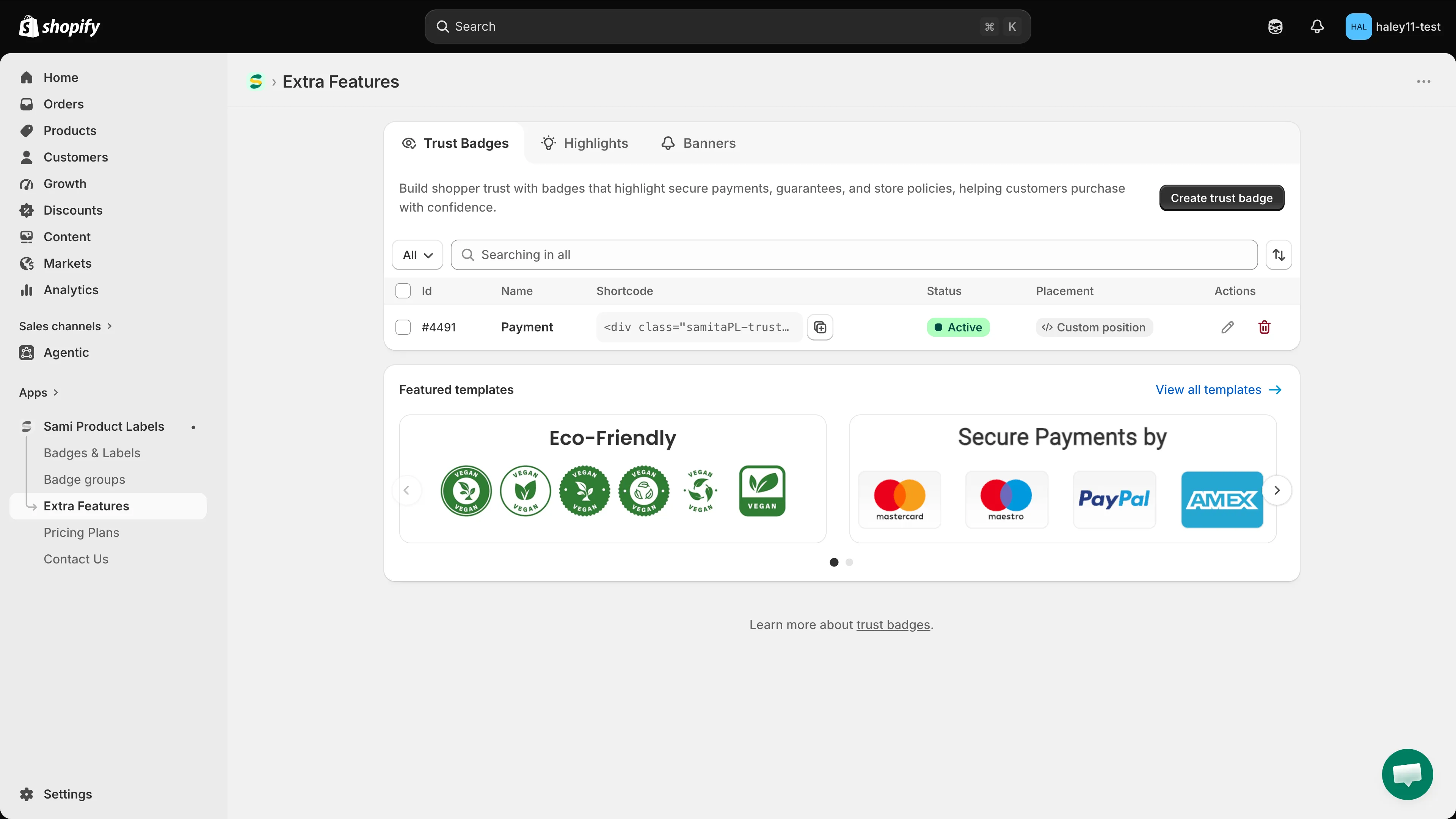
Trust Badges, Highlights, and Banners are now organized together in Extra Features.
August 3, 2026
Section titled “August 3, 2026”Version 4.3.7
Section titled “Version 4.3.7”Create badge groups
Section titled “Create badge groups”Combine multiple badges into one group and display them together outside the product image. You can:
- Choose a horizontal or vertical layout.
- Adjust badge size and spacing.
- Align the group to match your product page.
- Place the group below important product elements or in a custom theme position.
Use it to group related messages—such as free shipping, secure checkout, and a guarantee—in one section.
Learn how to create a badge group
May 2026
Section titled “May 2026”Version 4.3.0
Section titled “Version 4.3.0”Understand how badges and labels perform
Section titled “Understand how badges and labels perform”The new Analytics dashboard measures the results of your badges and labels. Review:
- Total Add to Cart actions.
- Total orders.
- Total revenue.
- Results for an individual badge or label.
- Performance changes compared with the previous period.
March 2026
Section titled “March 2026”Version 4.1.5
Section titled “Version 4.1.5”Translate text labels with AI
Section titled “Translate text labels with AI”Translate label text into multiple store languages without editing each language tab manually. Select Auto Translate in the label settings to generate translations from your original text.
Review translations before publishing to keep product names, brand terms, and campaign messages on-tone.
Smoother dashboard navigation
Section titled “Smoother dashboard navigation”Small interface and performance improvements make everyday tasks clearer and smoother.
December 2025
Section titled “December 2025”Version 4.1.0
Section titled “Version 4.1.0”Create label images with AI
Section titled “Create label images with AI”Turn a text prompt into a label image. Describe the wording, colors, shape, and visual style you want, then generate a design for your campaign.
Learn how to generate a badge image with AI
Clearer dashboard experience
Section titled “Clearer dashboard experience”Light interface and performance updates make the dashboard easier to navigate.
November 2025
Section titled “November 2025”Version 4.0.6
Section titled “Version 4.0.6”Show label content from metafields
Section titled “Show label content from metafields”Display product-specific content from a product or variant metafield. A single label can show a different value for each product or variant without requiring separate labels or theme-code changes.
For example, use metafields to display material, origin, care instructions, delivery information, or another custom product value.
Learn how to show metafield values in dynamic text
October 2025
Section titled “October 2025”Version 4.0.5
Section titled “Version 4.0.5”Faster storefront loading
Section titled “Faster storefront loading”The new storefront API improves response times, so labels and badges appear sooner while shoppers browse your store.
Cleaner setup experience
Section titled “Cleaner setup experience”Refined interface elements make settings easier to understand and common tasks quicker.
July 2025
Section titled “July 2025”Version 4.0.4
Section titled “Version 4.0.4”Organize multiple labels into a group
Section titled “Organize multiple labels into a group”Label Groups let you display three or four labels together. Arrange them horizontally or vertically, adjust their size and spacing, and choose whether the group uses each label’s existing conditions or its own display conditions.
Learn how to create a label group
Control label priority
Section titled “Control label priority”Set priority rules to decide which eligible label shoppers see first when multiple labels match the same product.
Improved mobile dashboard
Section titled “Improved mobile dashboard”Updated button layouts make the app easier to navigate and manage from a mobile device.