
Target products
Learn how to select which products display your badge or label in Sami Product Labels.
Every badge needs a product scope. You can apply it to all products, pick products manually, or use conditions that update the matched set automatically.
Targeting modes
Section titled “Targeting modes”The Products tab offers three targeting modes:
| Mode | Description |
|---|---|
| All products | Show the badge on every product. |
| Specific products | Search or browse the Shopify product picker and select individual products. |
| Products matching conditions | Match products automatically by title, type, vendor, price, inventory, metafield, variant data, collection, review rating, and other supported attributes. |
How to set product targeting
Section titled “How to set product targeting”-
Open the badge editor
Section titled “Open the badge editor”From Sami Product Labels, open a badge or create a new one.
-
Go to the Products tab
Section titled “Go to the Products tab”Click the Products tab in the badge editor to access targeting settings.
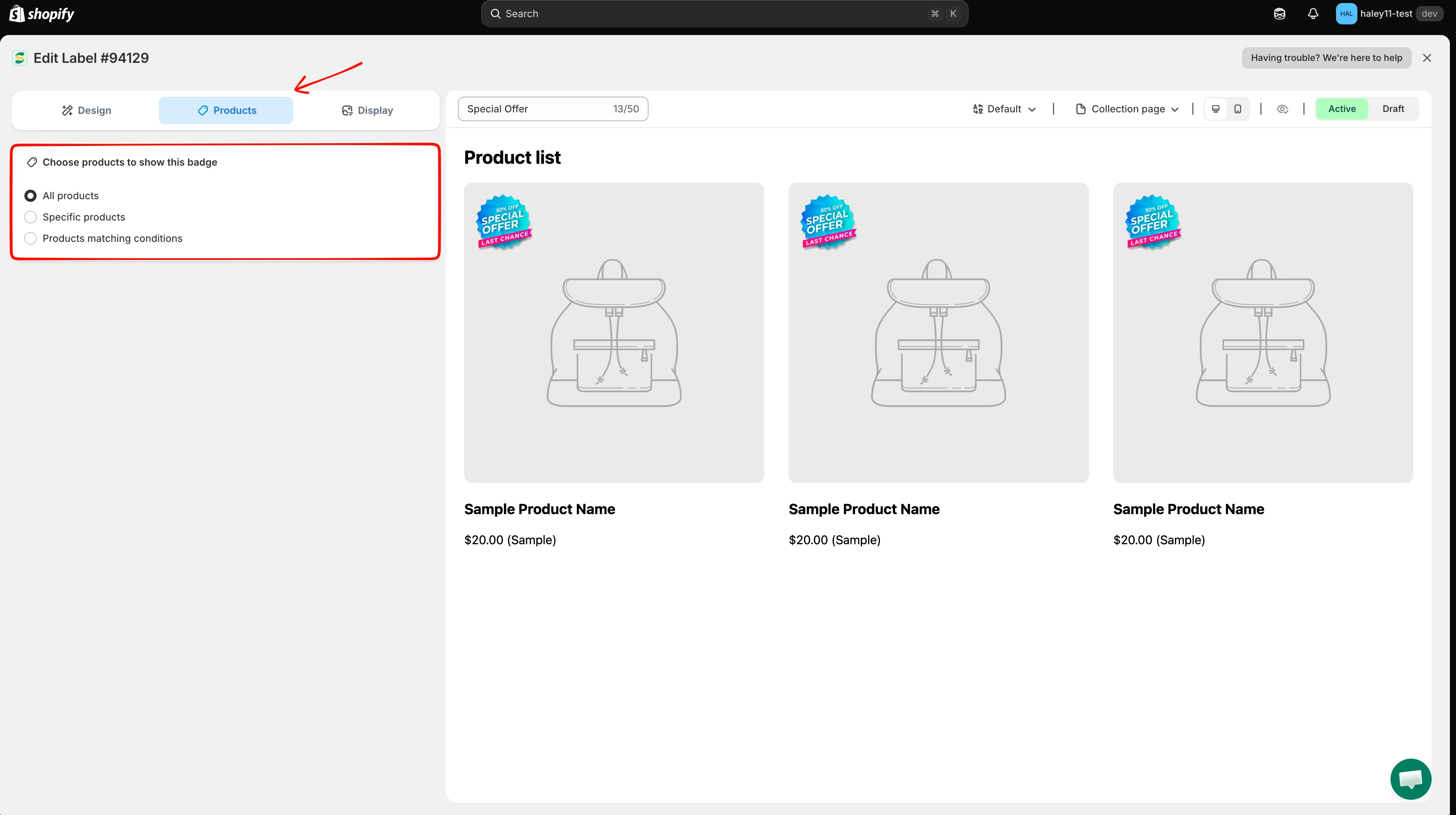
The Products tab lets you choose which products display your badge.
-
Choose your targeting mode
Section titled “Choose your targeting mode”Select one of the three targeting modes:
- All products — Apply the badge store-wide.
- Specific products — Manually search and select individual products from your catalog.
- Products matching conditions — Define rules that automatically target products based on their attributes.
-
For Specific products: search or browse
Section titled “For Specific products: search or browse”Search for products by name in the search field, or click Browse to open the Shopify product picker and select from your full catalog.
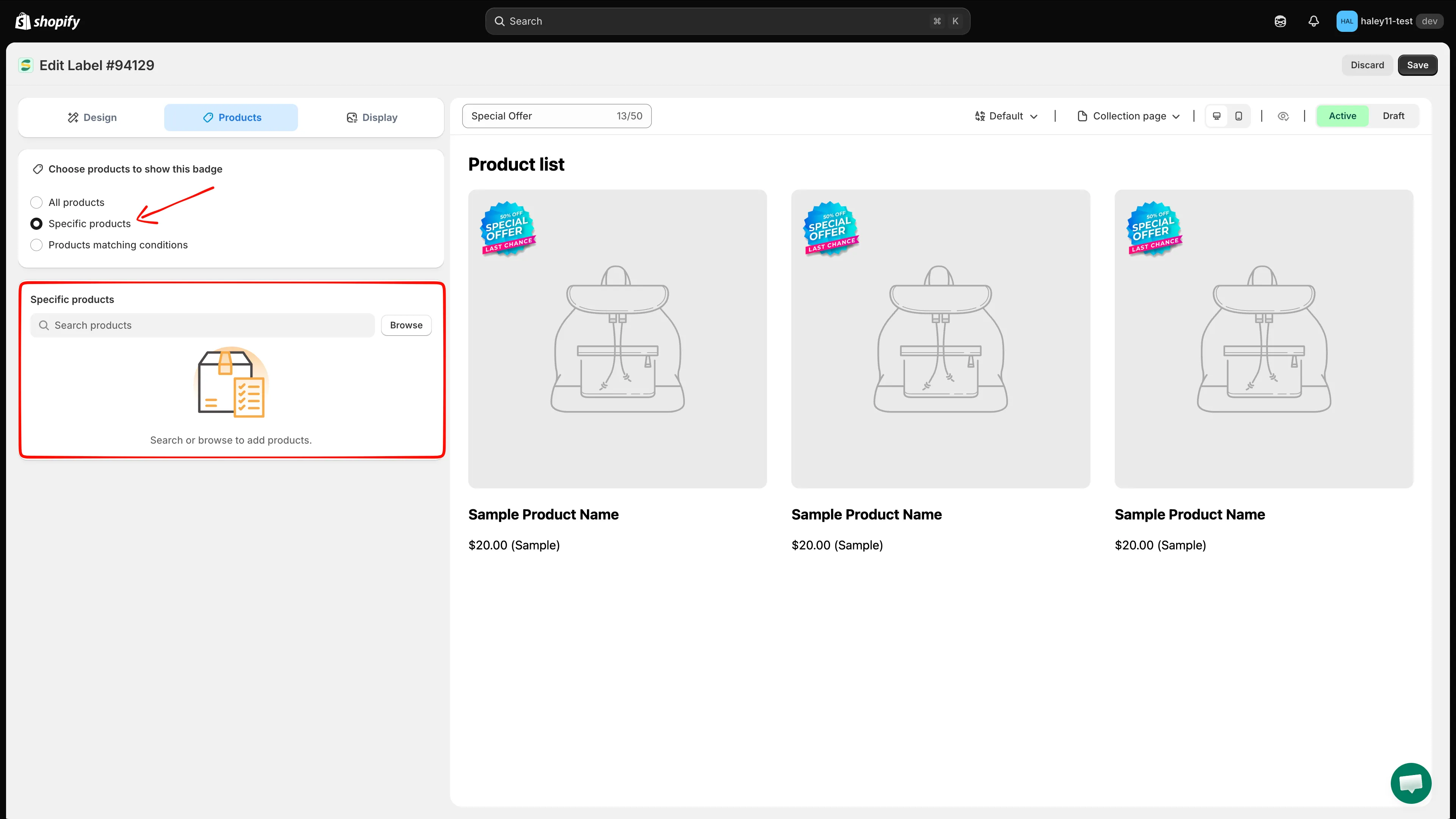
Search by name or click Browse to find products from your catalog.
-
For Products matching conditions: add rules
Section titled “For Products matching conditions: add rules”Select whether products must match all conditions or any condition, then click Add conditions to create a rule. Choose the condition, operator, and value. Add more rows as needed.
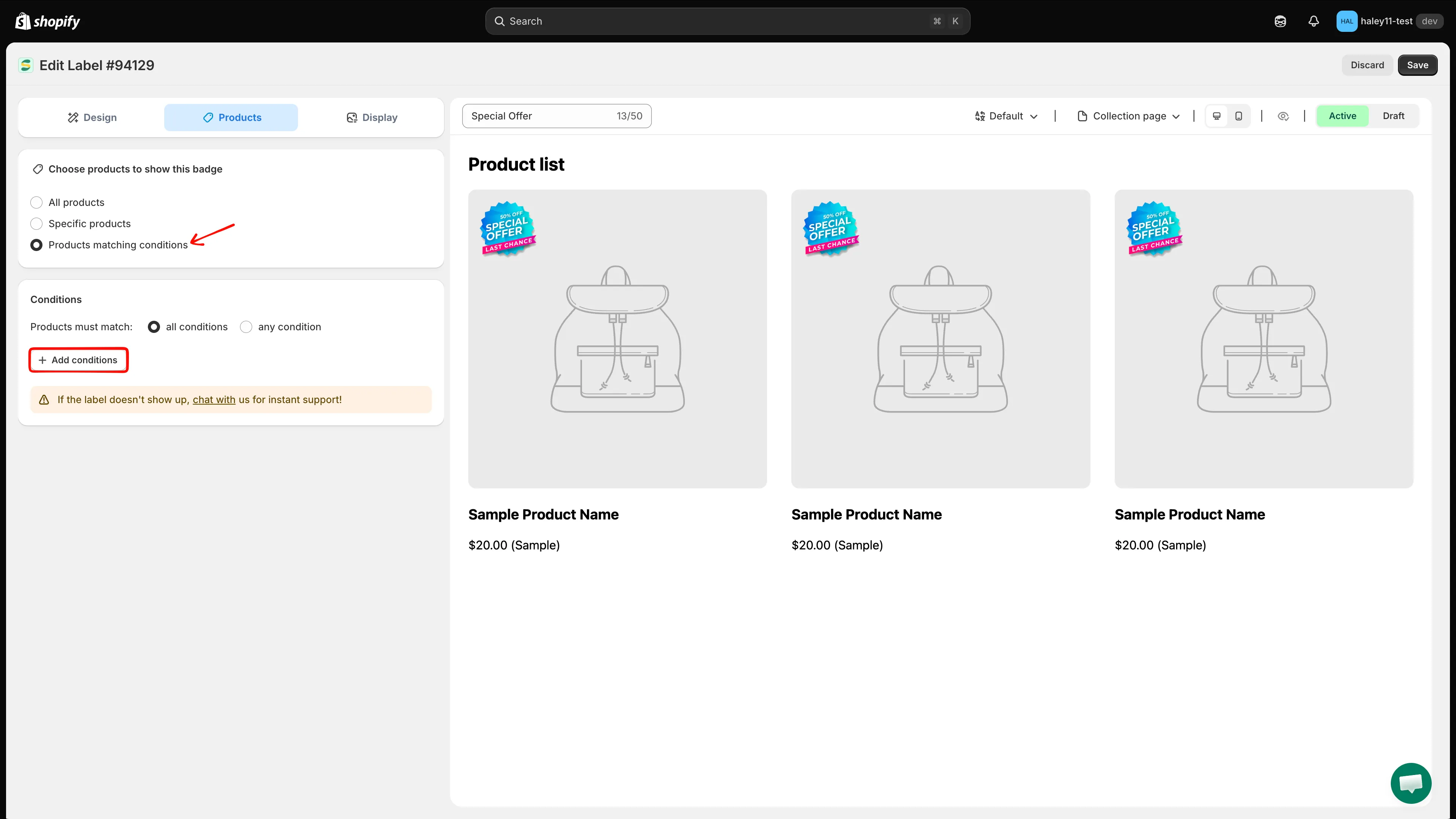
Choose the match mode and click Add conditions to define targeting rules.
-
Save your badge
Section titled “Save your badge”Click Save to apply your targeting. The badge appears immediately on the targeted products in your storefront.
Next steps
Section titled “Next steps”- Target by product attribute — Filter products by title, type, vendor, price, inventory, and more.
- Target by customer — Show badges based on who is browsing your store.
- Target by country & language — Display badges for specific regions or languages.
- Show badges from your review app — Target products by their rating or review count.