
Set up group conditions
Use one set of rules to control when a whole badge group appears, instead of relying on each label's own targeting.
The Placement tab of the group editor decides when and where the group appears. By default every label in the group keeps its own targeting; a group condition replaces all of it with one rule set.
Choose a condition type
Section titled “Choose a condition type”Open the group, click the Placement tab, and pick a Condition type:
| Option | Behavior | Use it when |
|---|---|---|
| Keep individual label conditions | Each label in the group is shown or hidden based on its own condition. | The labels already target the right products and you only want to share a layout. |
| Set a custom group condition | Overrides the individual label conditions and controls visibility using only the condition defined for the group. | The whole set belongs to one campaign — one audience, one product scope. |
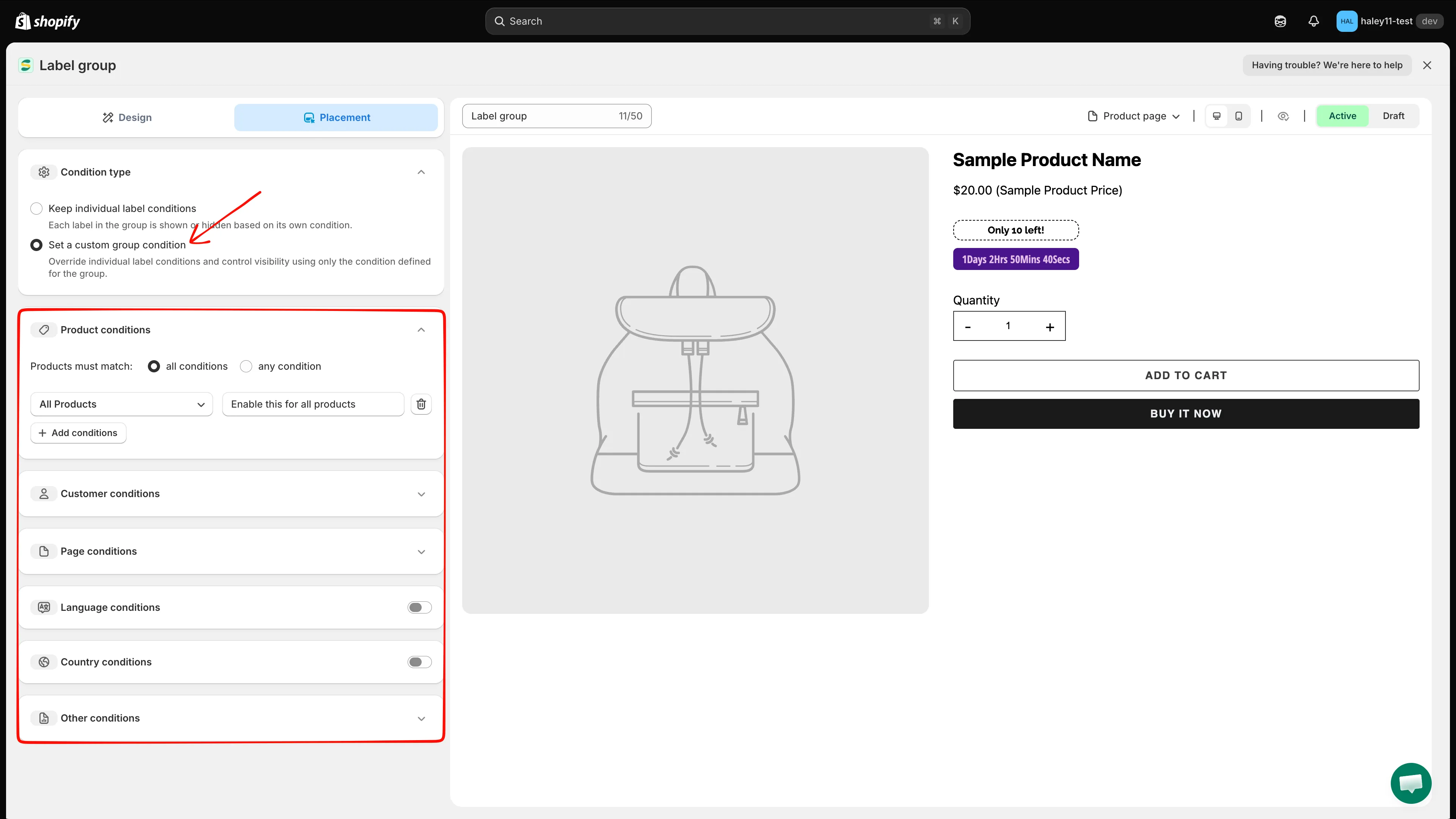
Selecting Set a custom group condition reveals the condition sections below.
The condition sections
Section titled “The condition sections”Choosing Set a custom group condition reveals six sections. Sections with a chevron (⌄) expand; Language and Country have a switch that must be turned on first.
| Section | Controls |
|---|---|
| Product conditions | Which products the group appears on |
| Customer conditions | Which shoppers see it |
| Page conditions | Which page types it appears on |
| Language conditions | The storefront language the visitor is browsing in |
| Country conditions | The visitor’s country |
| Other conditions | Product image, device, and excluded theme elements |
Product conditions
Section titled “Product conditions”The section starts with one row: All Products with the note Enable this for all products. Leave it as is to show the group on your whole catalog, or change the row to narrow the scope.
-
Choose how rows combine
Section titled “Choose how rows combine”Set Products must match to all conditions (every row must be true) or any condition (one row is enough).
-
Pick a condition
Section titled “Pick a condition”Open the first dropdown and choose a field. The list is grouped:
Group Options Product conditions All Products, Select Products, Product title, Product type, Product vendor, Product price, Product compare price, Product sale price, Product option, Product tag, Product weight, Product created, Product published, Product inventory, Product metafield Variant conditions Product variants, Variant inventory, Variant metafield Collection conditions Collections 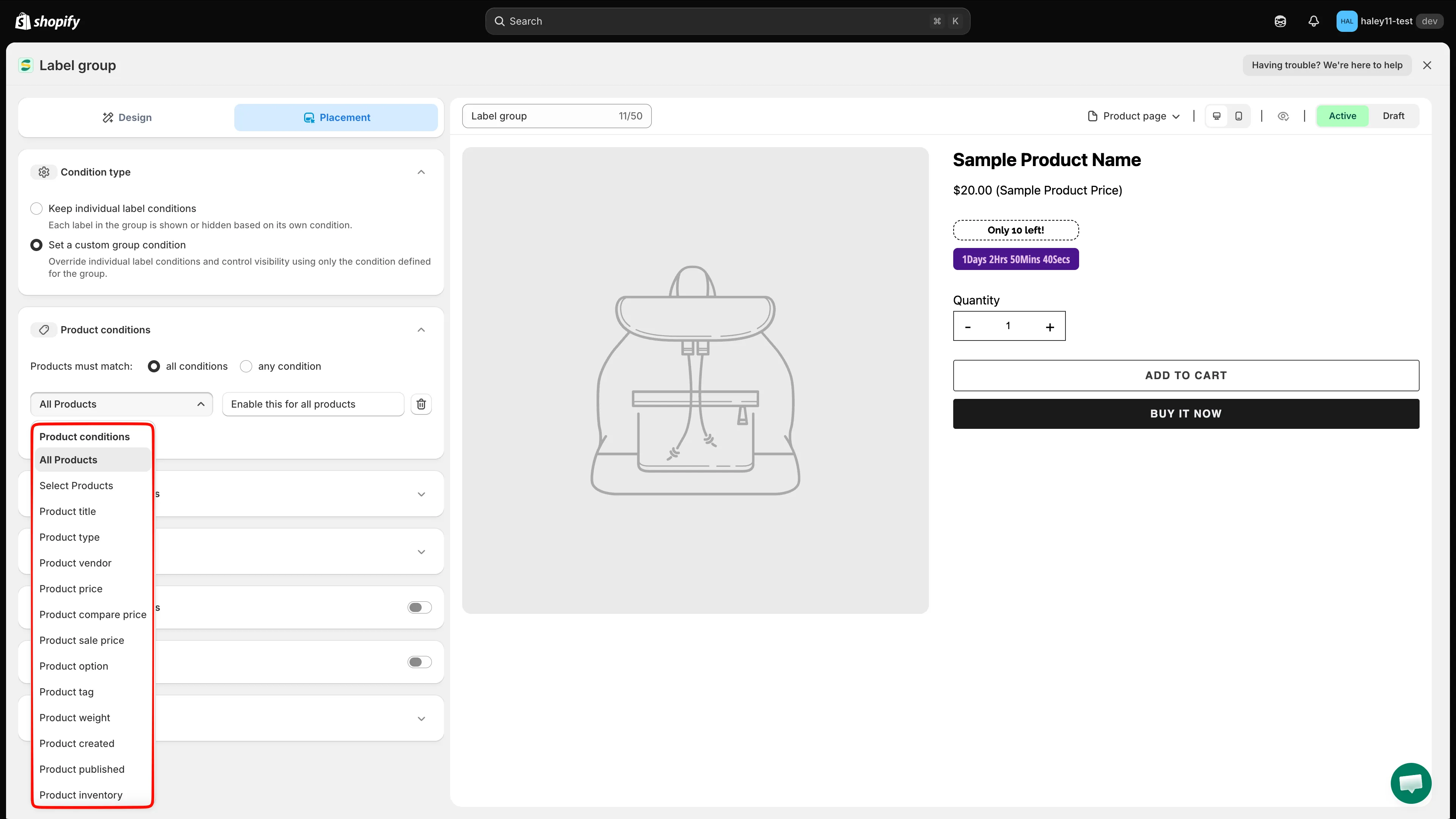
Product, variant, and collection fields all live in the same dropdown.
-
Set the operator and value
Section titled “Set the operator and value”The fields beside the condition change with your choice — a text value for Product title, a number for Product price, a picker for Select Products or Collections.
-
Add or remove rows
Section titled “Add or remove rows”Click + Add conditions for another row, or the trash icon at the end of a row to delete it.
Customer conditions
Section titled “Customer conditions”Expand Customer conditions and click + Add conditions. A row appears with the defaults Customer Is Logged In.
| Condition | Targets by |
|---|---|
| Customer | Login state — Is Logged In or Not Logged In |
| Customer tag | Tags on the customer record |
| Customer order count | How many orders the customer has placed |
| Customer total spent | Lifetime spend |
| Customer purchase | Products the customer has bought |
| Customer company name | The company on a B2B customer record |
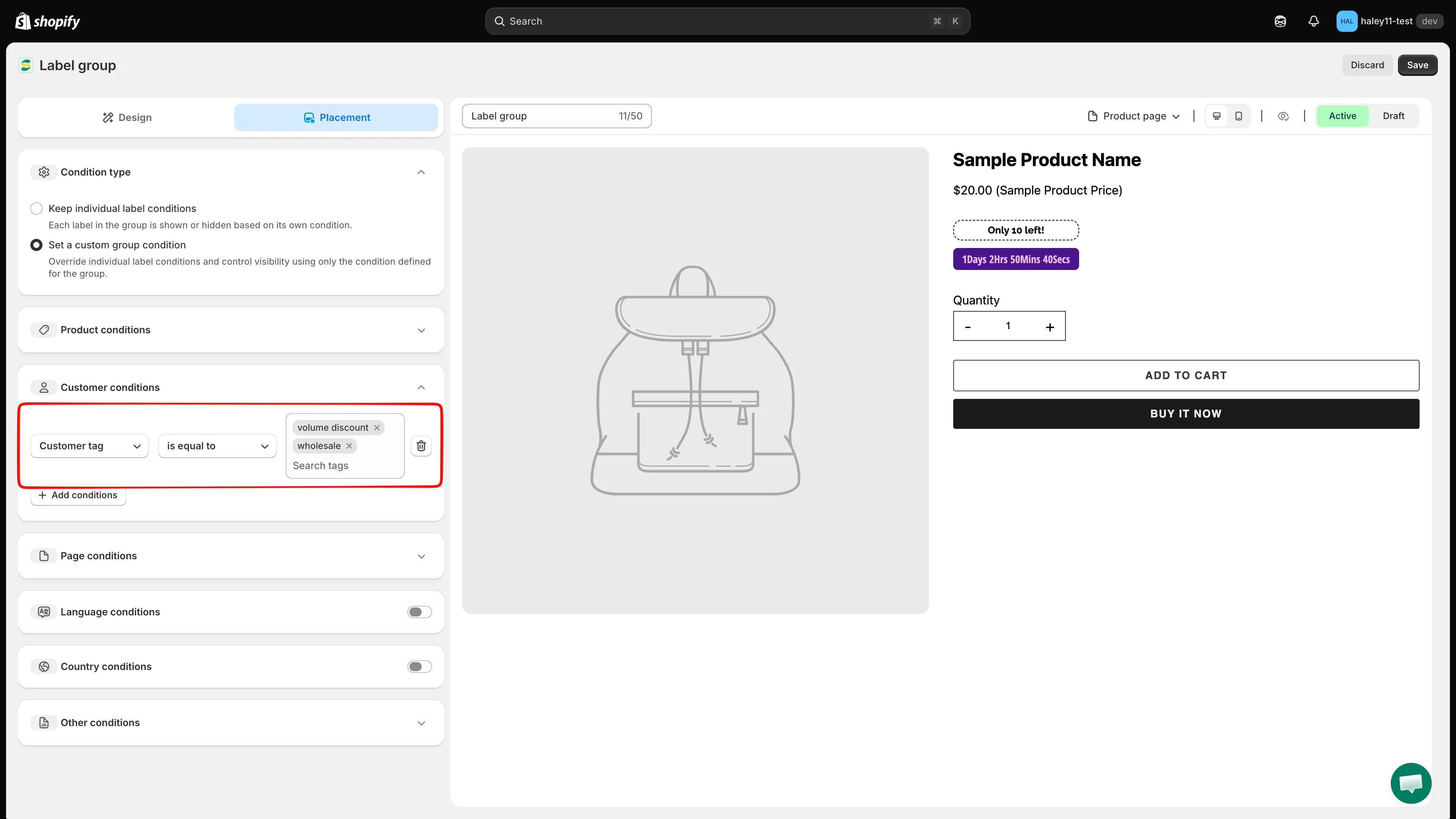
Each row pairs a customer field with its own operator and value.
Page conditions
Section titled “Page conditions”Expand Page conditions and click + Add conditions. A row appears with the defaults Page is equal to Index page.
- is equal to — show the group only on that page type.
- is not equal to — show it everywhere except that page type.
The page types are the same ones used for individual badges (Index, Collection, Product, Article, Blog, Cart, Search, Specific pages) — see Display by device & page for what each one covers.
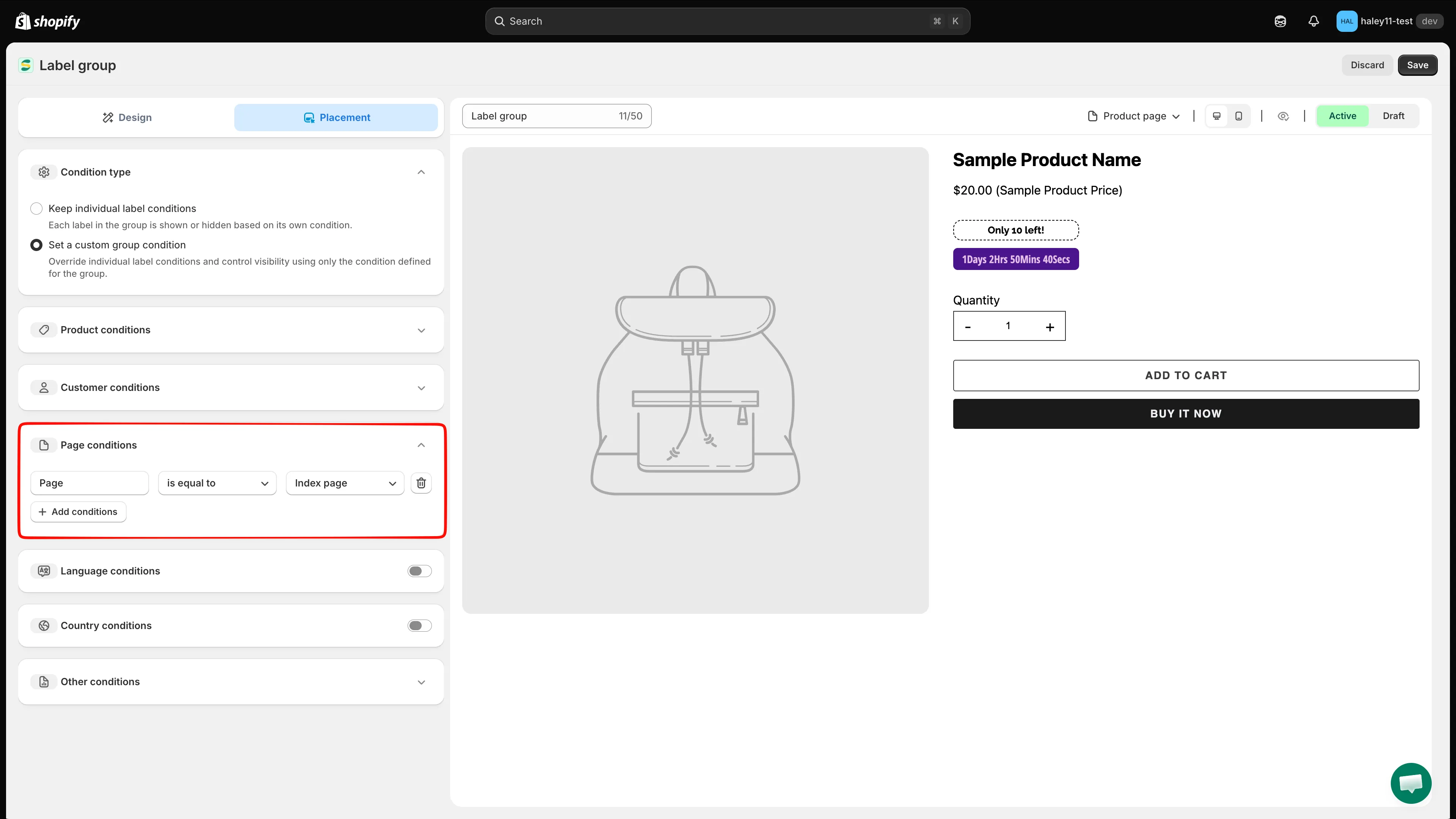
Add one row per page type you want to include or exclude.
Language and Country conditions
Section titled “Language and Country conditions”Turn on the switch on the Language conditions or Country conditions row. Each shows an Operator (default Equals) and a search field — type to find a language or country and select it.
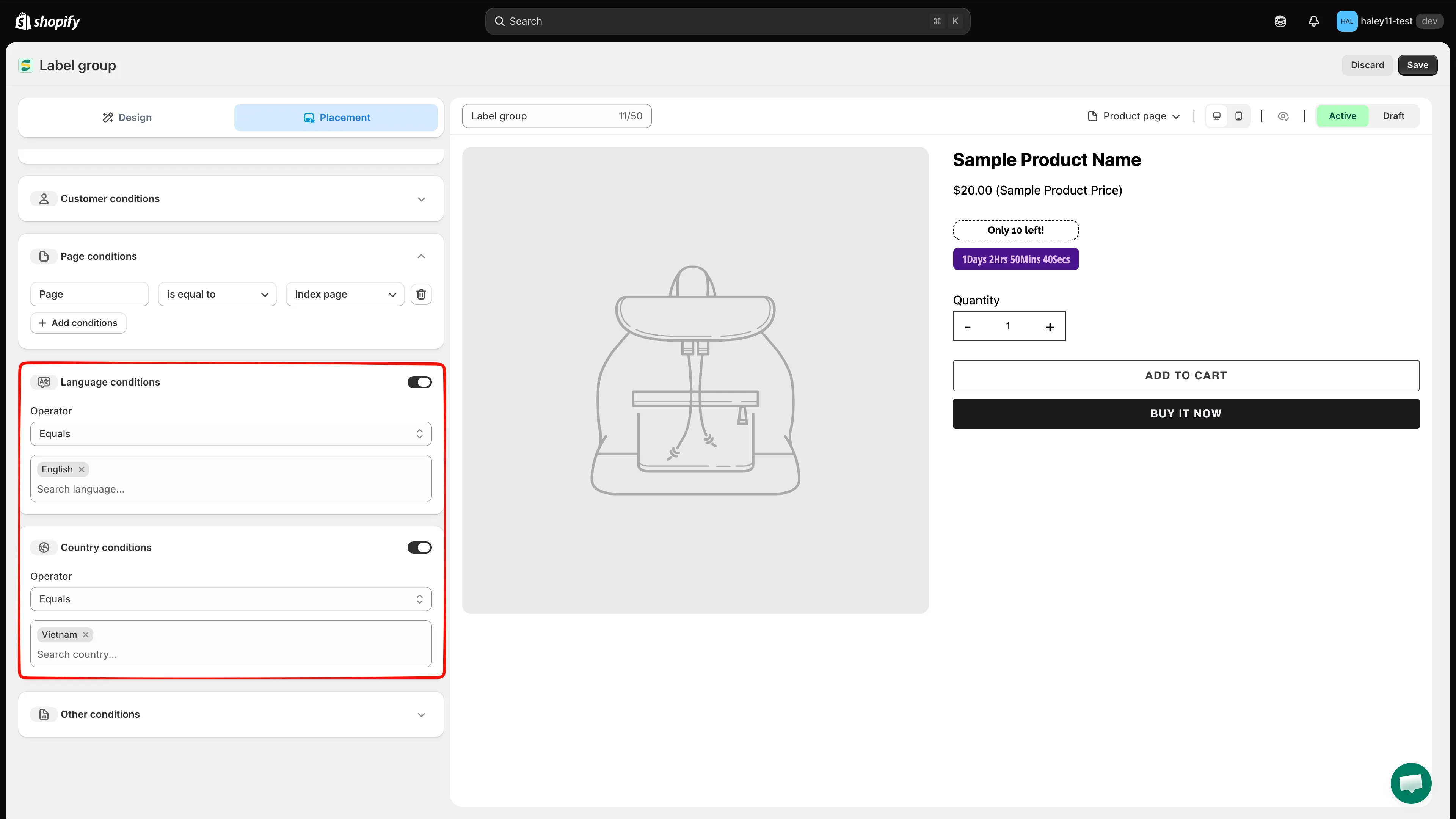
Both sections stay inactive until you turn the switch on.
Other conditions
Section titled “Other conditions”| Setting | Options | Behavior |
|---|---|---|
| Show on (product page) | All images / First image | Show the group on every gallery image, or only on the first one. |
| Device targeting | All devices / Desktop / Mobile | Limit the group to desktop or mobile shoppers. |
| Do not show label on | CSS class list — .CLASS1, .CLASS2,... |
Skip any theme element matching these classes, such as a slider or quick-view block. |
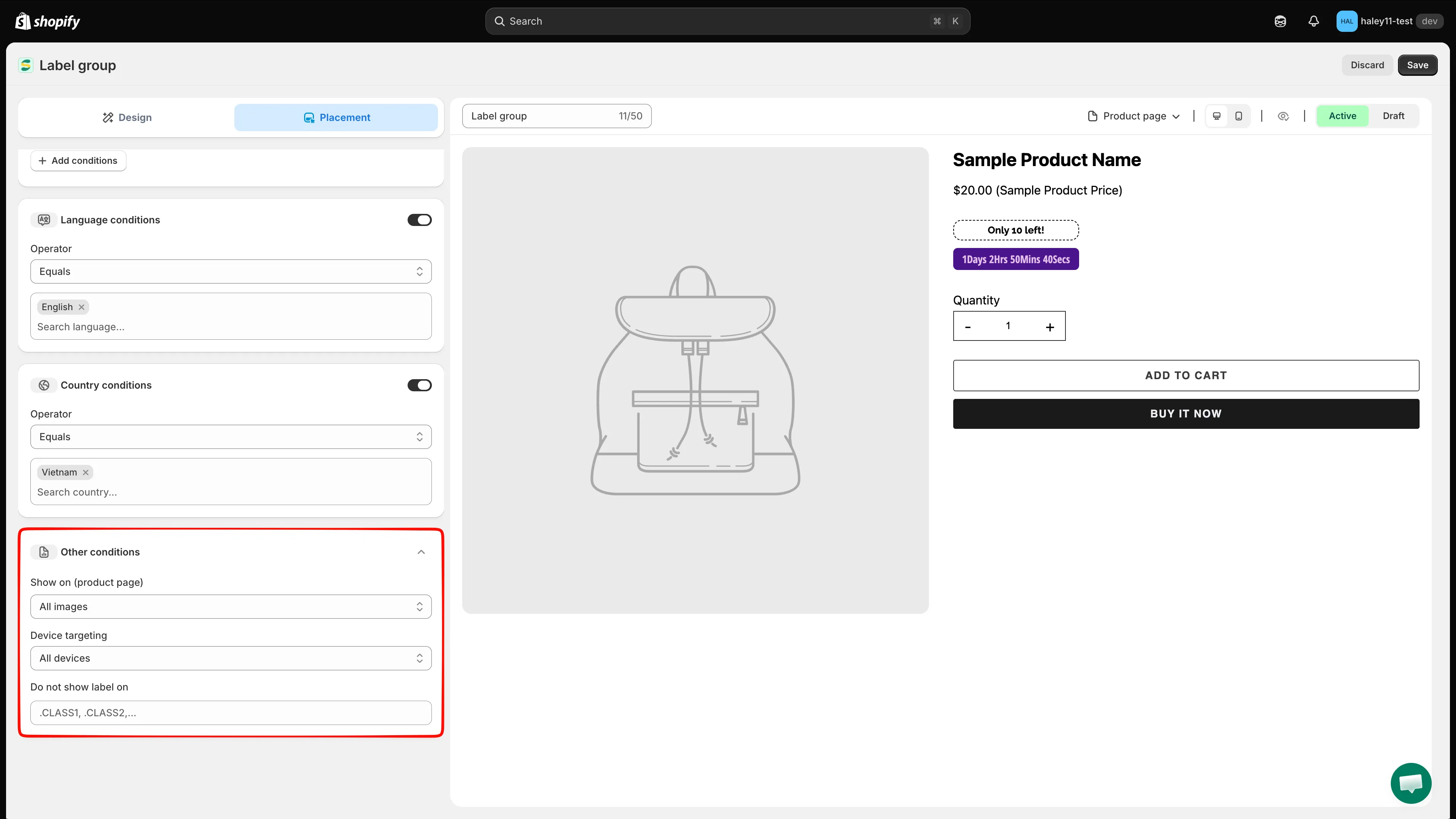
Image, device, and exclusion settings for the whole group.
Click Save in the top-right corner. The group appears on matching product pages immediately.
Next steps
Section titled “Next steps”- Create a label group (inside product image) — build a group that overlays the product photo.
- Create a badge group (outside product image) — build a group beside the product information.
- Target products — the equivalent settings for a single badge.