
Target by product attribute
Target badges to products based on attributes like title, type, vendor, price, tags, inventory, and more.
Condition-based targeting automatically shows badges on products that match rules you define — no need to hand-pick products one by one.
Available product conditions
Section titled “Available product conditions”The condition picker currently includes:
- Product title, type, vendor, option, and tag
- Product price, compare price, sale price, and weight
- Product created and published dates
- Product inventory and collections
- Product and variant metafields
- Product variants and variant inventory
The operator list changes with the selected condition. Text conditions include operators such as contains and starts with; numeric conditions include is greater than and is less than; inventory conditions include stock-specific choices.
How to add a condition
Section titled “How to add a condition”-
Open the Products tab
Section titled “Open the Products tab”In the badge editor, go to Products.
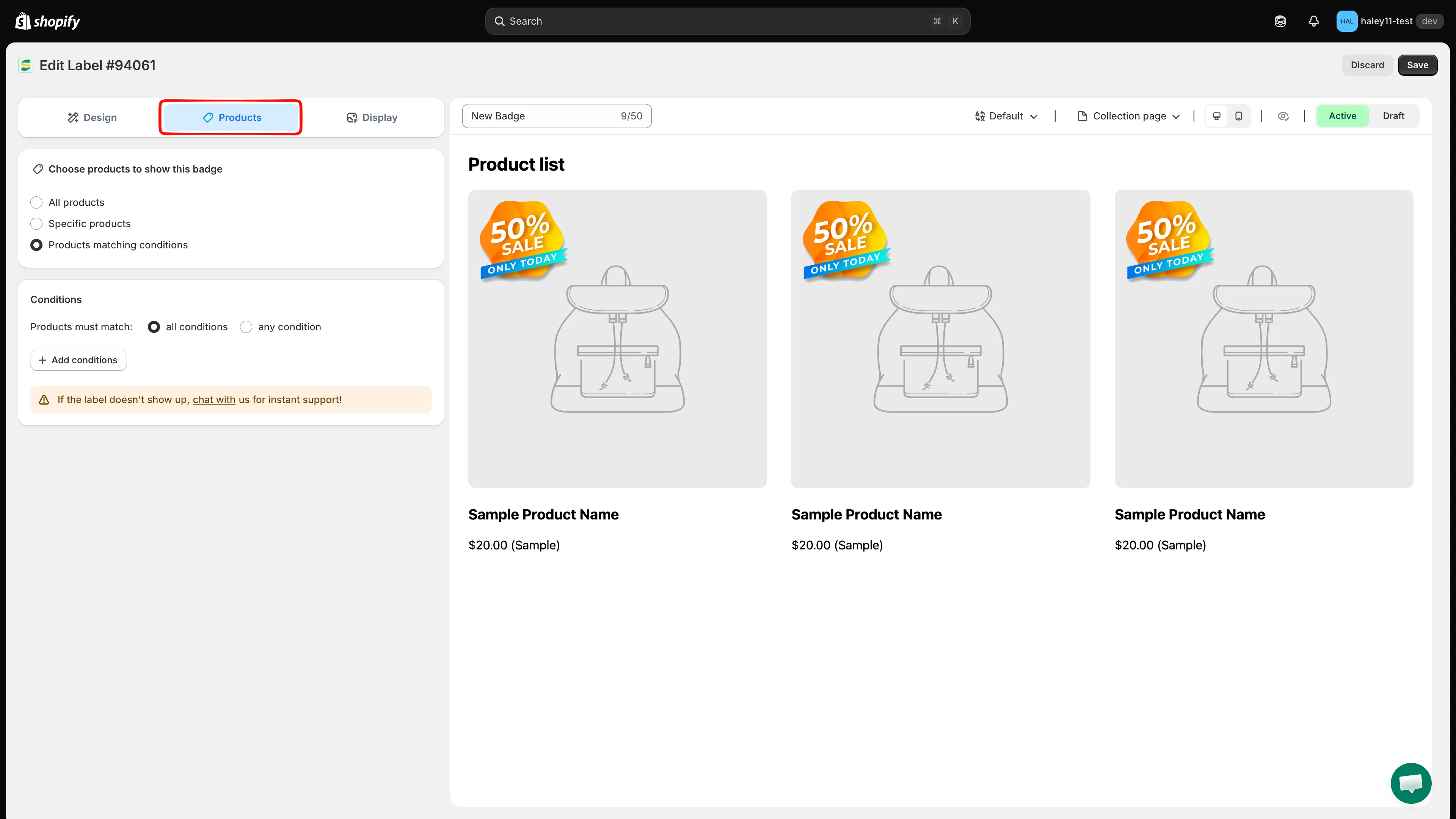
Open the Products tab in the badge editor.
-
Select “Products matching conditions”
Section titled “Select “Products matching conditions””Under Choose products to show this badge, select Products matching conditions (instead of All products or Specific products).
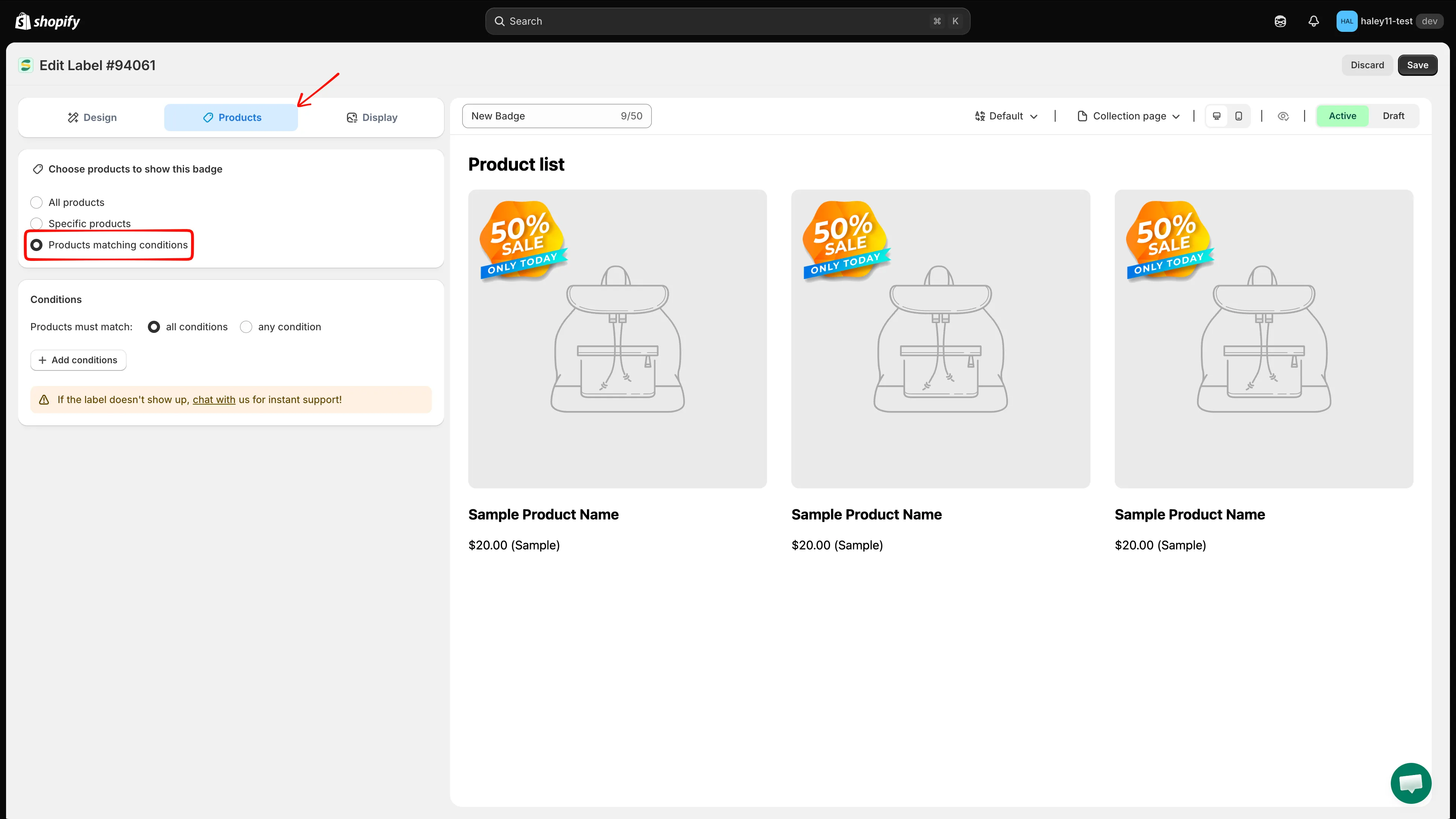
Select Products matching conditions to enable condition-based targeting.
-
Click “Add conditions”
Section titled “Click “Add conditions””Click Add conditions to create a new rule.
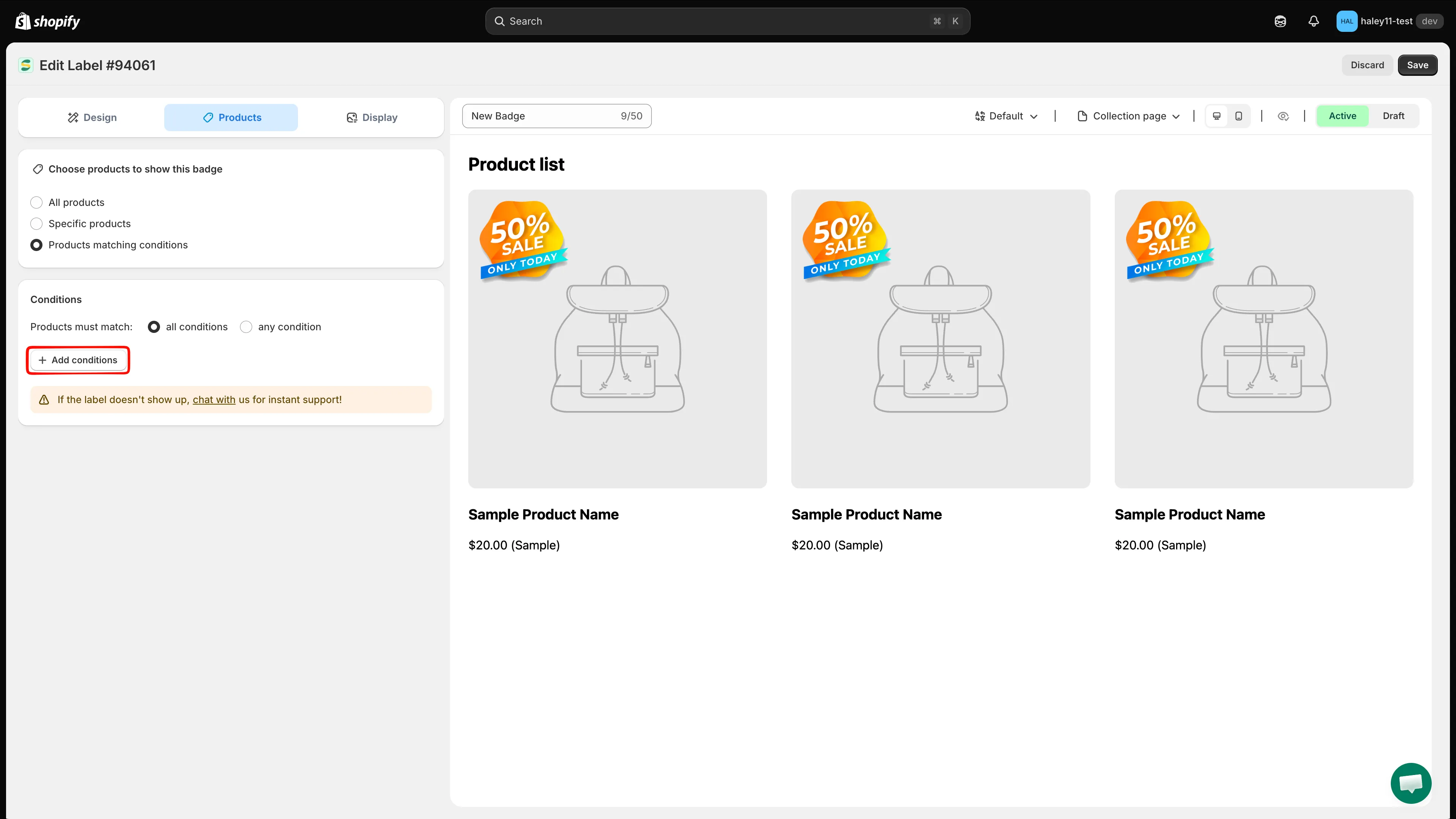
Click Add conditions to define a product targeting rule.
-
Select the condition type
Section titled “Select the condition type”Choose the attribute you want to target from the dropdown menu (for example, Product price or Product type).
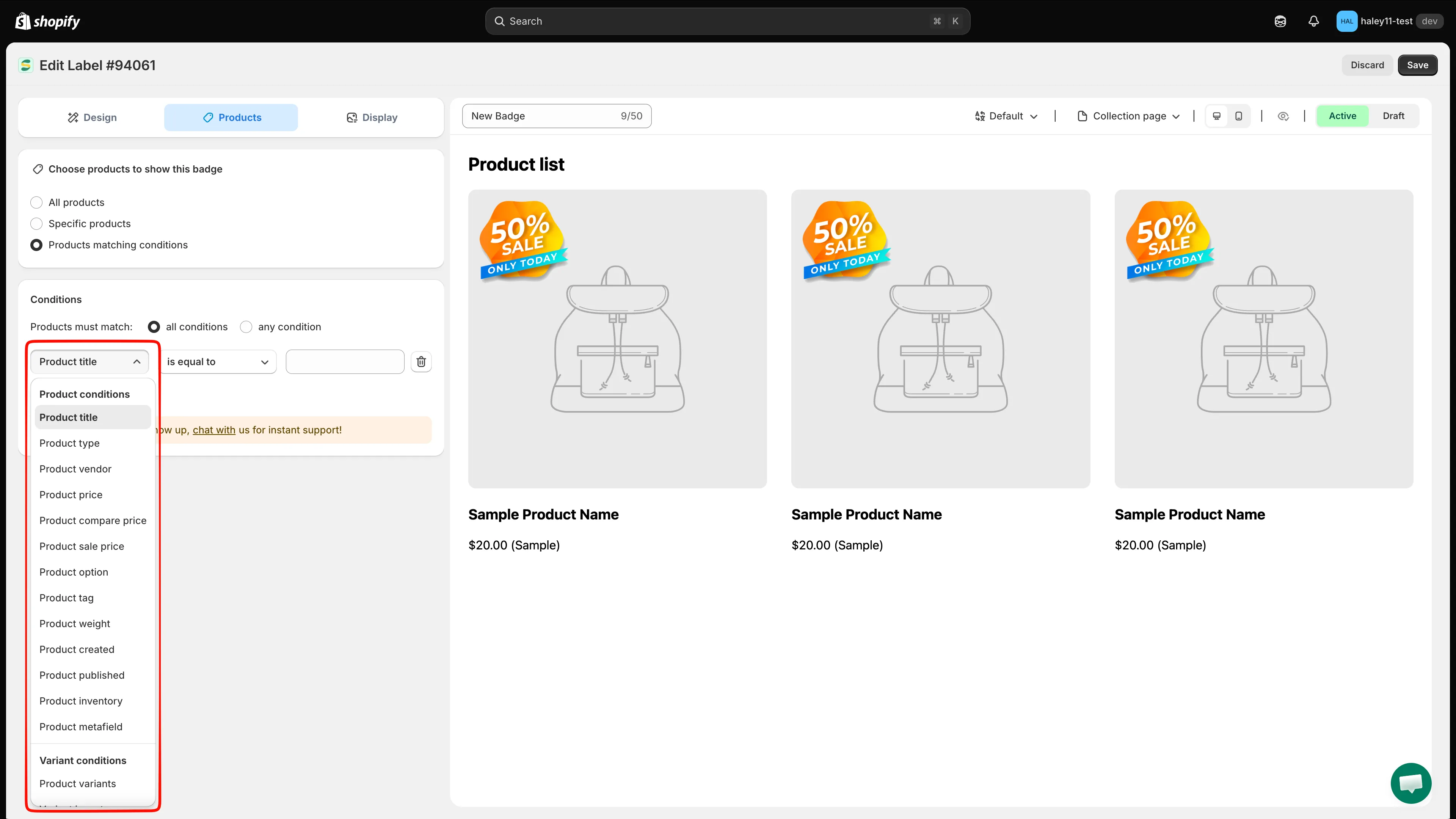
Choose the product attribute to target.
-
Select the operator
Section titled “Select the operator”Choose how the condition should evaluate the attribute. For example, select is greater than for a price condition or contains for a title condition.
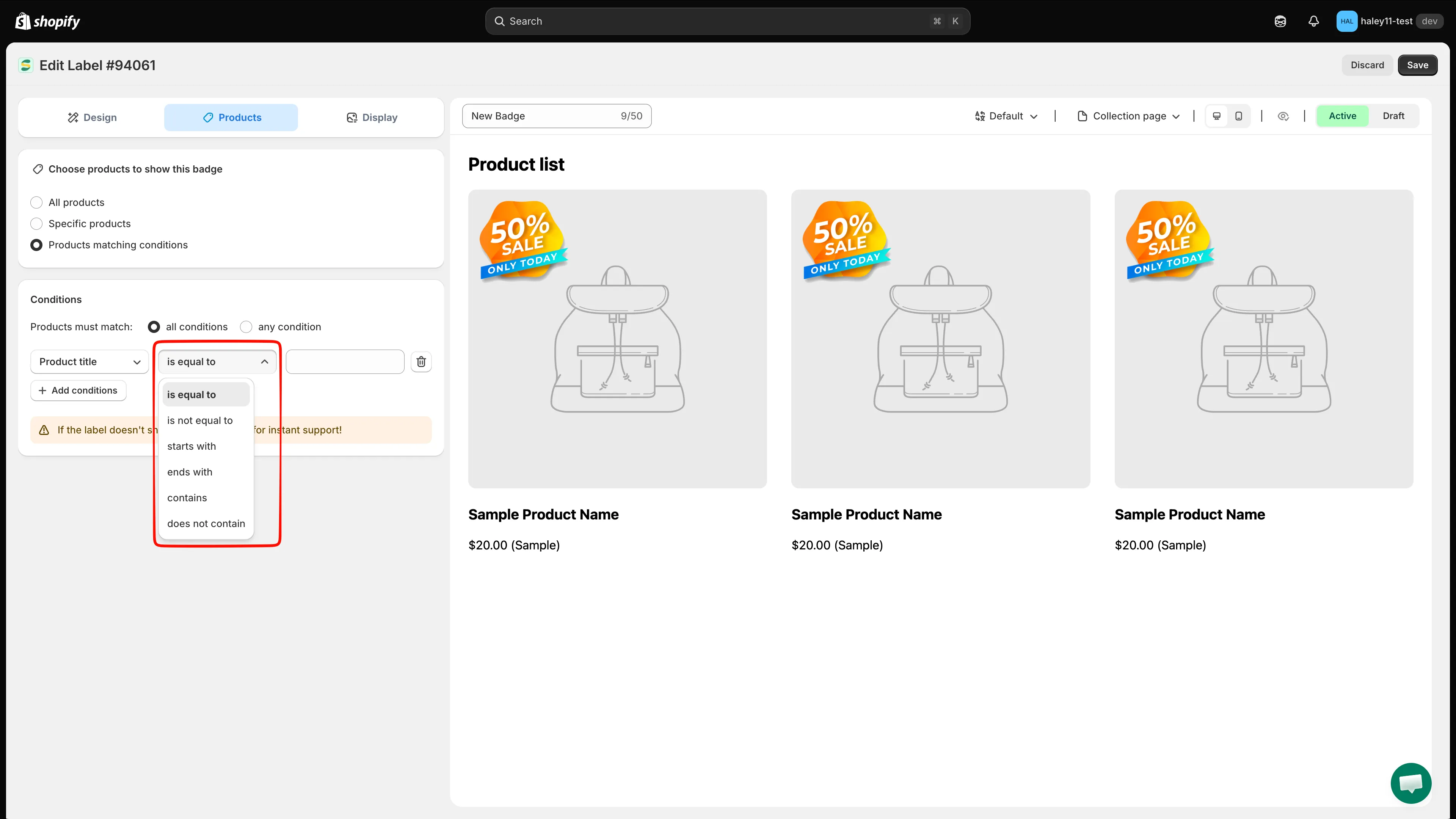
Choose the operator for the condition.
-
Enter the value
Section titled “Enter the value”Type the value to match against. For price conditions, enter a number. For text conditions like title or vendor, enter the text to match.
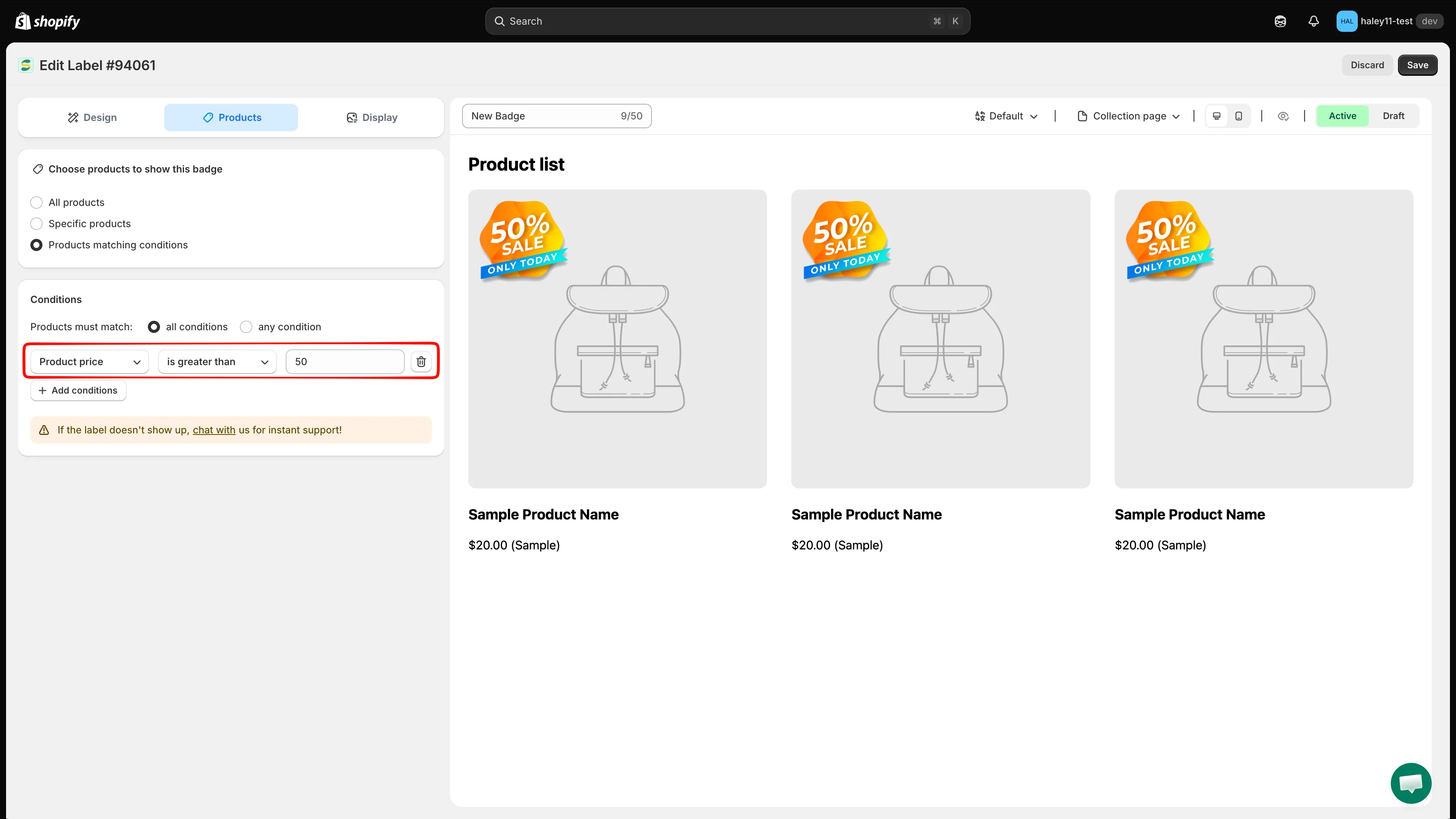
A condition rule targeting products priced above 50.
-
Click Save to apply the condition. Products matching your rule will automatically display the badge.
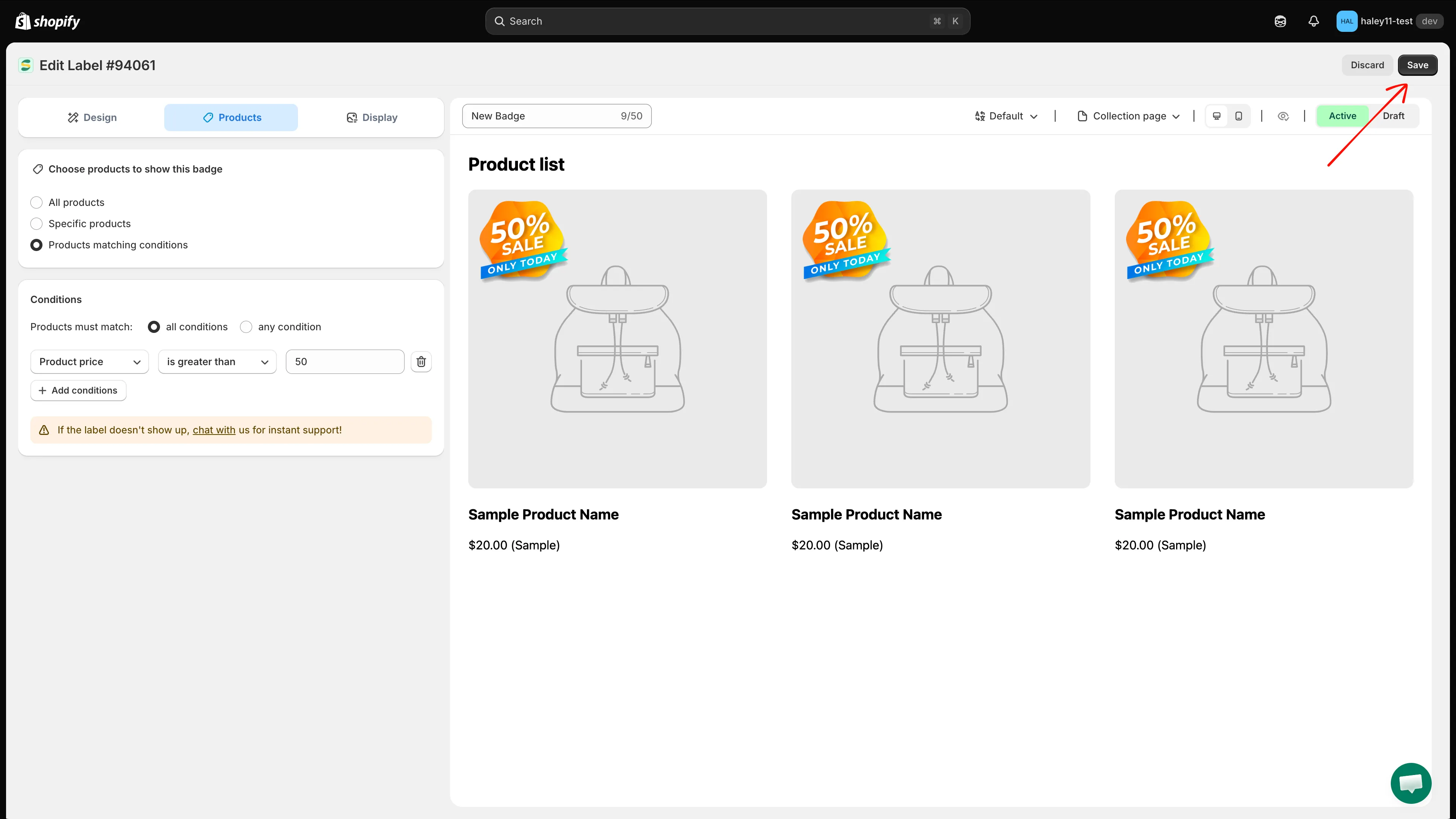
Click Save to apply the condition rule.
AND vs OR logic
Section titled “AND vs OR logic”When you add multiple conditions, you can choose how they work together:
| Logic mode | Behavior |
|---|---|
| All conditions (AND) | The product must match every rule for the badge to appear. Use this when products need to meet all criteria. |
| Any condition (OR) | The product only needs to match one rule. Use this for broader targeting. |
Examples
Section titled “Examples”All conditions (AND):
- Product type is equal to “T-Shirt” AND Product price is greater than 30
- Result: Only t-shirts priced above $30 show the badge.
Any condition (OR):
- Product vendor is equal to “Nike” OR Product vendor is equal to “Adidas”
- Result: All Nike and Adidas products show the badge.
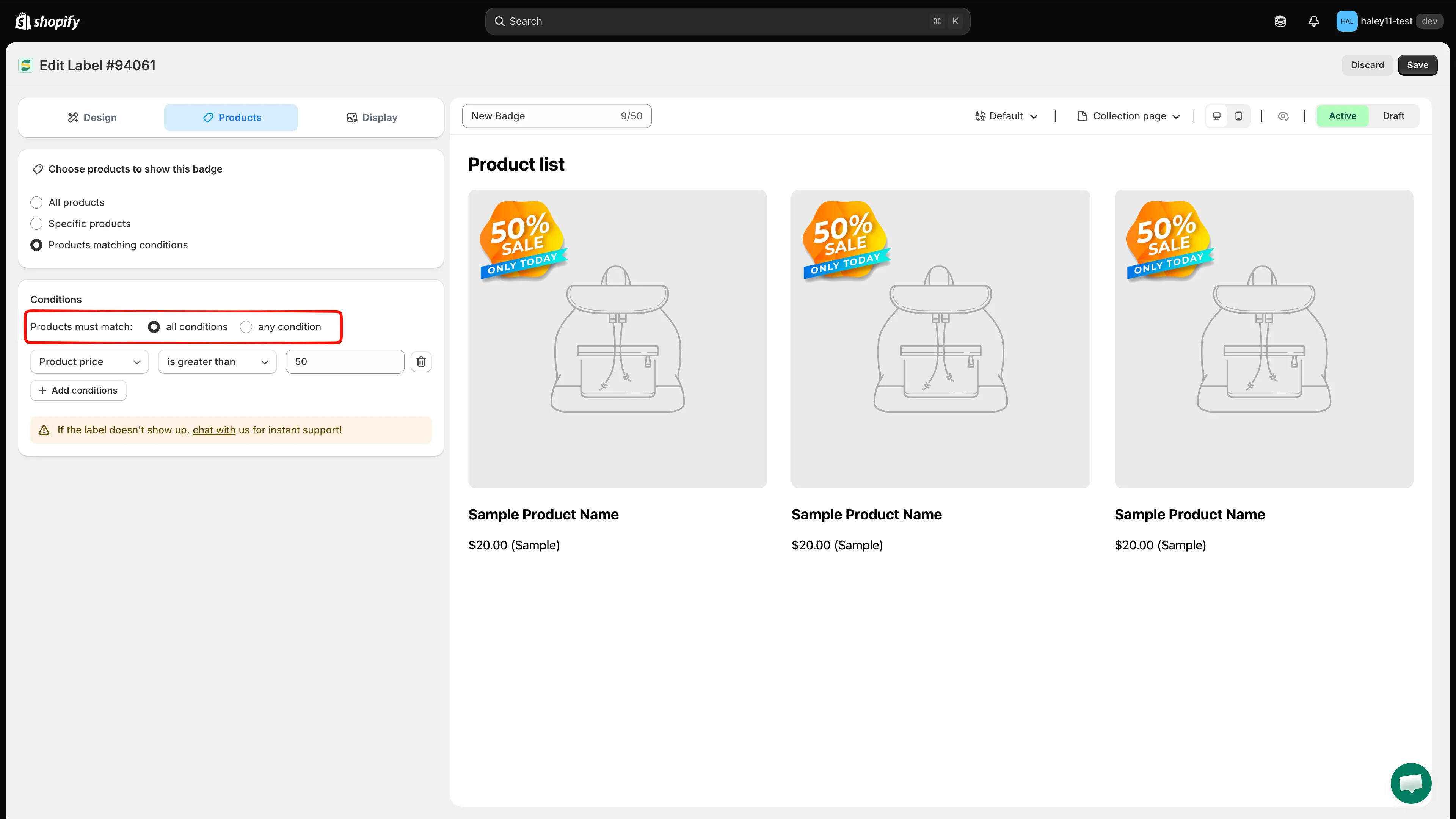
Choose between All conditions (AND) or Any condition (OR) logic for your rules.
Common use cases
Section titled “Common use cases”- Sale badge on discounted items — Product compare price
is greater than0 badges everything with an active sale. - Low stock warning — Product inventory with
stock availability is less than5 shows an “Almost Gone” badge. - New arrivals — Product created with
is less than30, which matches anything added in the last 30 days. - Collection-specific badge — Collections
is equal to“Summer Collection”.
Next steps
Section titled “Next steps”- Condition operators reference — every field and operator, and which values each accepts.
- Target by customer — show badges based on login status and customer tags.
- Target by country and language — display badges for specific regions or languages.
- Target products — return to the product targeting overview.