
Target by customer
Show badges to specific customer segments based on login status, order history, spending, tags, and more.
Customer-based targeting lets you show different badges depending on who is browsing your store — login status, order count, spend, and other customer attributes.
Available customer conditions
Section titled “Available customer conditions”| Condition type | Operators | Value field |
|---|---|---|
| Customer | Is Logged In / Not Logged In | — |
| Customer tag | is equal to / is not equal to | Multi-select list of your existing Shopify customer tags |
| Customer order count | is equal to / is not equal to / is greater than / is less than | Number |
| Customer total spent | is equal to / is not equal to / is greater than / is less than | Number |
| Customer purchase | Product already purchased / Product not purchased | — |
| Customer company name | is equal to / is not equal to | Text |
How to set up customer targeting
Section titled “How to set up customer targeting”-
Open the Display tab
Section titled “Open the Display tab”In the badge editor, open Display, then expand Customer conditions.
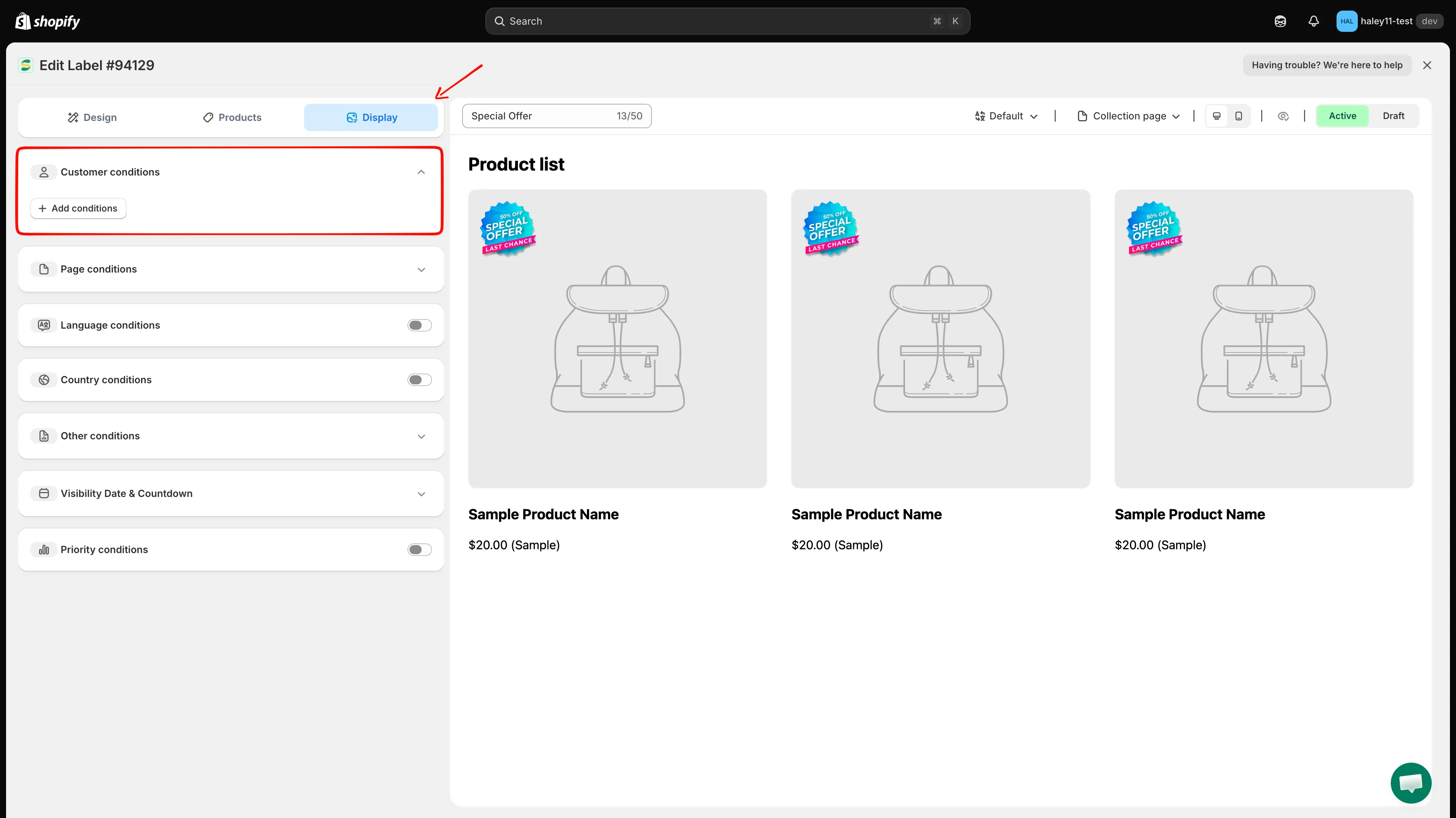
Open the Display tab and expand Customer conditions.
-
Add a customer condition
Section titled “Add a customer condition”Click Add conditions. A new rule row appears, pre-filled with Customer / Is Logged In. Open the first dropdown to choose a different customer condition.
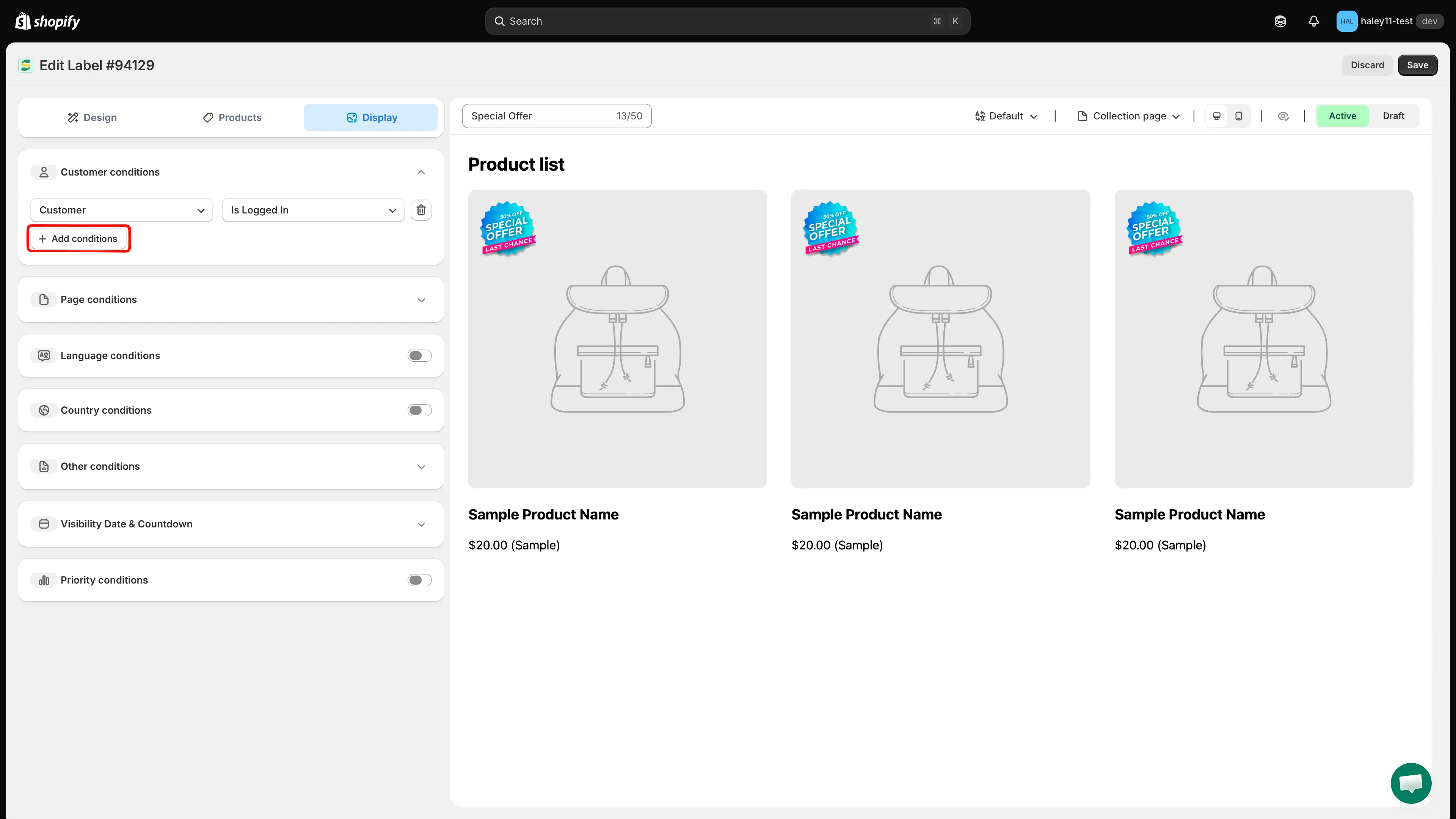
Choose Customer, Customer tag, Customer order count, Customer total spent, Customer purchase, or Customer company name.
-
Configure the operator and value
Section titled “Configure the operator and value”Choose the operator in the second dropdown, then enter or select the value in the third field. For example, set Customer order count to is greater than with a value of 10.
For Customer tag, the third field is a searchable list of the customer tags that already exist in your store — tick one or more tags instead of typing free text.
Customer and Customer purchase have no third field: the operator alone defines the rule. Customer purchase looks at whether the customer has bought anything before, so there is no product to pick.
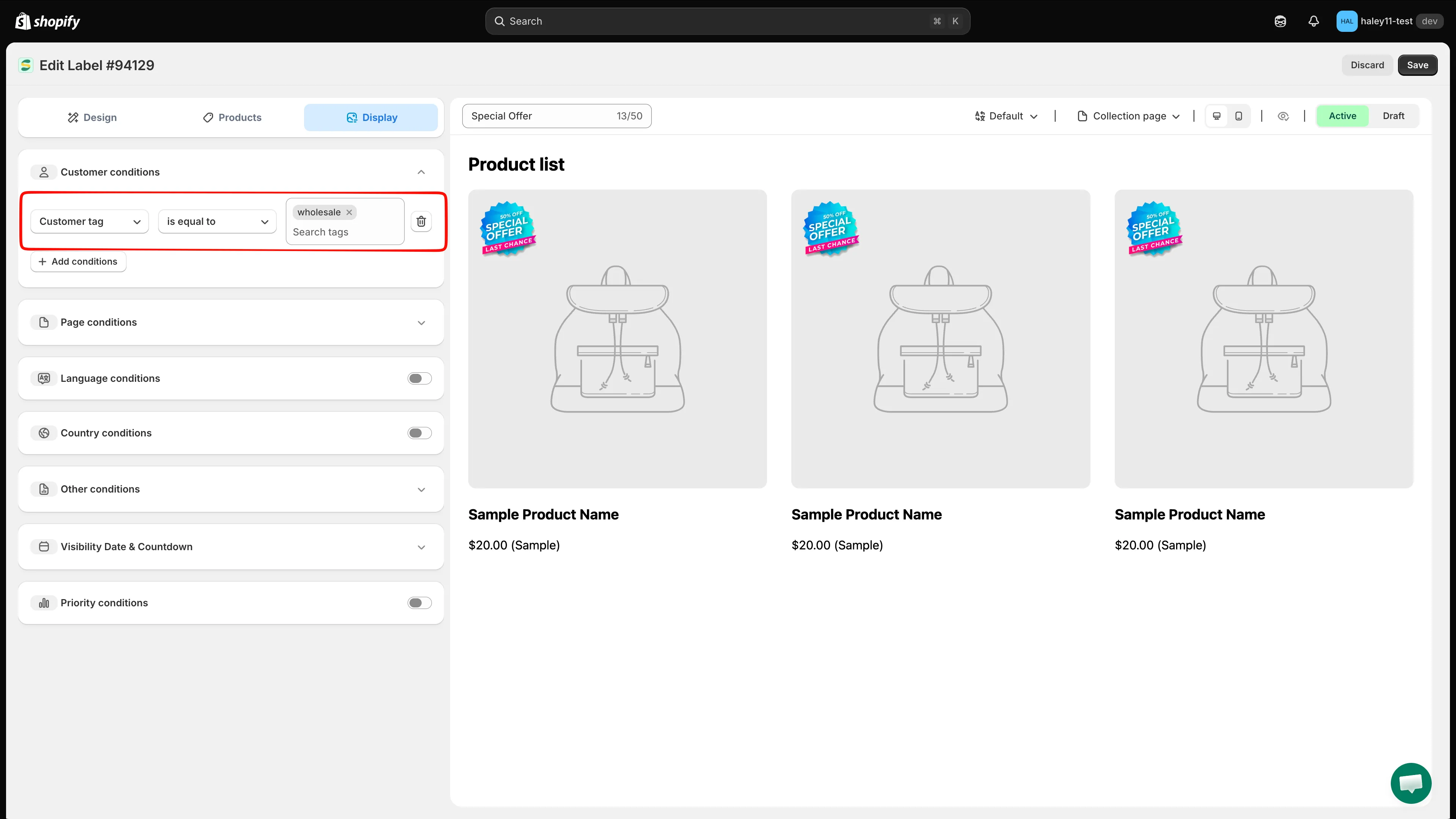
Example: show the badge to customers whose tag equals wholesale.
-
Add more conditions (optional)
Section titled “Add more conditions (optional)”Click Add conditions again to stack more rules. Customer conditions are always combined with AND — a shopper must match every customer rule you add. There is no any/all switch in this section.
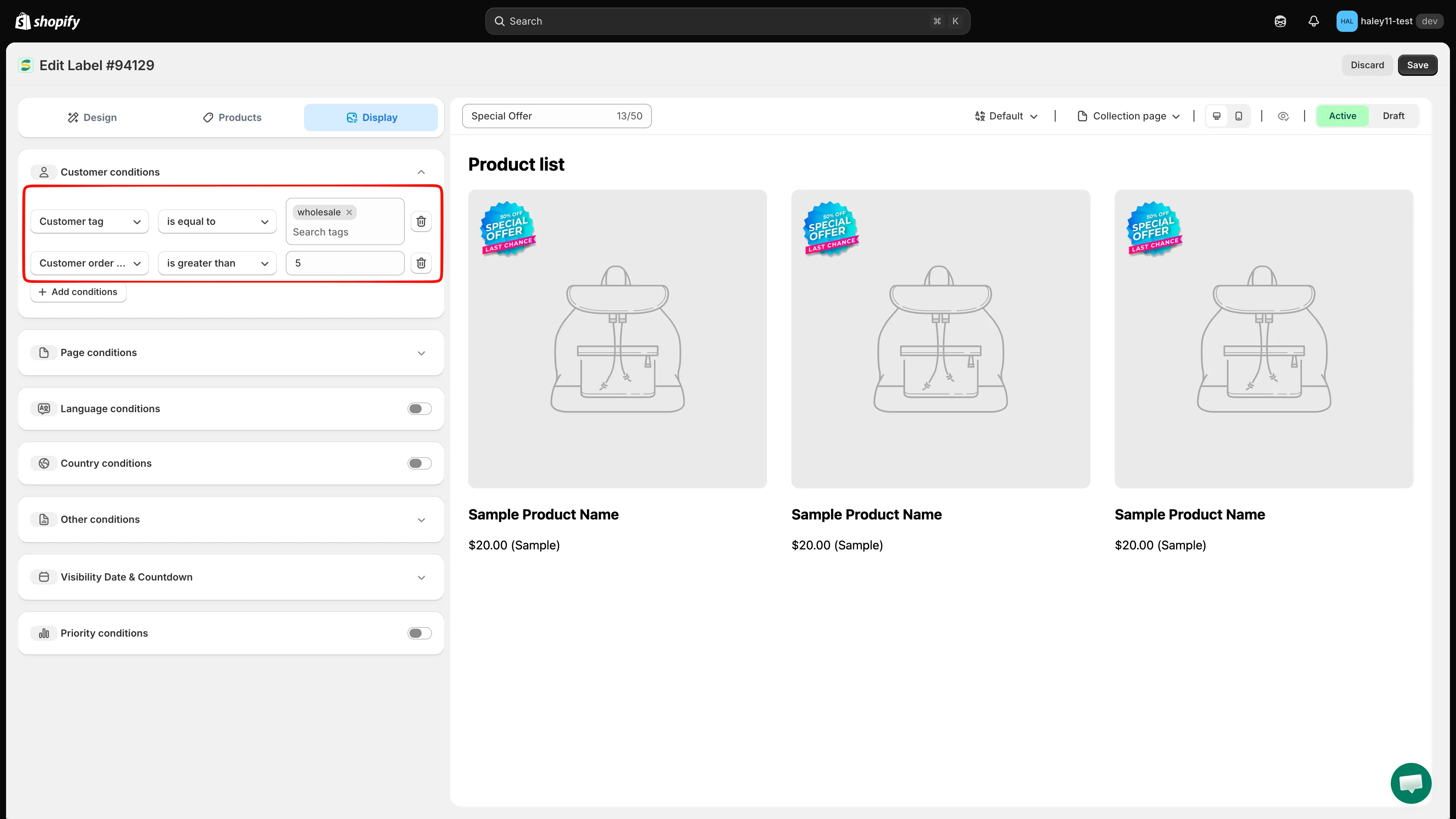
Multiple customer conditions must all match.
-
Click Save to apply the customer targeting. The badge will only appear for visitors who match your conditions.
Use cases and examples
Section titled “Use cases and examples”VIP badge for loyal customers
Section titled “VIP badge for loyal customers”Show a “VIP” or “Loyal Customer” badge to shoppers who have placed 10 or more orders:
- Condition: Customer order count is greater than 9
- Result: Logged-in customers with 10+ orders see the VIP badge on targeted products.
Welcome back badge for returning visitors
Section titled “Welcome back badge for returning visitors”Display a “Welcome Back” badge for any customer who is logged in:
- Condition: Customer Is Logged In
- Result: All logged-in customers see a personalized welcome badge.
Exclusive deal for high spenders
Section titled “Exclusive deal for high spenders”Show a “Special Price” badge to customers who have spent over $500:
- Condition: Customer total spent is greater than 500
- Result: High-value customers see exclusive pricing badges.
Wholesale badge for B2B customers
Section titled “Wholesale badge for B2B customers”Display wholesale pricing badges for customers who belong to a specific company:
- Condition: Customer company name is equal to “Wholesale Partners Ltd”
- Result: B2B customers from that company see relevant badges.
Tag-based targeting
Section titled “Tag-based targeting”Use Shopify customer tags to target a saved customer segment:
- Condition: Customer tag is equal to, then tick VIP in the tag list
- Result: Only customers tagged VIP in Shopify see the badge.
Welcome offer for first-time buyers
Section titled “Welcome offer for first-time buyers”Show a “First Order Discount” badge only to customers who have never bought from you:
- Condition: Customer purchase Product not purchased
- Result: The badge appears only for logged-in customers with no purchase history.
Thank-you badge for existing customers
Section titled “Thank-you badge for existing customers”Show a “Thanks for coming back” badge to anyone who has ordered before:
- Condition: Customer purchase Product already purchased
- Result: The badge appears for logged-in customers with at least one past order.
Combining customer and product conditions
Section titled “Combining customer and product conditions”You can combine customer conditions with product attribute conditions in the same badge. For example:
- Customer order count is greater than 5 AND Product type is equal to “Premium”
- Result: Only returning customers with 5+ orders see the badge, and only on premium products.
Set the product scope separately in Products and the customer rule in Display. A shopper must satisfy the customer rule while viewing a product included by the product scope. The all conditions / any condition selector described in Target by product attribute belongs to product matching rules only — it does not apply to customer conditions.
Next steps
Section titled “Next steps”- Target by product attribute — Filter badges based on product title, type, vendor, price, and more.
- Target by country & language — Show badges for visitors from specific countries or store languages.