
Translate image badges
Translate the words inside an image badge with AI, or upload your own image for each language.
An image badge has its words drawn into the picture, so there’s no text field to translate. On the Translation page, the Image row gives you three choices for each language:
| Choice | How it works | Uses |
|---|---|---|
| Translate text in image | AI reads the words in the image and redraws it with the translated words. | 1 AI image credit |
| Upload image | You upload your own version of the image for this language. | Nothing |
| Use original | Visitors see the original image in this language. | Nothing |
The Link, Tooltip, and SEO alt text of an image badge are translated like any other text — see Translate your content.
Translate the text in an image with AI
Section titled “Translate the text in an image with AI”-
Select the image badge
Section titled “Select the image badge”On the Translation page, open a language, stay on the Badges & Labels tab, and click the image badge in the list on the left.
The Image row shows the original image on the left. On the right, the same image appears greyed out with Uses the original image. — nothing is translated yet.
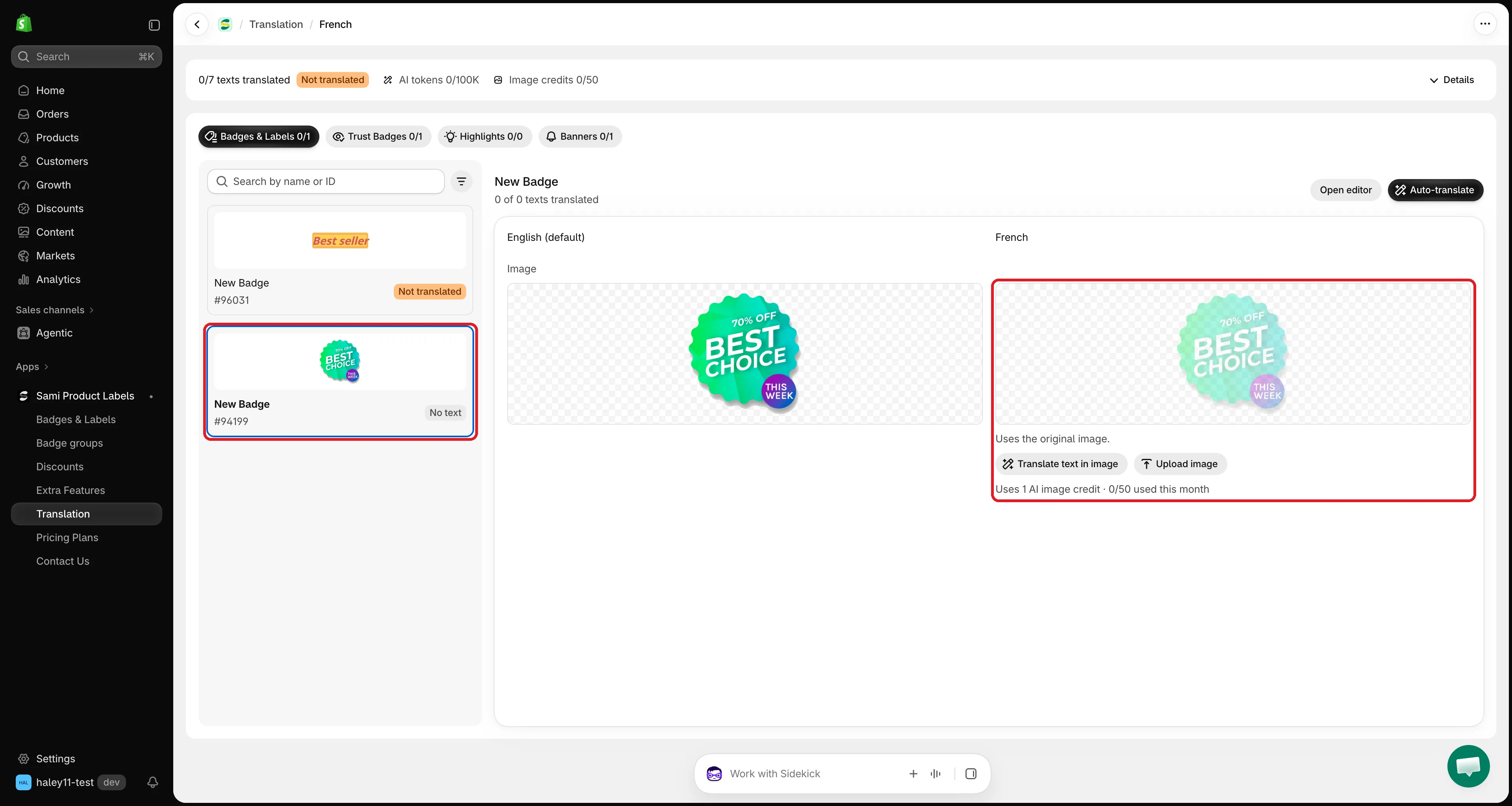
Until you translate it, the badge shows its original image in this language.
-
Click Translate text in image
Section titled “Click Translate text in image”Click Translate text in image. The note below the button shows how many credits you’ve used, for example Uses 1 AI image credit · 12/50 used this month.
AI takes up to a minute. While it works, you can keep translating the Link, Tooltip, and SEO alt text fields.
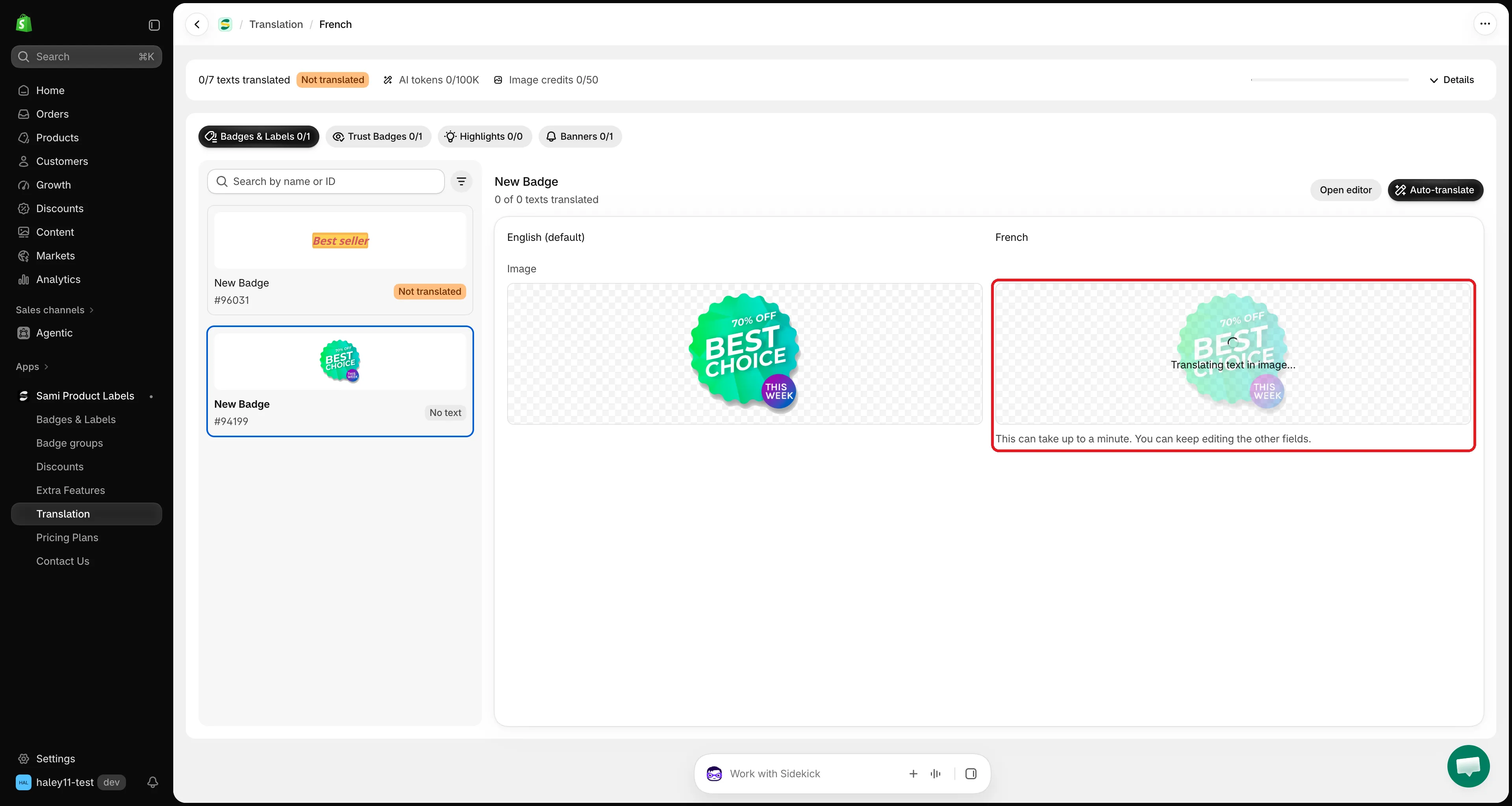
Redrawing the image can take up to a minute.
-
Review the new image
Section titled “Review the new image”The redrawn image appears on the right with an AI generated · not saved badge and the words that changed, for example “BEST CHOICE” → “MEILLEUR CHOIX”. Below the original, Text in image lists the words AI found.
Check the result carefully — AI can change small details of the design. If you don’t like it:
Button Result Regenerate Redraws the image again. Uses 1 more credit. Upload image Replaces it with your own image. Use original Removes the translation, so the original image shows in this language. 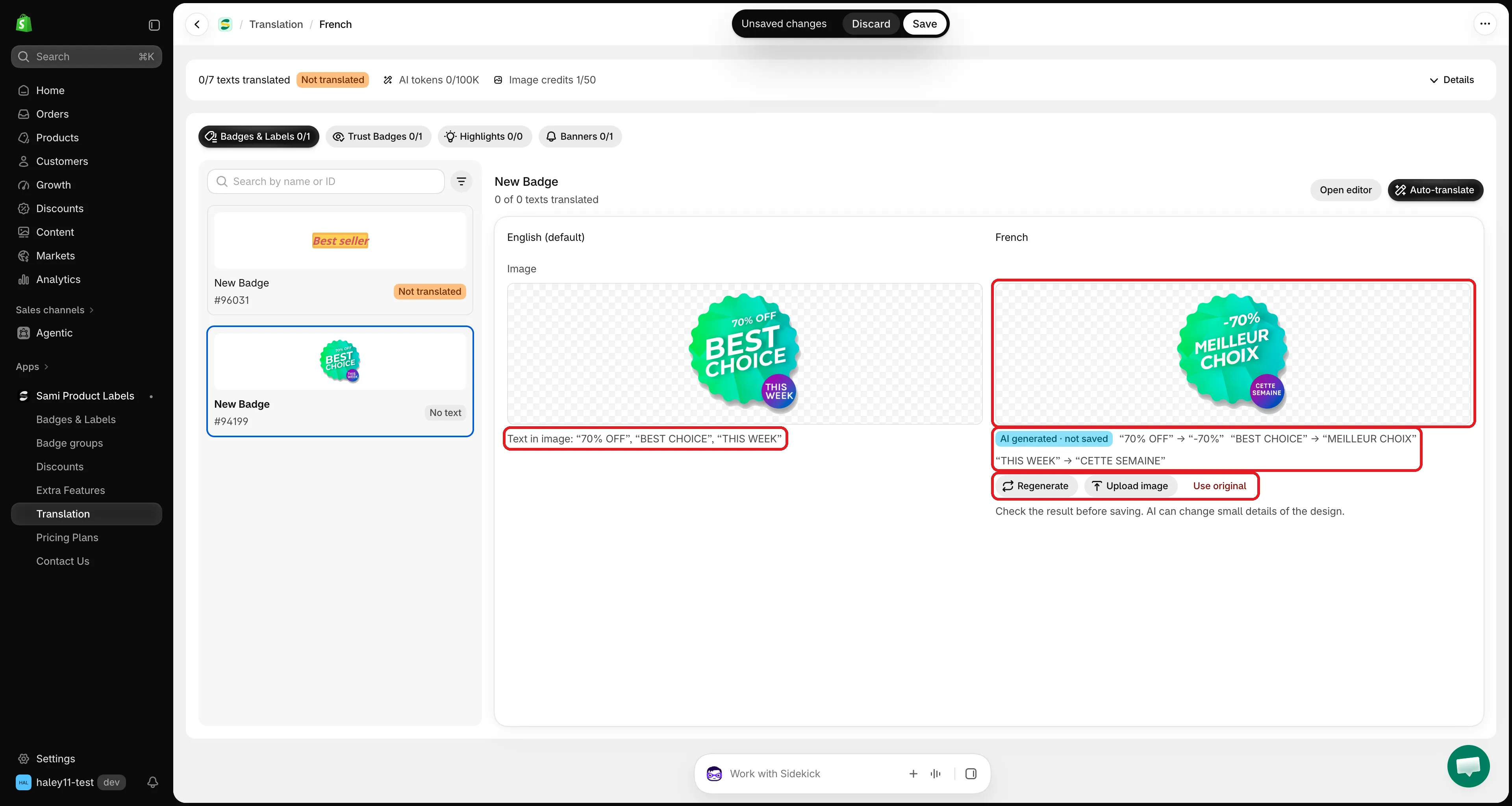
Review the redrawn image before you save.
-
Click Save in the save bar at the top of the screen. The translated image now shows to visitors browsing your store in that language.
When no credit is used
Section titled “When no credit is used”AI checks the words before redrawing. If there’s nothing to change, it doesn’t redraw the image and no credit is used:
- No text found in it, so it works for every language. — the image has no words.
- Its text reads the same in [language], so it works as it is. — for example a brand name or a number like “-20%”.
Upload your own image
Section titled “Upload your own image”Use this when you already have a designed version of the badge for each language.
-
Click Upload image
Section titled “Click Upload image”In the Image row, click Upload image and choose a file. Use a JPG, PNG, or SVG image under 1 MB.
-
The image appears on the right with an Uploaded · not saved badge. Click Save in the save bar to use it for this language.
Troubleshooting
Section titled “Troubleshooting”| Message | What to do |
|---|---|
| You’ve used all 50 AI image credits this month. | Upload your own image, or wait until the credits reset on the 1st of next month. |
| AI image editing isn’t turned on for your store. Contact support to turn it on. | Contact support@samita.io. You can still upload your own image. |
| This image format can’t be translated. Use a PNG, JPEG or WebP image. | Translate text in image doesn’t work with SVG images. Upload a translated image instead. |
| Use a JPG, PNG or SVG image under 1MB. | The file you uploaded is too large or in another format. |
Next steps
Section titled “Next steps”- Auto-translate with AI — translate the texts and the image of a badge in one click.
- Edit a badge image with AI — change the colors, shape, or style of the original image.