
Badge Groups
Badge groups
Bundle multiple badges and labels into one group, then design and target them as a single unit.
A badge group bundles several badges and labels together so they display as one block on your products — with a shared layout, position, and (optionally) a single set of display conditions.
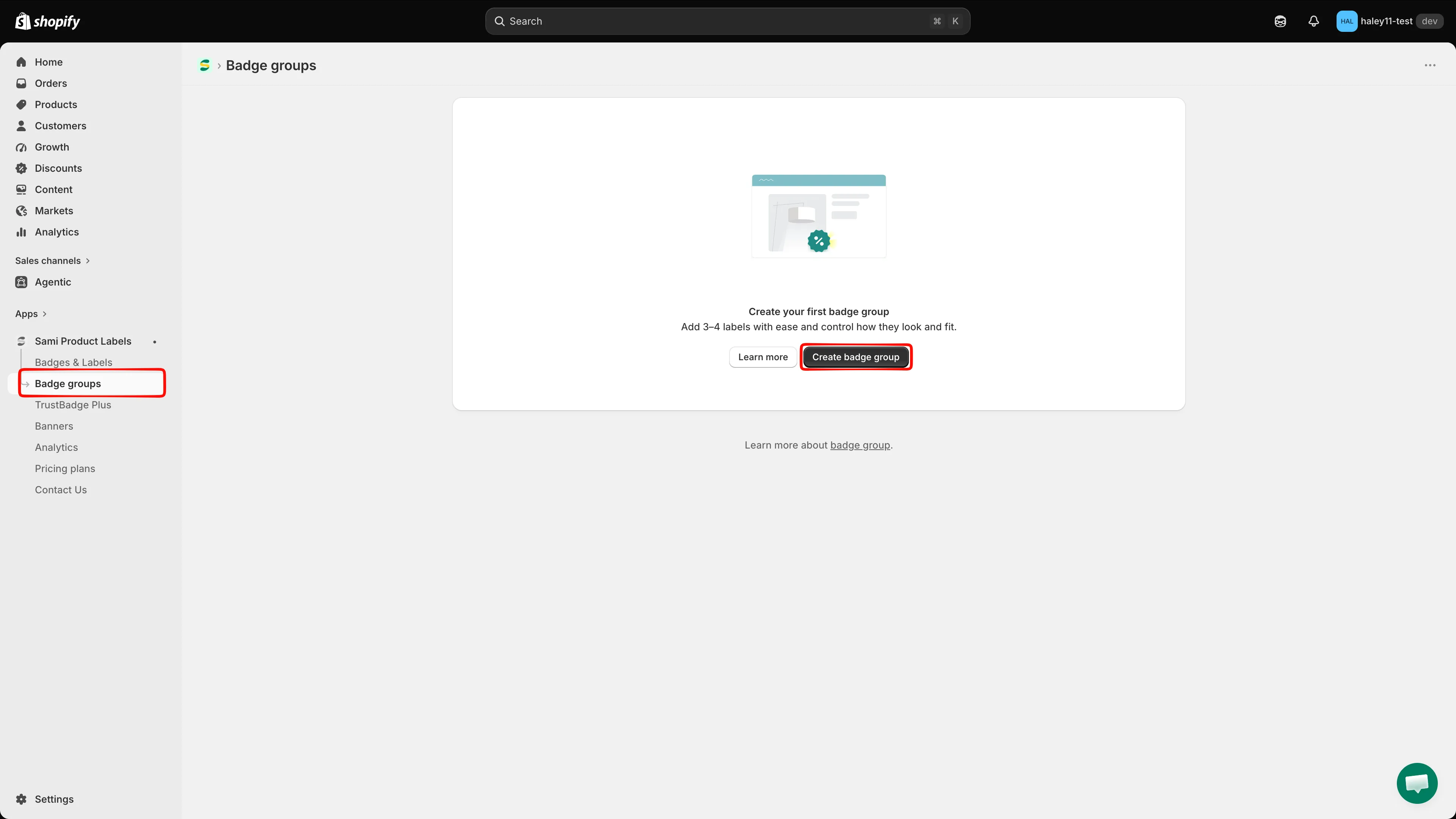
Open Badge groups from the app sidebar to see all your groups.
Why use badge groups?
Section titled “Why use badge groups?”Promotions often need several badges on the same product at once — a “Sale” badge, a “Limited time” label, and a “Free shipping” badge together. A group keeps them aligned and manageable:
- One layout for all of them — stack the badges horizontally or vertically, control the gap, and place the whole set with a single position setting.
- One set of conditions (optional) — override each label’s own targeting and show the whole group based on one condition instead.
Plan availability
Section titled “Plan availability”| Plan | Number of label groups |
|---|---|
| FREE | 1 |
| GOLD | 1 |
| DIAMOND | Unlimited |
Deleted groups still count toward the limit. See Pricing plans for the full comparison.
What you can configure
Section titled “What you can configure”The group editor has two tabs: Design and Placement.
| Setting | What it does |
|---|---|
| Inside / Outside product image | Choose whether the group sits on top of the product image or below it. |
| Label Selection | Use Add labels to group to pick the badges and labels the group contains. |
| Select layout | Horizontal or Vertical — how the badges stack within the group. |
| Item size | The size of each badge in the group, as a percentage or fixed value. |
| Label gap | The spacing between badges in the group, in pixels. |
| Predefined position | One of nine anchor points for the whole group on the product image. |
| Margin | Fine-tune the offset from the top, bottom, left, and right. |
| Advance Section | Add custom CSS for the group (developer zone). |
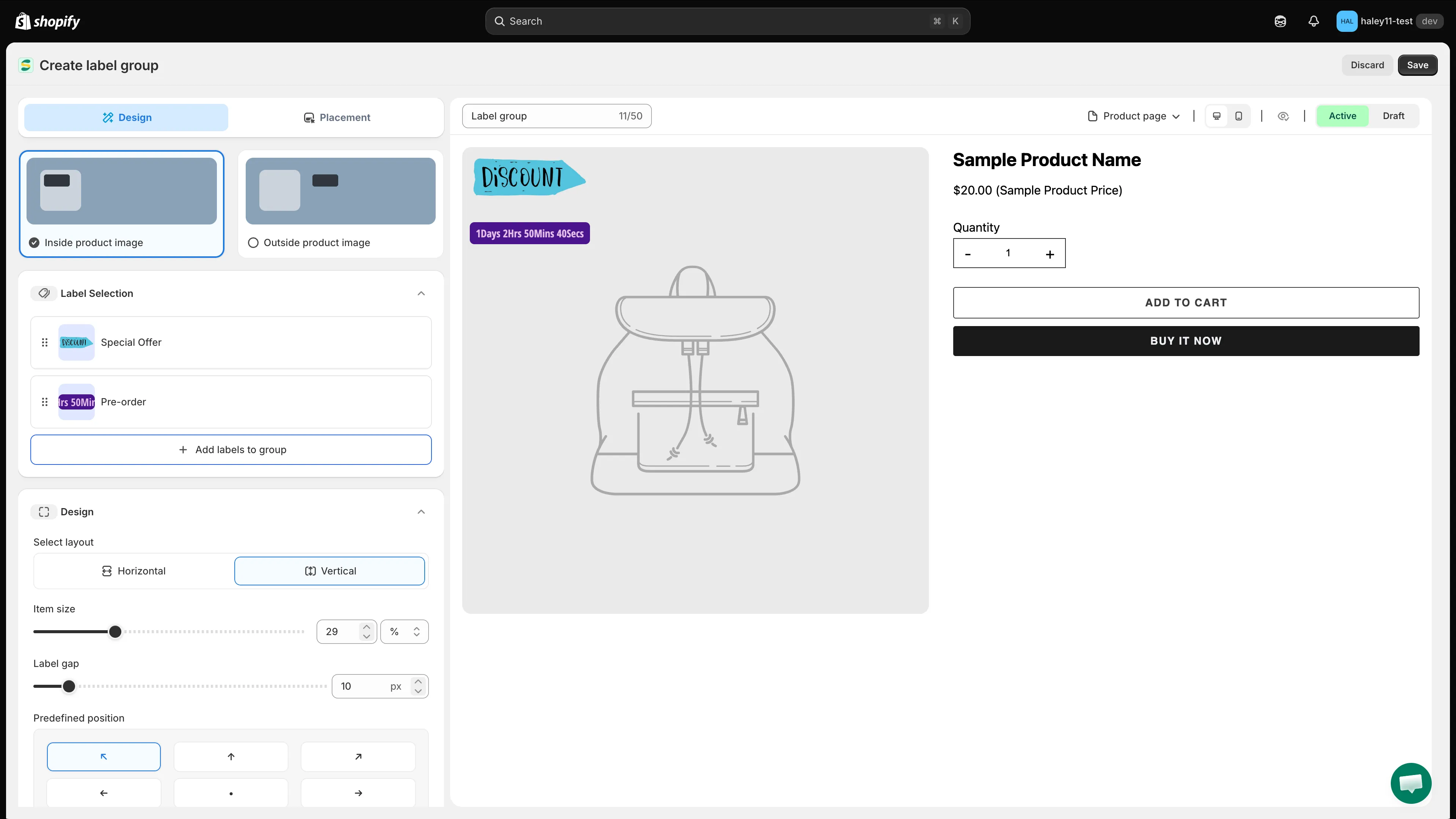
The Design tab controls which labels are in the group and how they are laid out.
Under Condition type, choose how the group decides when to appear:
| Option | Behavior |
|---|---|
| Keep individual label conditions | Each label in the group is shown or hidden based on its own condition. |
| Set a custom group condition | Overrides the individual label conditions and controls visibility using only the condition defined for the group. |
Choosing Set a custom group condition reveals the group-level condition sections: Product conditions, Customer conditions, Page conditions, Language conditions, Country conditions, and Other conditions.
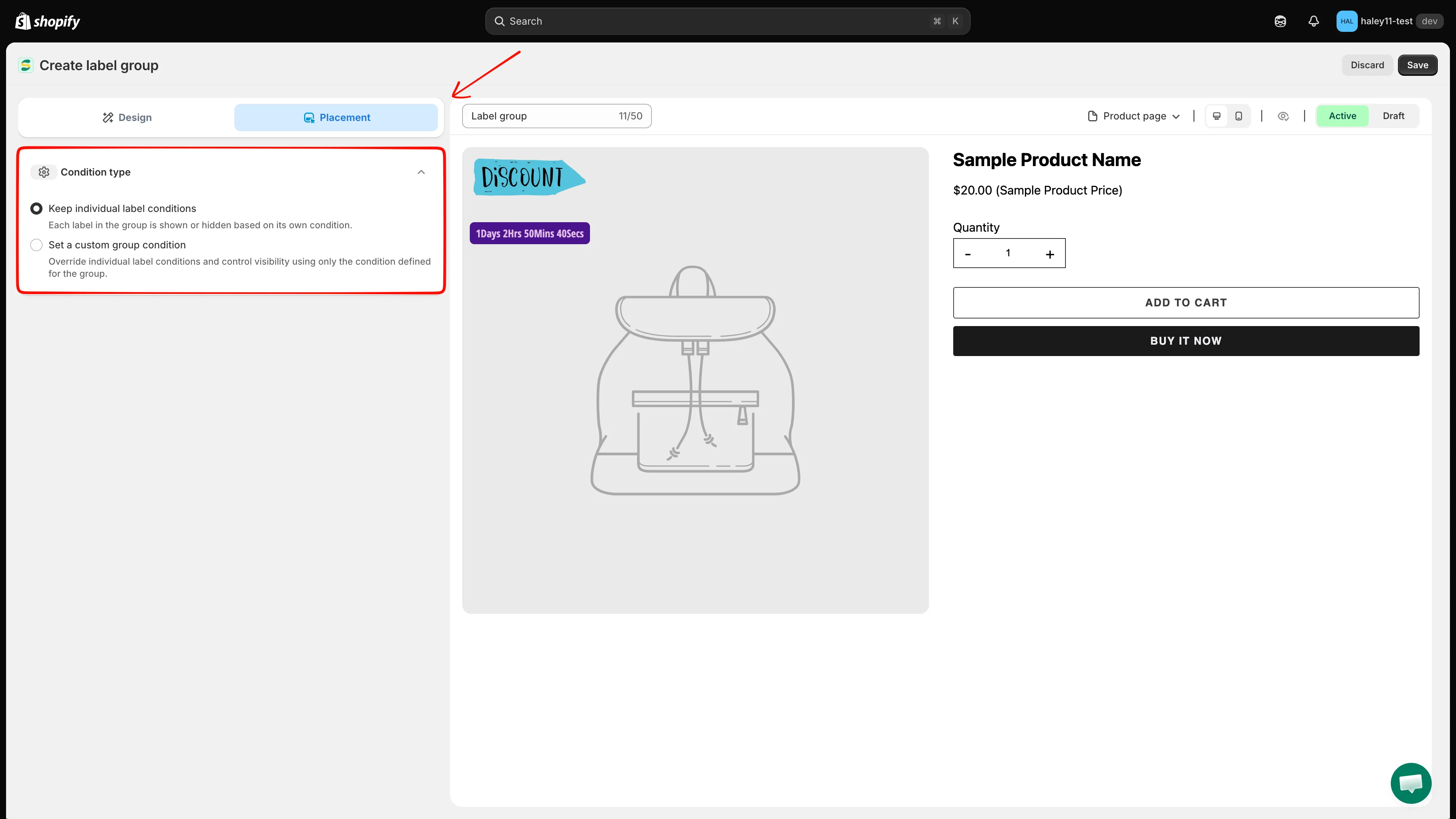
Pick between per-label conditions and a single condition for the whole group.
Rename and preview
Section titled “Rename and preview”Open the … menu in the editor to Rename the group or Preview product.
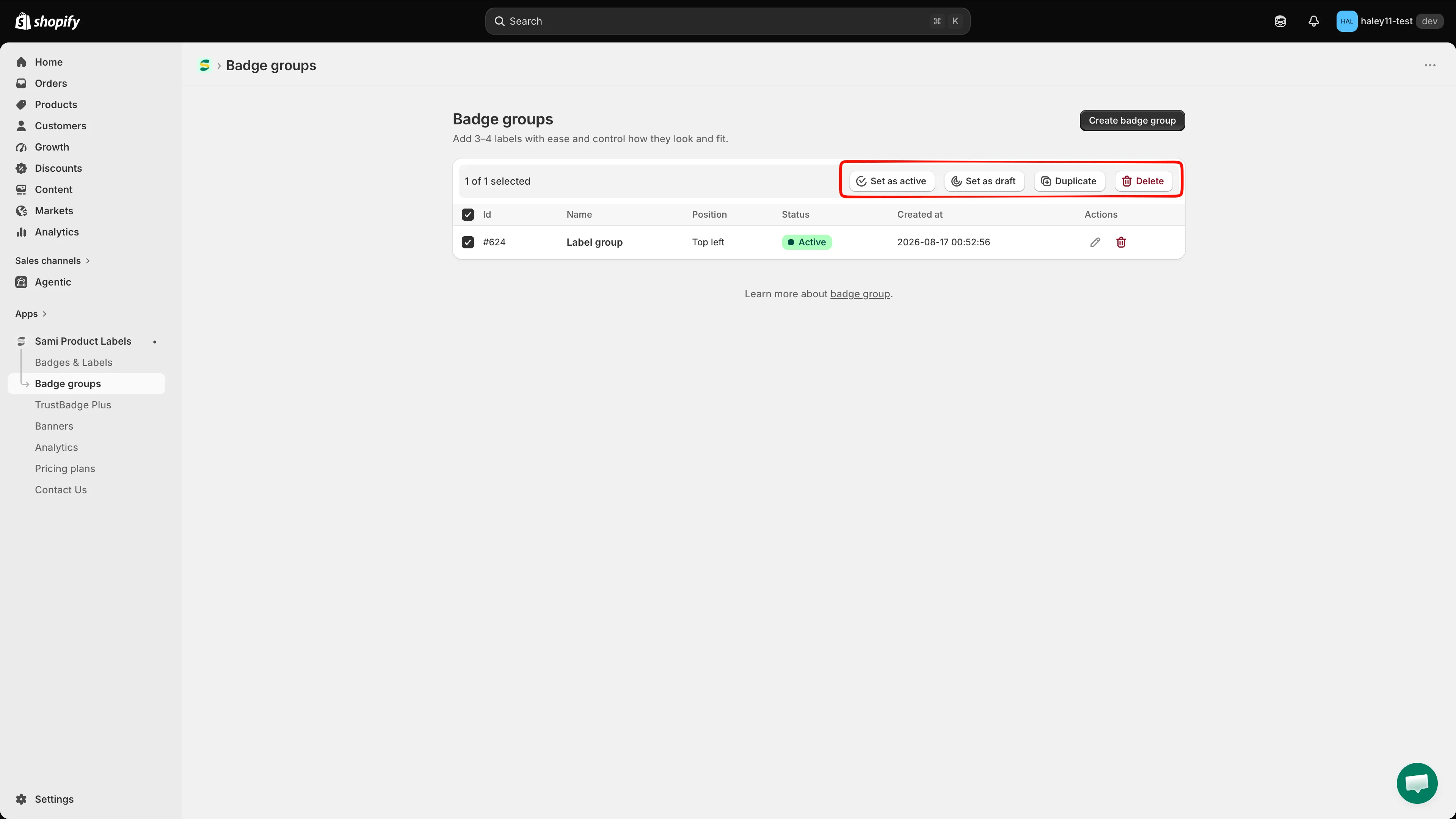
Use the … menu to rename the group or preview it on a product.
Next steps
Section titled “Next steps”- Create a label group (inside product image) — overlay a group on the product photo.
- Create a badge group (outside product image) — place a group beside the product information.
- Badges & Labels overview — create the badges you want to bundle.
- Set up group conditions — control the whole group with one rule set.
- Target products — how conditions work for individual labels.