
Find out why a badge isn't showing
Let Shopify Sidekick check your theme setup and explain, condition by condition, why a badge does or does not show on a product.
When a badge does not appear where you expect, ask Sidekick. It checks the two things that usually cause it: your store-wide setup and the conditions of each badge for a specific product.
-
Check your store-wide setup
Section titled “Check your store-wide setup”If badges are missing everywhere on your storefront, start with a question that does not name a product.
Try asking:
- “Why are my badges not showing?”
- “Is Product Labels set up correctly on my theme?”
Sidekick checks:
Check What Sidekick looks at App embed Whether the Sami Product Labels app embed is enabled on your live theme. When it is off, no badge renders anywhere. Active badges How many of your badges are active, and whether all of them are paused. Plan The plan your store is on. It then lists any blocking issue with what to do about it.
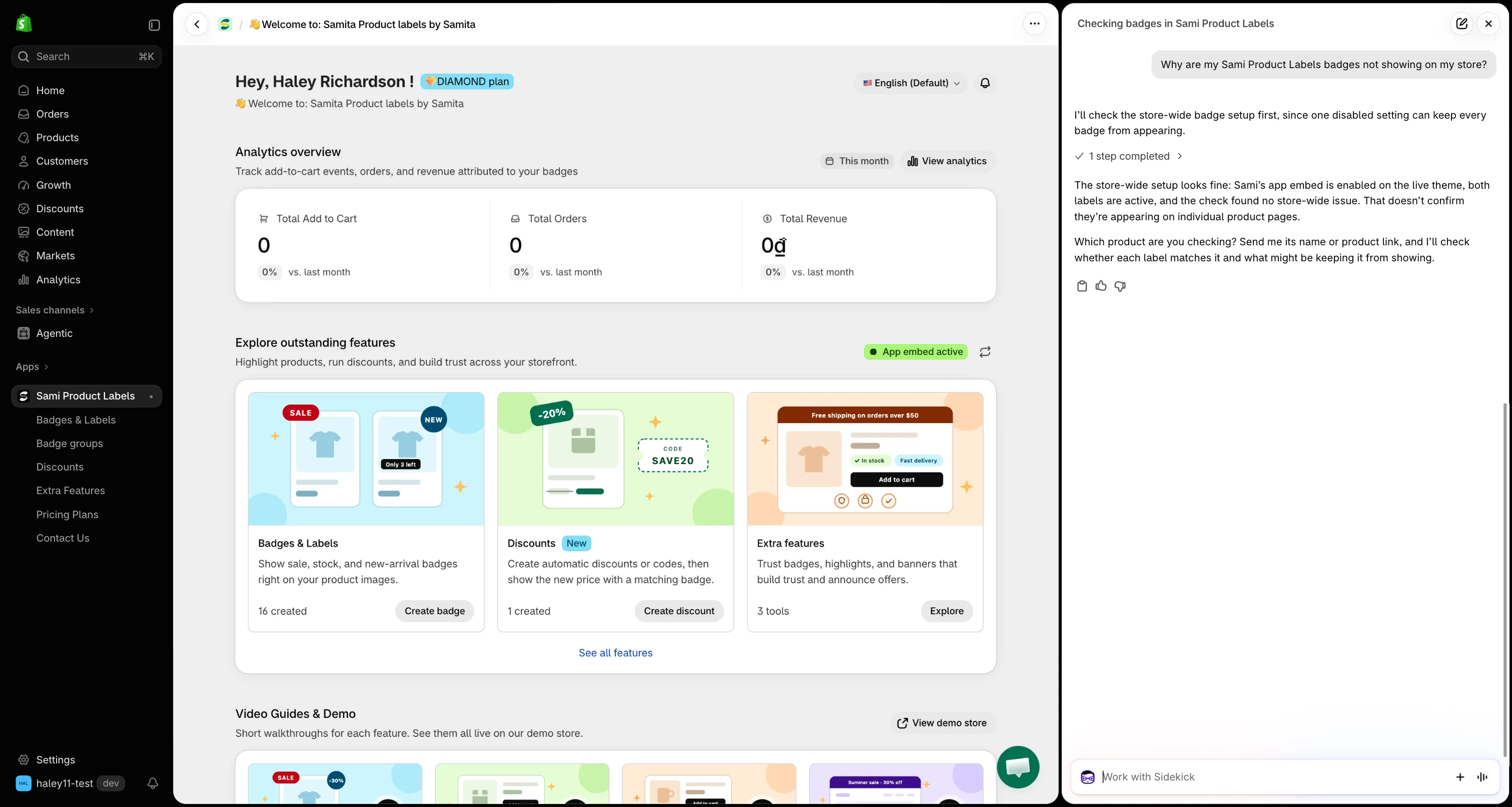
Sidekick checks the app embed and your active badges before anything else.
-
Fix any store-wide issue
Section titled “Fix any store-wide issue”Follow the fix Sidekick suggests:
- App embed is off — enable it in your theme editor. See Enable the app in your theme.
- No badges yet — create a text badge, or ask Sidekick to draft one for you.
- All badges are paused — open the badge in the app and switch its status to Active.
-
Check a specific product
Section titled “Check a specific product”If your setup is fine but a badge is missing from one product — or shows where it should not — name the product.
Try asking:
- “Why doesn’t the Linen Shirt have my Sale badge?”
- “Which badges show on the Classic Hoodie?”
- “Why does the Wool Scarf show the New arrival badge?”
Sidekick goes through every badge against that product and gives each one a verdict:
Verdict Meaning Shown The product matches the badge’s conditions, so the badge shows. Depends on visitor The product matches, but the badge also depends on the customer, country, language, or page — which only the live storefront can check. Uncertain At least one condition could not be checked from the admin. Hidden The badge does not show on this product. Sidekick gives the reason. 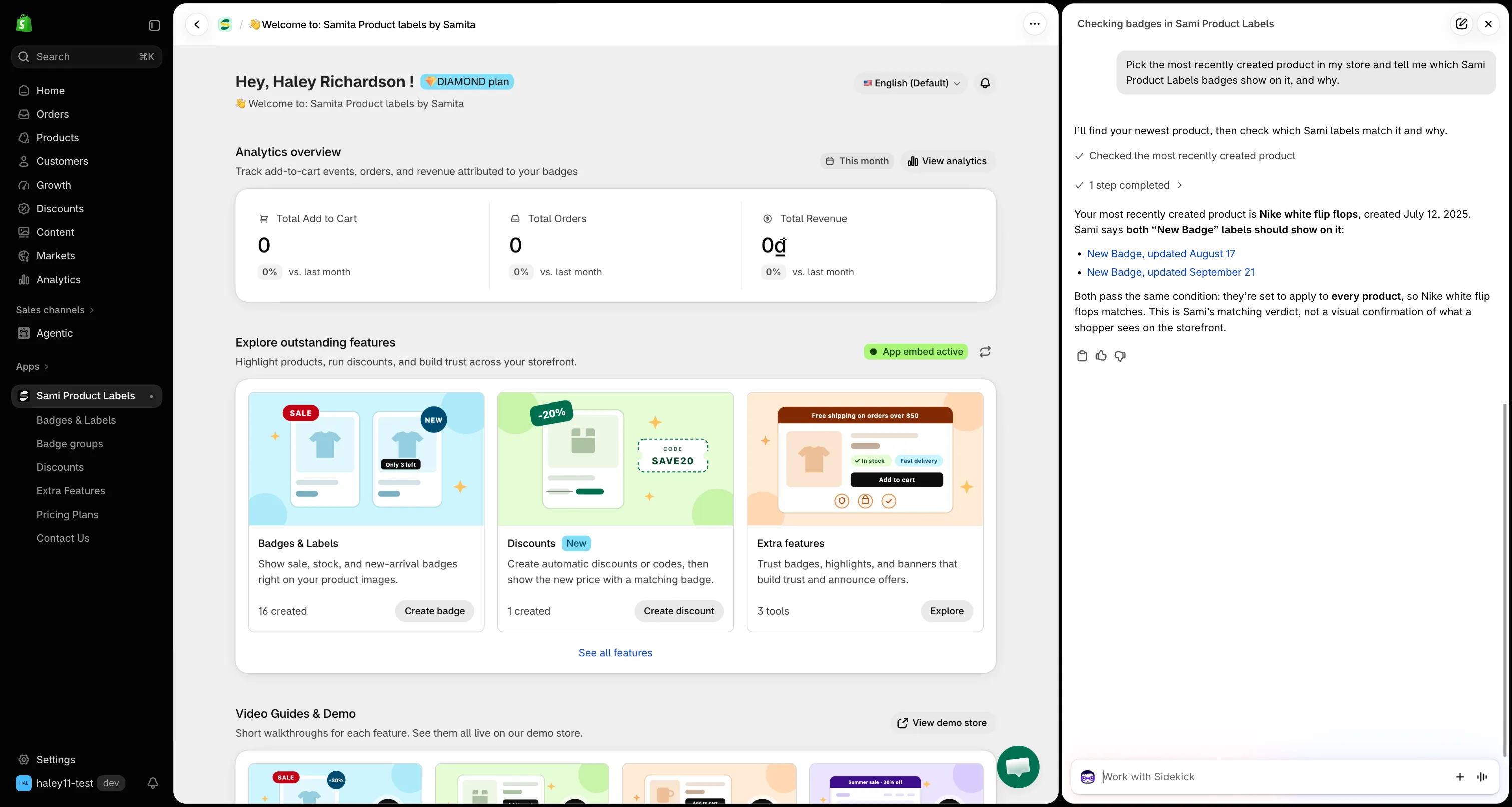
Sidekick names the badges that apply to the product and the condition that decided it.
-
Read the reason and fix the badge
Section titled “Read the reason and fix the badge”For each badge, Sidekick quotes the condition that passed or failed. Common reasons for Hidden:
Reason What to do The badge is paused. Open the badge and set its status to Active. Scheduled to start / schedule ended Adjust the dates under Display > Visibility Date & Countdown. Does not match the badge conditions Check the failing condition on the Products tab, for example a tag, collection, or price the product does not have. See Target specific products. Its group does not apply to this product The badge belongs to a badge group whose own conditions exclude the product. Metafield not synced yet The badge uses a metafield the storefront cannot read yet. Open the badge and click Save to resync it. Click the badge name in Sidekick’s answer to open it in the editor.
Good to know
Section titled “Good to know”- Conditions your plan doesn’t include are ignored on the storefront, not failed. Sidekick marks them as not available on your current plan.
- Large catalogs — Sidekick lists up to 20 badges for a product and explains the conditions in full for the first 8.
- Visitor-based badges — for a Depends on visitor badge, preview the storefront as that type of visitor, for example logged in or from the targeted country, to confirm it shows.
- Still missing? Work through the rest of Troubleshooting, such as page conditions and browser cache.
Next steps
Section titled “Next steps”- Troubleshooting — the full checklist for display problems.
- Ask Sidekick about your app data — more questions you can ask.