
Enable Quick Buy feature in Product card
Let customers add products to their cart in bulk quantities directly from the collection page, without opening each product.
Quick Buy adds an Add to Cart option with bulk quantities right on the collection page, so customers don’t need to visit each product page individually — speeding up bulk purchasing.
Create a Quick Buy collection
Section titled “Create a Quick Buy collection”-
Start creating
Section titled “Start creating”Open the app, go to Quick Order Form, then click Create under Collection Quick Buy.
-
Choose your columns
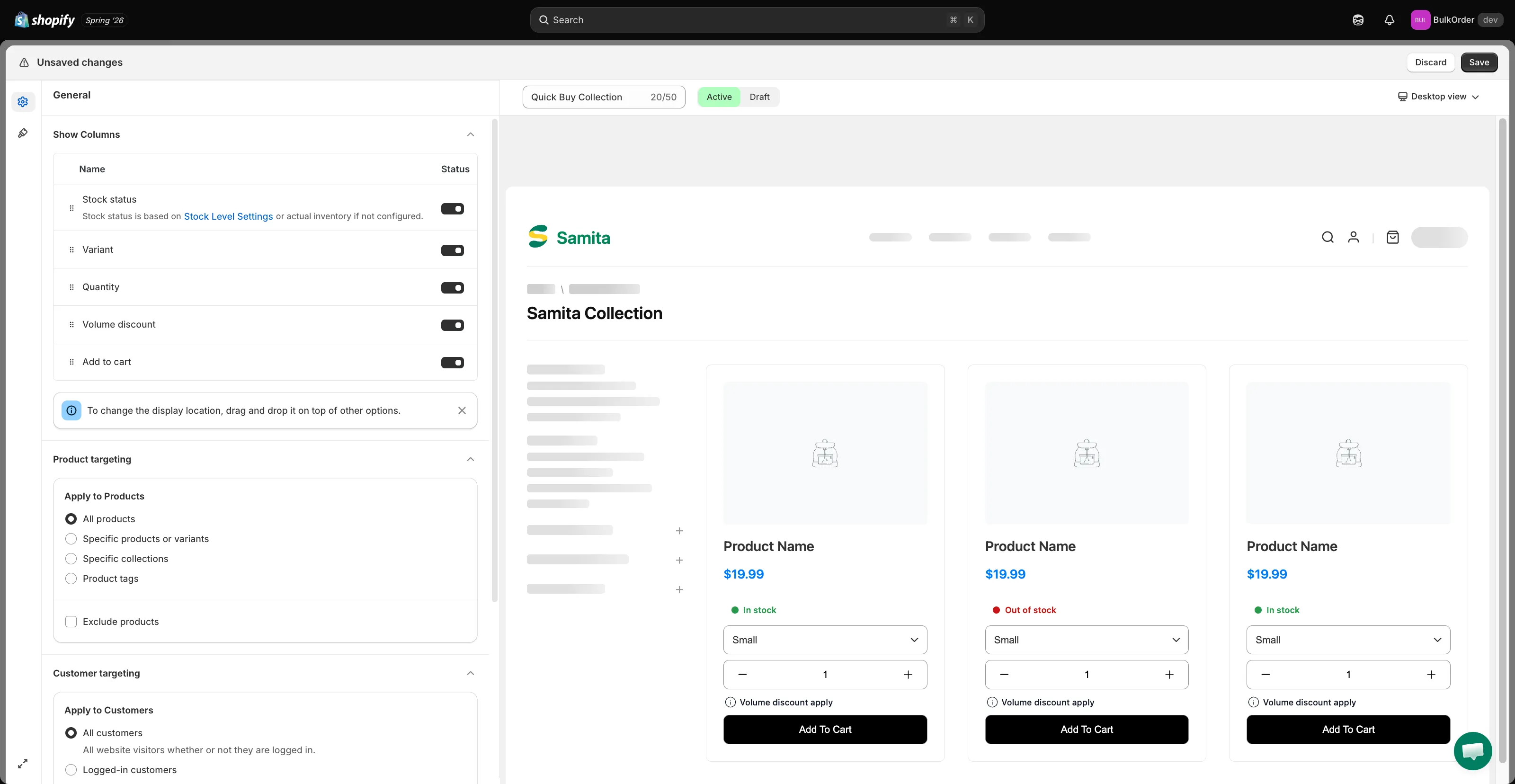
Section titled “Choose your columns”On the General tab, under Show Columns, there are 5 fields you can show: Stock status, Variant, Quantity, Volume discount, and Add to cart.
Turn on the toggle for each field you want, and drag-and-drop to reorder them.
-
Set when and where it appears
Section titled “Set when and where it appears”- Product targeting — apply Quick Buy to All products, Specific products or variants, Specific collections, or Product tags, and optionally Exclude products.
- Customer targeting — show it to All customers, Logged-in customers, or Customer tags, and optionally Exclude Customers.
- Page targeting — tick which pages it shows on: Home page, Collection page, Search page, and/or Another page (featured products and related products).
Design the Quick Buy feature
Section titled “Design the Quick Buy feature”-
Style it
Section titled “Style it”Click the Design tab (the paint-roller icon) and style the Add to cart button, Variant selector, and Quantity selector — colors, text size/weight, border width and radius. Check the live preview on the right to see your changes.
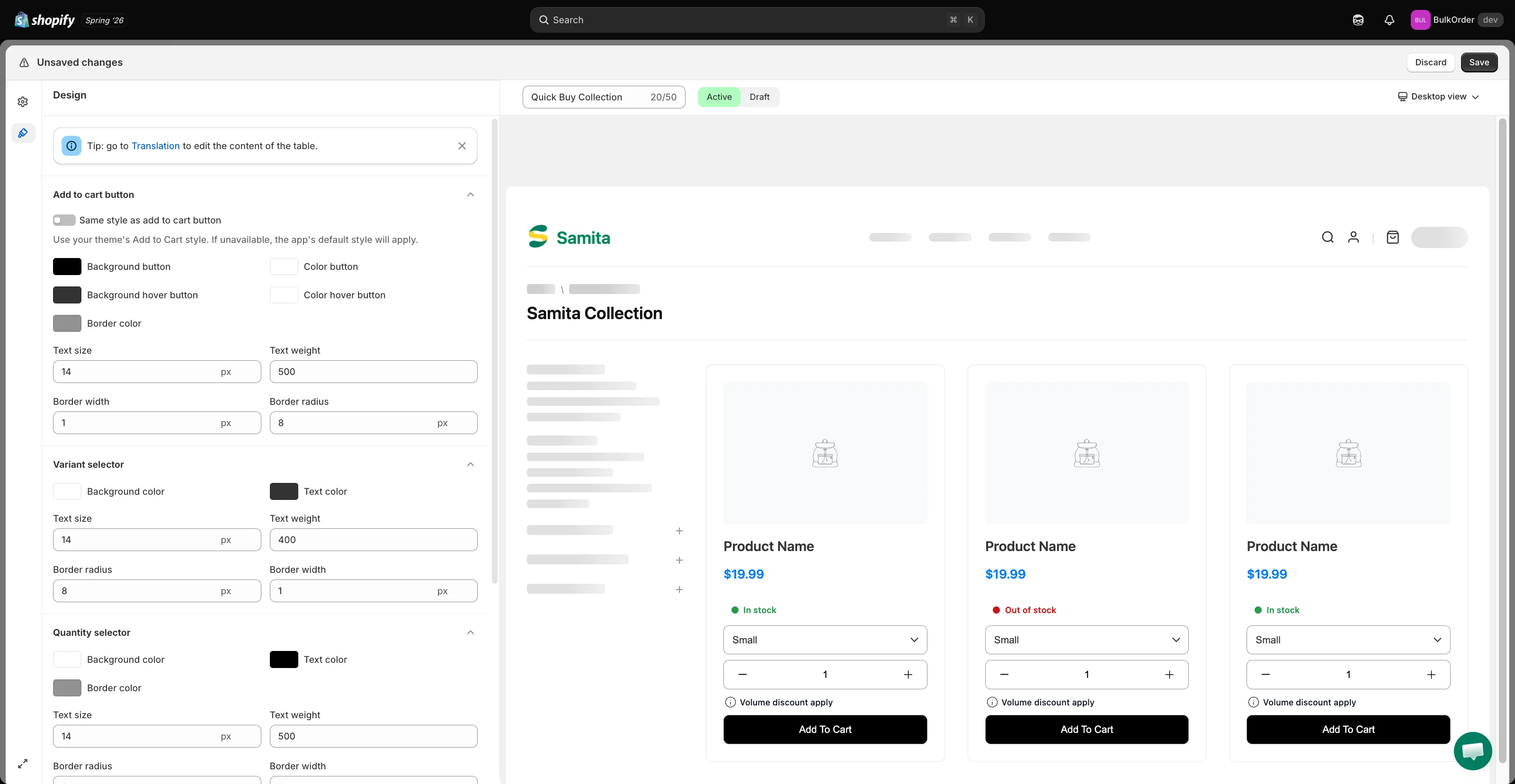
To make the cart button match your theme’s default Add to cart button, enable Same style as add to cart button.
-
Click Save, then check the result on your storefront.
-
Translate the text (optional)
Section titled “Translate the text (optional)”Click Translation in the tip shown on the Design tab, then choose Quick Buy Collection from the list.