
Tax Display
Show product prices with or without tax included, overriding Shopify's default tax display if you need to.
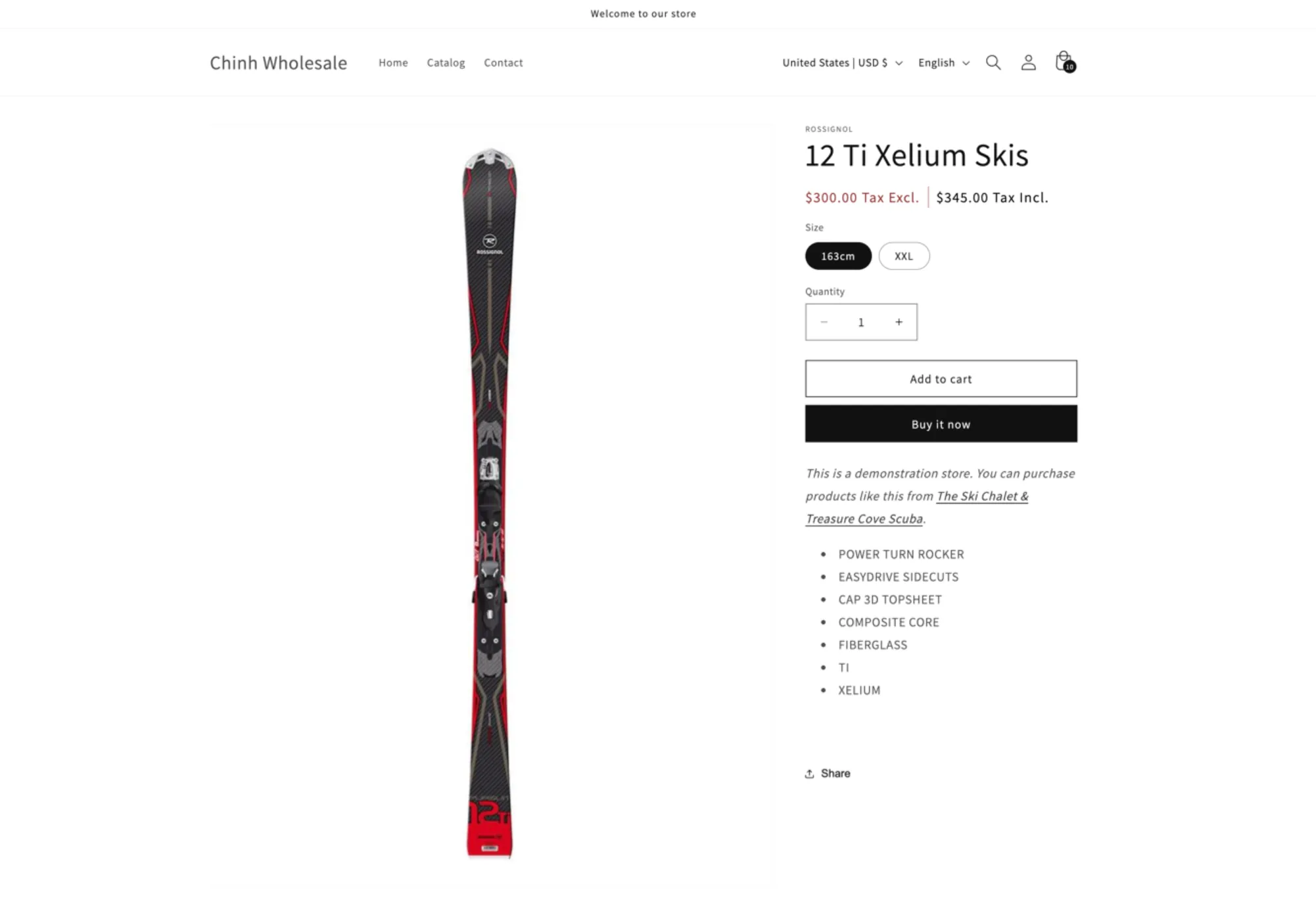
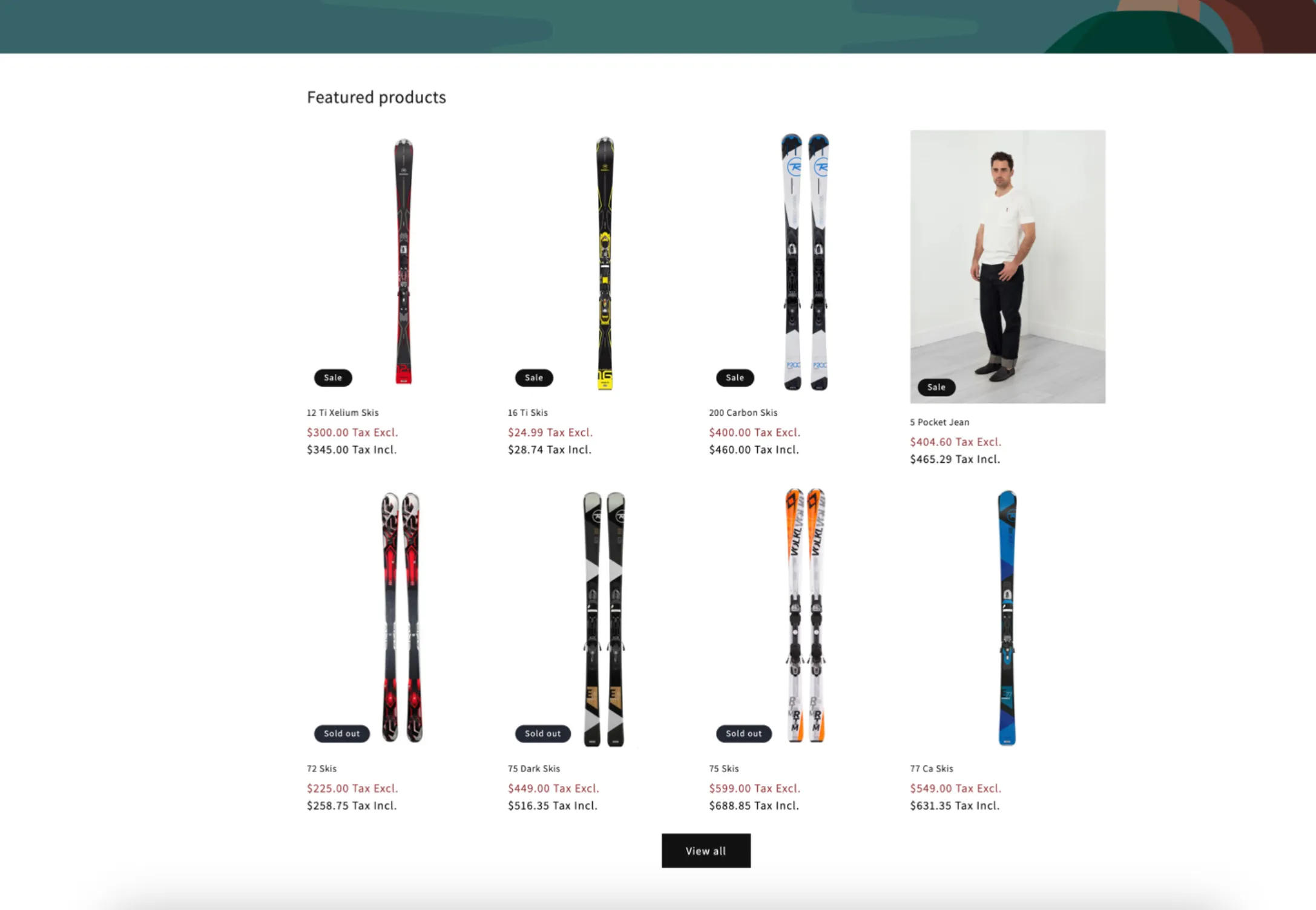
Tax Display controls whether your storefront shows prices with tax included or excluded. By default, the app follows your Shopify tax settings — but you can override that here.
When enabled, the app replaces your store’s prices with the adjusted version (including or excluding tax, as you’ve configured). If you also use wholesale pricing, those prices follow the same tax display rule.
Steps to manage
Section titled “Steps to manage”-
Open Tax display
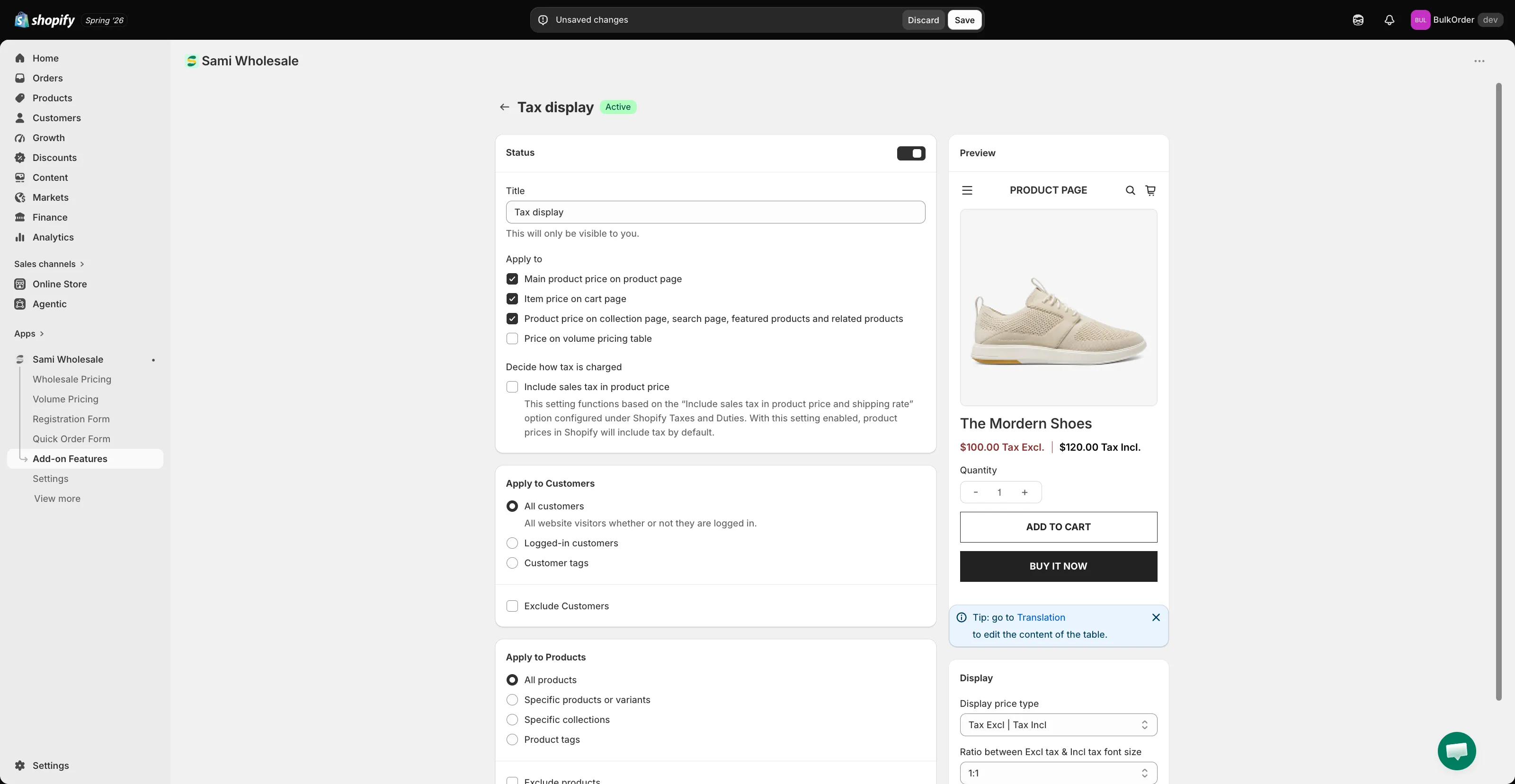
Section titled “Open Tax display”Open the app, go to Add-on Features, then click Tax display > Setup tax display, and click Create new tax display.
-
Choose where it shows
Section titled “Choose where it shows”Name it in Title, set its Status, then under Apply to tick which pages show this tax display: Main product price on product page, Item price on cart page, Product price on collection page, search page, featured products and related products, and/or Price on volume pricing table.
-
Understand how tax is charged
Section titled “Understand how tax is charged”This depends on Decide how tax is charged — the Include sales tax in product price checkbox — which mirrors Shopify’s own Include sales tax in product price and shipping rate setting under Shopify Taxes and Duties.
- When that Shopify option is off (default): the base price is treated as tax-excluded. Price including tax = base price + tax. Example: $100 base, 10% tax → $100 excluding tax, $110 including tax.
- When that Shopify option is on: the base price is treated as tax-included. Price excluding tax = base price − tax. Example: $100 base, 10% tax → $100 including tax, ~$90 excluding tax.
-
Choose which customers see it
Section titled “Choose which customers see it”Under Apply to Customers, choose All customers, Logged-in customers, or Customer tags. Tick Exclude Customers to hide it from certain customers.
-
Choose which products it applies to
Section titled “Choose which products it applies to”Under Apply to Products, choose All products, Specific products or variants, Specific collections, or Product tags.
-
Choose the display format
Section titled “Choose the display format”Scroll down to Display, then choose the Display price type — for example Tax Excl | Tax Incl to show both — and set the Ratio between Excl tax & Incl tax font size. Check the Preview panel to see how it looks.
-
Click Save.