
Extra Fee
Charge an extra fee for products that need special handling, and let customers know about it in the cart.
Extra Fee lets you charge customers for the extra work behind a special order — for example, a product that needs specific ingredients or extra prep time. The app adds the fee automatically and shows customers a notice in the cart.
Steps to manage
Section titled “Steps to manage”-
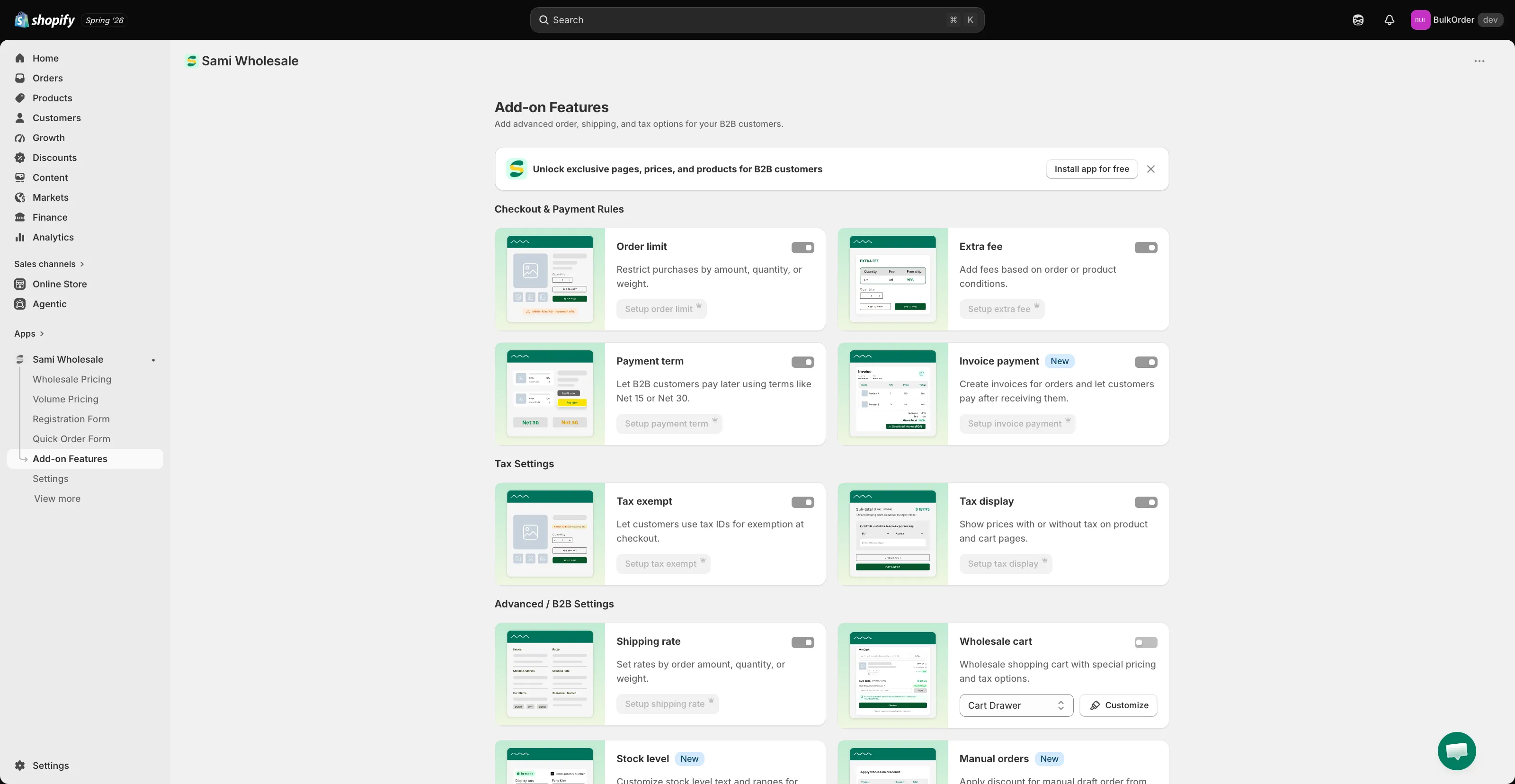
Open Extra fee
Section titled “Open Extra fee”Open the app, go to Add-on Features, then click Extra fee > Setup extra fee.
-
Start a new rule
Section titled “Start a new rule”Click Create new extra fee.
-
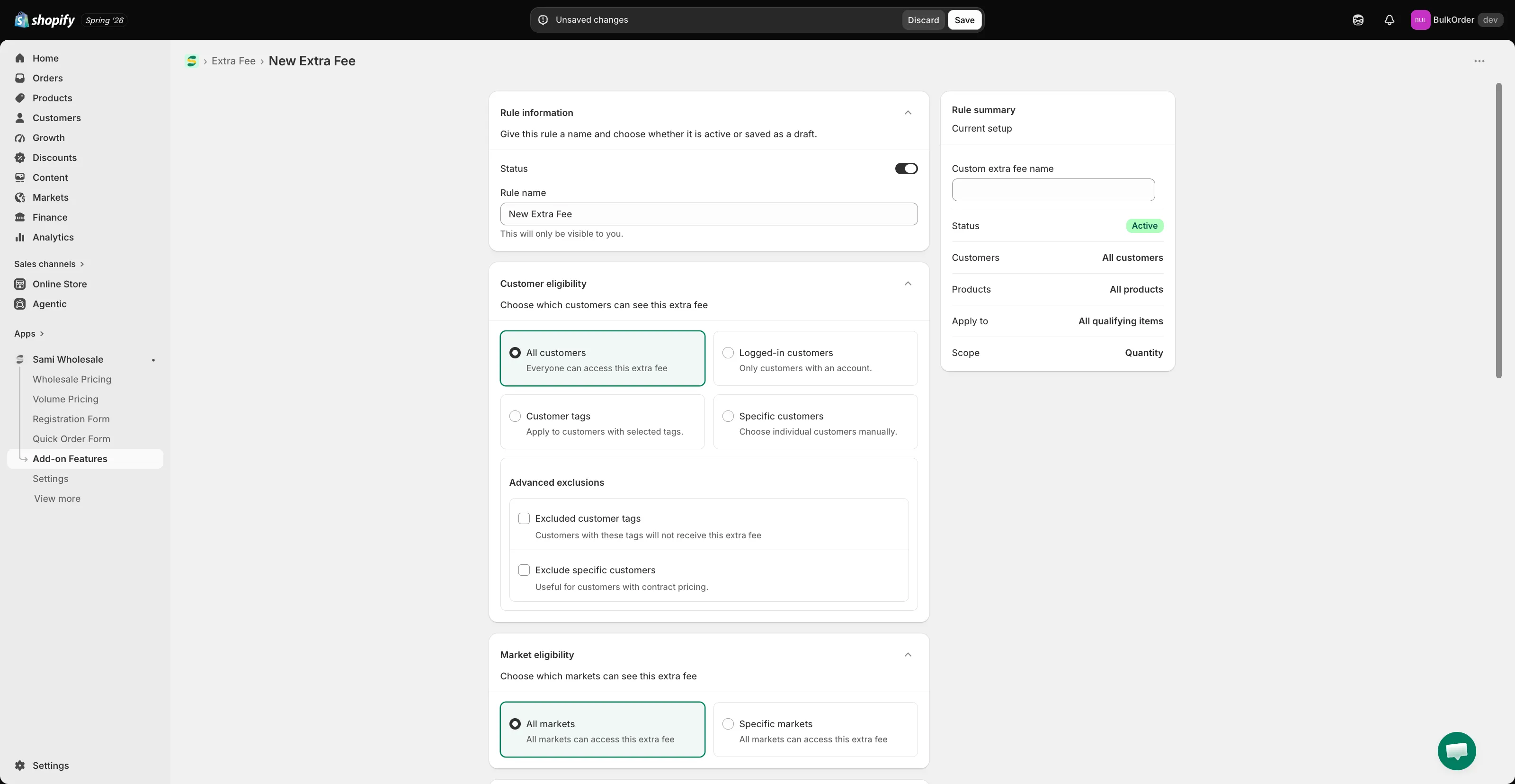
Name the rule
Section titled “Name the rule”Give the rule a title and set its status to active or draft. In Rule summary, set the fee name that shows at checkout.
-
Choose which customers it applies to
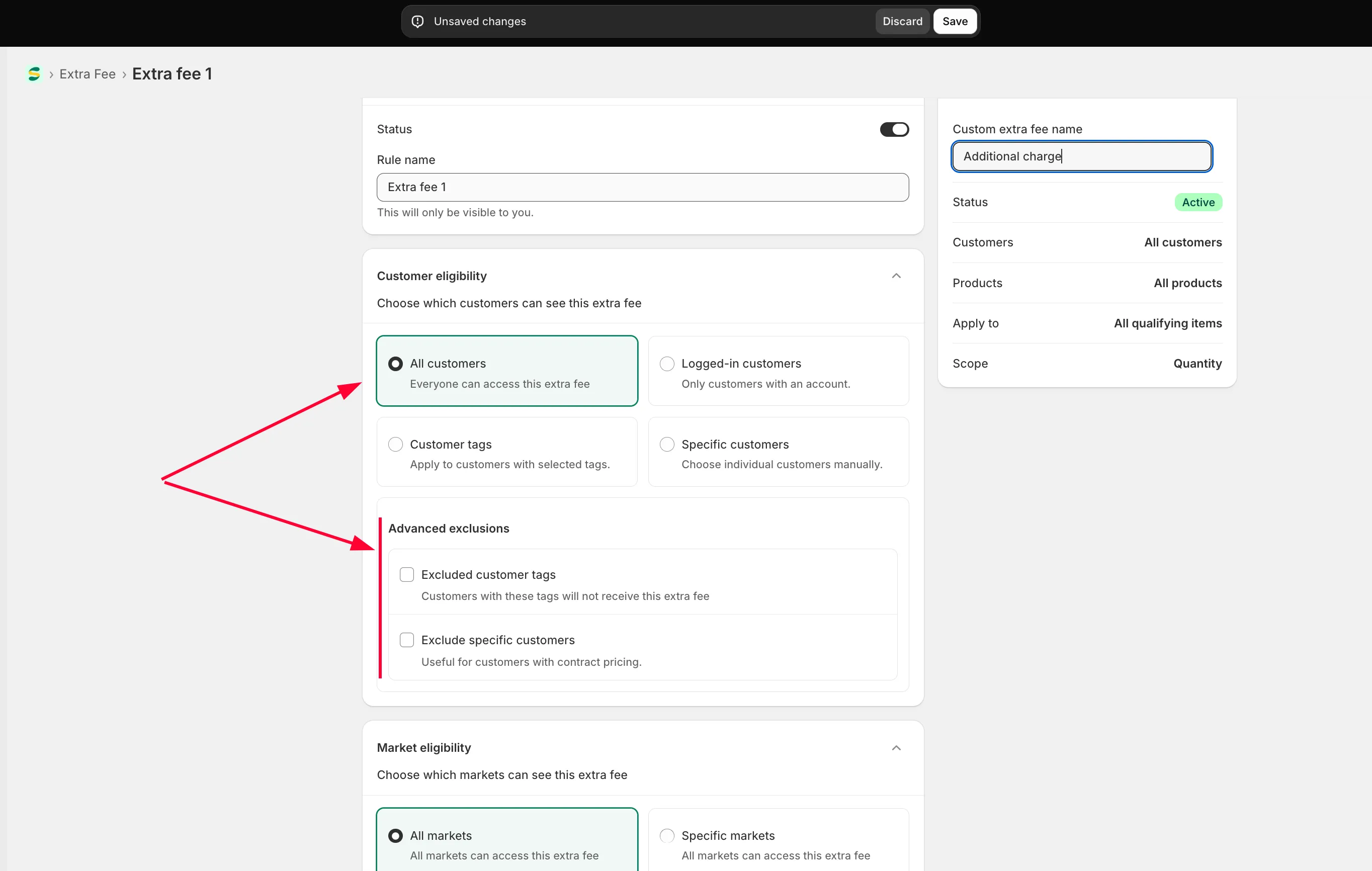
Section titled “Choose which customers it applies to”In Customer eligibility, choose:
- All customers — everyone.
- Logged-in customers — only customers logged in to your store.
- Specific customers — one or a few chosen customer accounts.
- Customer tags — only logged-in customers with the tag you specify.
You can also exclude specific customers.
-
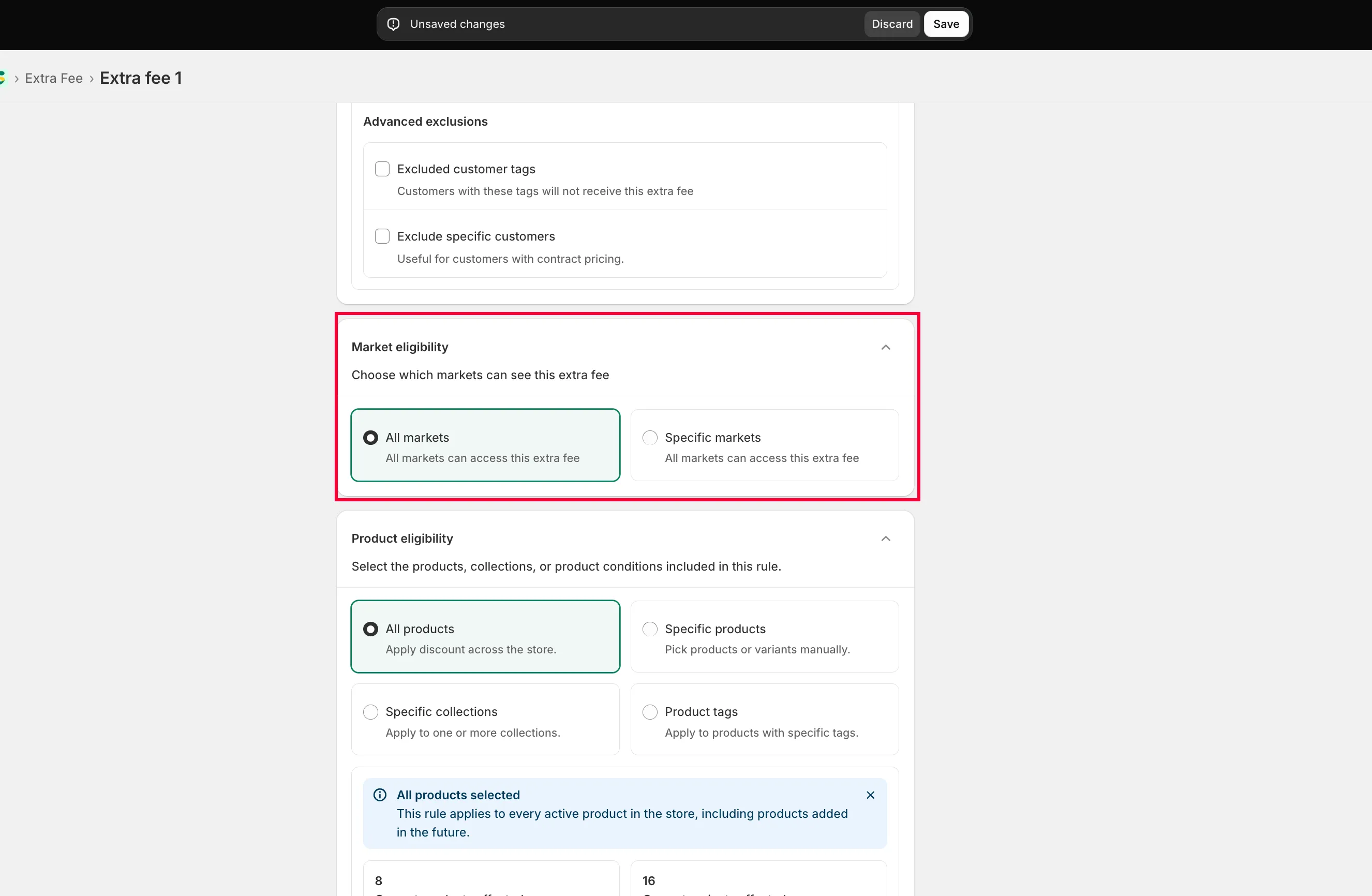
Choose a market
Section titled “Choose a market”In Market eligibility, choose Specific markets and tick the ones you want, or choose All markets.
-
Choose which products it applies to
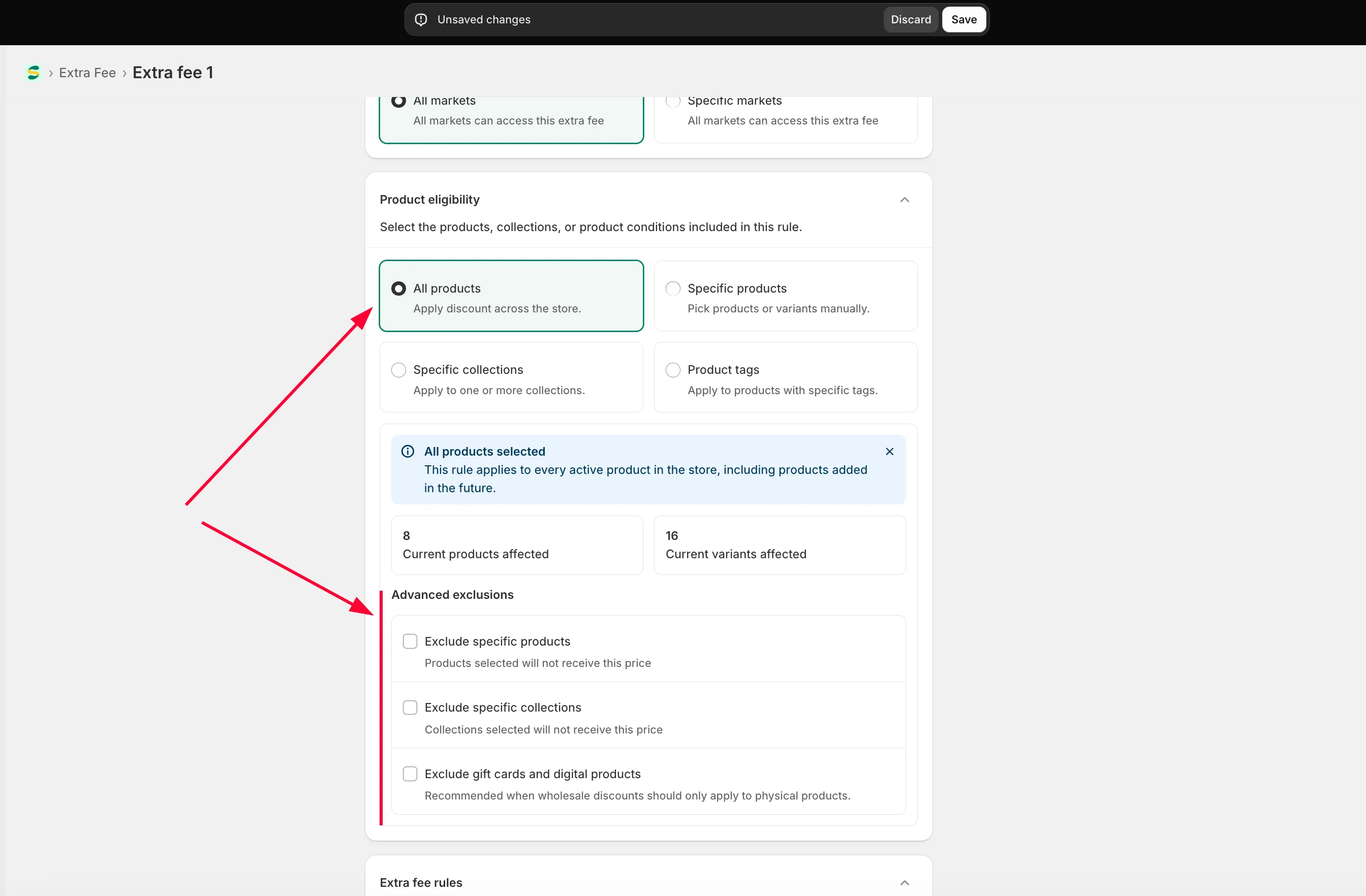
Section titled “Choose which products it applies to”In Product eligibility, choose All products, Specific products, Specific collections, or Product tag — and optionally exclude specific products.
-
Configure the fee
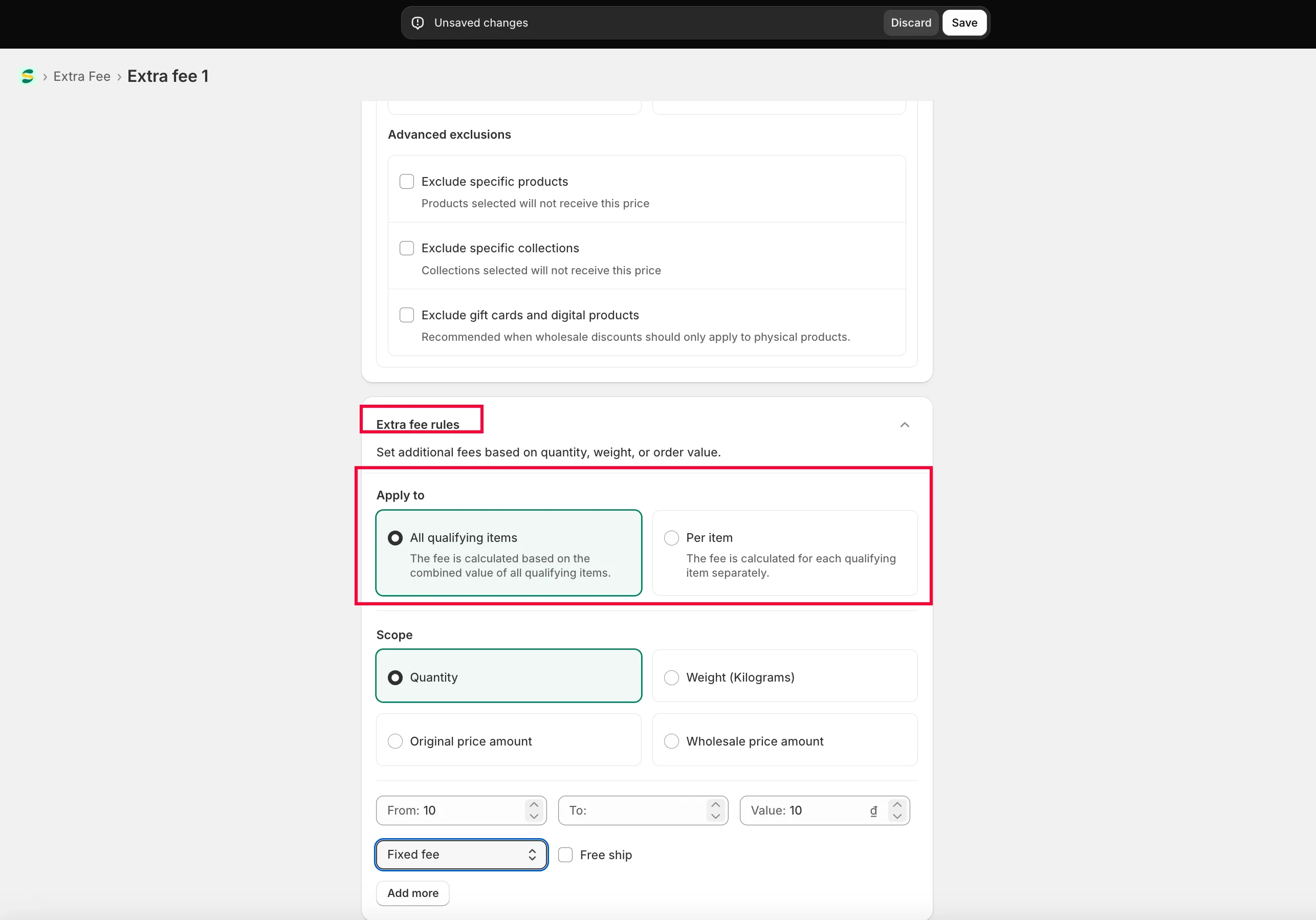
Section titled “Configure the fee”Choose the extra fee type:
- All qualifying items — the fee applies once the combined quantity or value of all eligible products meets your condition.
- Per item — the fee applies whenever any individual product’s quantity or value meets your condition.
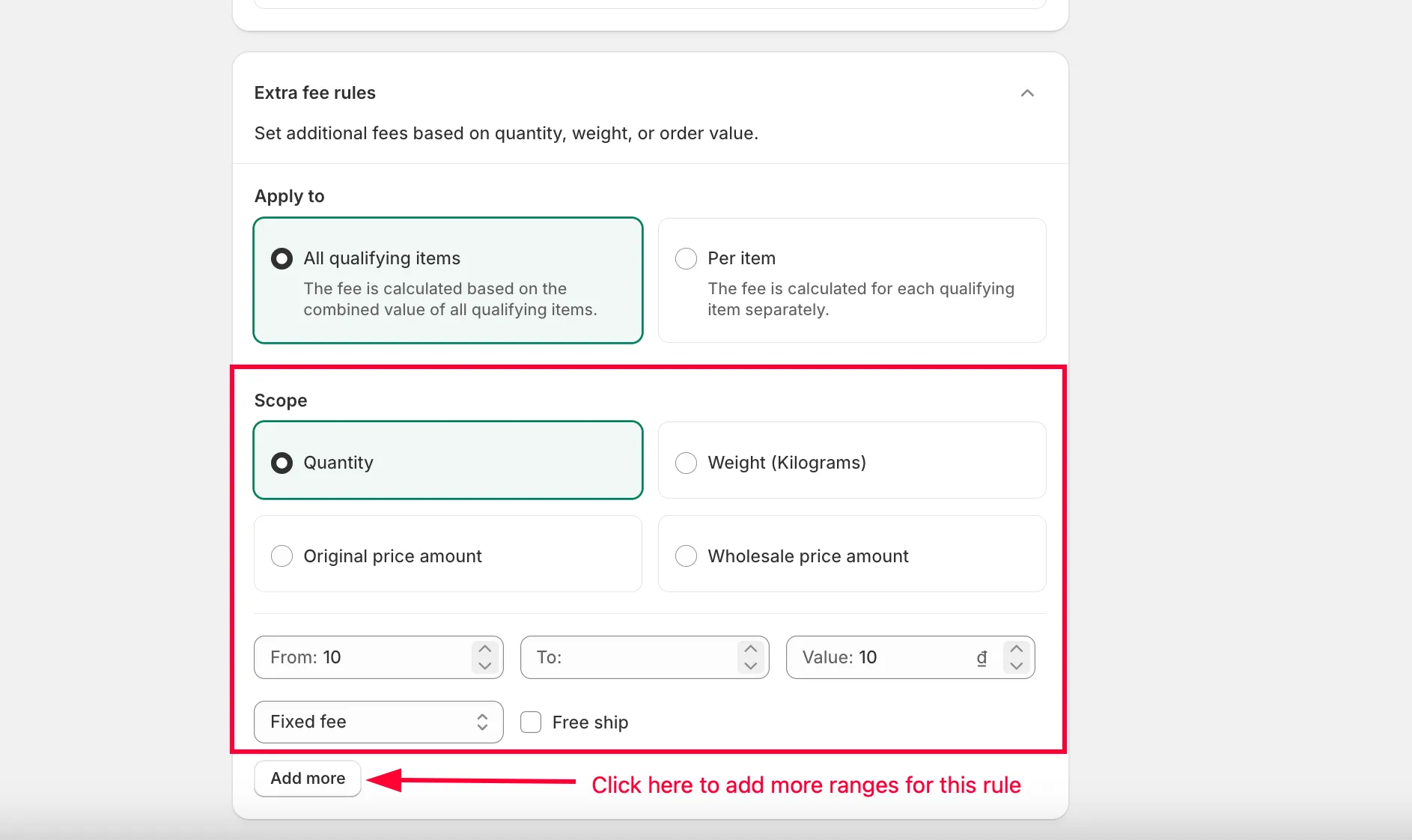
Then choose the scope — quantity, amount, or weight — and set the range (from … to …).
-
Multiply the fixed fee by quantity (optional)
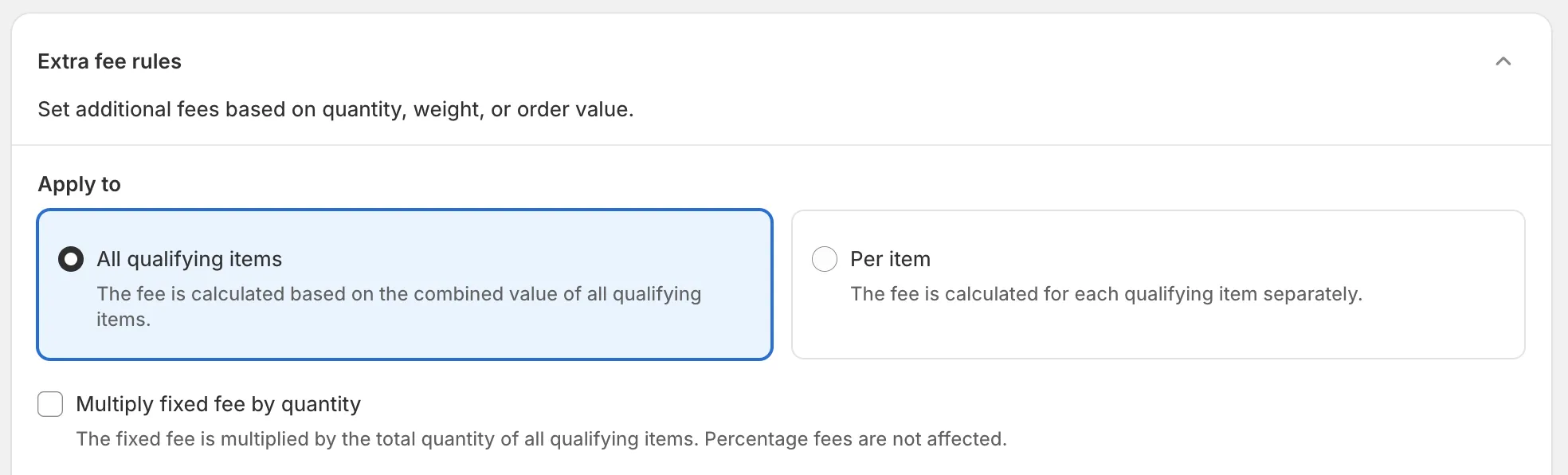
Section titled “Multiply the fixed fee by quantity (optional)”Right under Apply to, tick Multiply fixed fee by quantity to charge a Fixed fee for every unit of the qualifying items, instead of once:
- With All qualifying items, the fee is multiplied by the total quantity of all qualifying items in the cart.
- With Per item, the fee is multiplied by the quantity of each qualifying item, so each item gets its own multiplied fee.
For example, with a tier of 1–10 units and a fixed fee of $5, a customer buying 7 units is charged $35. The tier is still picked from the scope you set above (quantity, amount, or weight) — only the fixed amount is multiplied. Percentage fees are never multiplied, even with this option on.
On the storefront, the extra fee table shows the fee as “$5.00 / unit” so customers know it’s charged per unit. At checkout, the fee appears as a single line with the full amount (for example “Handling fee — $35.00”). To edit or translate the “/ unit” text, go to Settings > Translations, choose Extra Fee, and edit Per unit — see Edit and translate content for some of the app’s features.
-
Charge tax on the fee (optional)
Section titled “Charge tax on the fee (optional)”Tick Charge tax on this fee to make the fee taxable. Shopify then calculates tax on the fee at checkout based on your store’s tax settings, the same way it taxes any other line. Leave it unticked to keep the fee tax-free.

-
Click Save.
Need support?
Section titled “Need support?”If you do encounter any difficulty while proceeding these steps, don’t show any hesitation to contact us promptly via the email address support@samita.io.