
Let customers propose a price
Let customers enter the price they are hoping to pay in their quote cart, so you see their offer before you reply.
Instead of only asking for quantities, you can let customers tell you what they would like to pay. Their figure arrives with the quote, so the conversation starts with their budget already on the table.
Show the Price column
Section titled “Show the Price column”-
Open the quote cart settings
Section titled “Open the quote cart settings”In the app, go to Quote settings and click Customize, then open the Quote cart page tab.
-
Find Product list columns
Section titled “Find Product list columns”Product list columns is described as “The product details shown as columns in the customer’s quote cart.” The options include Option, Price and Total.
-
Add the Price column
Section titled “Add the Price column”Include Price so each product in the quote cart carries a price. Total is worth including alongside it, so the customer can see what their offer adds up to.
Allow customers to edit prices
Section titled “Allow customers to edit prices”-
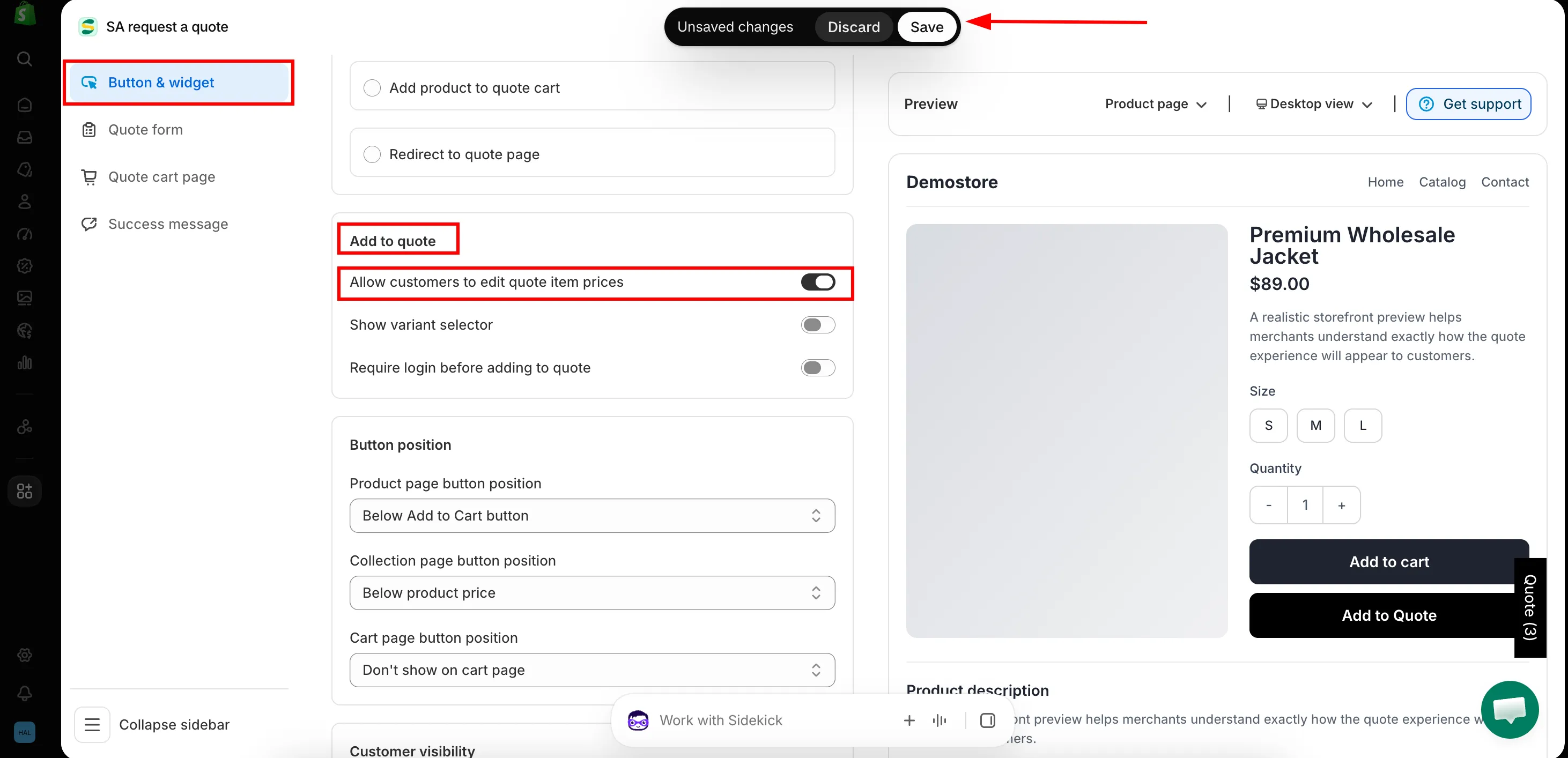
Open the button settings
Section titled “Open the button settings”Still in Customize, open the Button & widget tab.
-
Tick the box
Section titled “Tick the box”In the Add to quote section, tick Allow customers to edit quote item prices, then save your changes.
What customers experience
Section titled “What customers experience”-
They add products to their quote
Section titled “They add products to their quote”With Click action set to Add product to quote cart, the customer clicks your quote button and the product goes into their quote cart.
-
They enter their own price
Section titled “They enter their own price”The quote cart lists each product with Quantity, Price and Total, so the price sits right next to the quantity the customer is asking for.
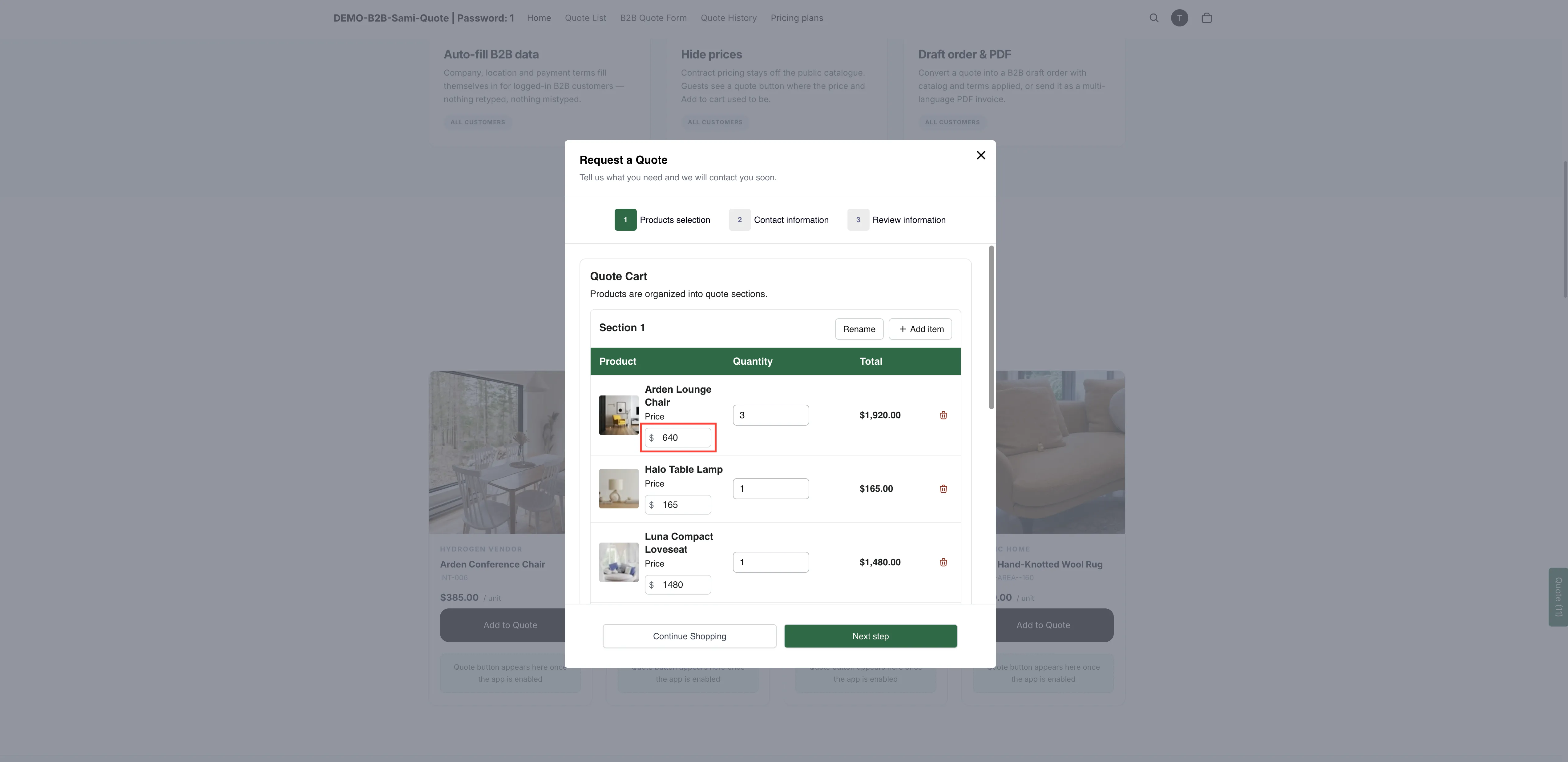
With customer pricing on, buyers name the figure they are after.
-
They send the request
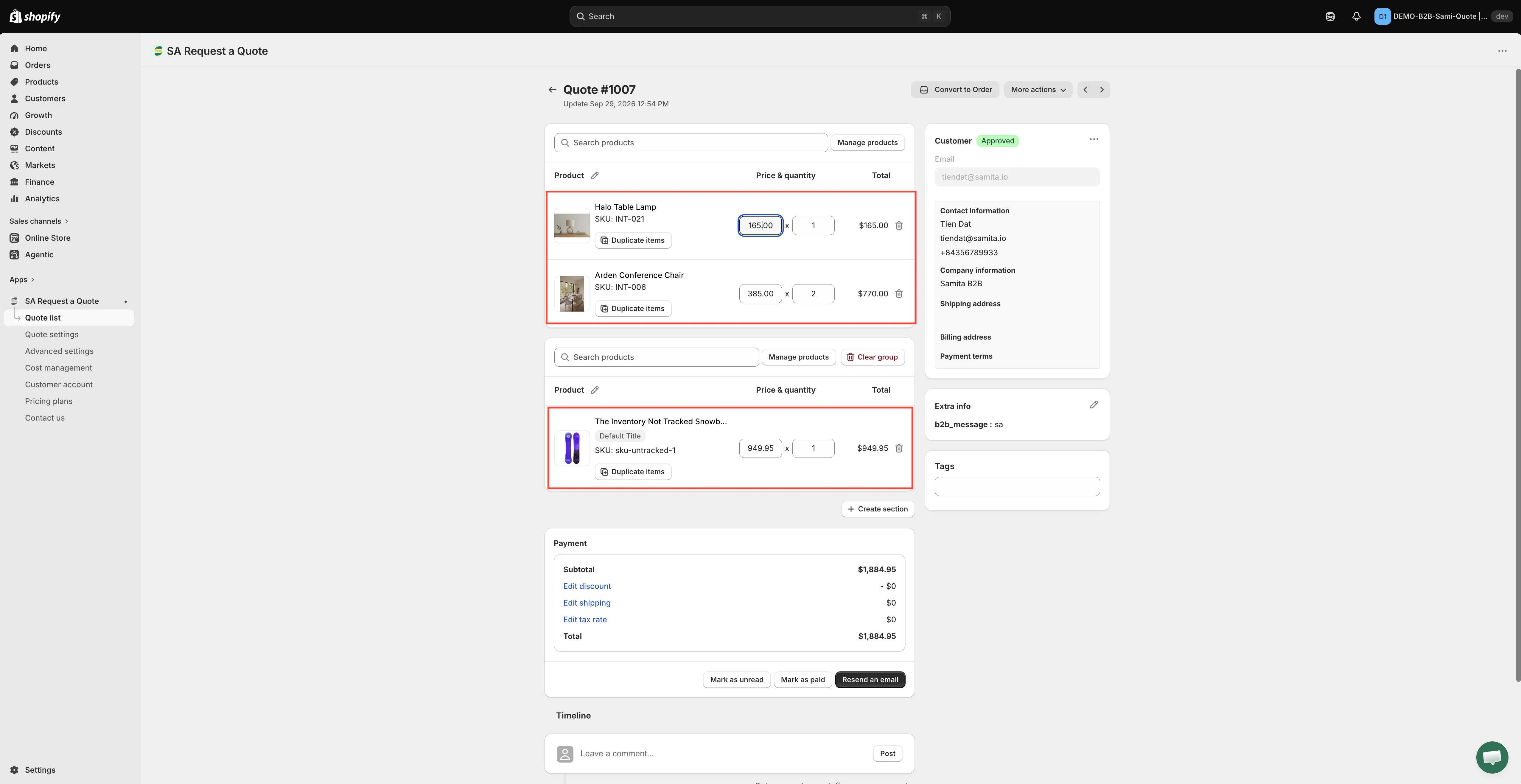
Section titled “They send the request”They fill in the rest of the form and submit. Their proposed price arrives with the quote in your Quote list.
Should you turn it on?
Section titled “Should you turn it on?”It works well for trade buyers who are comparing suppliers and know the going rate. It works badly on a consumer-facing store, where it invites lowball offers you then have to turn down. If you are unsure, leave it off and let the quantity do the negotiating.
Next steps
Section titled “Next steps”- View and edit a quote — set your own price and reply
- Set the after-click behavior — get customers to the quote cart in the first place
- Request a Quote page — the quote cart page these columns appear on