
Change badge size
Resize text and image badges for desktop, mobile, product pages, and listing pages.
Use the Size section in the badge editor to resize a badge everywhere or set a different size for each device and page type.
Open the Size section
Section titled “Open the Size section”-
Open Badges & Labels
Section titled “Open Badges & Labels”In Shopify admin, open Sami Product Labels > Badges & Labels.
-
Select a badge
Section titled “Select a badge”Find the badge you want to resize, then click Edit badge/label in its row.
To resize a new badge instead, click Create badge and choose Text badge or Image badge.
-
Expand Size
Section titled “Expand Size”In the badge editor, stay on the Design tab, scroll to Size, and expand the section.
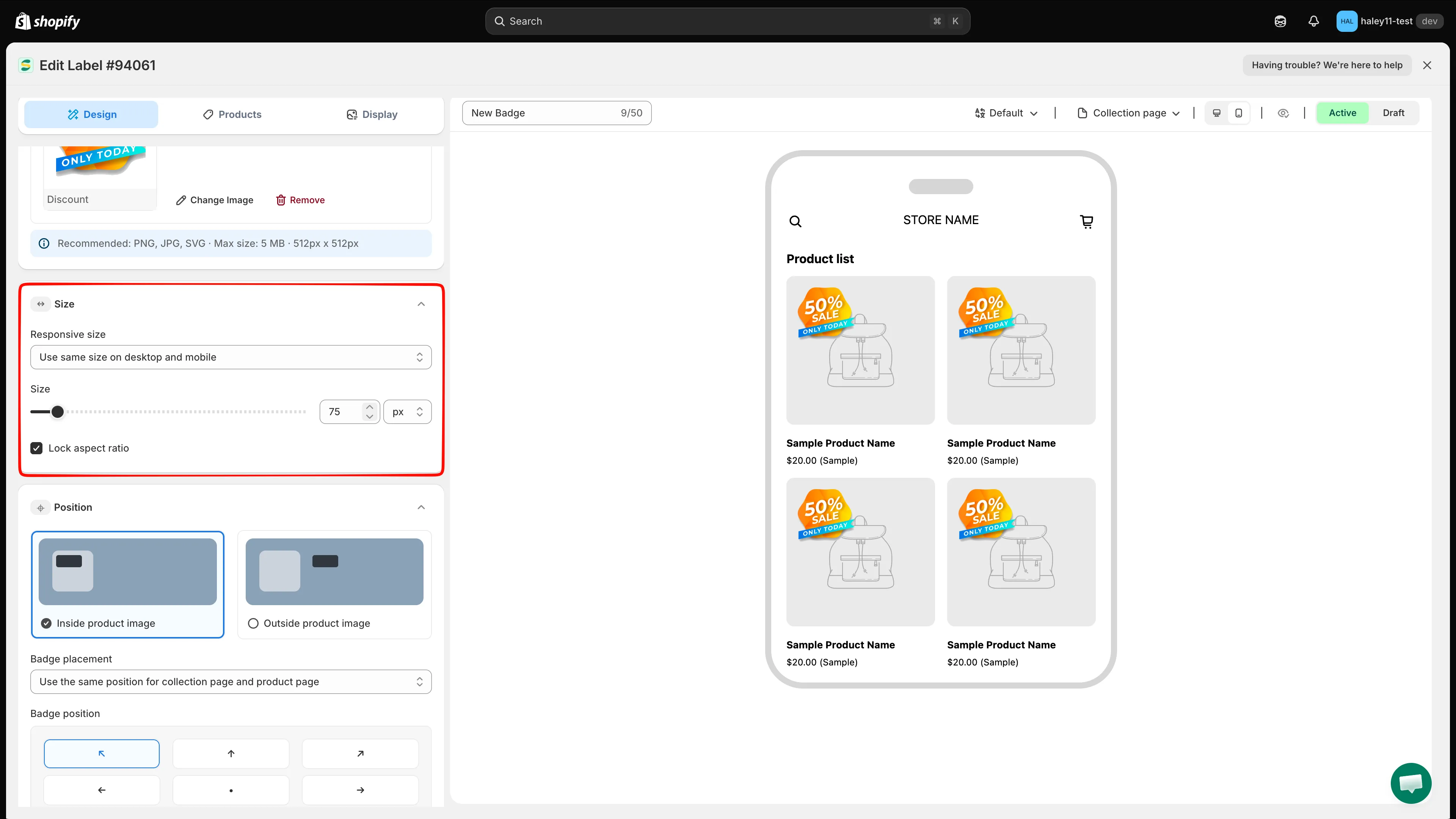
Open a badge, stay on Design, and expand Size.
Use one size on desktop and mobile
Section titled “Use one size on desktop and mobile”Under Responsive size, keep Use same size on desktop and mobile selected when the badge should use one set of dimensions on every device and supported page preview.
- For a text badge, set Width and Height separately.
- For an image badge with Lock aspect ratio enabled, use the Size slider or Width field. The height changes automatically to preserve the image proportions.
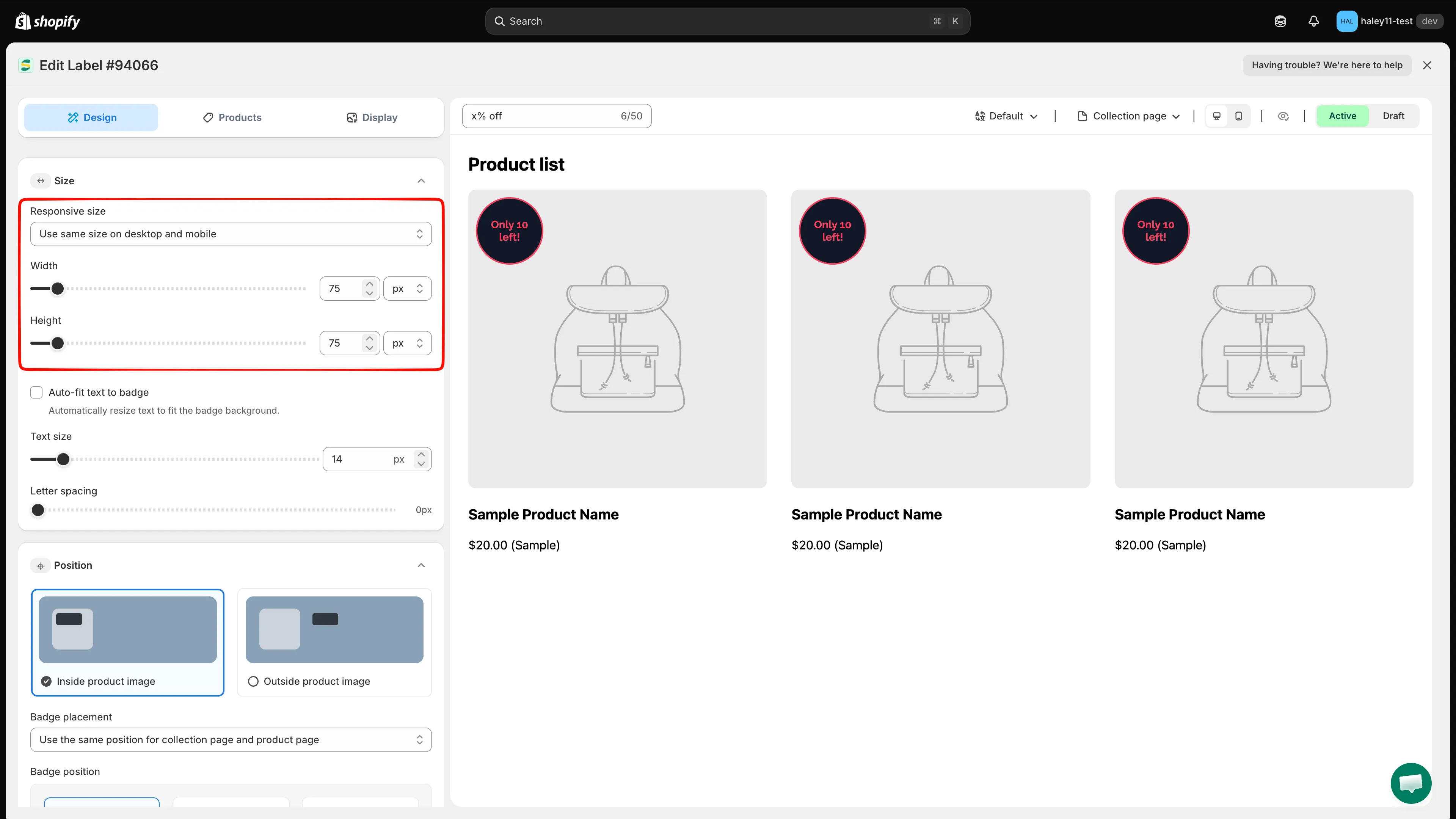
Use one set of dimensions for desktop and mobile.
Customize each device and page type
Section titled “Customize each device and page type”Select Customize desktop and mobile separately when the badge needs different dimensions in different contexts.
- Choose Desktop or Mobile.
- Choose Product page size or Listing pages size.
- Set the dimensions for that combination.
- Repeat for the other device and page combinations as needed.
| Selection | Where the size applies |
|---|---|
| Desktop > Product page size | Product pages on desktop |
| Desktop > Listing pages size | Listing pages, including collection pages, on desktop |
| Mobile > Product page size | Product pages on mobile |
| Mobile > Listing pages size | Listing pages, including collection pages, on mobile |
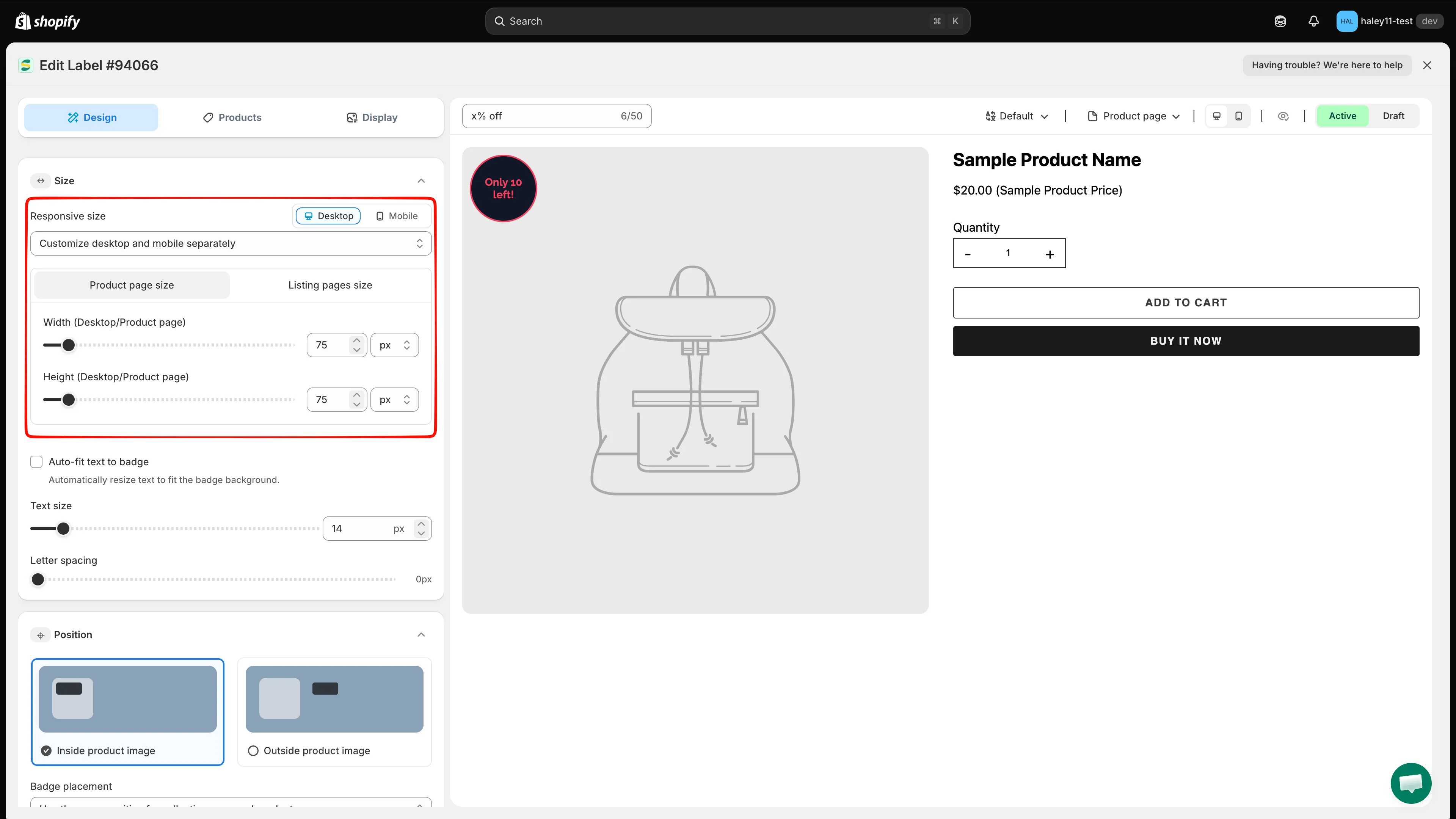
Select a device and page type, then set the size for that combination.
Choose a size unit
Section titled “Choose a size unit”Each dimension can use one of these units:
| Unit | Use it when |
|---|---|
| px | You need an exact dimension in pixels. |
| % | You want the badge to scale relative to the available product-image area. Preview the result on each page type and device. |
For a text badge, Width and Height have their own unit selectors. They do not need to use the same unit.
Adjust text badge size
Section titled “Adjust text badge size”Text badges provide additional controls below Width and Height:
- Auto-fit text to badge off — Set Text size as a fixed font size in pixels.
- Auto-fit text to badge on — The app automatically resizes the text to fit the badge background, and Text size becomes a percentage control.
- Letter spacing — Increase or reduce the space between characters in pixels.
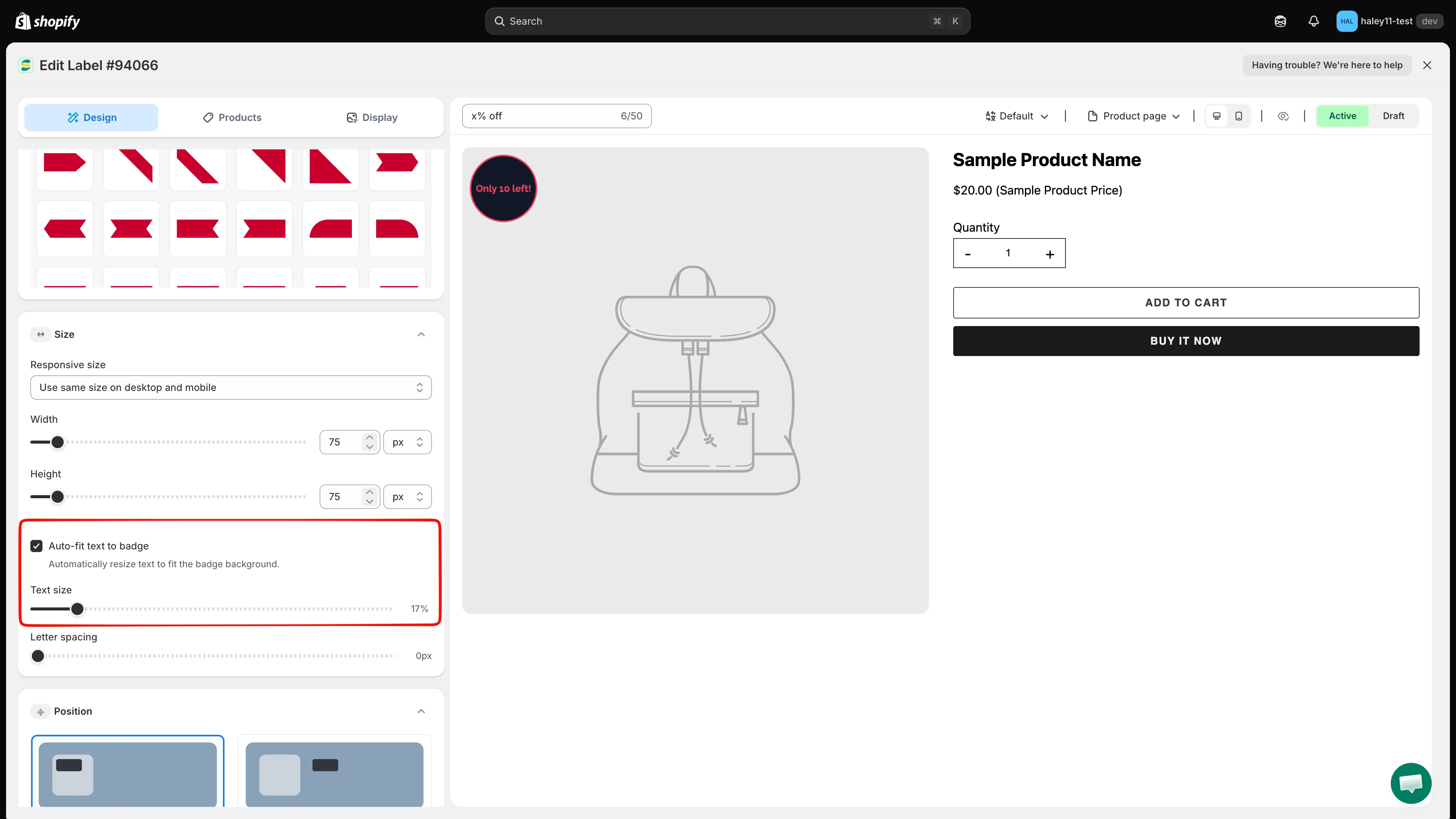
Enable Auto-fit text to badge to keep changing text inside the badge background.
Keep or change an image badge’s proportions
Section titled “Keep or change an image badge’s proportions”For image badges, Lock aspect ratio is enabled by default.
- Keep it enabled to resize the image with one Size or Width control while preserving the source proportions.
- Turn it off only when you need to set Width and Height independently. Changing them to a different ratio can stretch or squash the image.
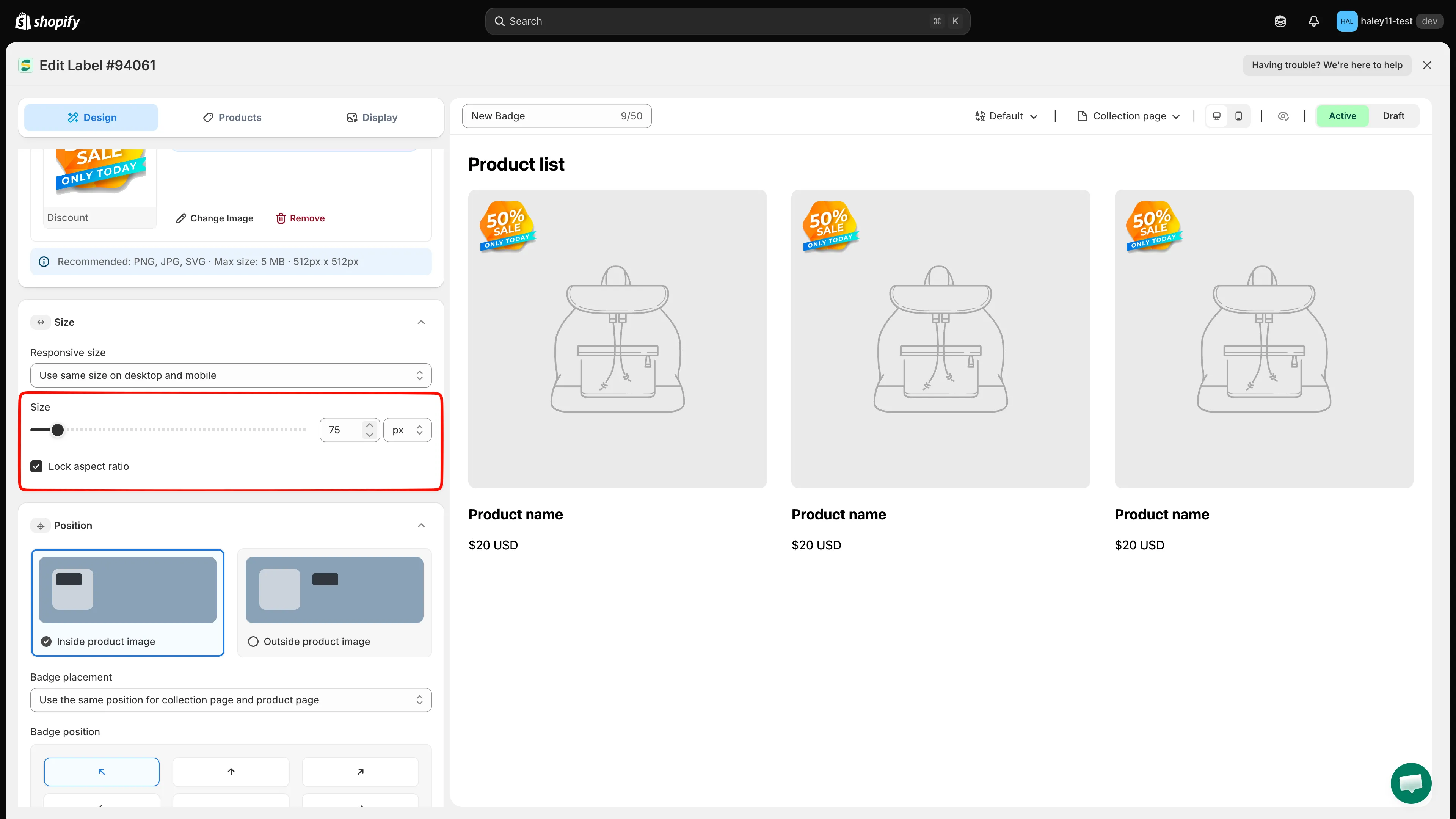
Keep Lock aspect ratio enabled to resize an image badge without distorting it.
Preview and save
Section titled “Preview and save”Use the preview toolbar to switch between Product page and Collection page, then check both Desktop view and Mobile view. When the badge looks correct in every required preview, click Save.
Next steps
Section titled “Next steps”- Change badge position — Place your badge at the right location on product images or page elements.
- Change badge style — Customize fonts, colors, borders, and visual effects.