
Duplicate and manage badges
Duplicate badges and use the bulk actions available on the Badges & Labels list: set as active, set as draft, and delete.
The Badges & Labels list in Sami Product Labels lets you duplicate badges, change their status, or delete them — for one badge or for several at once.
Duplicate badges
Section titled “Duplicate badges”Duplicating creates an exact copy of one or more badges, including all design settings, targeting rules, and display options.
-
Open Badges & Labels
Section titled “Open Badges & Labels”In Shopify admin, open Sami Product Labels > Badges & Labels.
-
Select the badges to duplicate
Section titled “Select the badges to duplicate”Tick the checkbox at the start of each badge row. To select every badge on the page, tick the checkbox in the table header.
A bar appears above the table showing how many badges are selected, for example 1 of 8 selected.
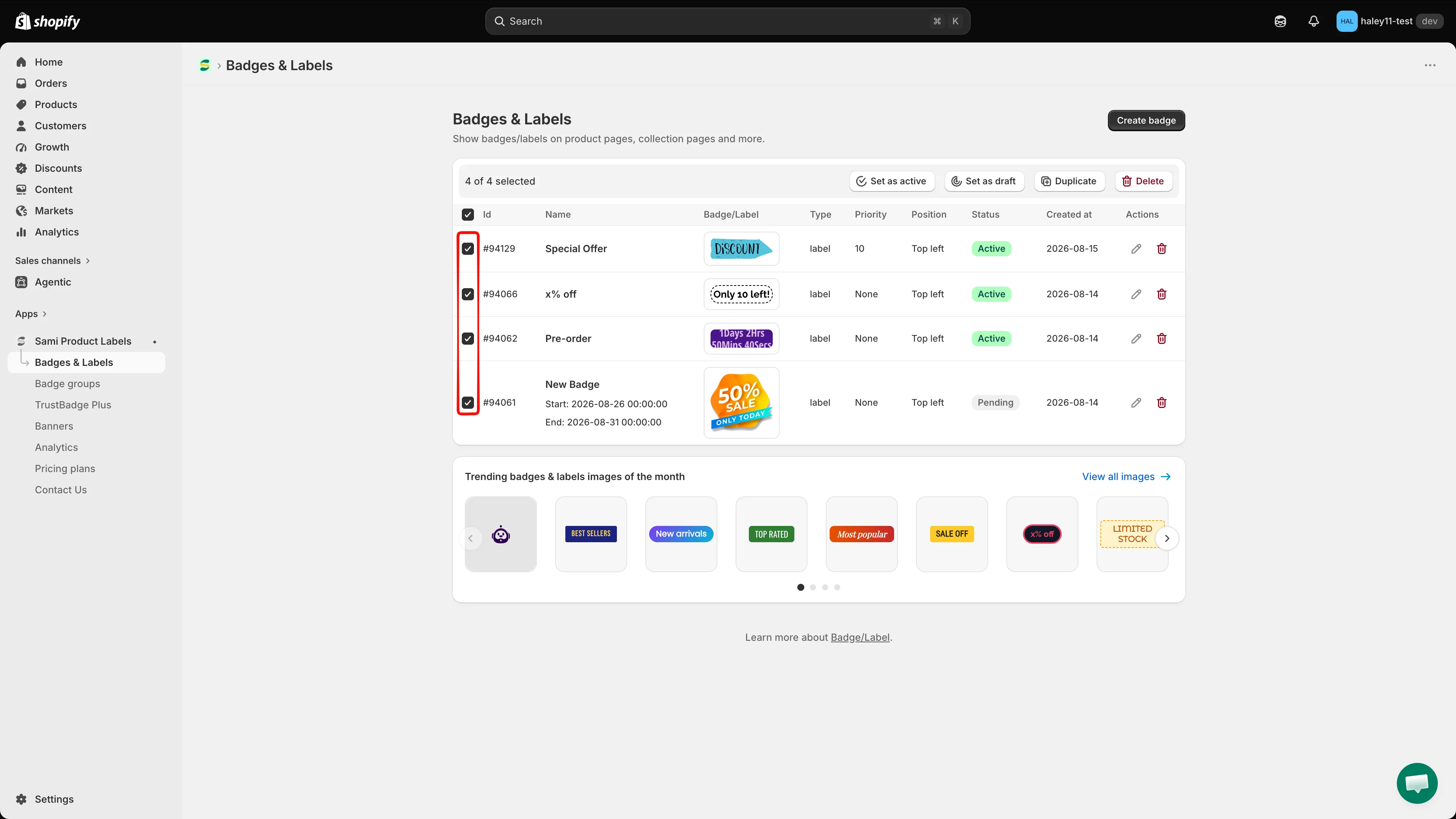
Tick one or more rows to reveal the bulk action bar.
-
Click Duplicate
Section titled “Click Duplicate”In the bulk action bar, click Duplicate. There is no confirmation dialog — the copies are created immediately and the message Badges/Labels duplicated appears.
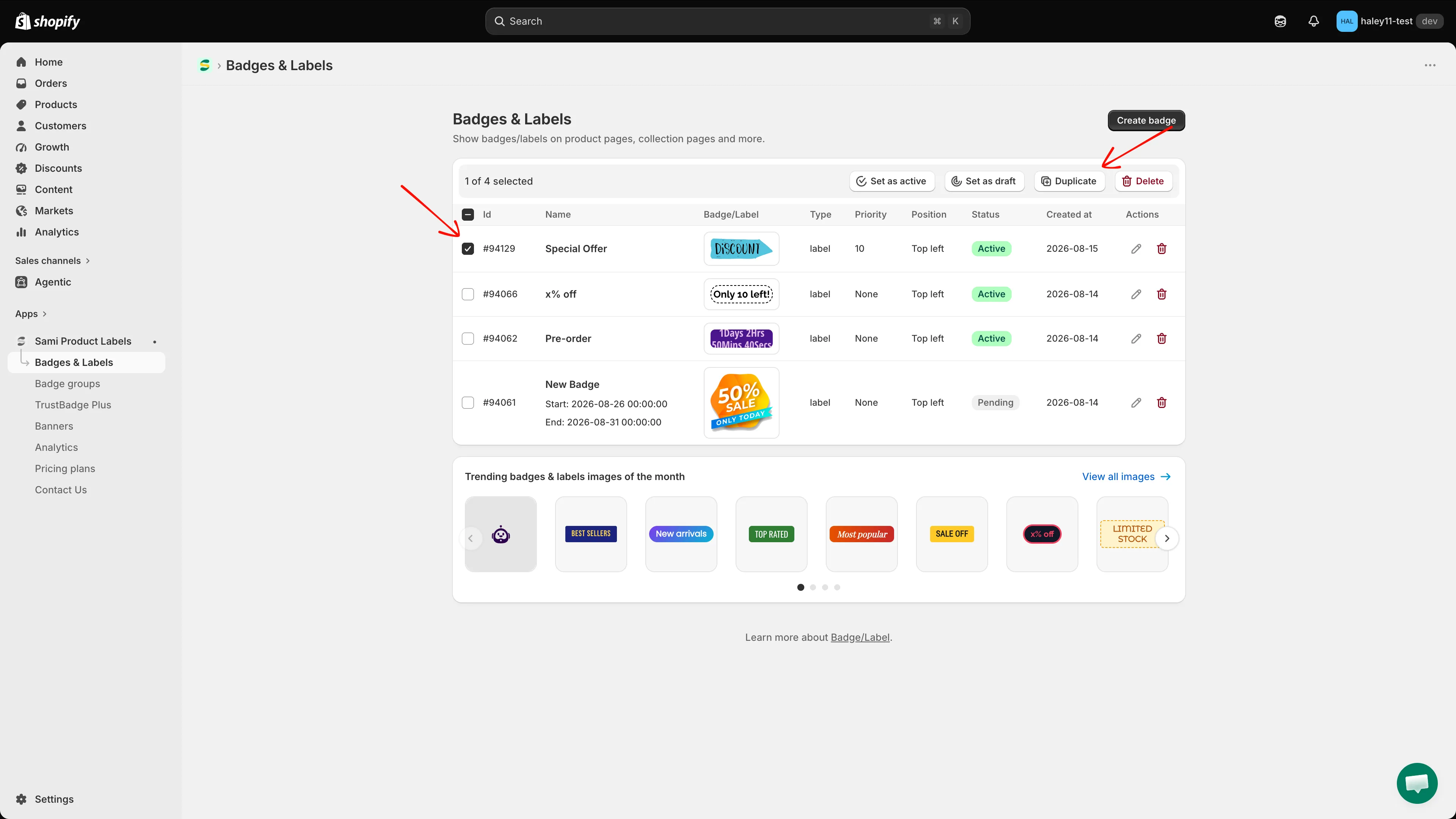
Click Duplicate to copy every selected badge.
-
Edit the duplicated badge
Section titled “Edit the duplicated badge”Each copy appears at the top of the list with a new Id, today’s date in Created at, the same name as the original, and the same status as the original.
If the original was Active, the copy is active right away and can already show in your store. Click the pencil icon (Edit) in the copy’s row to rename it and adjust its design or targeting.
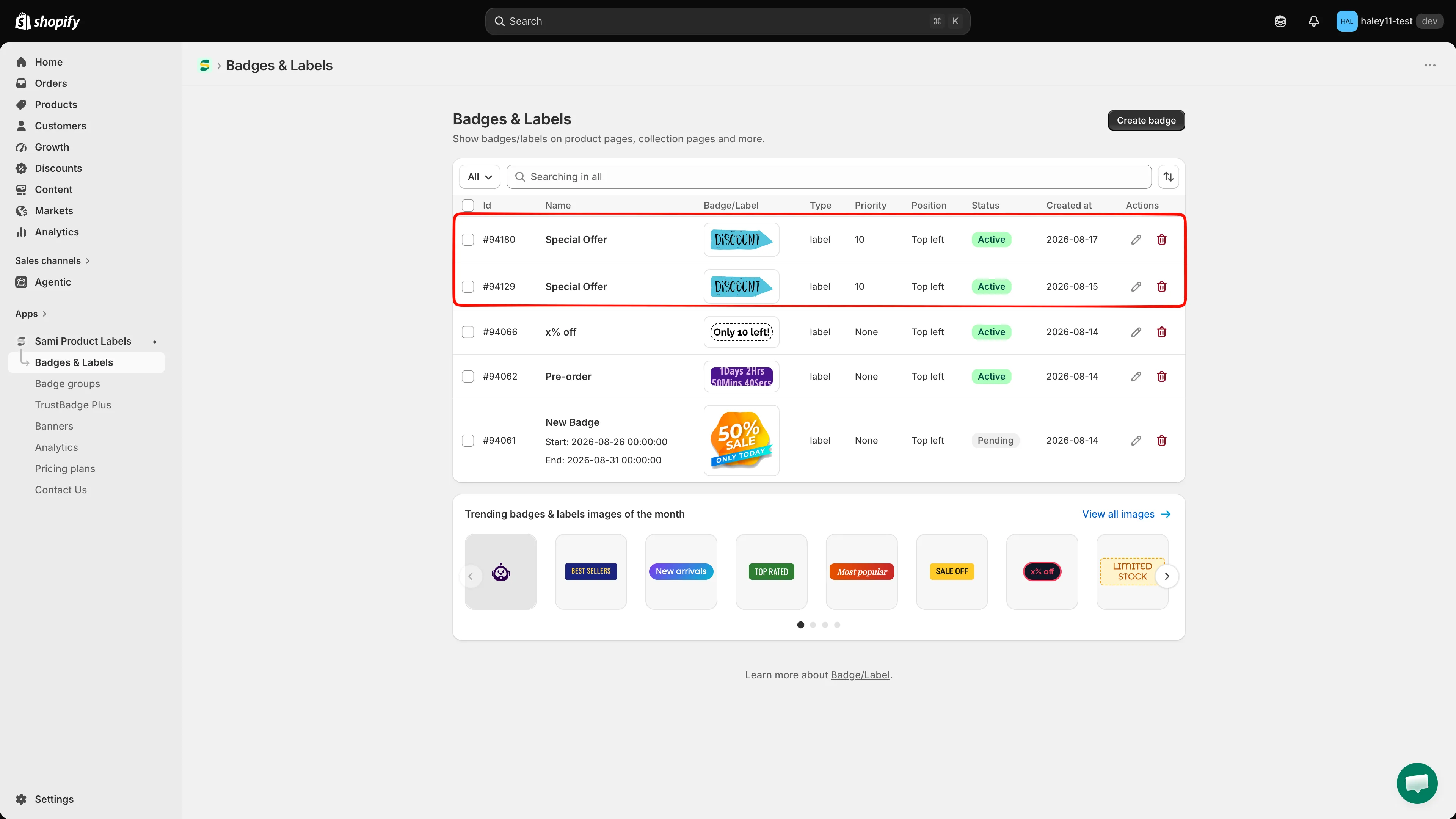
The copy keeps the original name, so rename it to tell them apart.
Bulk actions
Section titled “Bulk actions”The bulk action bar appears as soon as at least one badge is selected.
| Action | Description | Confirmation |
|---|---|---|
| Bulk edit | Opens the selected badges in a grid to change their settings at once — see Bulk edit badges | No |
| Set as active | Sets every selected badge to Active so it can appear in your store | Yes |
| Set as draft | Sets every selected badge to Draft — it stops showing but is not deleted | Yes |
| Duplicate | Creates a copy of every selected badge | No |
| Delete | Permanently removes every selected badge | Yes |
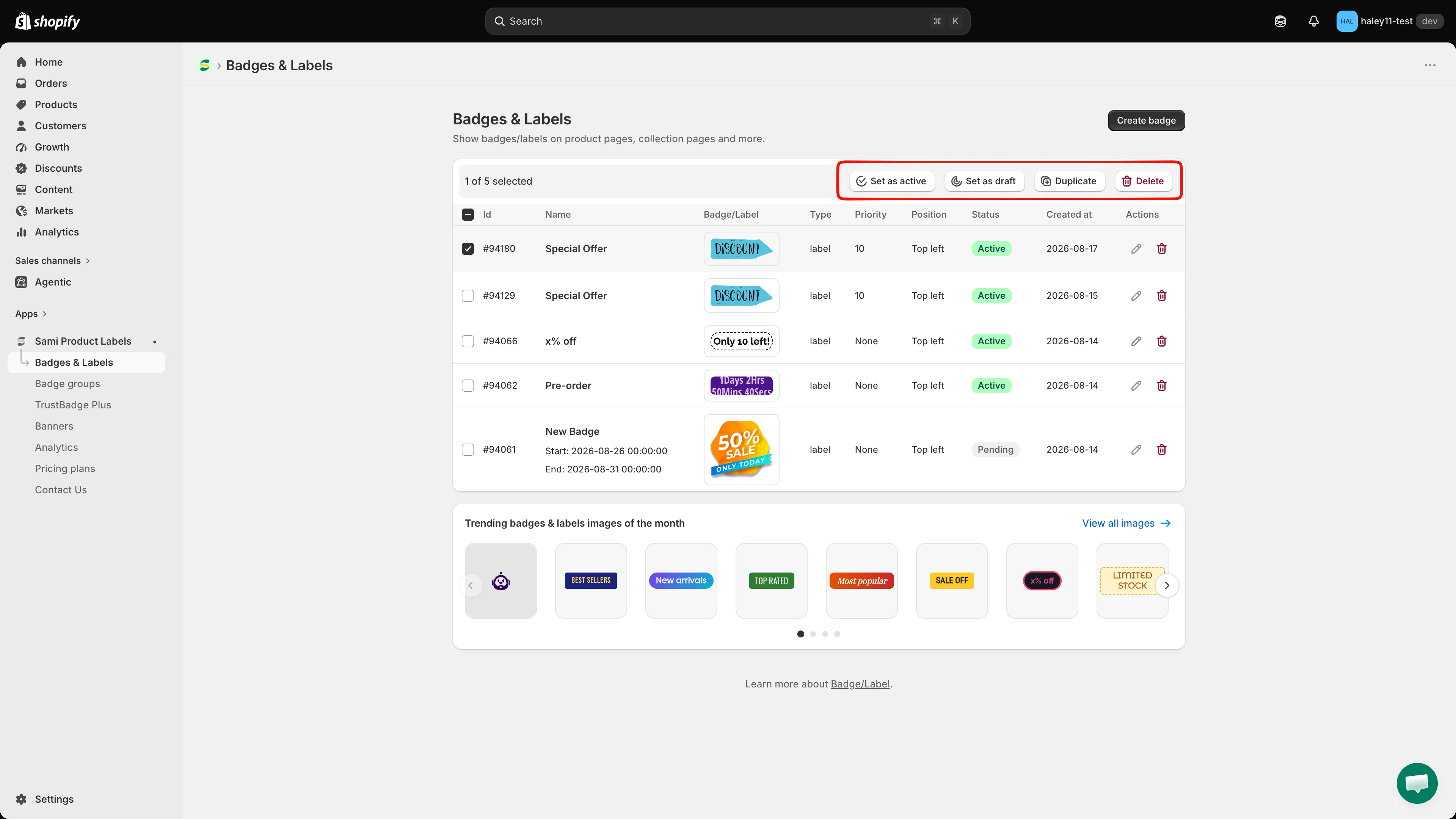
The bulk action bar: Set as active, Set as draft, Duplicate, Delete.
Change the status of several badges
Section titled “Change the status of several badges”-
Select the badges
Section titled “Select the badges”Tick the badges whose status you want to change.
-
Click Set as active or Set as draft
Section titled “Click Set as active or Set as draft”A confirmation dialog opens, for example Set 1 badge(s)/label(s) as draft?.
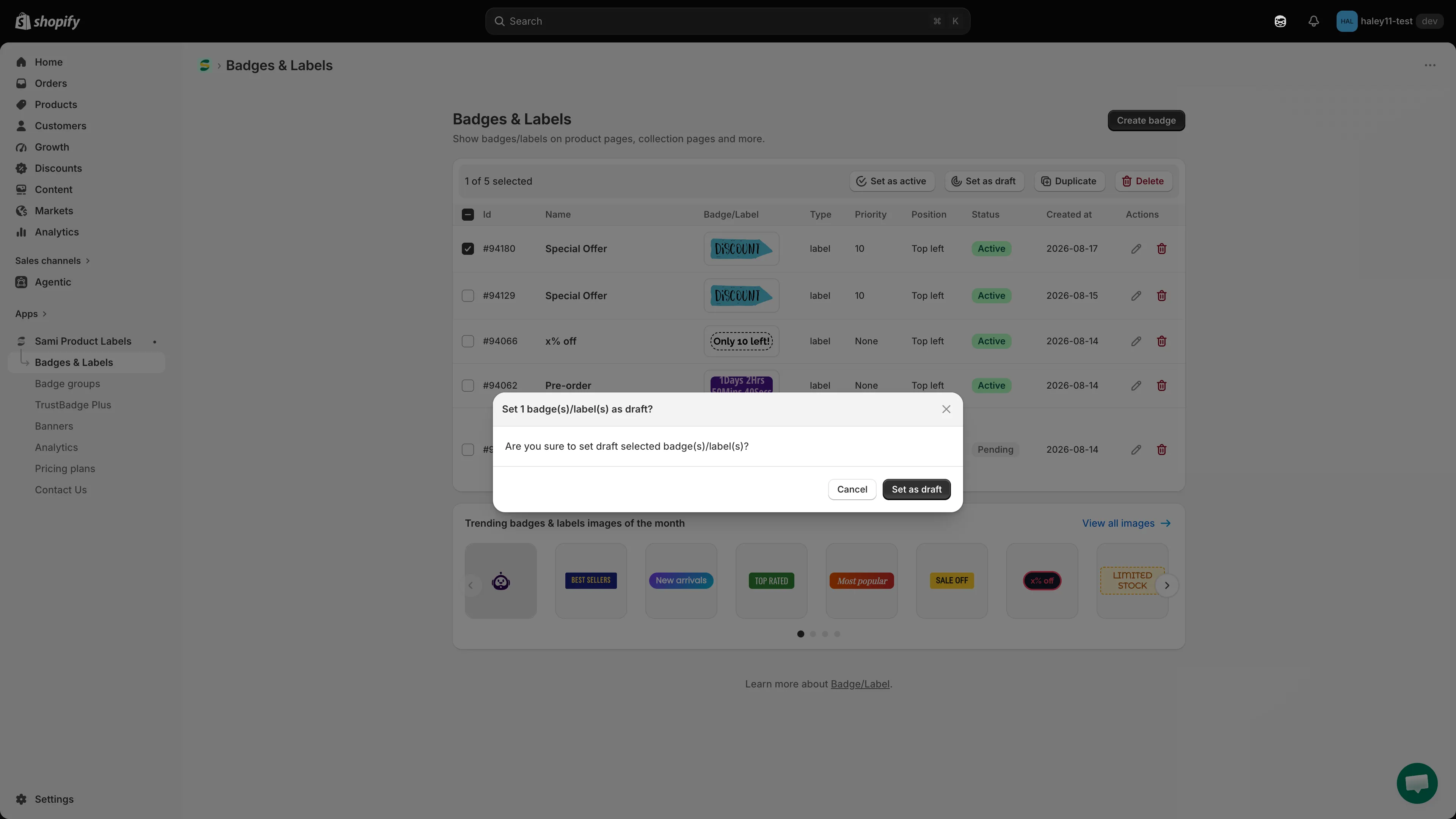
Confirm the status change in the dialog.
-
Confirm
Section titled “Confirm”Click Set as draft (or Set as active) in the dialog. The message Badge/Label updated appears and the Status column changes for every selected row.
Delete badges
Section titled “Delete badges”-
Select the badges
Section titled “Select the badges”Tick the badges you want to remove. To delete a single badge without selecting it, click the trash icon in its row instead.
-
Click Delete
Section titled “Click Delete”The dialog Delete selected badge(s)/label(s)? opens and warns that the action cannot be undone.
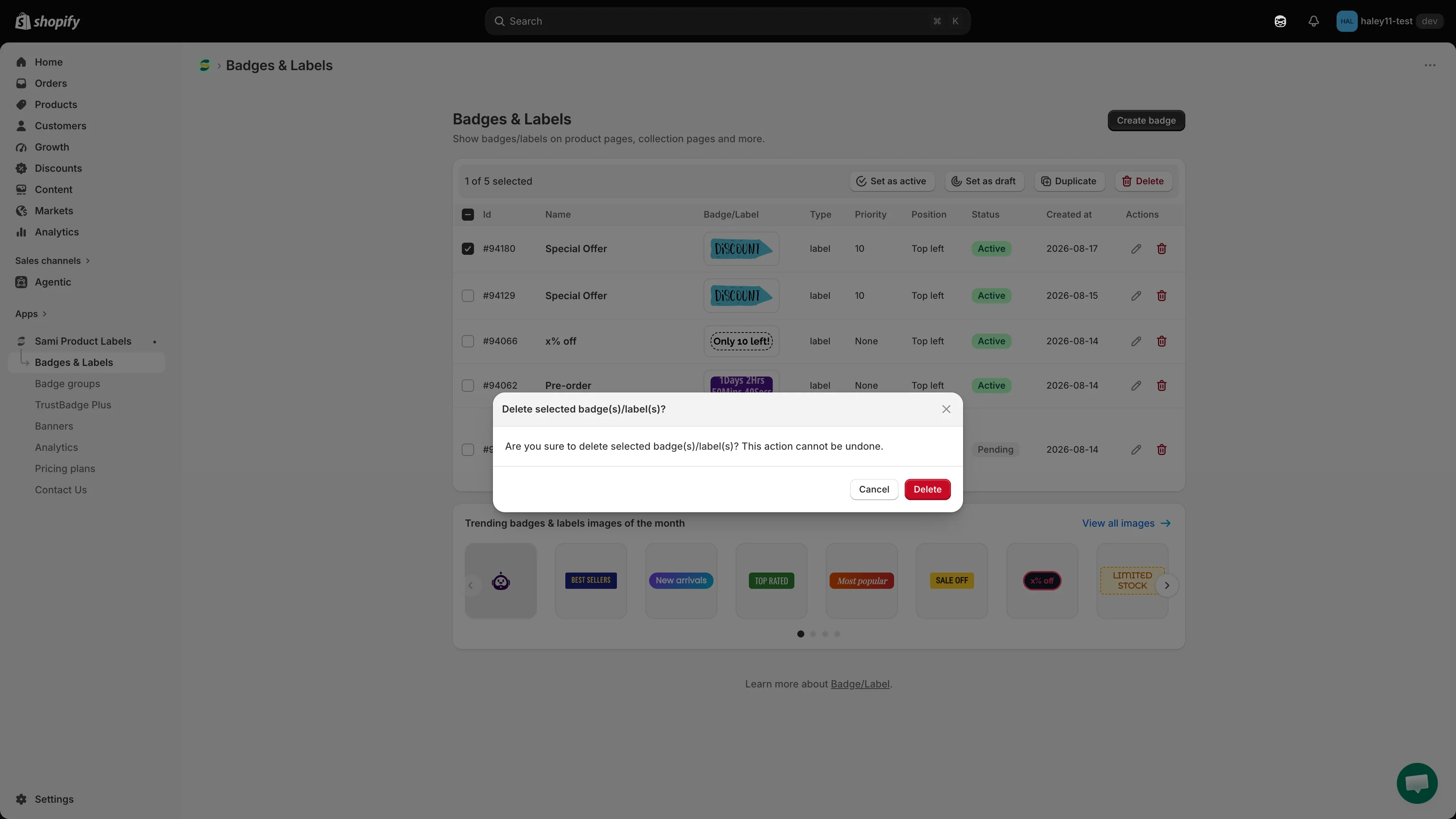
Deleting badges cannot be undone.
-
Confirm
Section titled “Confirm”Click Delete. The message Badges/Labels deleted appears and the badges disappear from the list.
Next steps
Section titled “Next steps”- Badges & labels overview — Return to the main overview of badges and labels.
- Create a text badge — Learn how to create a new text badge from scratch.