
Design & translation
Custom CSS
Use the Custom CSS box when the design controls don't reach far enough.
Every countdown type ends its design settings with a Custom CSS (Developer Zone) box. Anything you put there is applied to that countdown on your storefront, on top of everything the visual controls have set.
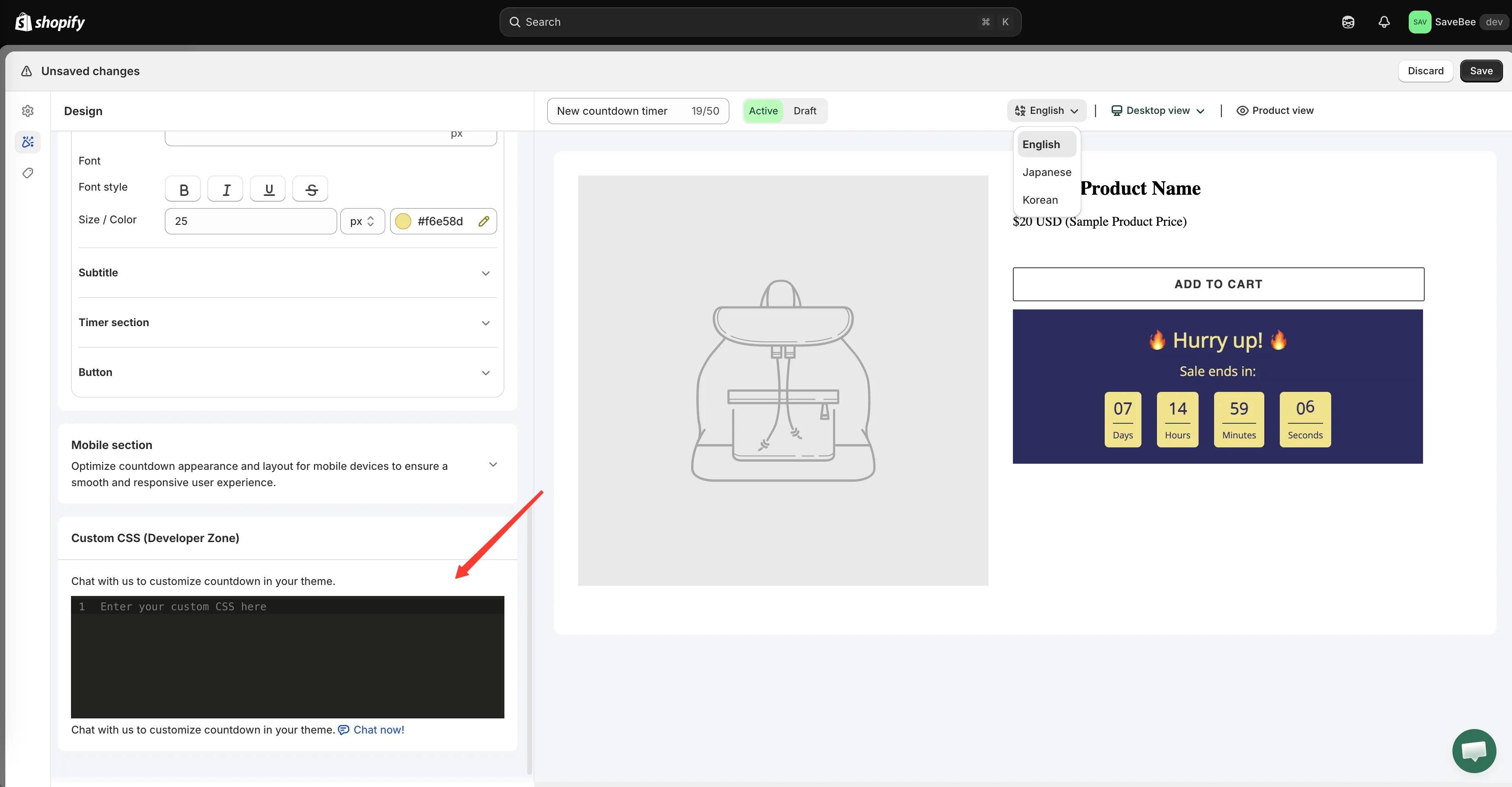
The Custom CSS box, at the end of the design settings.
When it’s genuinely useful
Section titled “When it’s genuinely useful”- Fine positioning — nudging a countdown’s margins to sit correctly in a theme with unusual spacing.
- Responsive tweaks — a media query for a breakpoint the mobile settings don’t cover.
- Matching a theme detail — a specific border radius or shadow your theme uses everywhere and the controls can’t reproduce exactly.
- Hiding an element — removing a part of the countdown you can’t switch off any other way.
Writing it
Section titled “Writing it”The box takes plain CSS — selectors and rules, no <style> tag:
.samita-countdown {  margin-top: 24px;}
@media (max-width: 749px) {  .samita-countdown {    margin-top: 12px;  }}
The countdown’s own container carries the class samita-countdown, and each rendered countdown gets an ID built from its countdown ID. To target something more specific, inspect the rendered countdown in your browser’s developer tools and use the classes you find there.
Keep it scoped
Section titled “Keep it scoped”CSS in this box isn’t automatically limited to the countdown. A selector like img { ... } will hit every image on the page.
Always prefix your rules so they only reach the countdown:
/* Good — scoped */.samita-countdown img { border-radius: 4px; }
/* Risky — affects the whole page */img { border-radius: 4px; }
Test it on a real page
Section titled “Test it on a real page”The builder preview doesn’t reproduce your theme, so CSS that lines something up in the preview may not line it up on your product page. Save, open a real page, and check — on desktop and on a phone.
If you’d rather not write CSS
Section titled “If you’d rather not write CSS”Support can help with theme-specific adjustments. The app offers a Chat now! button beside the Custom CSS box, described as “Chat with us to customize countdown in your theme.” You can also contact support with a link to the page and a description of what you want changed.