
Sale popup general settings
The timing, sequencing, and display behaviour shared by every sale popup on your store.
Each popup has its own content, design, and schedule. Popup General Settings holds the behaviour they share — how they’re paced, how many run, and what order they appear in.
Open it from the Sale Popups page.
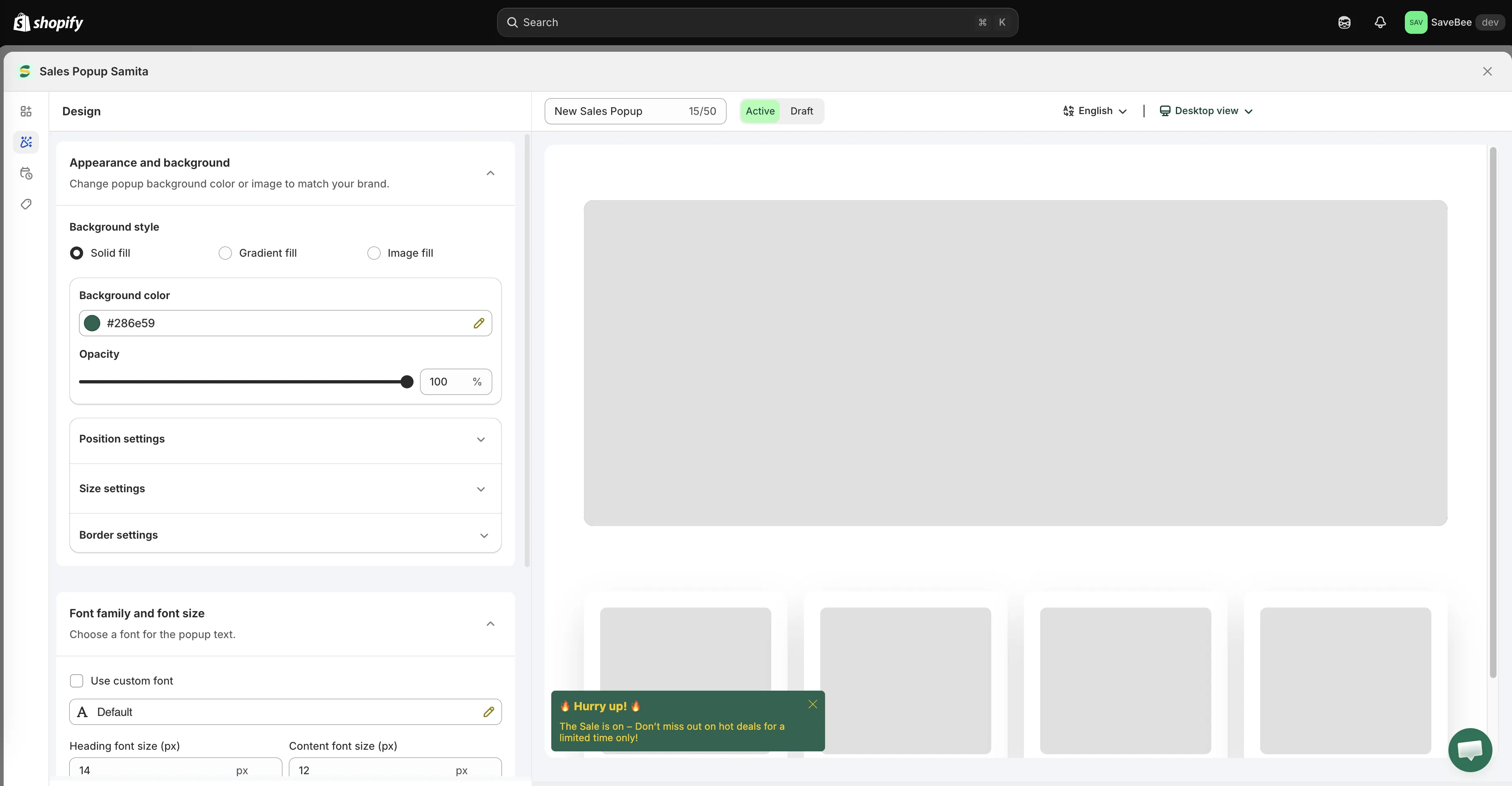
Popup General Settings applies to every popup on your store.
Display behaviour
Section titled “Display behaviour”| Setting | What it does |
|---|---|
| Show / hide time ago | Whether popups show a relative time. Options are Show time ago, Hide time ago, and Smart hide |
| Hide time ago after | With Smart hide, the age at which the time stops being shown — paired with a Time unit of Minutes, Hours, or Days |
| Truncate content | Cuts long content to one line instead of wrapping it. The app’s example: “Product na…” |
| Hide close button | Removes the ✕ from the popup |
| Show text right to left | Renders popup text right-to-left, for RTL languages |
Timing
Section titled “Timing”These four settings pace every popup on your store.
| Setting | What it controls |
|---|---|
| Display duration | How long each popup stays on screen, in seconds |
| Time before the first pop | How long after the page loads before the first popup appears, in seconds |
| Gap time between two pops | The wait between one popup closing and the next opening, in seconds |
| Maximum of popups | How many popups can be shown in total |
A few things worth getting right:
Give the page a moment first. A popup that appears instantly interrupts a shopper who hasn’t yet seen what they came for. A few seconds of delay costs nothing.
Leave a real gap. Back-to-back popups read as a stream of notifications rather than a message.
Keep the maximum low. This is a ceiling on interruptions per shopper, and a low one is a feature.
Sales Pop strategy
Section titled “Sales Pop strategy”How the app chooses which popup to show when you have several.
| Setting | What it does |
|---|---|
| Display by | Display randomly or Display in order |
| Replay playlist | Starts again from the beginning once everything has been shown |
| Continue after page reload | Picks up at the next popup after a reload instead of restarting the list |
| Based on product view | Only shows popups related to the product the shopper is looking at |
Display in order is the one to use when your popups tell a sequence — an announcement, then the offer. Display randomly suits a set of independent messages.
Continue after page reload is usually what you want. Without it, a shopper who browses five pages sees your first popup five times.
The page also carries a font setting applied to popup text, so every popup shares a typeface unless one overrides it in its own Design tab.
A conservative starting point
Section titled “A conservative starting point”If you’re not sure, start here and adjust:
- Time before the first pop — long enough for the page to be read first
- Gap time between two pops — clearly longer than the display duration
- Maximum of popups — low, and raise it only if the first one is working
- Display by — Display in order, with Continue after page reload on