
Banners
Translate banner text
Write the bar in each of your store's languages, and let untranslated text fall back on its own.
If your Shopify store sells in more than one language, a banner can say something different in each of them.
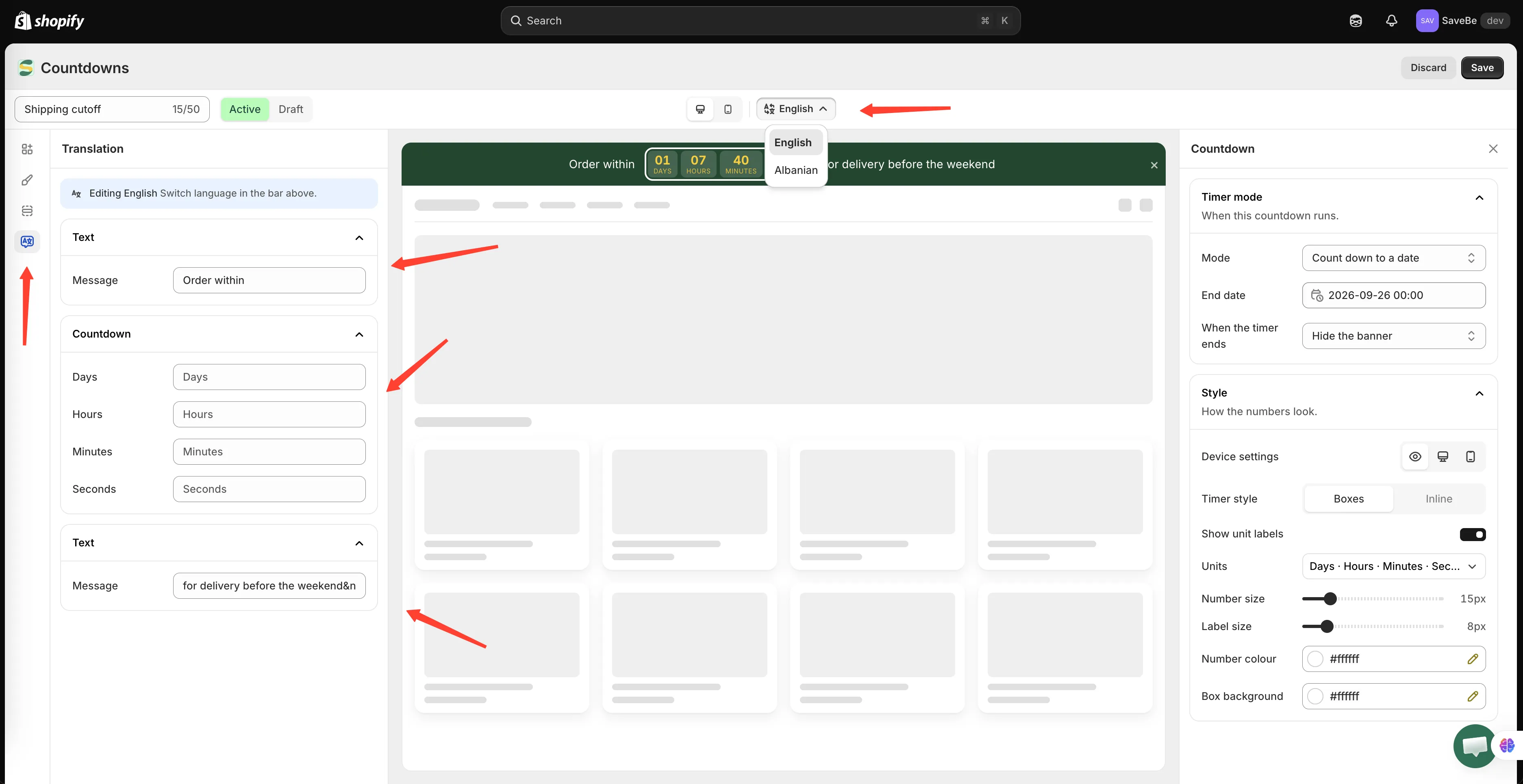
The picker lists your store’s languages. The code under each name is what the translation is filed under.
How it works
Section titled “How it works”The picker in the builder’s top bar chooses which language you’re editing. Your store’s primary language is marked Default.
Switch to another language and the text fields change with it. Type there and you’re writing that language’s version — the primary text is untouched.
-
Write the banner in your primary language first
Everything else falls back on it, so it has to be right before the rest makes sense.
-
Switch languages
Click the picker in the top bar and choose one. Each row shows the language name and its code —
fr,ja,ko. The code is what matters, because the storefront asks for the translation by code. -
Fill in what changes
The fields are empty, with the primary text showing greyed out behind them. That greyed text is what a shopper would get if you leave the field alone.
Fill in the ones that need translating. Leave the rest.
-
Save
One Save covers every language.
What can be translated
Section titled “What can be translated”| Element | Fields |
|---|---|
| Text | The message |
| Button | The label, and the link |
| Image | The image itself, and the alt text |
| Countdown | The unit captions — days, hours, minutes, seconds |
The button’s link is there because a multi-language store usually sends shoppers somewhere different: /fr/collections/soldes rather than /collections/sale.
The image is there because a picture with words baked into it is the wrong picture in another language.
Colours, sizes, spacing, and the schedule aren’t translated either — they’re the same in every language.
What a shopper actually sees
Section titled “What a shopper actually sees”The storefront asks for the language they’re browsing in.
- A translation exists — they get it
- The field was left empty — they get the primary language
- The store runs a regional variant like
pt-BRand onlyptwas filled in — they getpt
So a half-translated banner still reads properly. It just reads in the primary language where you haven’t got to yet.
A shortcut worth knowing
Section titled “A shortcut worth knowing”If a field is empty in your primary language and you type into a translation, the app fills the primary in as well. A banner built while a translation was selected still has something to fall back on.