
Show Variant Table in Product detail
Show every variant of a product in one table with price and quantity, so B2B customers can order faster.
Variant Table lists all of a product’s variants in one table, each with its own price and quantity box, so B2B customers can add multiple variants to their order quickly instead of selecting one at a time.
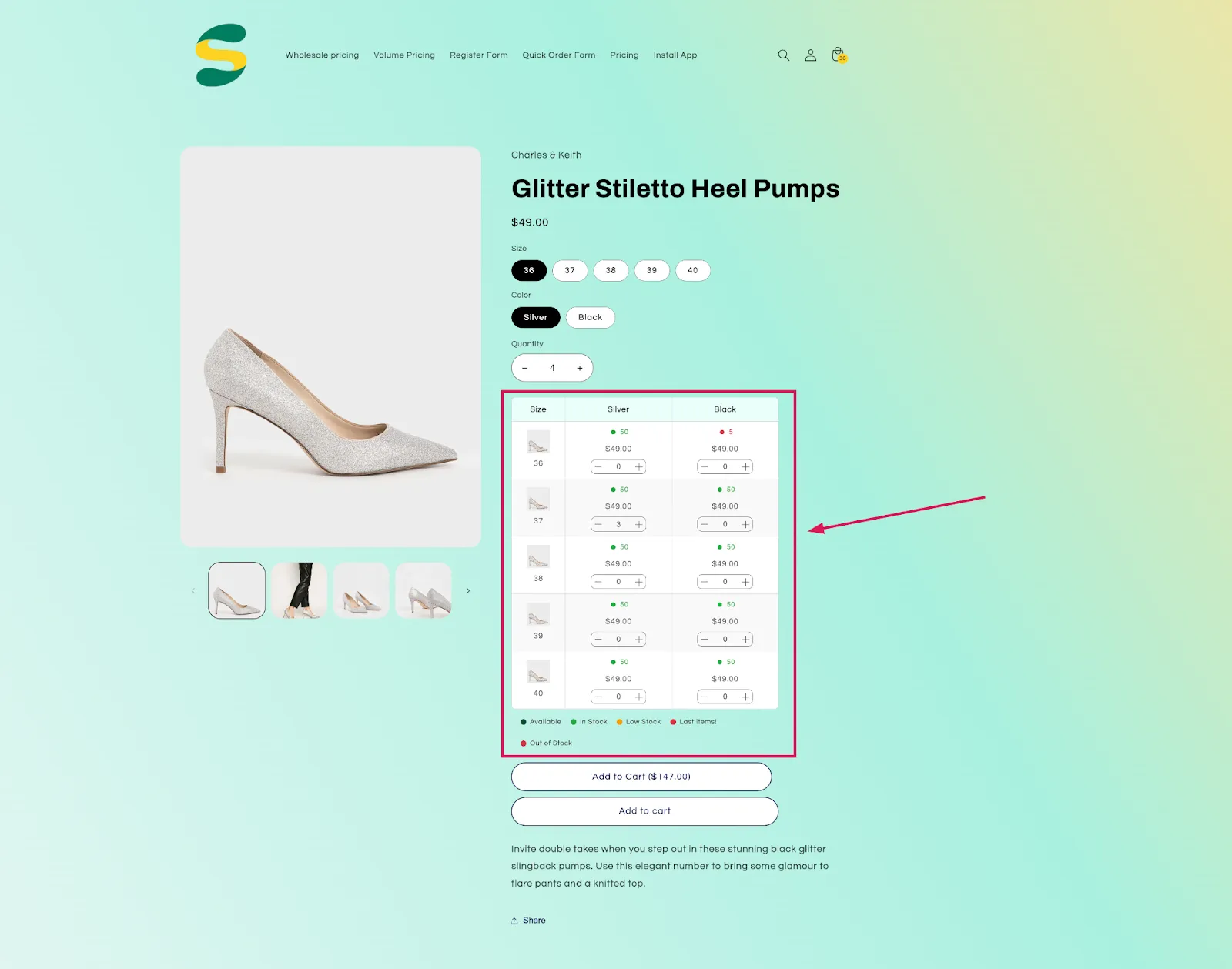
Once enabled, this renders as an optimized layout on your storefront, fully customizable and built to handle everything from single-variant products to highly complex ones.
Steps to manage
Section titled “Steps to manage”-
Start creating
Section titled “Start creating”Open the app, go to Quick Order Form, then click Create under Variants Tables.
-
Choose a template
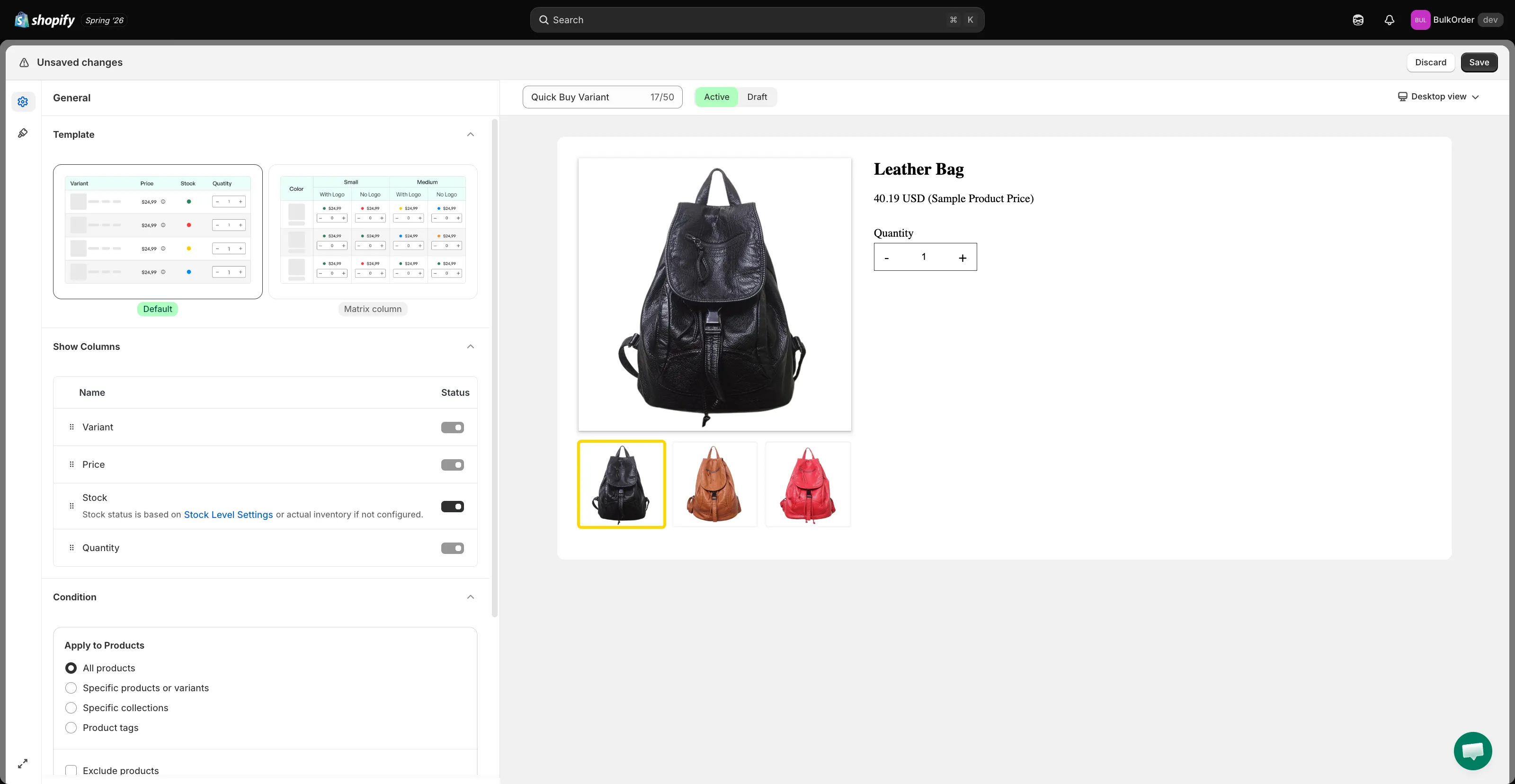
Section titled “Choose a template”On the General tab, under Template, choose one of two layouts based on your products’ complexity:
- Default — a simple list, one row per variant.
- Matrix column — built for products with many variants and higher complexity, showing variant information in a matrix layout for easier bulk ordering.
-
Choose your columns
Section titled “Choose your columns”Under Show Columns, turn on the toggle for each field you want — Variant, Price, Stock, Quantity — and drag-and-drop to reorder them.
-
Set when it appears
Section titled “Set when it appears”Under Condition, set Apply to Products (all products or only specific ones/collections/tags) and customer targeting (all customers or only specific logged-in customers).
-
Design the table
Section titled “Design the table”Click the Design tab (the paint-roller icon) and style the table’s colors to match your theme. To make the cart button match your theme’s default cart button, enable Same style as add to cart button.
-
Click Save, then check the result on your storefront.