
Tax Exempt
Let eligible customers enter a tax ID and have tax excluded from their order automatically.
Tax Exempt lets you exclude tax from a customer’s order. The app adds a tax section to your theme’s cart (drawer and cart page) and to the Quick Order Form, where customers enter their tax ID before checkout to get the exemption.
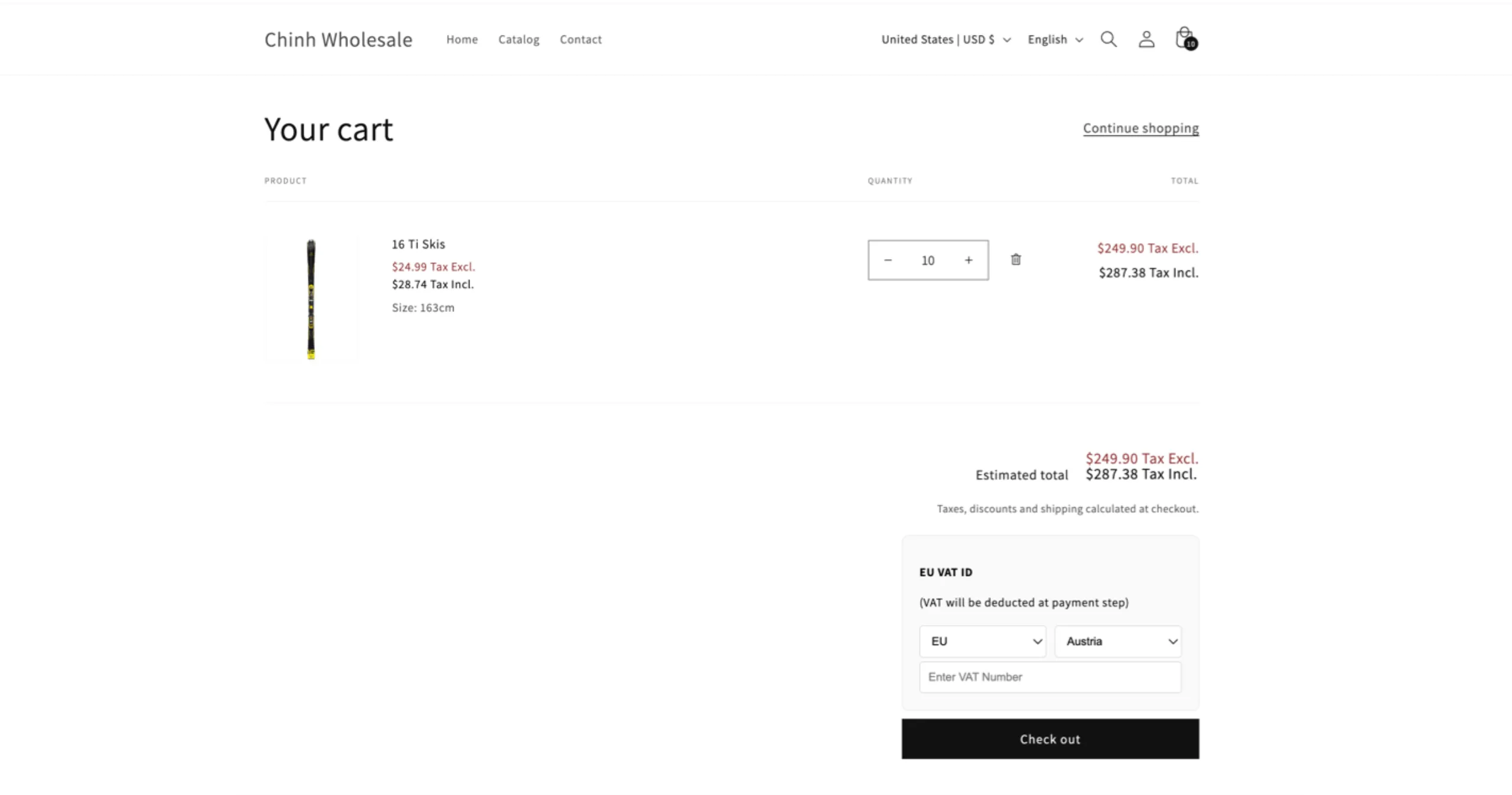
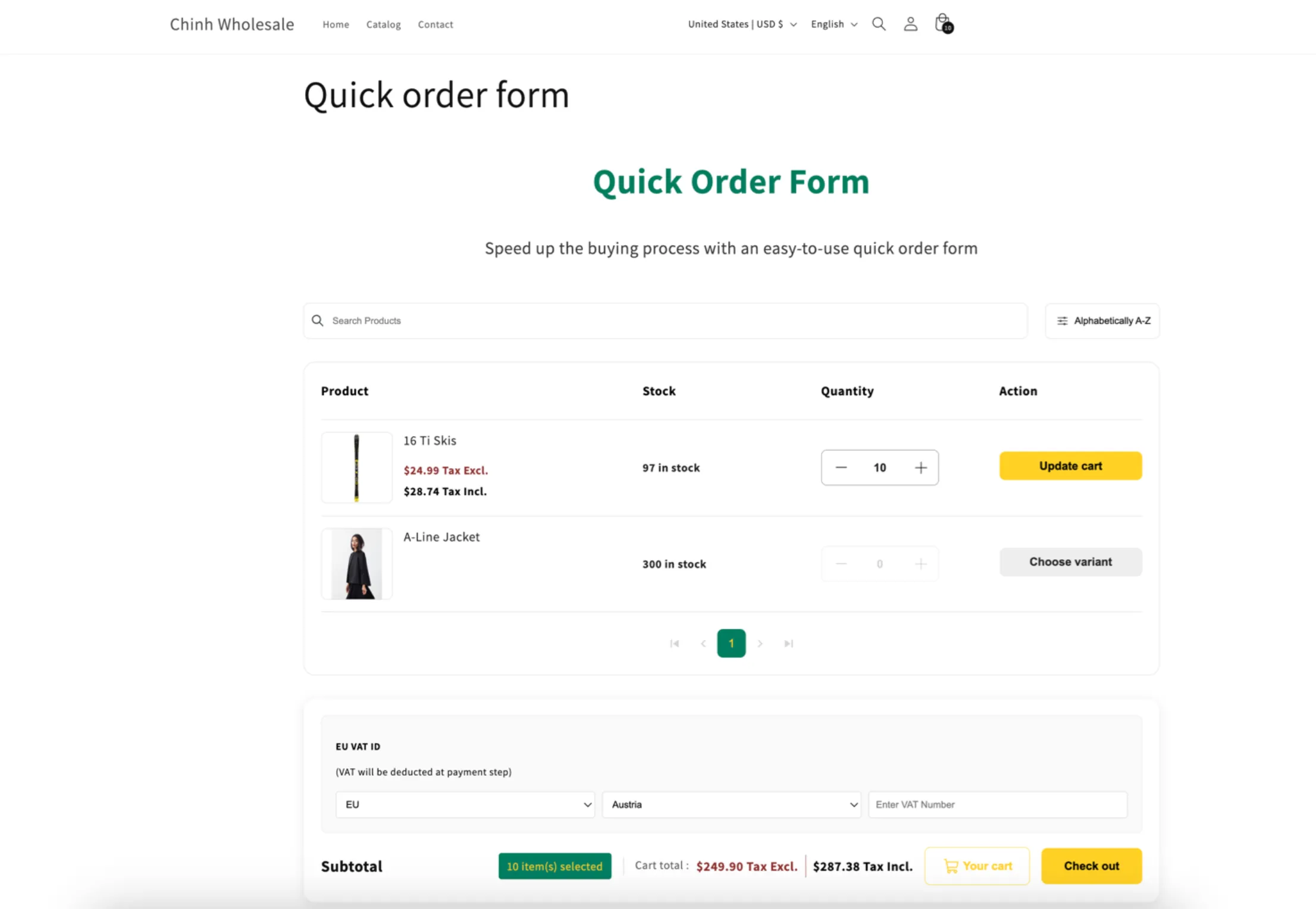
Steps to manage
Section titled “Steps to manage”-
Open Tax exempt
Section titled “Open Tax exempt”Open the app, go to Add-on Features, then click Tax exempt > Setup tax exempt, and click Add new tax exempt.
-
Configure how it works
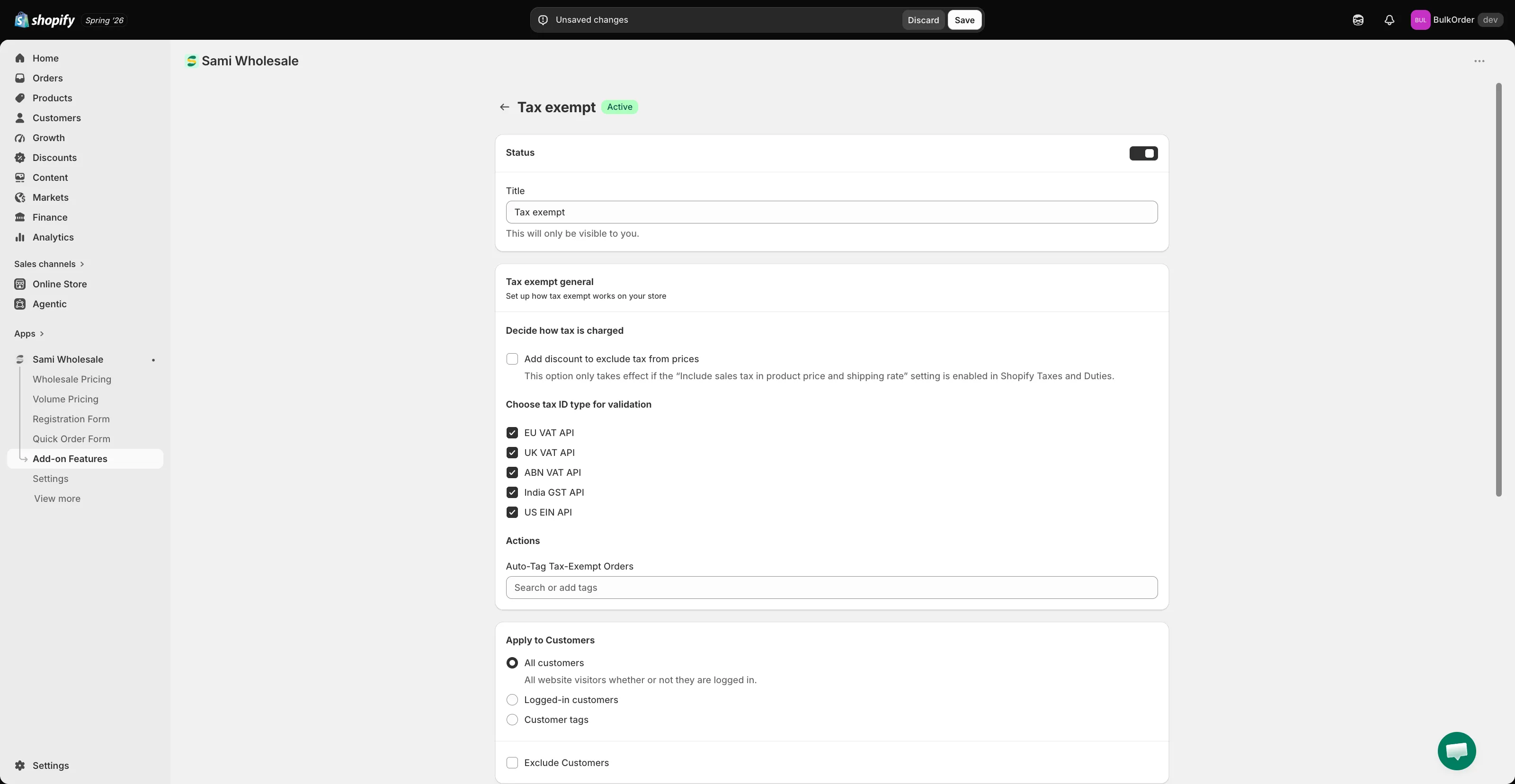
Section titled “Configure how it works”Give it a name in Title, and set its Status. In Tax exempt general:
- Under Decide how tax is charged, tick Add discount to exclude tax from prices if you want the tax portion excluded from the product price by applying an equivalent discount to each item — this only takes effect if “Include sales tax in product price and shipping rate” is enabled in Shopify’s own Taxes and Duties settings.
Example: a $100 product with a 10% tax rate gets a ~$9.09 discount, bringing it to $90.91 — since 10% tax on $90.91 is about $9.09, the customer’s total stays at $100.
- Under Choose tax ID type for validation, tick which of the 5 supported tax ID types the app should validate: EU VAT API, UK VAT API, ABN VAT API, India GST API, US EIN API.
- Under Actions, optionally set an Auto-Tag Tax-Exempt Orders tag that’s added automatically once an order is tax-exempted, so you can identify it later.
-
Choose which customers it applies to
Section titled “Choose which customers it applies to”Under Apply to Customers, choose All customers, Logged-in customers, or Customer tags. Tick Exclude Customers to hide it from certain customers.
-
Configure cart validation
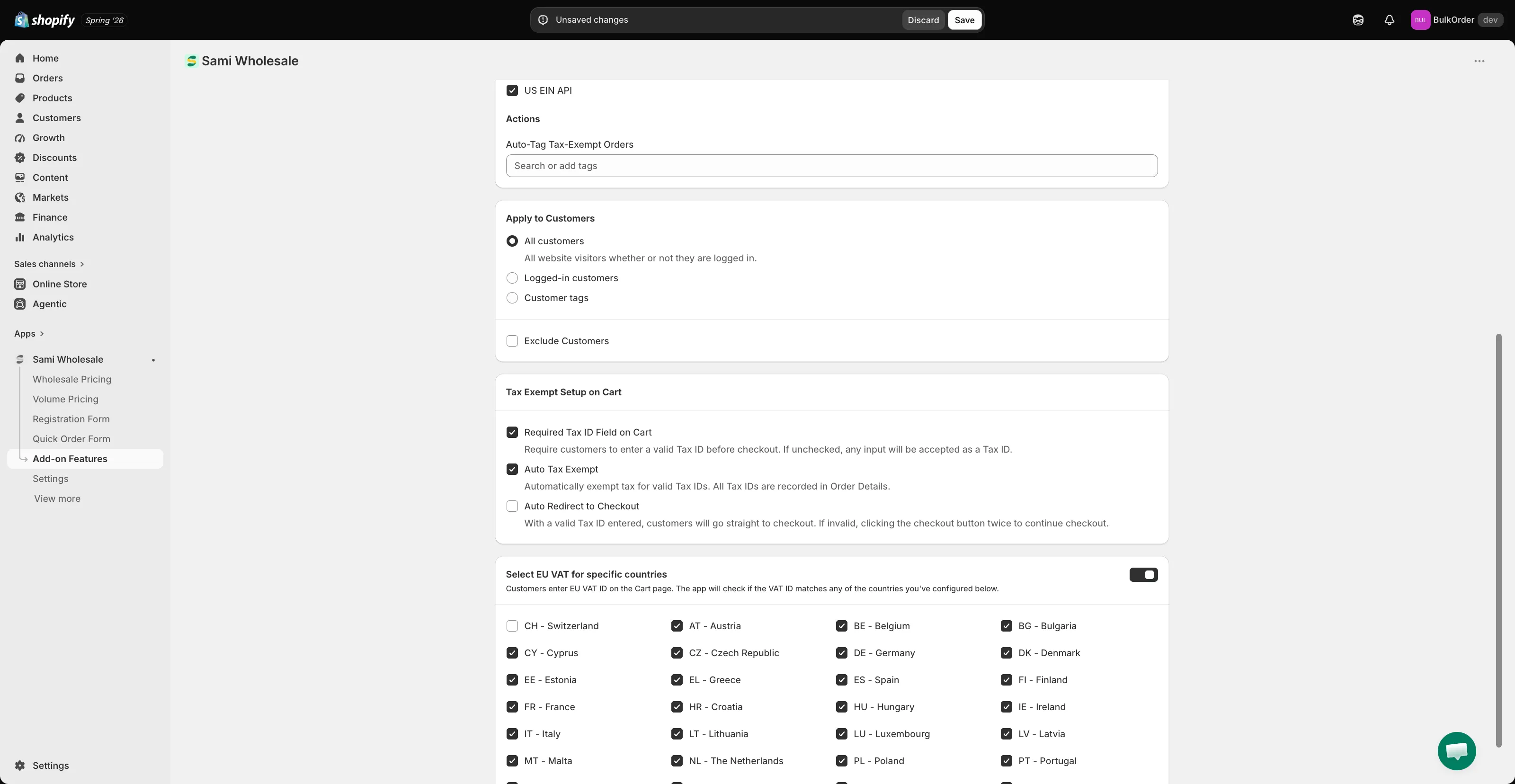
Section titled “Configure cart validation”Under Tax Exempt Setup on Cart, choose how the tax ID gets validated in the cart. There are 3 options — tick all or only the ones you want.
-
Choose which EU countries need VAT validation (optional)
Section titled “Choose which EU countries need VAT validation (optional)”Under Select EU VAT for specific countries, turn the toggle on and untick any country you don’t want validated.
See Select EU countries for VAT ID validation for details.
-
Click Save.